Content Marketing Agency Free Documentation
Your awesome theme / template documentation
Introduction
- Theme Name : Content Marketing Agency
- Author : misbahwp
- Support Forum : https://wordpress.org/support/theme/content-marketing-agency/
- License : GNU General Public License v3 or later
- Discription :The Content Marketing Agency Theme provides a structured layout for creating content-focused websites with a clean and organized presentation. It includes a responsive design that adapts to different screen sizes, helping pages display consistently on desktops, tablets, and mobile devices. The theme offers customizable sections for banners, featured content, services, team profiles, testimonials, blogs, and contact information. Built-in customization settings allow changes to colors, typography, layouts, and logo placement without modifying the core files. The theme supports navigation menus, widget-ready areas, featured images, and customizable headers and footers. It is designed with clean code to maintain compatibility with standard plugins and commonly used site features. Additional options such as social media integration, call-to-action sections, and blog layouts help organize information in a clear manner. It also includes support for image galleries, portfolio-style sections, and multiple page templates for flexible page creation. Regular coding standards and responsive elements contribute to a consistent browsing experience across devices while keeping the interface simple and easy to manage.
How to Establish the Theme
Setup Theme
Template installation is very simple process.
You can also install your theme using WP Admin
The first task is to log in to your WordPress admin area. Next, click on
1. In dashboard click on Appearance >> Themes
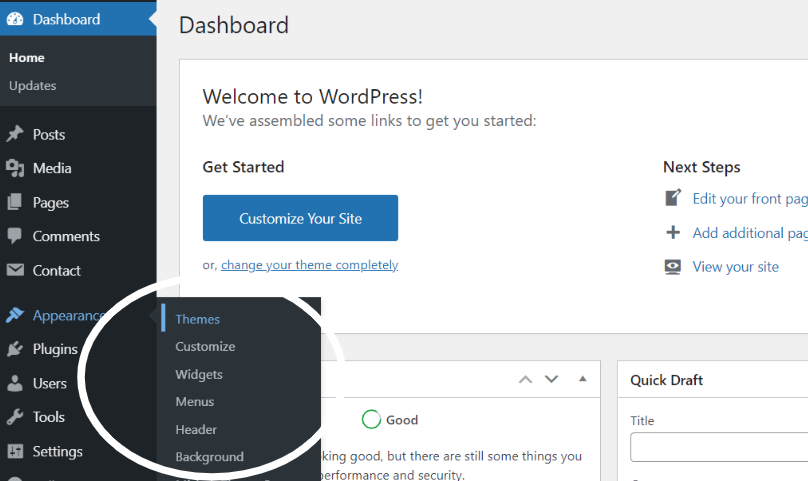
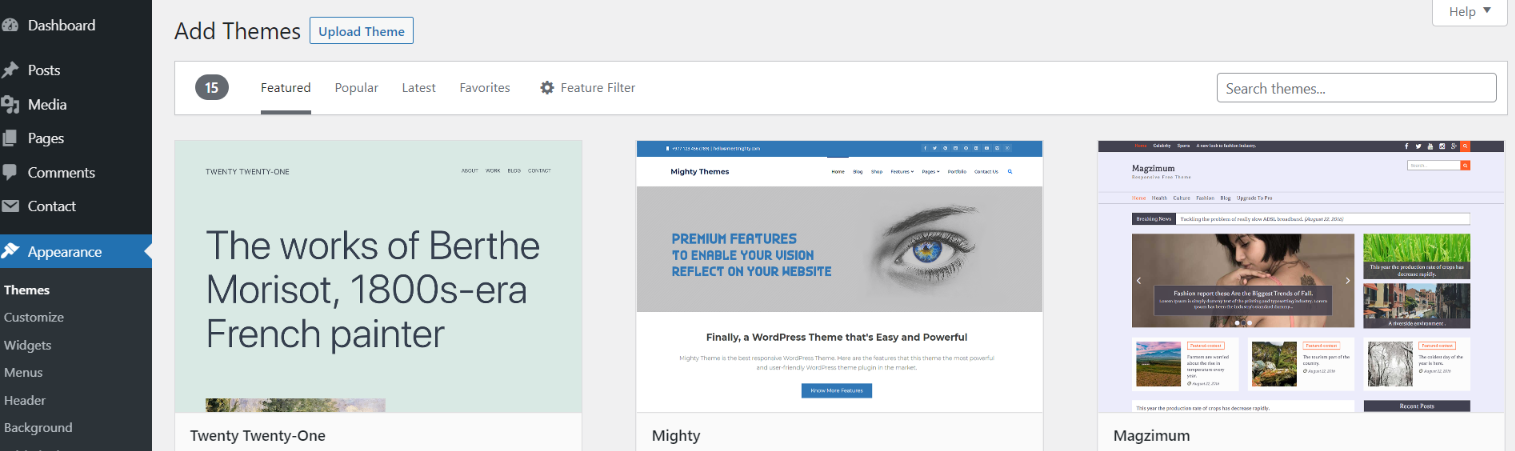
2. Click on the Add New button at the top of the themes page once page is loaded.
3. Click the button labelled as 'Upload Theme'.
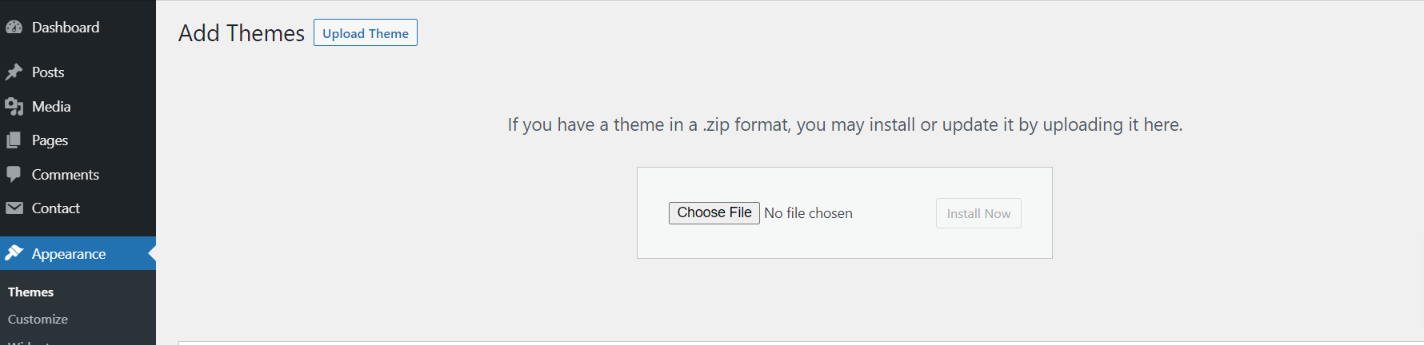
4. Click on Browse Button then select your content-marketing-agency.zip theme and click on install now button.
5. WordPress will now install your theme and display a success message, as well as a link to activate or to see the live preview. Congratulations on completing the installation of your theme.
Configure Menu
Configure Menu
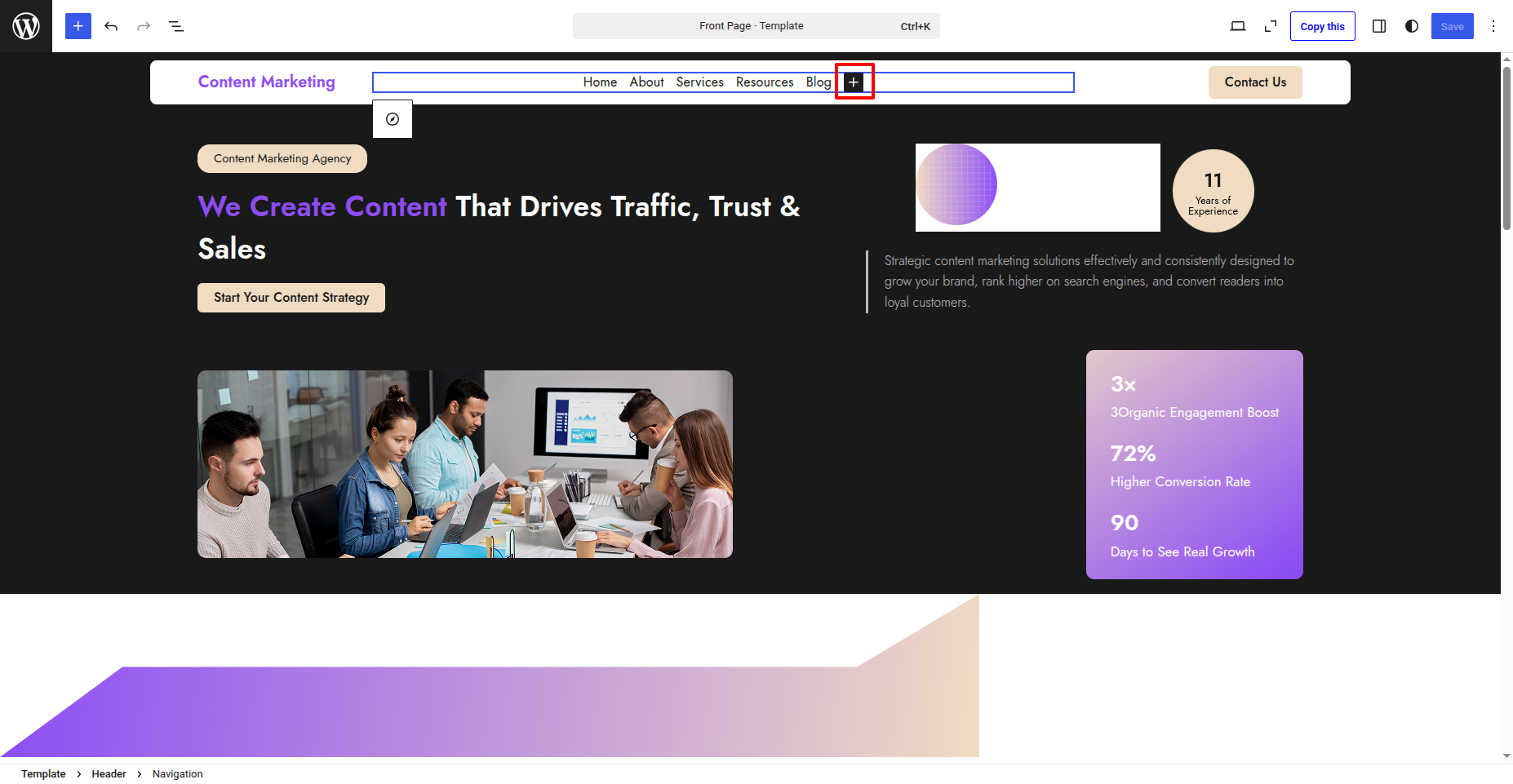
To construct a menu item with Editor, move on the steps provided.
Construct a menu.
In the dashboard, go to Appearance >> Editor and touch on the plux icon.
You can search, provide a URL, or select a page from the list.
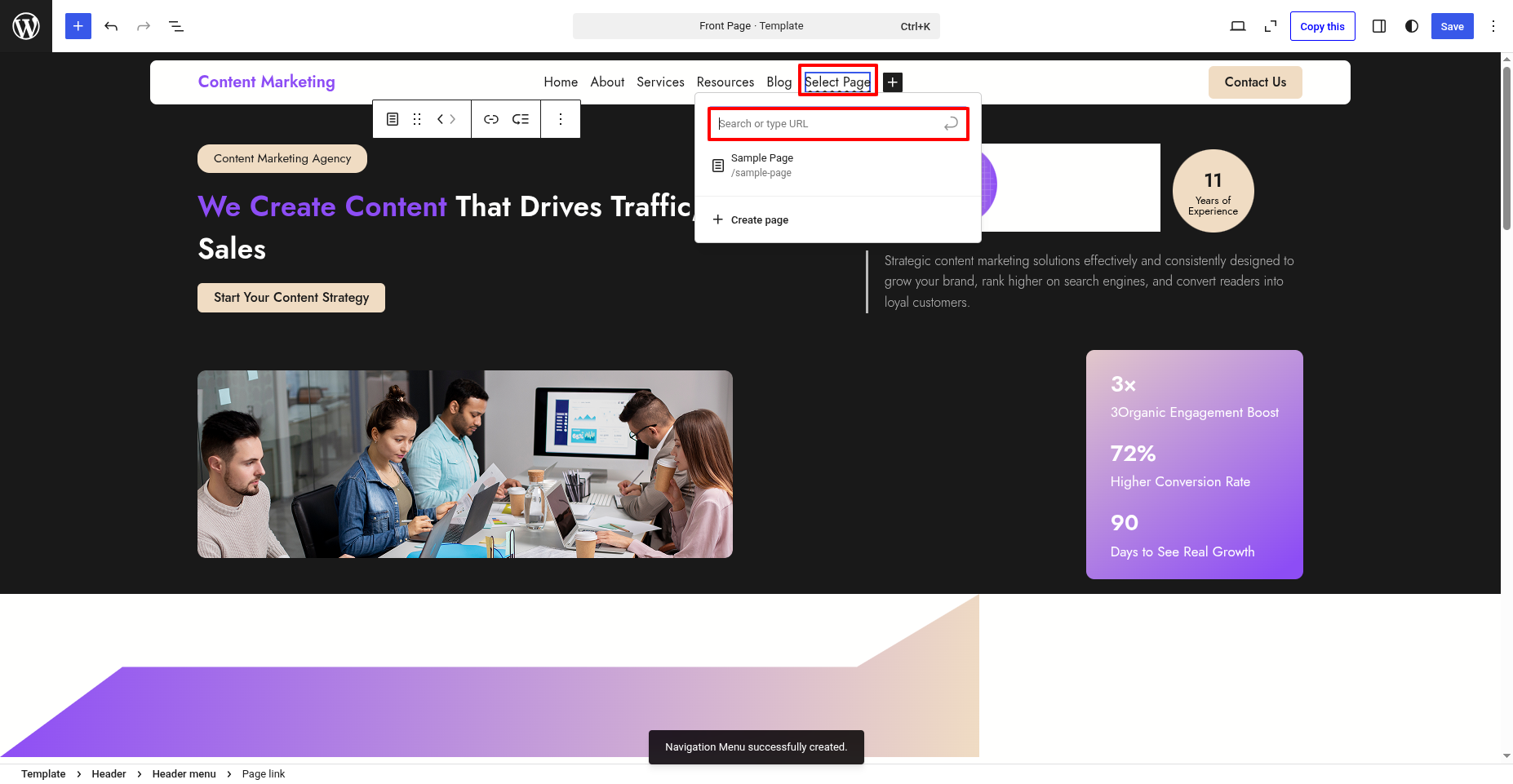
On the front end, the menu will appear as follows.

Content Marketing Agency Free Theme Setup
Configure Header
In order to proceed with Header follow the below steps.
In the dashboard, go to Appearance >> Editor
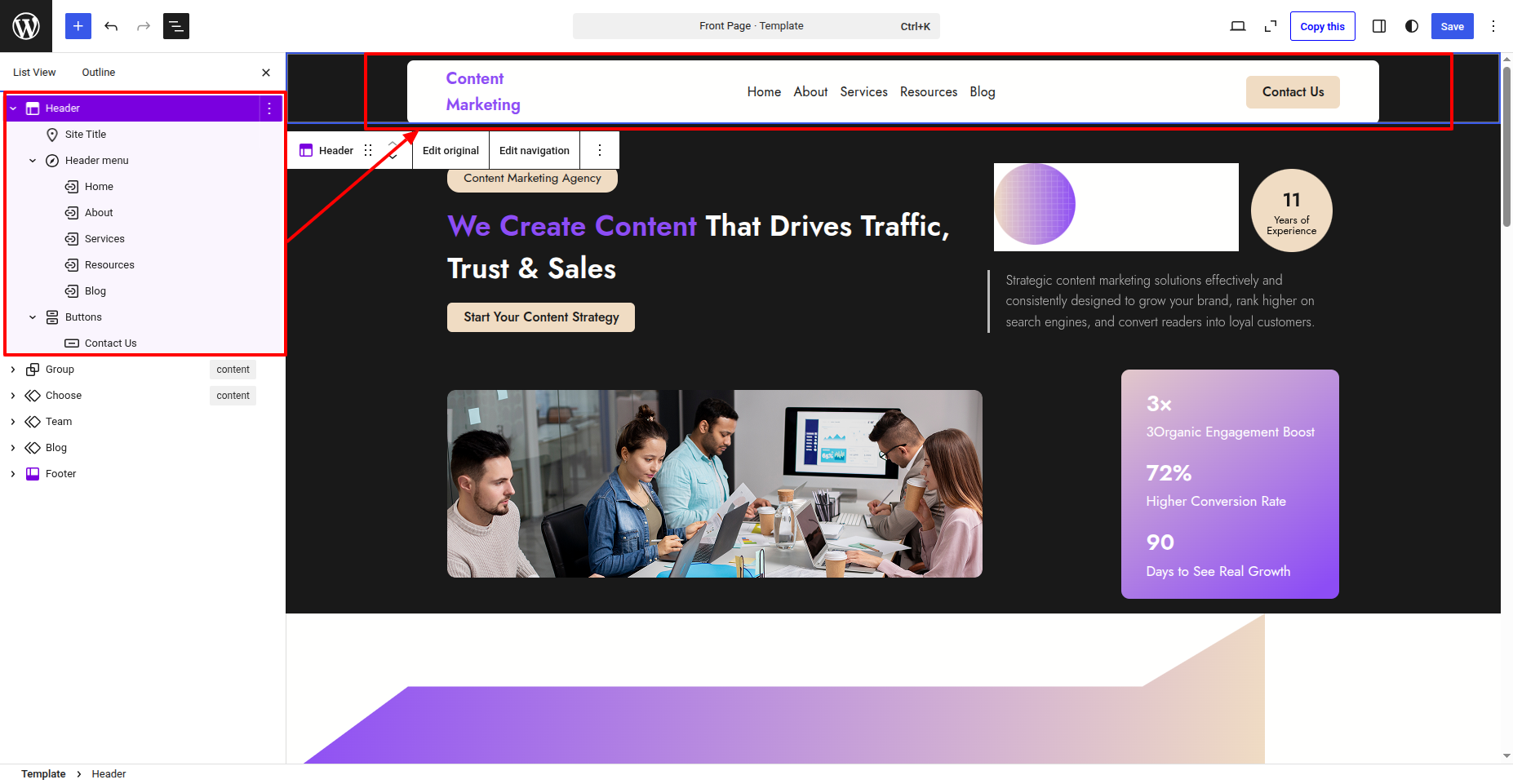
In front end, it will look like this.

Logo Setup
In order to proceed with Logo follow the below steps.
In the dashboard, go to Appearance >> Editor
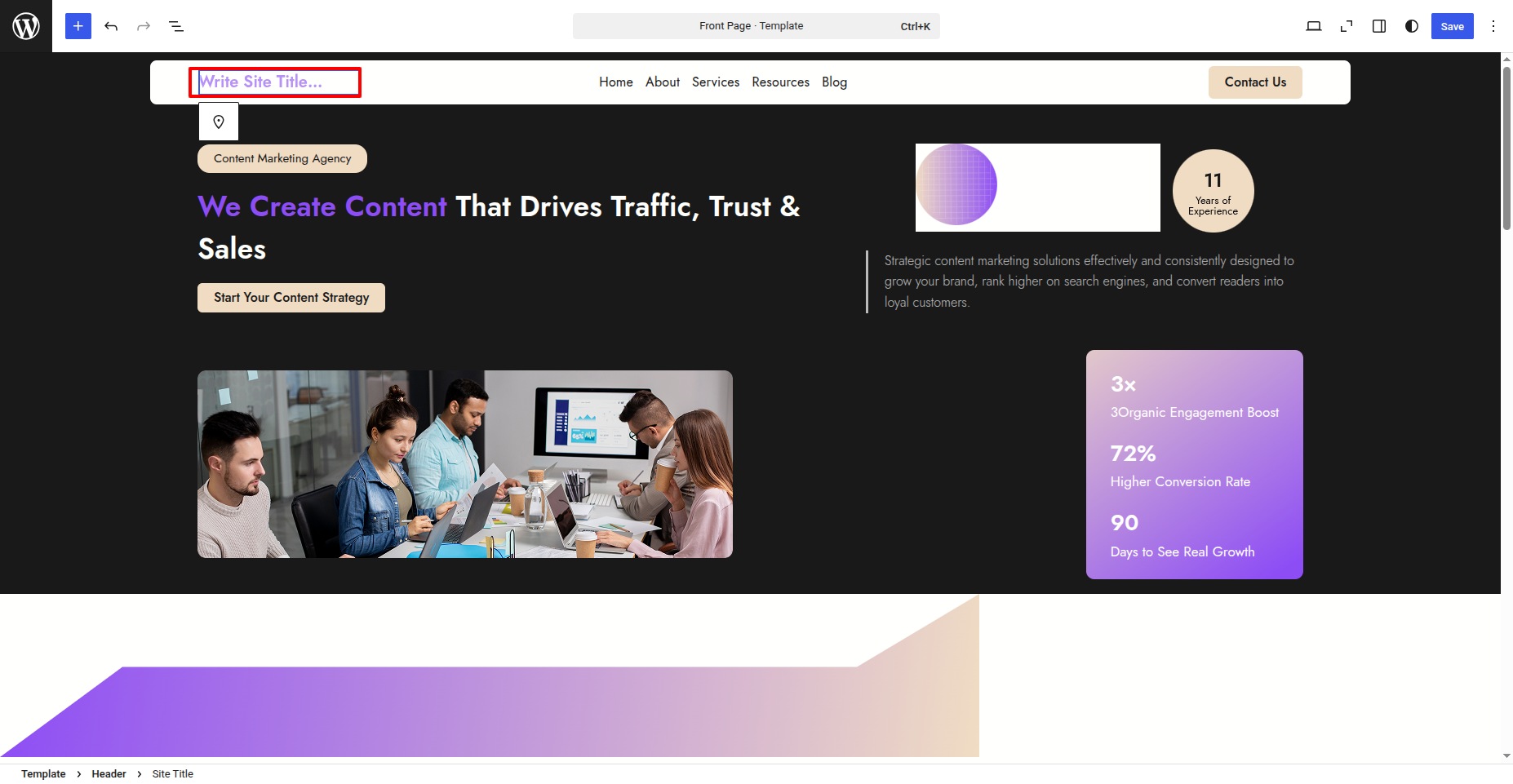
In front end, it will look like this.
Banner Section
In order to proceed with Banner follow the below steps.
In the dashboard, go to Appearance >> Editor
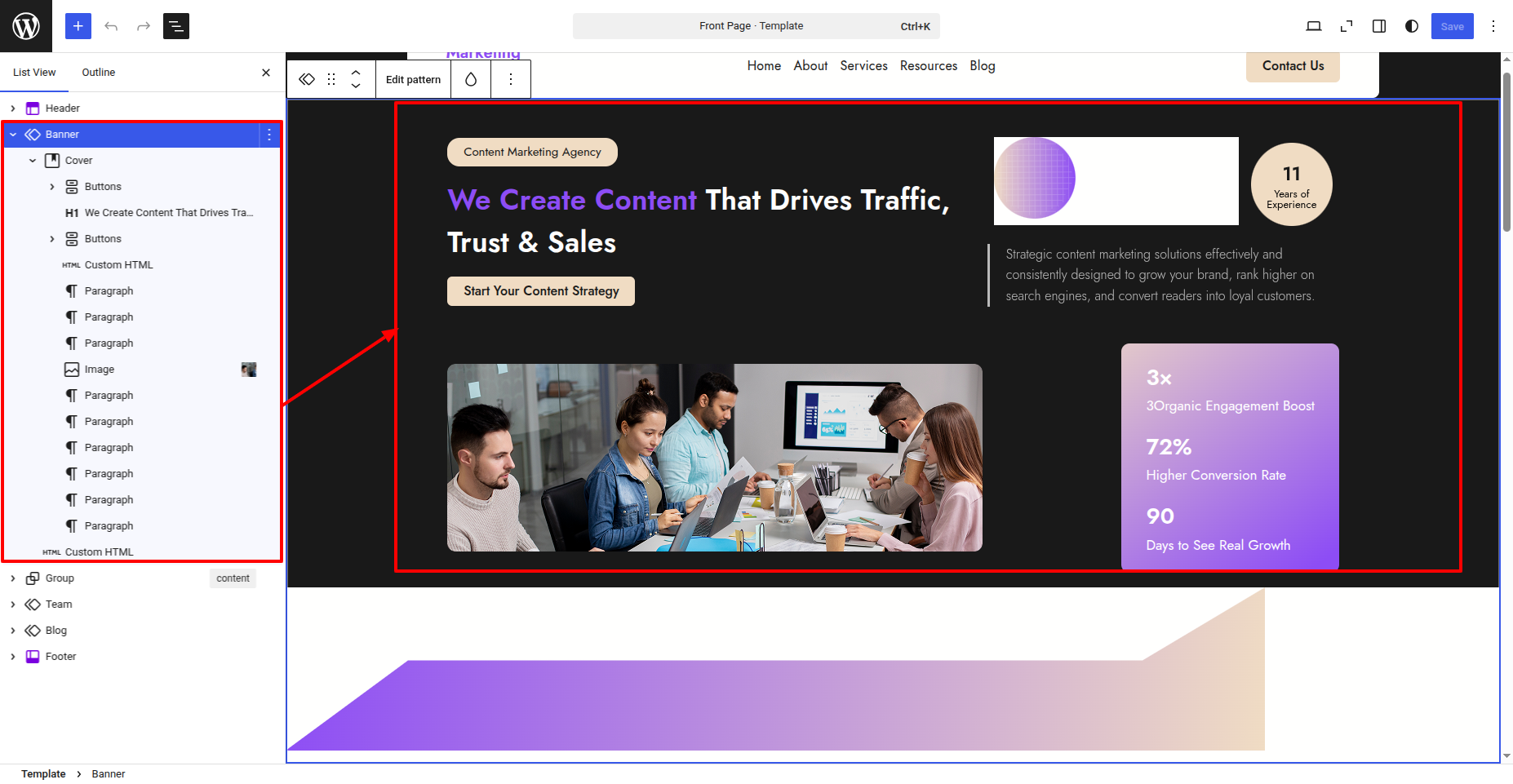
In front end, it will look like this.

Why Choose Us Section
In order to proceed with Why Choose Us follow the below steps.
In the dashboard, go to Appearance >> Editor
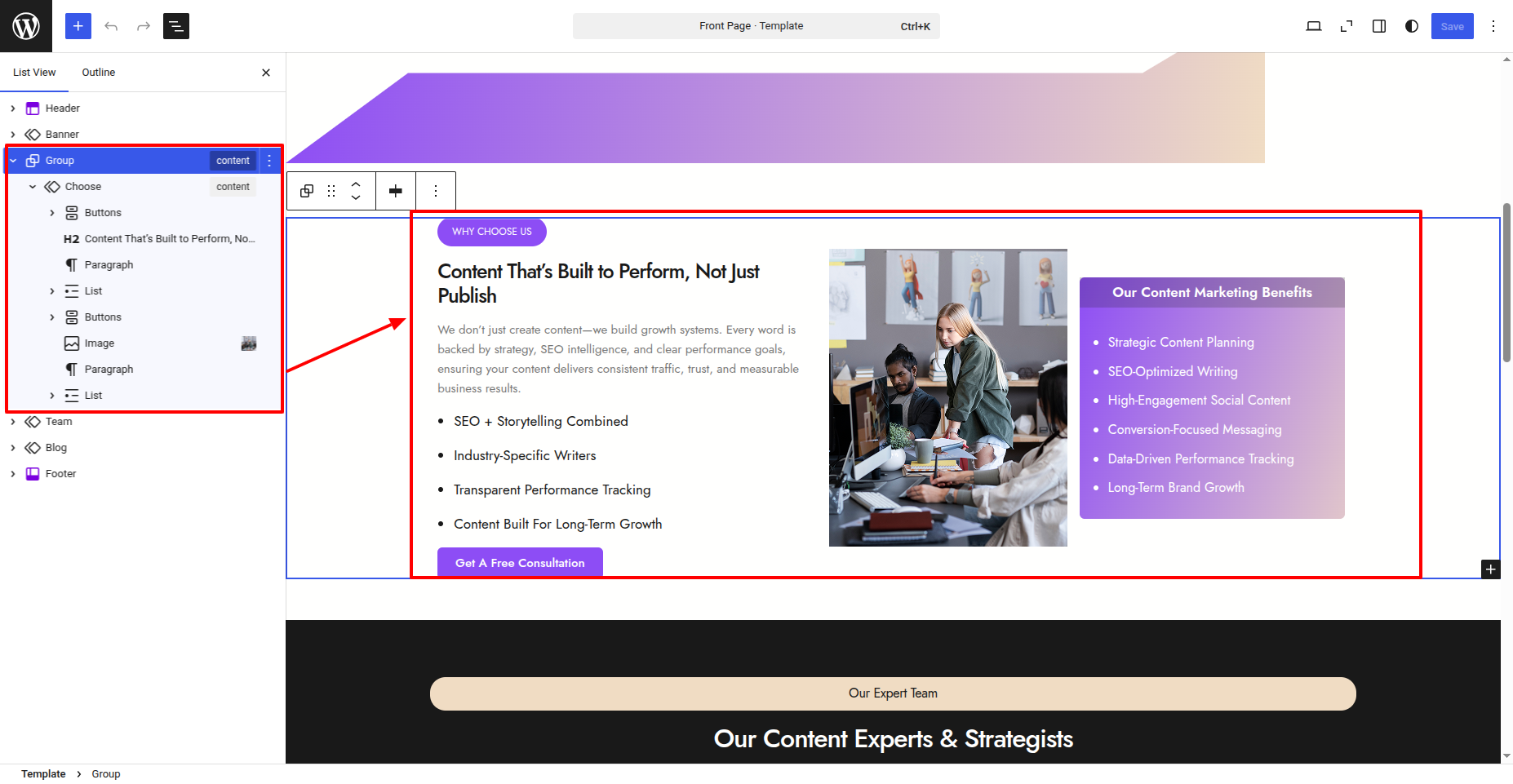
In front end, it will look like this.

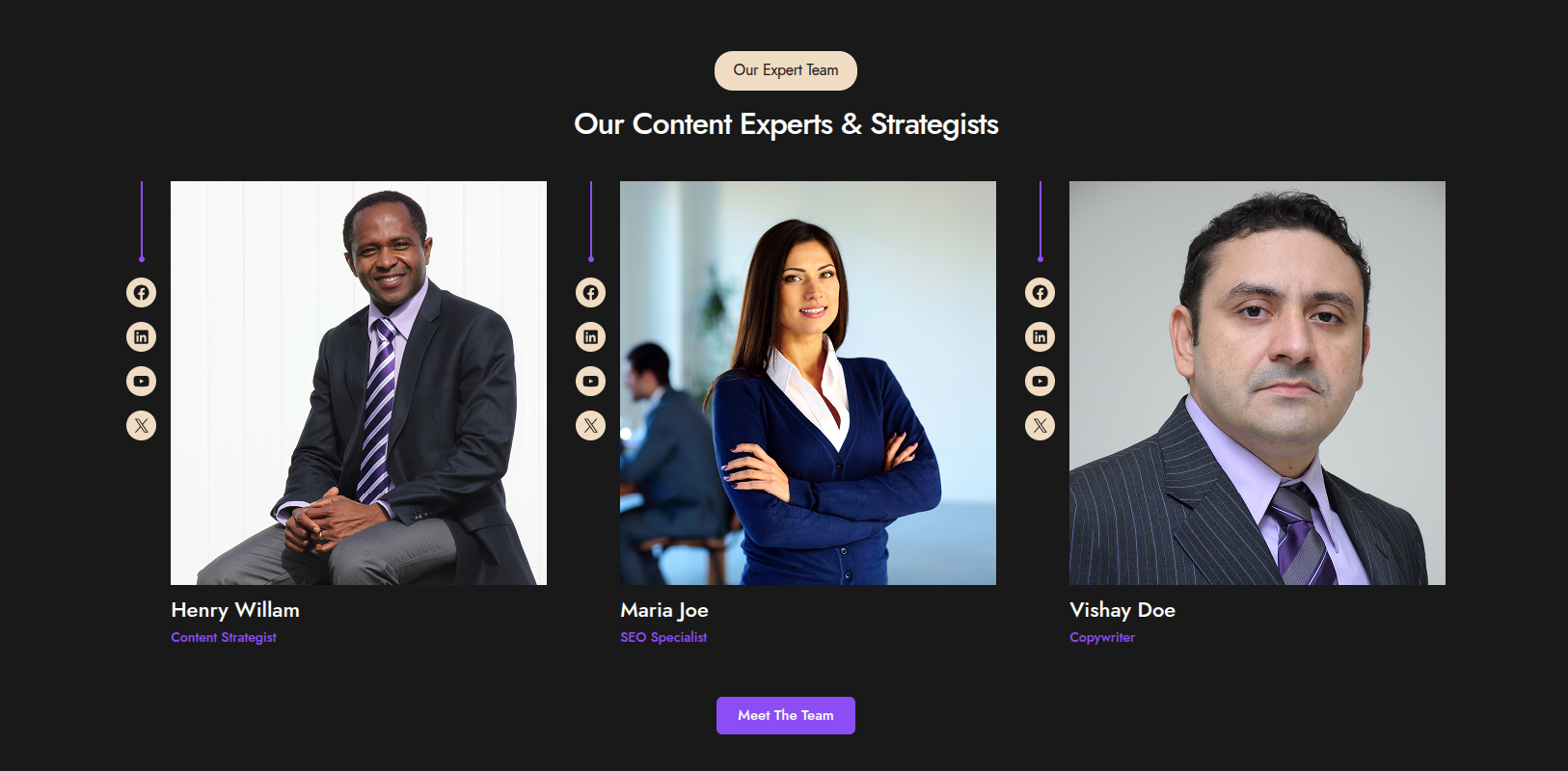
Our Team Section
In order to proceed with Our Team follow the below steps.
In the dashboard, go to Appearance >> Editor
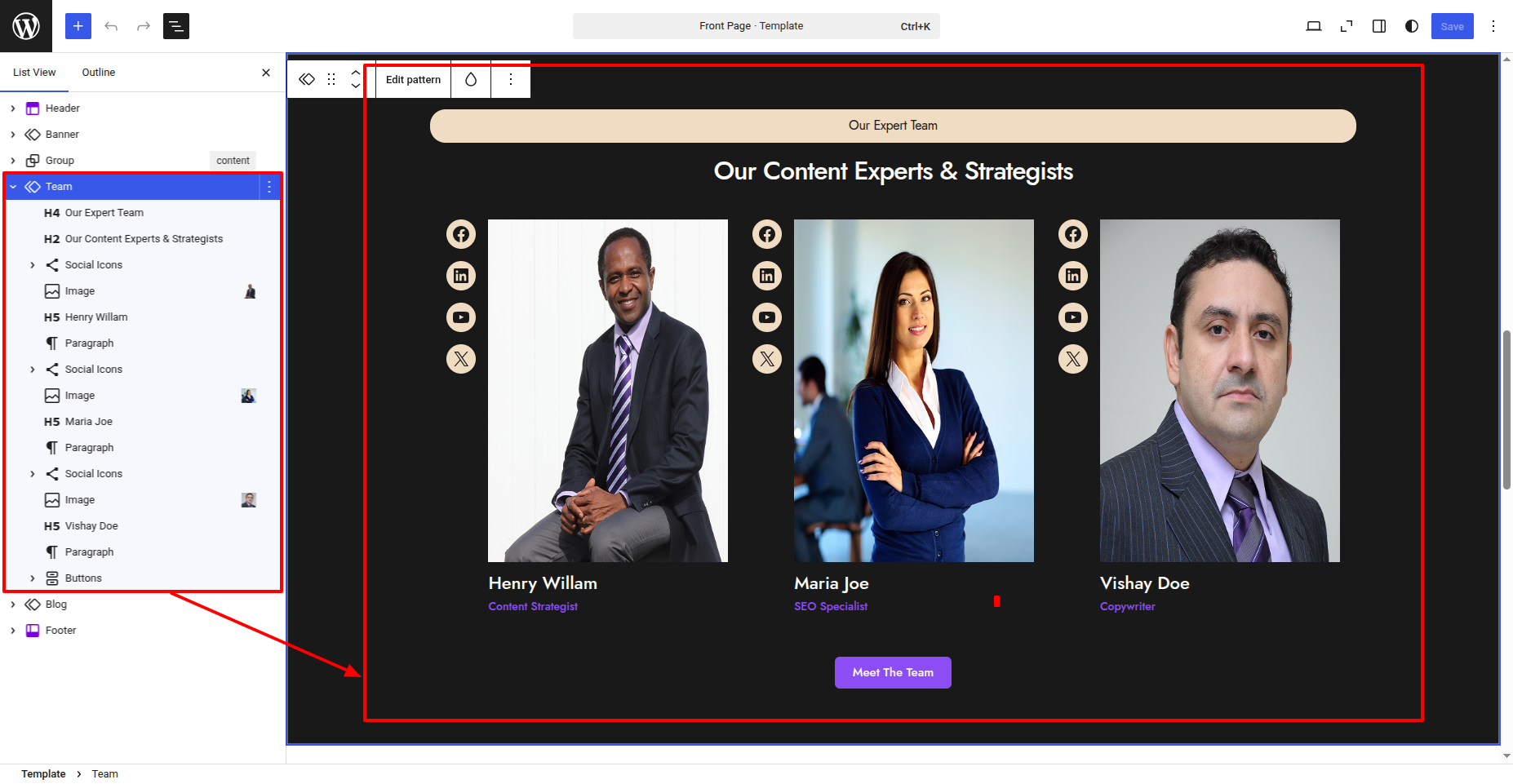
In front end, it will look like this.
Latest News & Blog Section
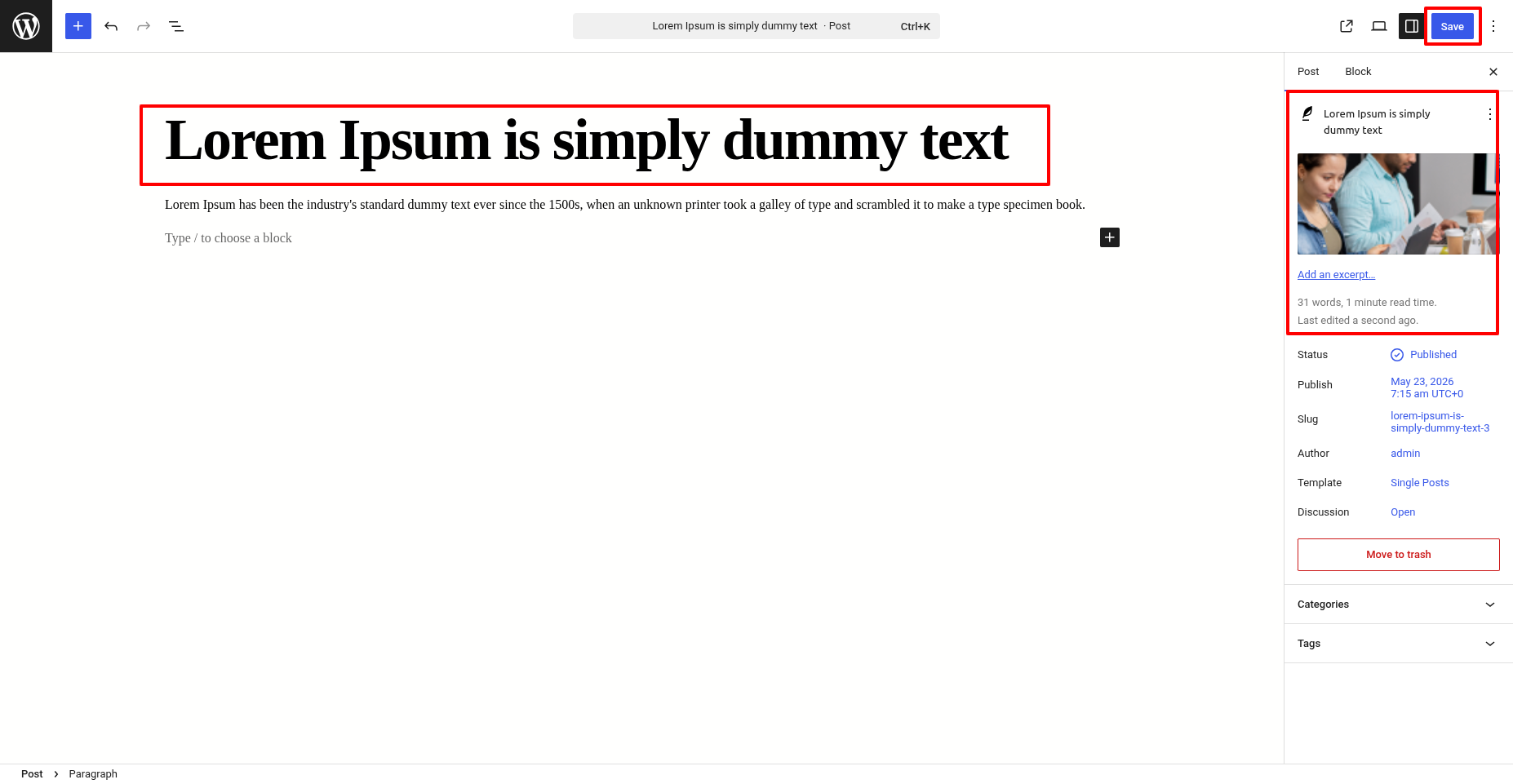
In order to proceed with Latest News & Blog follow the below steps.
In the dashboard, go to Posts >> Add New Posts
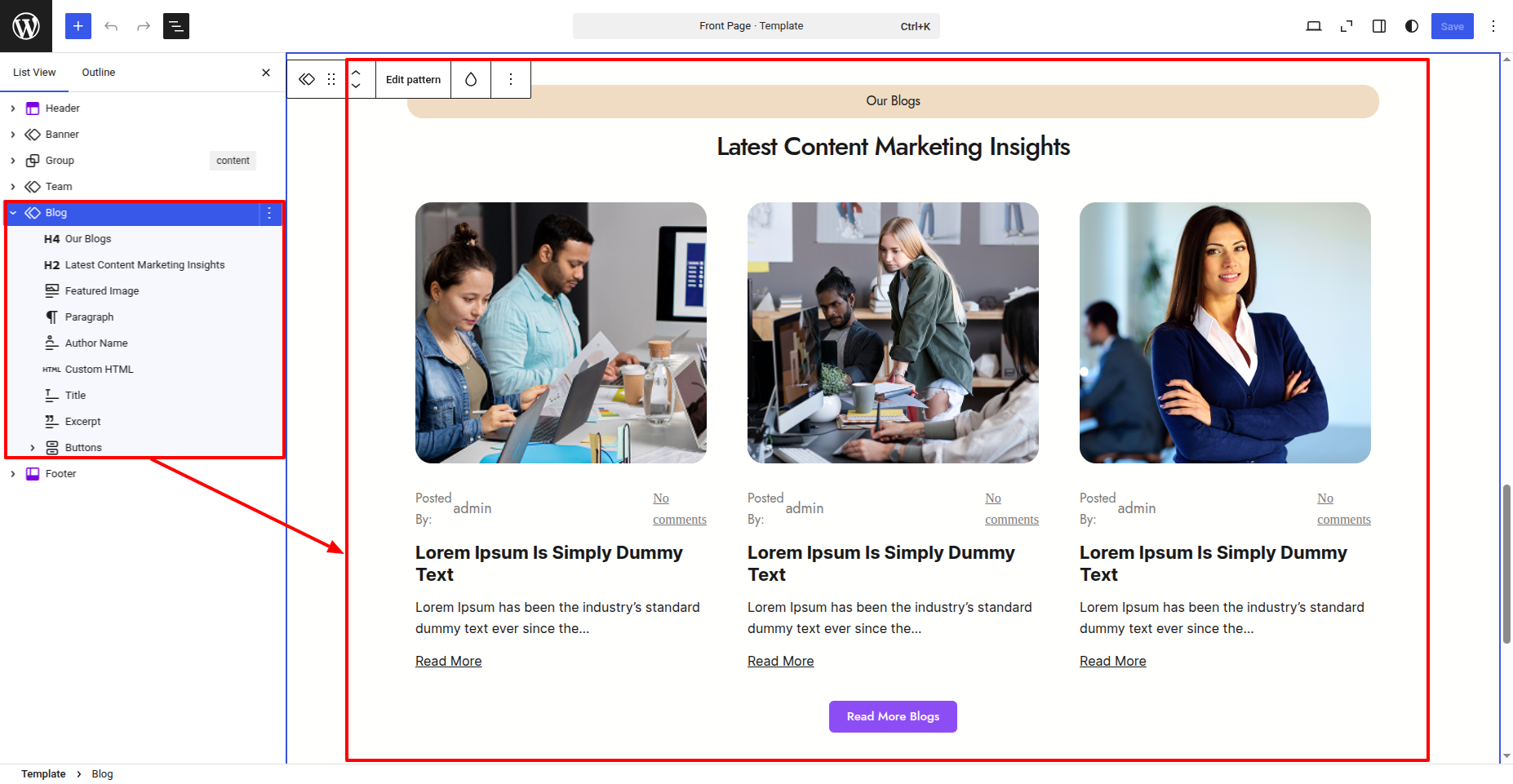
In the dashboard, go to Appearance >> Editor
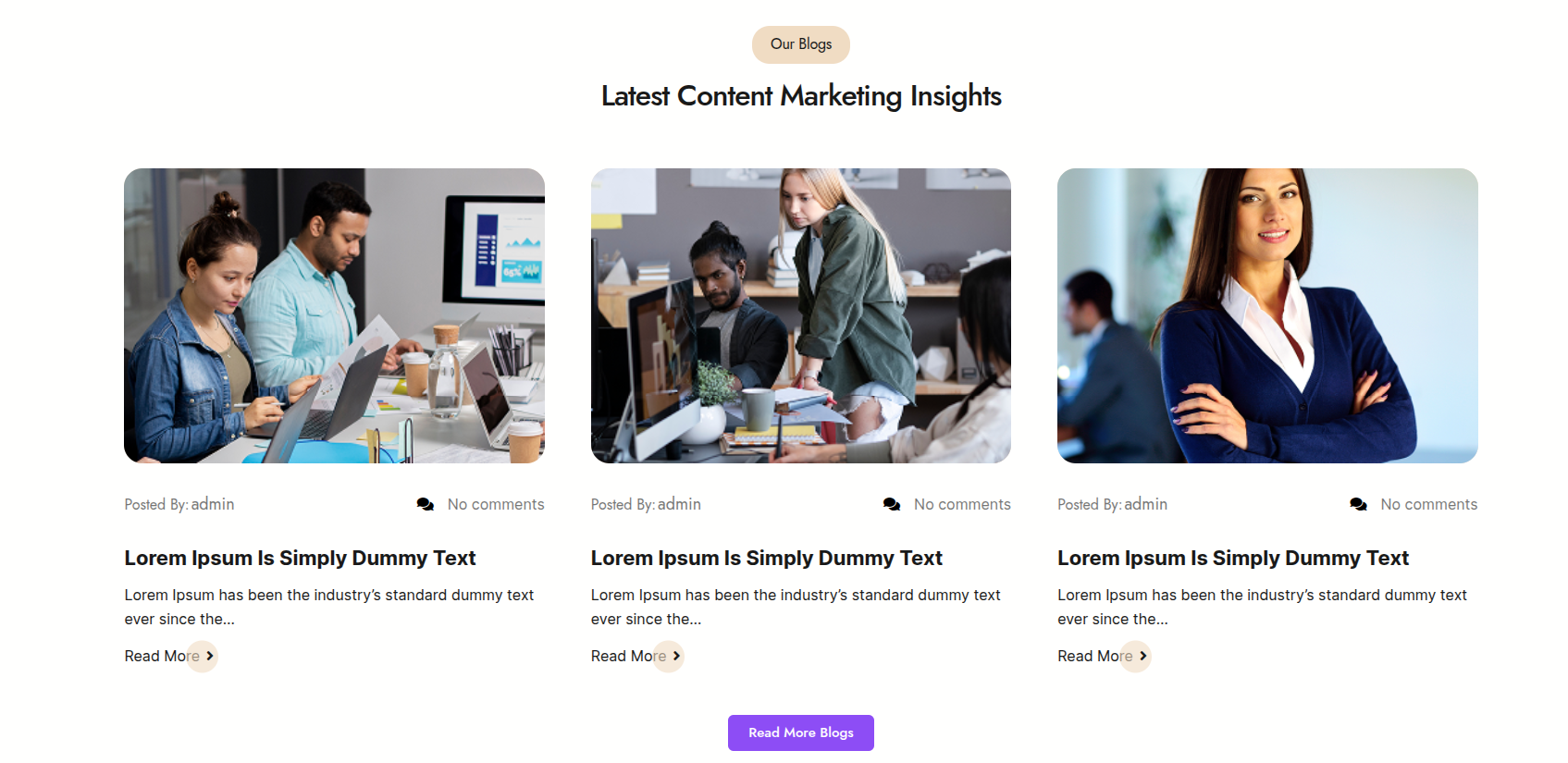
In front end, it will look like this.
Setup Footer Section
In order to proceed with Footer follow the below steps.
In the dashboard, go to Appearance >> Editor
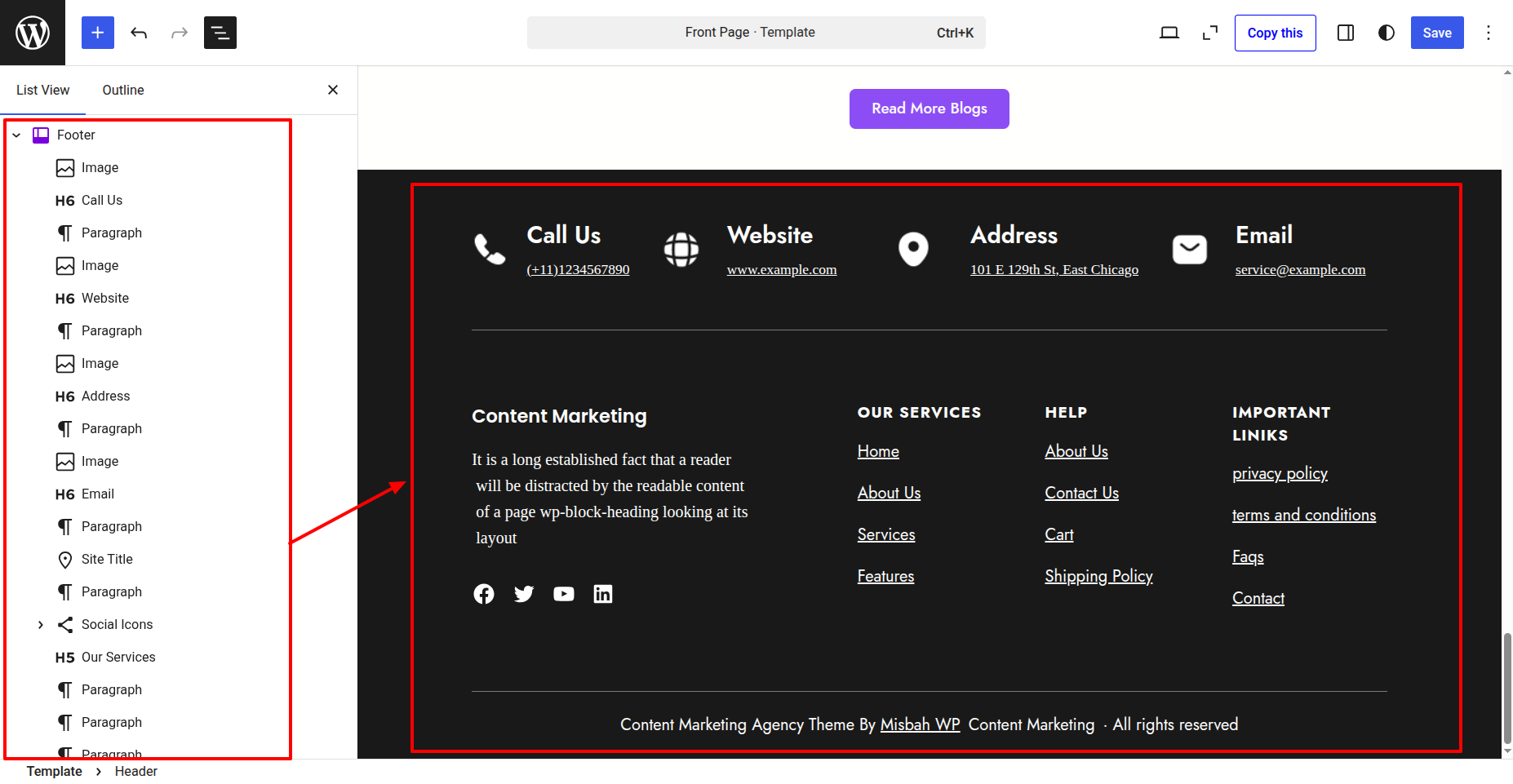
In front end, it will look like this.