Daily SOAP TV Free Documentation
Your awesome theme / template documentation
Introduction
- Theme Name : Daily SOAP TV
- Author : misbahwp
- Support Forum : https://wordpress.org/support/theme/daily-soap-tv/
- License : GNU General Public License v3 or later
- Discription : Daily SOAP TV is a multipurpose and modern WordPress theme designed with a focus on elegance, sophistication, and performance. Crafted with clean code and optimized code, it ensures faster page load time and provides a secure and clean code base for developers and businesses. The theme is most suitable for daily SOAP TV, daily Soap Opera, TV SOAP episodes, daily drama series, SOAP TV shows, daily SOAP episodes, Indian daily SOAP, hindi SOAP opera, and tamil SOAP opera. Its retina-ready, responsive, and mobile-friendly design guarantees a seamless browsing experience across all devices, while the user-friendly interface makes customization effortless. With multiple personalization options, you can easily tailor the theme to reflect your brand identity. From flexible banner layouts to an engaging testimonial section, well-structured team showcases, and prominent call-to-action (CTA) buttons, the theme helps capture attention and drive conversions. Integration with social media platforms enhances connectivity, while shortcodes and Bootstrap elements enable interactive and visually stunning presentations. Daily SOAP TV offers agency-friendly features that make it ideal for creative firms, startups, or personal projects. The theme’s animated elements, luxurious styling, and beautiful minimal layouts create an engaging visual impact without overwhelming users. Its interactive sections keep visitors engaged, making it perfect for both professional and entertainment-focused websites. Built with clean and sophisticated design principles, it supports translation-ready features, ensuring global reach and accessibility. Whether you’re a developer looking for a highly customizable framework or a business owner wanting a multipurpose solution, Daily SOAP TV offers stunning versatility. With robust customization options, it allows endless possibilities for layout adjustments, color schemes, and typography to deliver a unique web presence. In short, Daily SOAP TV combines elegance, performance, and functionality to help you create a minimal, beautiful, and high-performing website with ease.
How to Establish the Theme
Setup Theme
Template installation is very simple process.
You can also install your theme using WP Admin
The first task is to log in to your WordPress admin area. Next, click on
1. In dashboard click on Appearance >> Themes
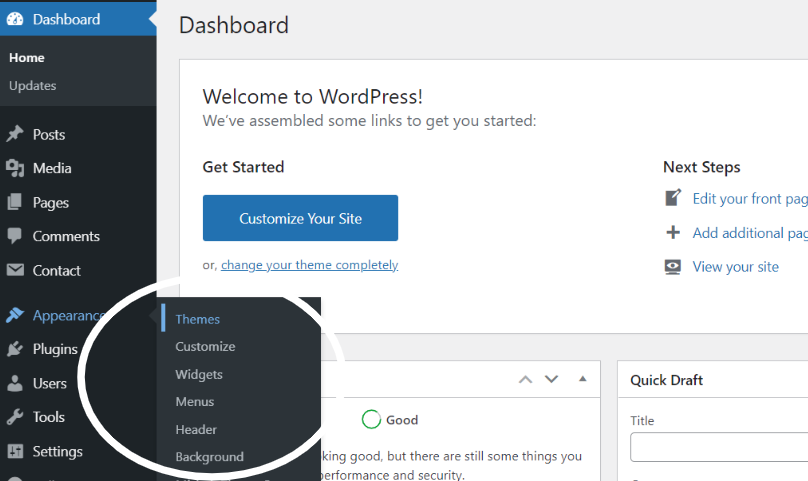
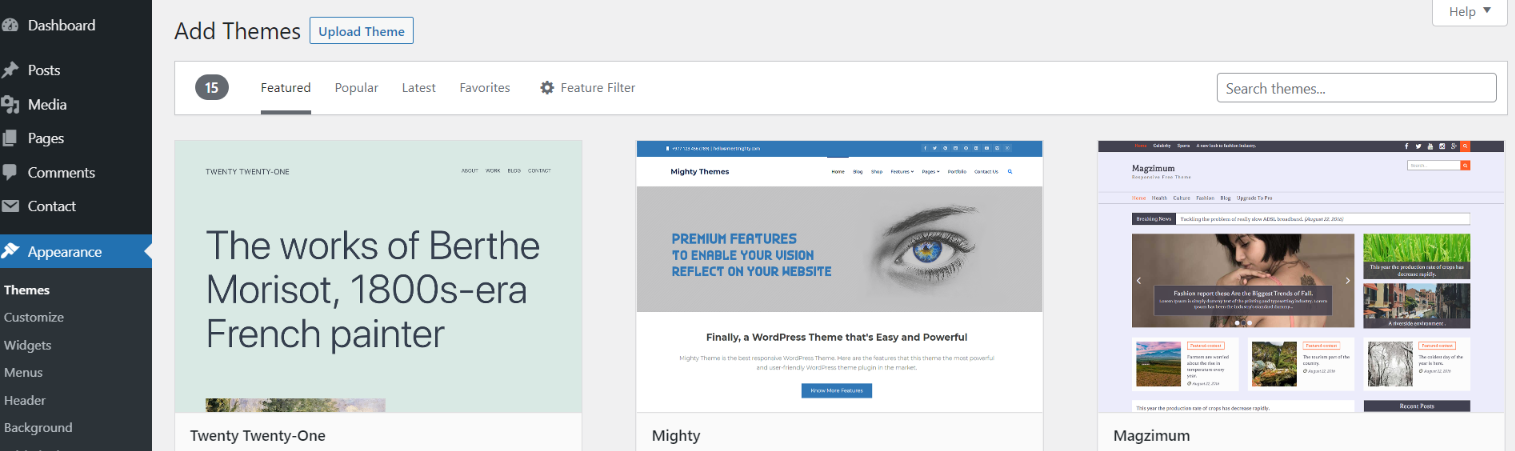
2. Click on the Add New button at the top of the themes page once page is loaded.
3. Click the button labelled as 'Upload Theme'.
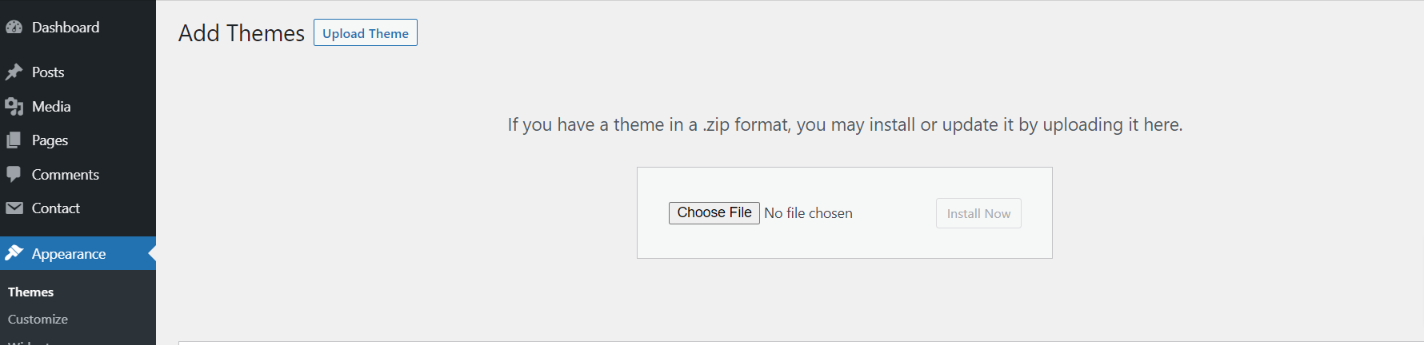
4. Click on Browse Button then select your daily-soap-tv.zip theme and click on install now button.
5. WordPress will now install your theme and display a success message, as well as a link to activate or to see the live preview. Congratulations on completing the installation of your theme.
Necessary Plugins
When you initially activate the theme, you'll be asked to install these plugins on your Dashboard. You can ignore the message if you don't want to install these plugins on theme activation, and if you change your mind later, you can install them manually.
In the dashboard, go to Plugins >> Install Plugins.
Configure Plugins
Configure Plugins
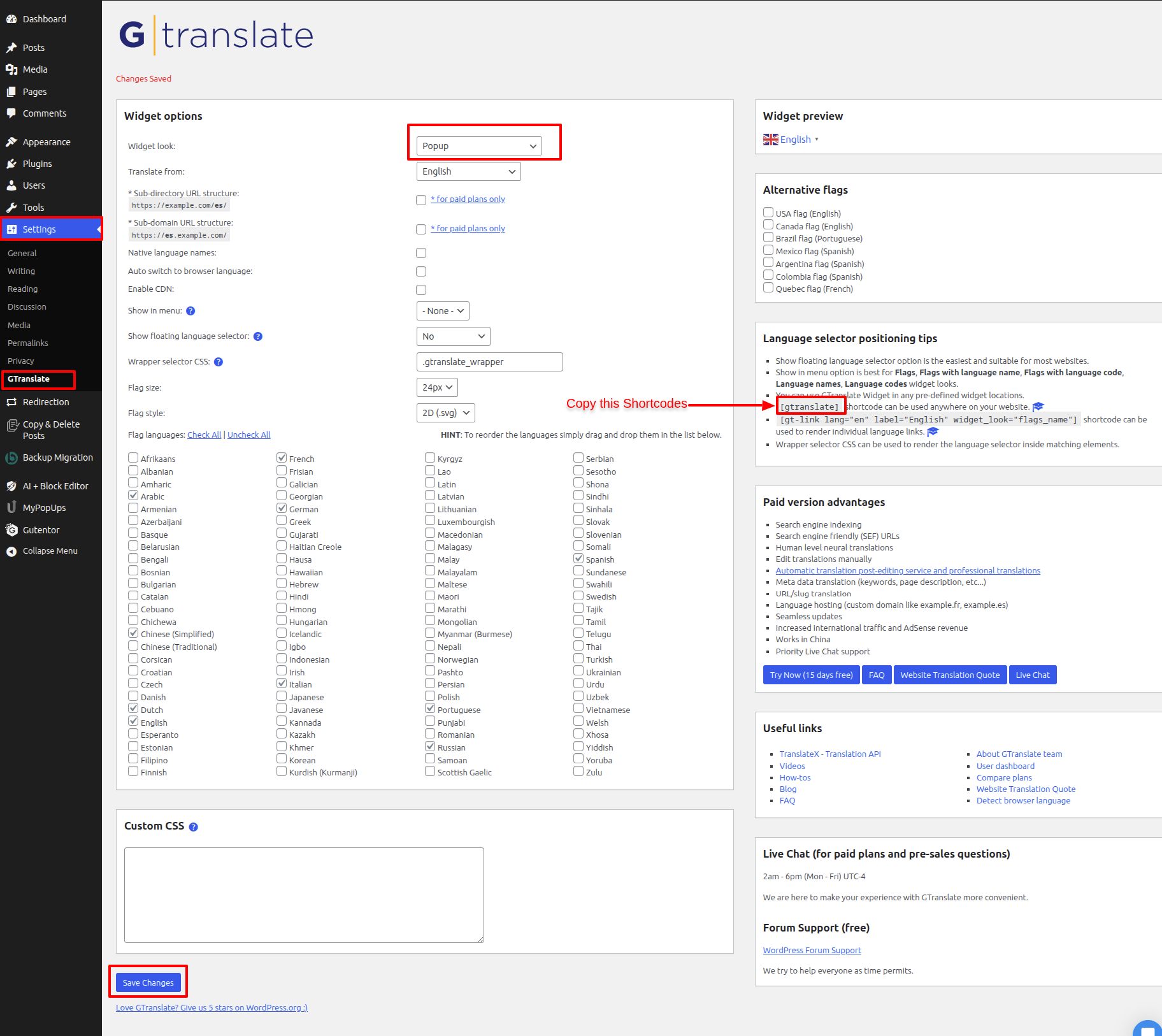
In order to proceed with Theme Plugins setup, follow the below steps.
In the dashboard, go to Settings >> Google Language Translator.
Configure Menu
Configure Menu
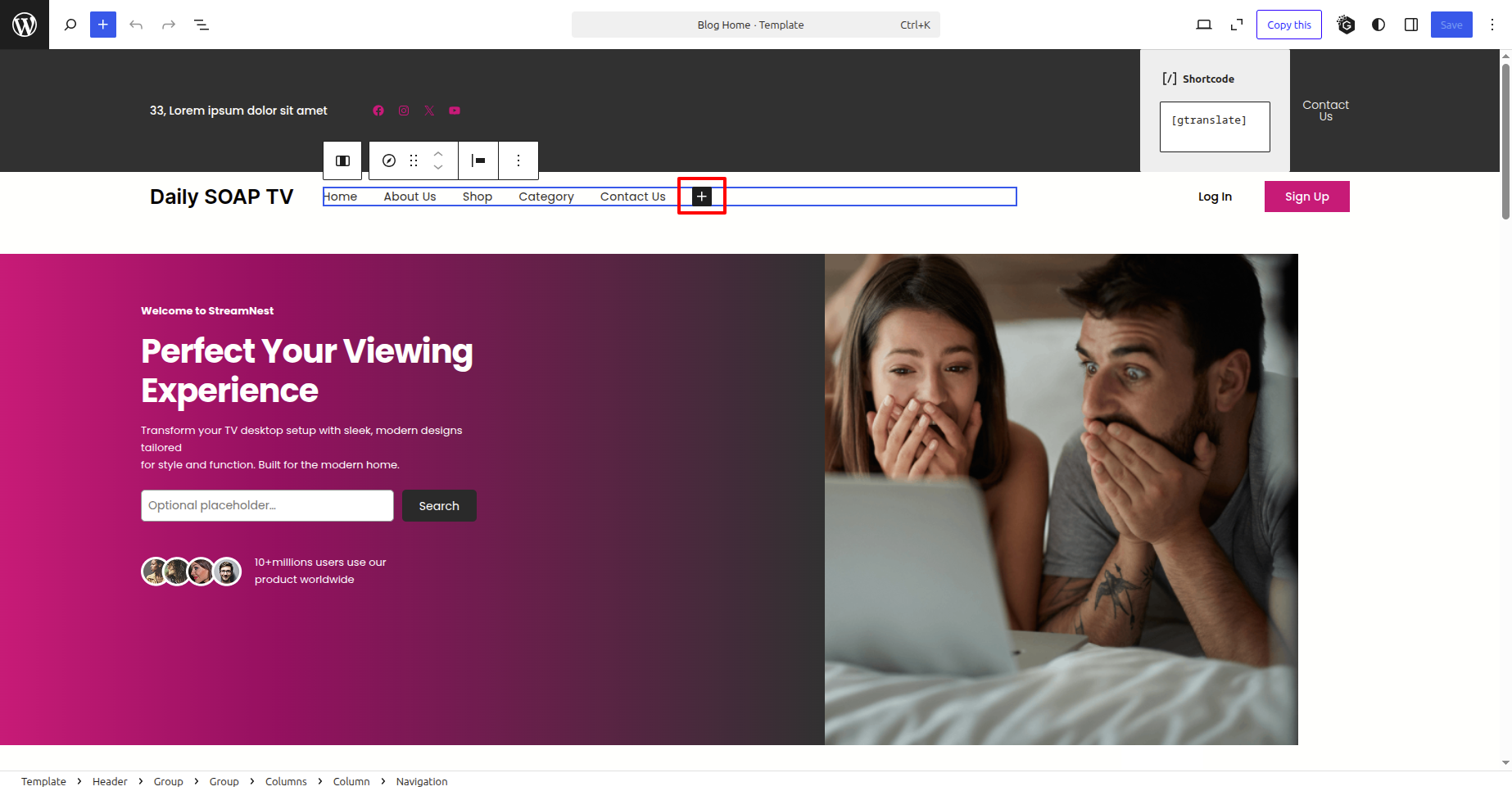
To construct a menu item with Editor, move on the steps provided.
Construct a menu.
In the dashboard, go to Appearance >> Editor and touch on the plux icon.
You can search, provide a URL, or select a page from the list.
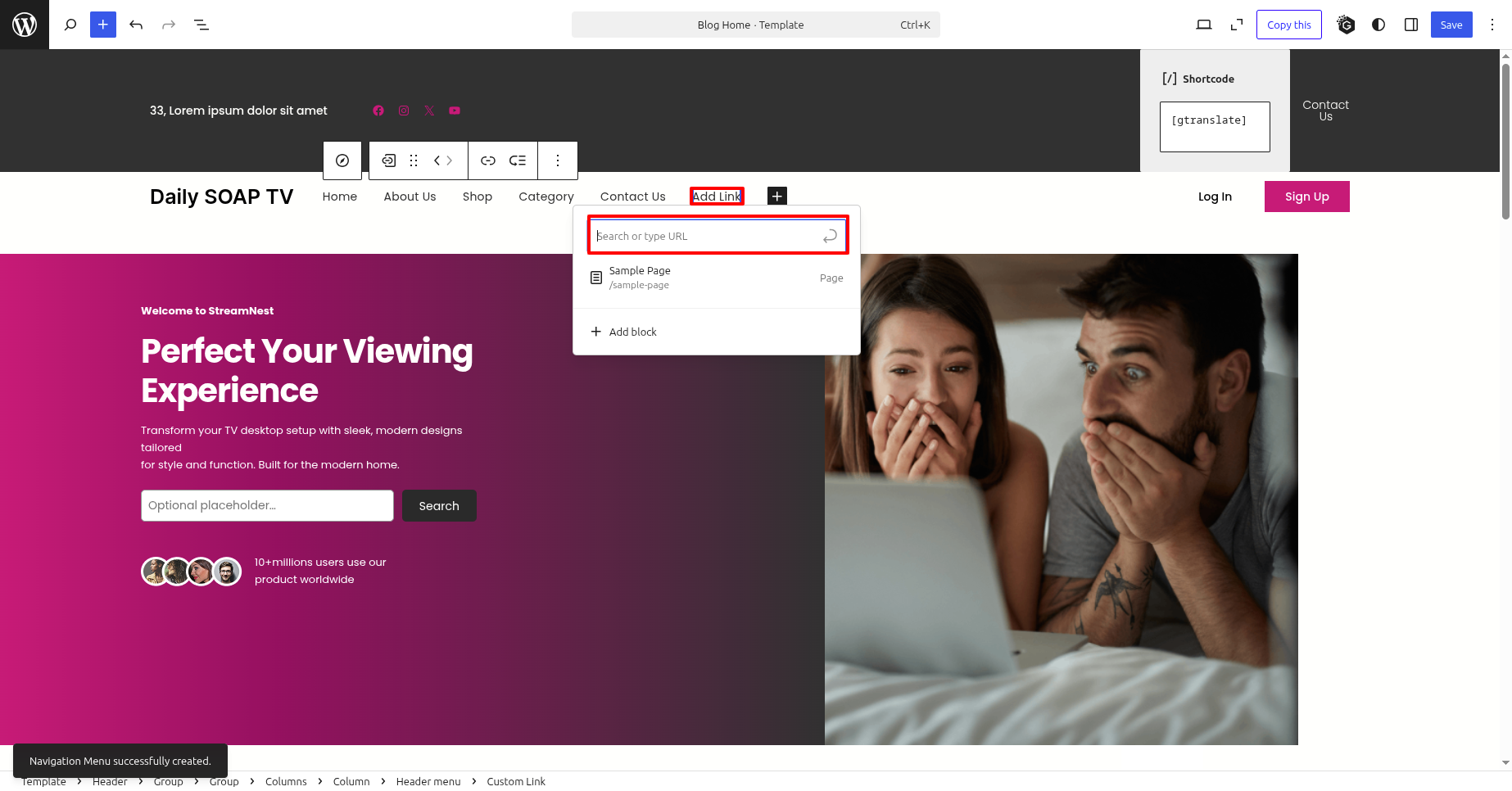
On the front end, the menu will appear as follows.

Daily SOAP TV Free Theme Setup
Configure Header
In order to proceed with Header follow the below steps.
In the dashboard, go to Appearance >> Editor
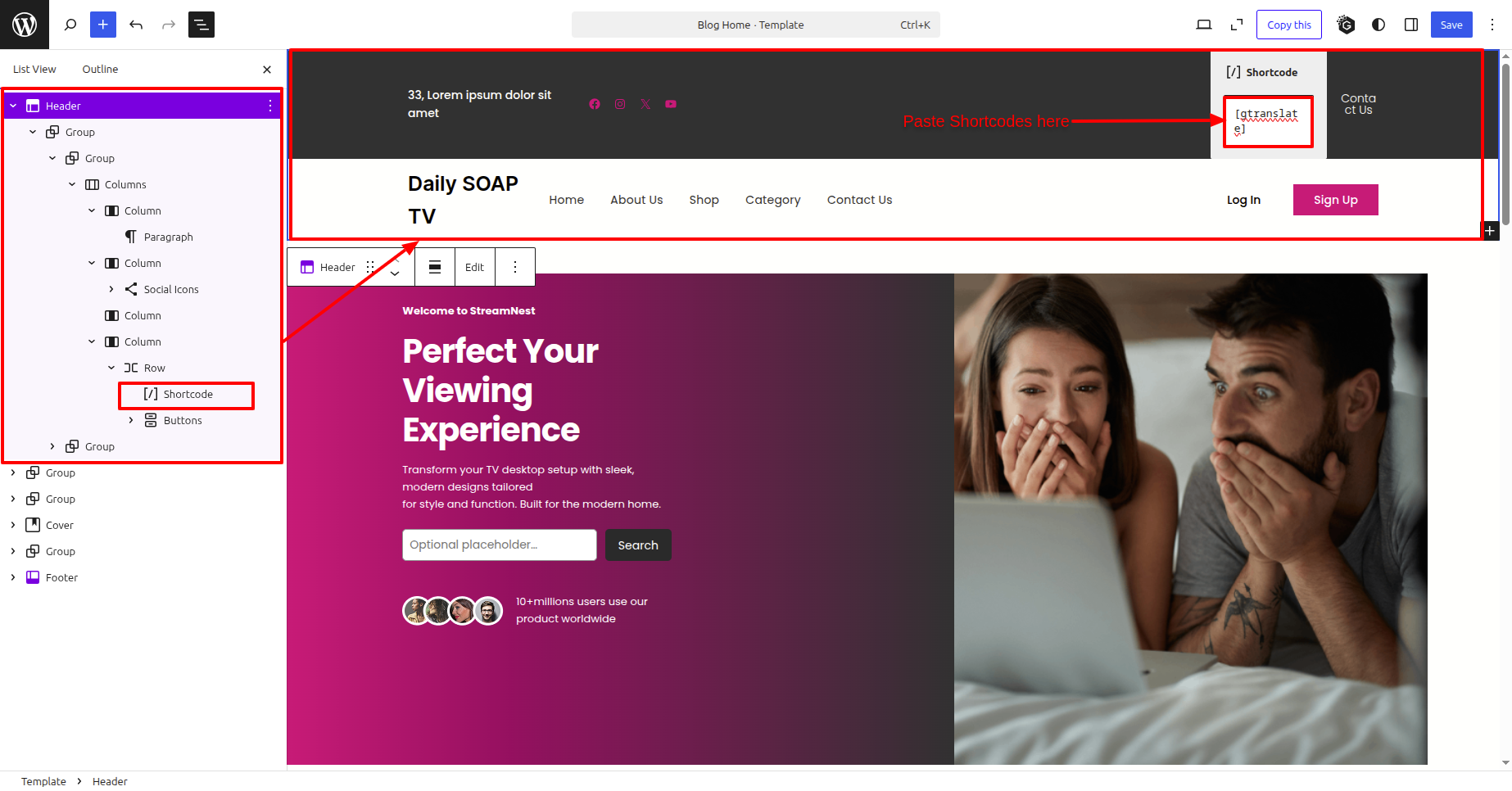
In front end, it will look like this.

Logo Setup
In order to proceed with Logo follow the below steps.
In the dashboard, go to Appearance >> Editor
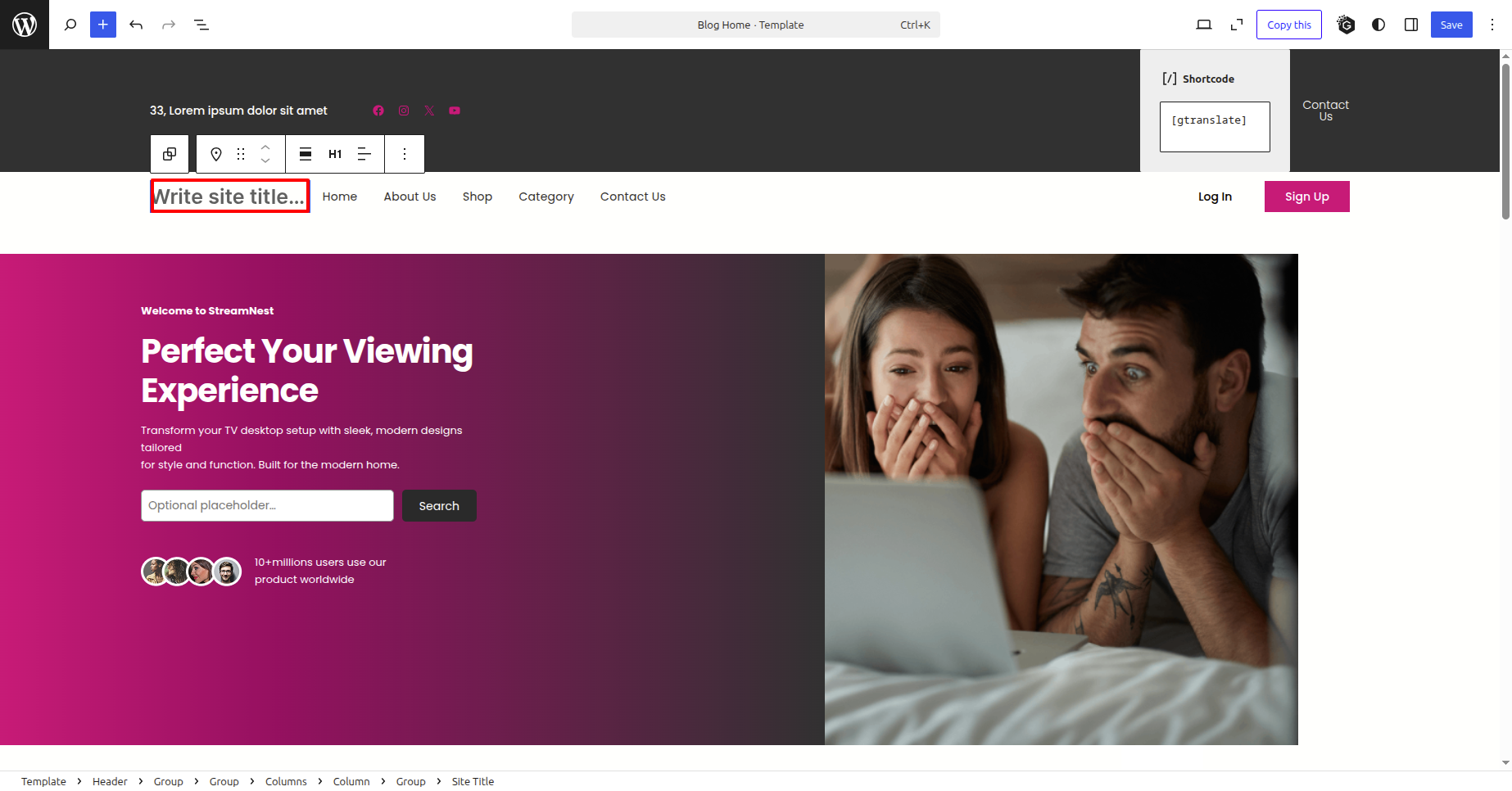
In front end, it will look like this.
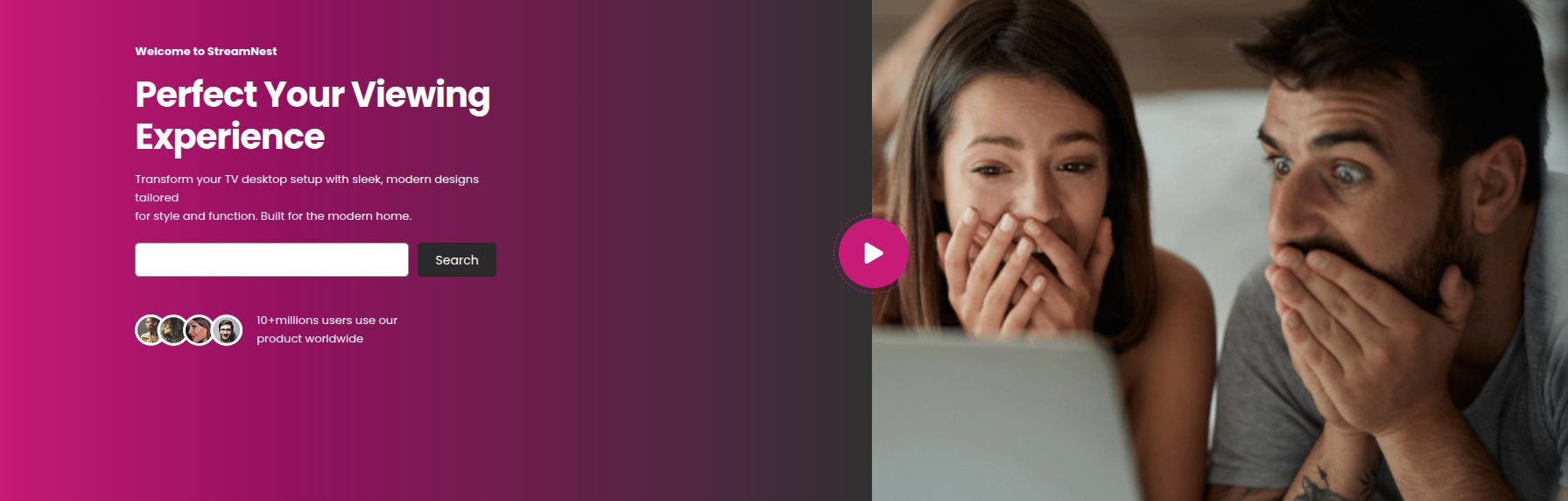
Banner Section
In order to proceed with Banner follow the below steps.
In the dashboard, go to Appearance >> Editor
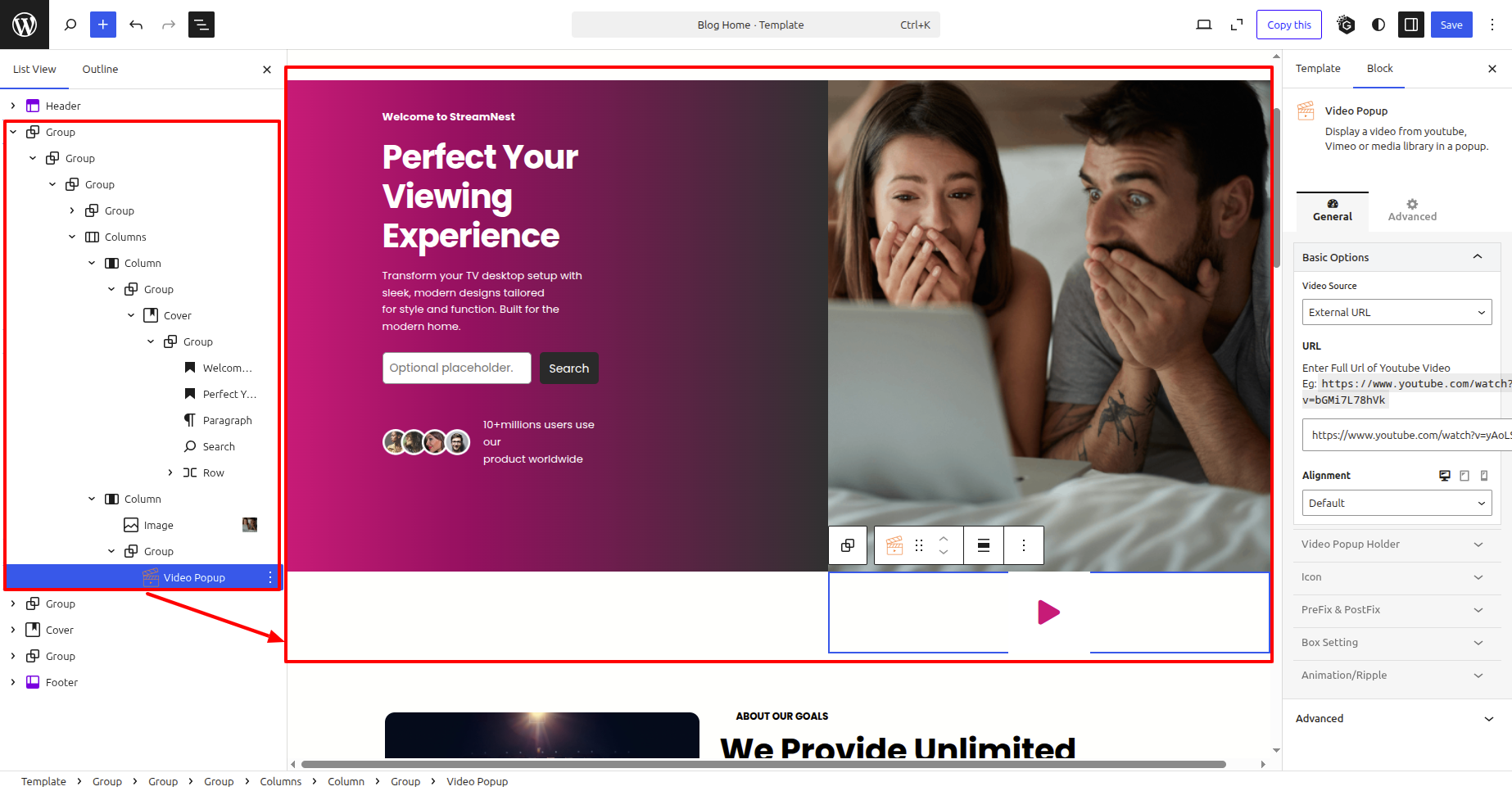
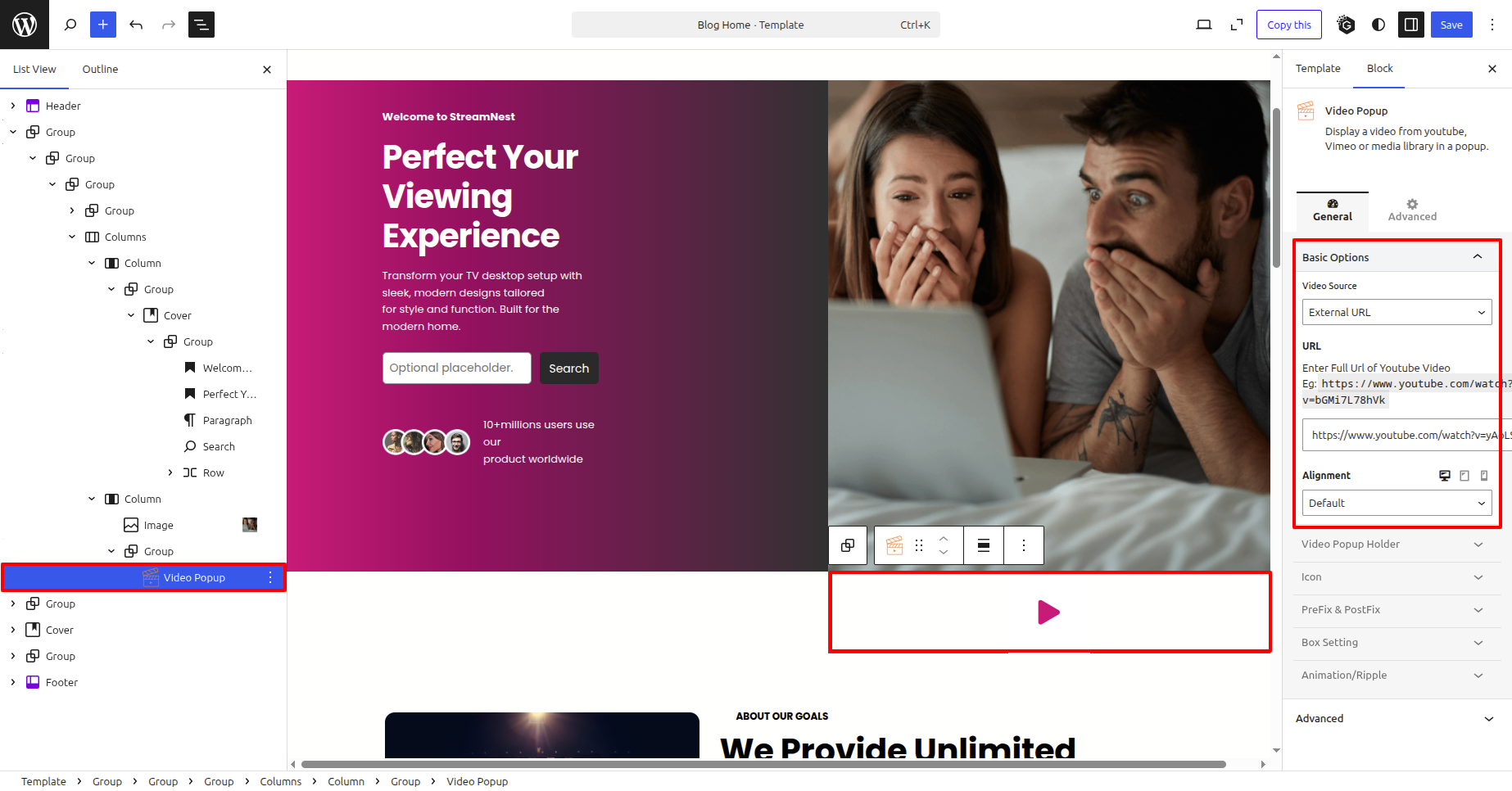
In front end, it will look like this.
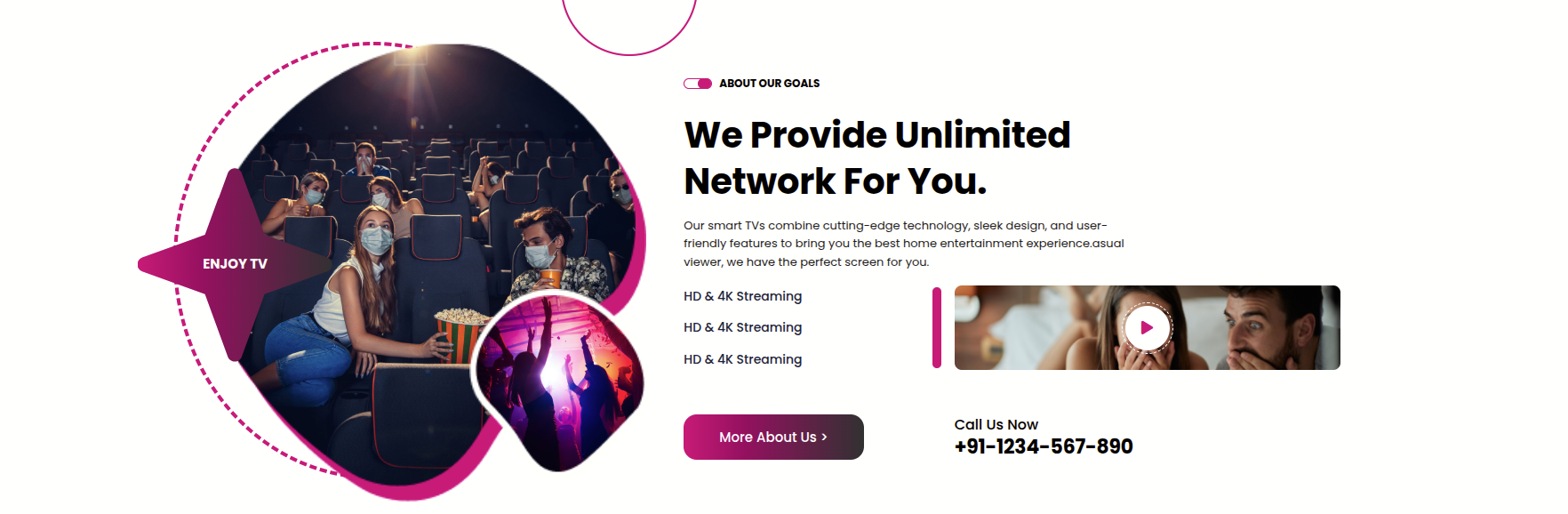
About Us Section
In order to proceed with About Us follow the below steps.
In the dashboard, go to Appearance >> Editor
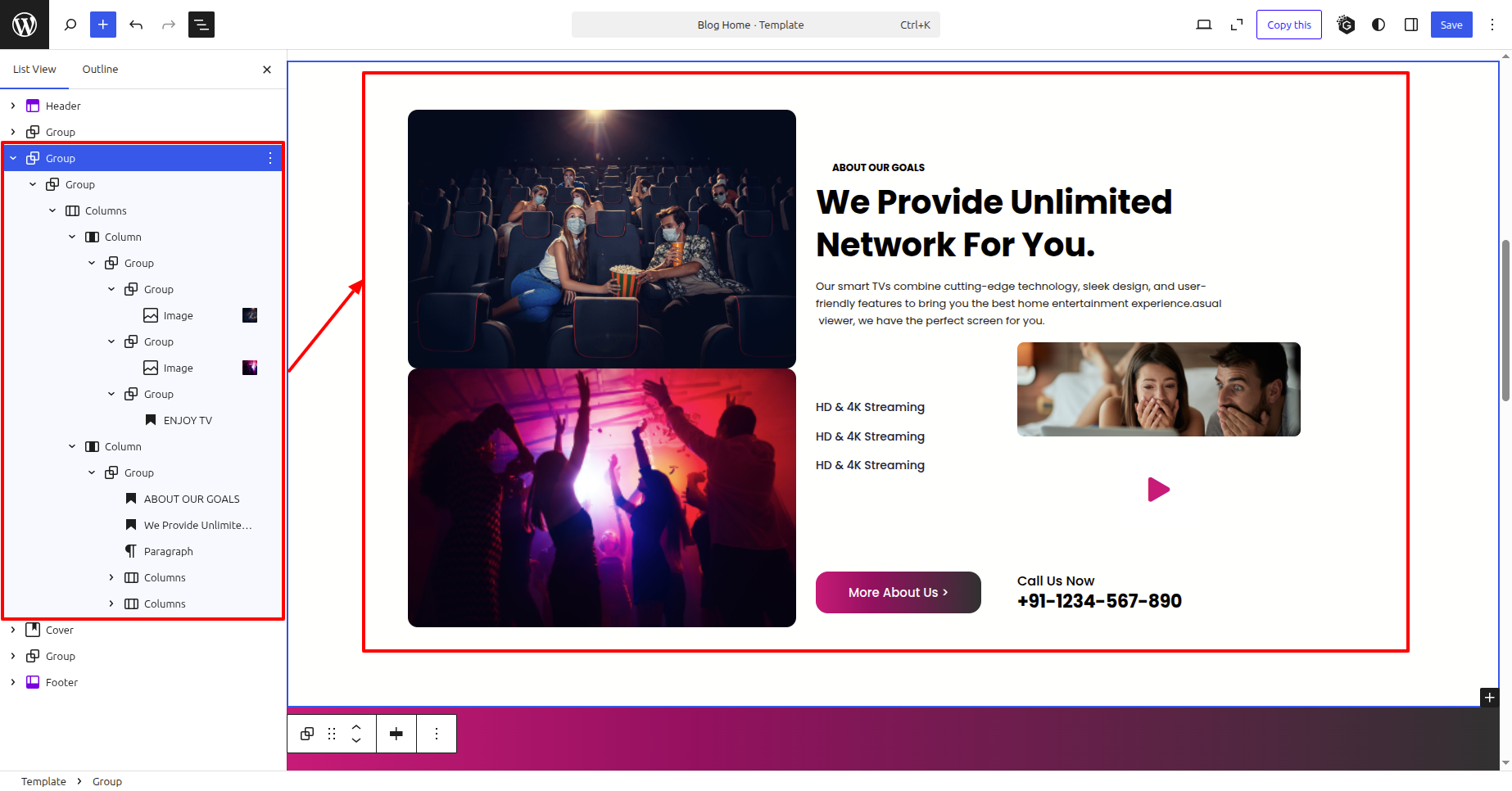
In front end, it will look like this.
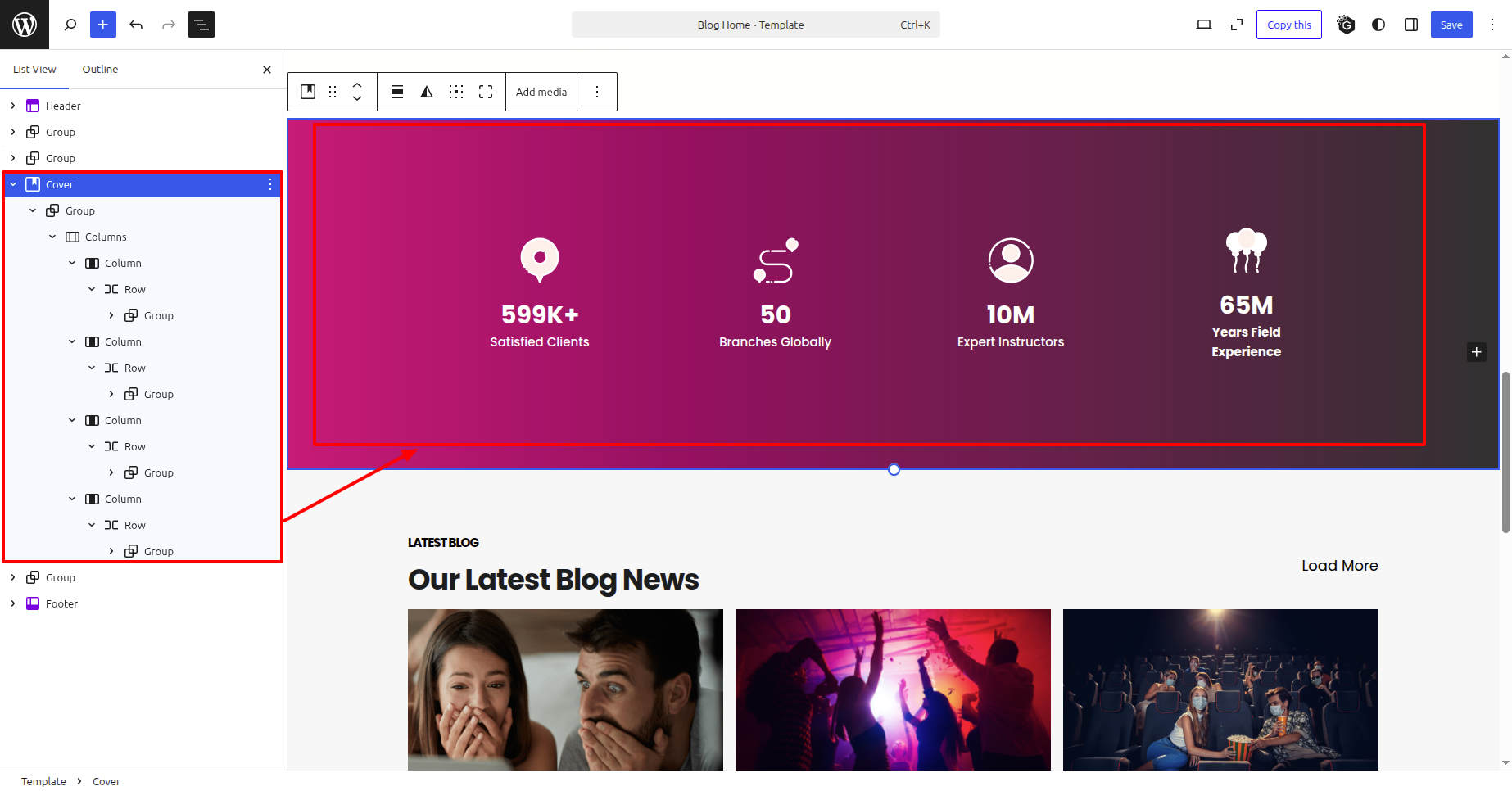
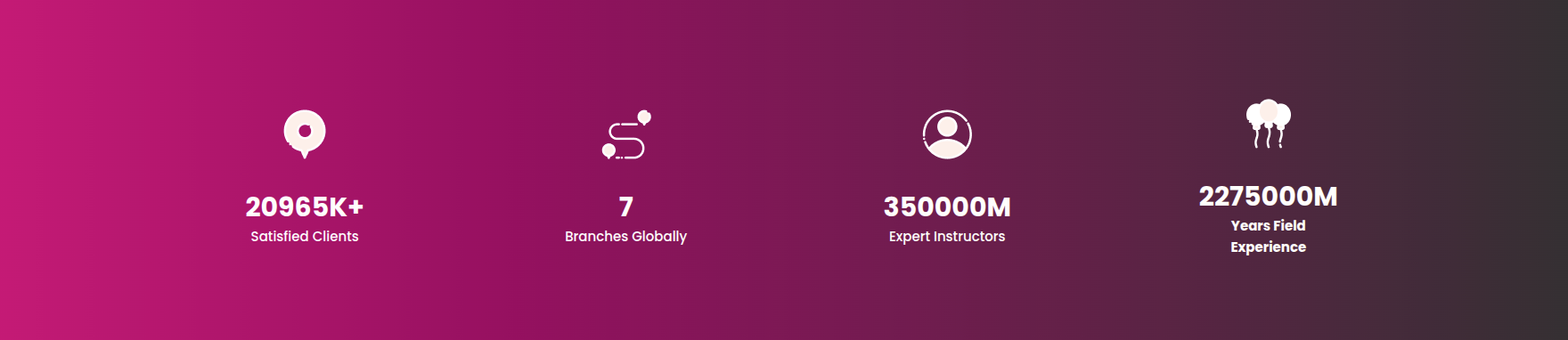
Counter Section
In order to proceed with Counter follow the below steps.
In the dashboard, go to Appearance >> Editor
In front end, it will look like this.
Latest News & Blog Section
In order to proceed with Latest News & Blog follow the below steps.
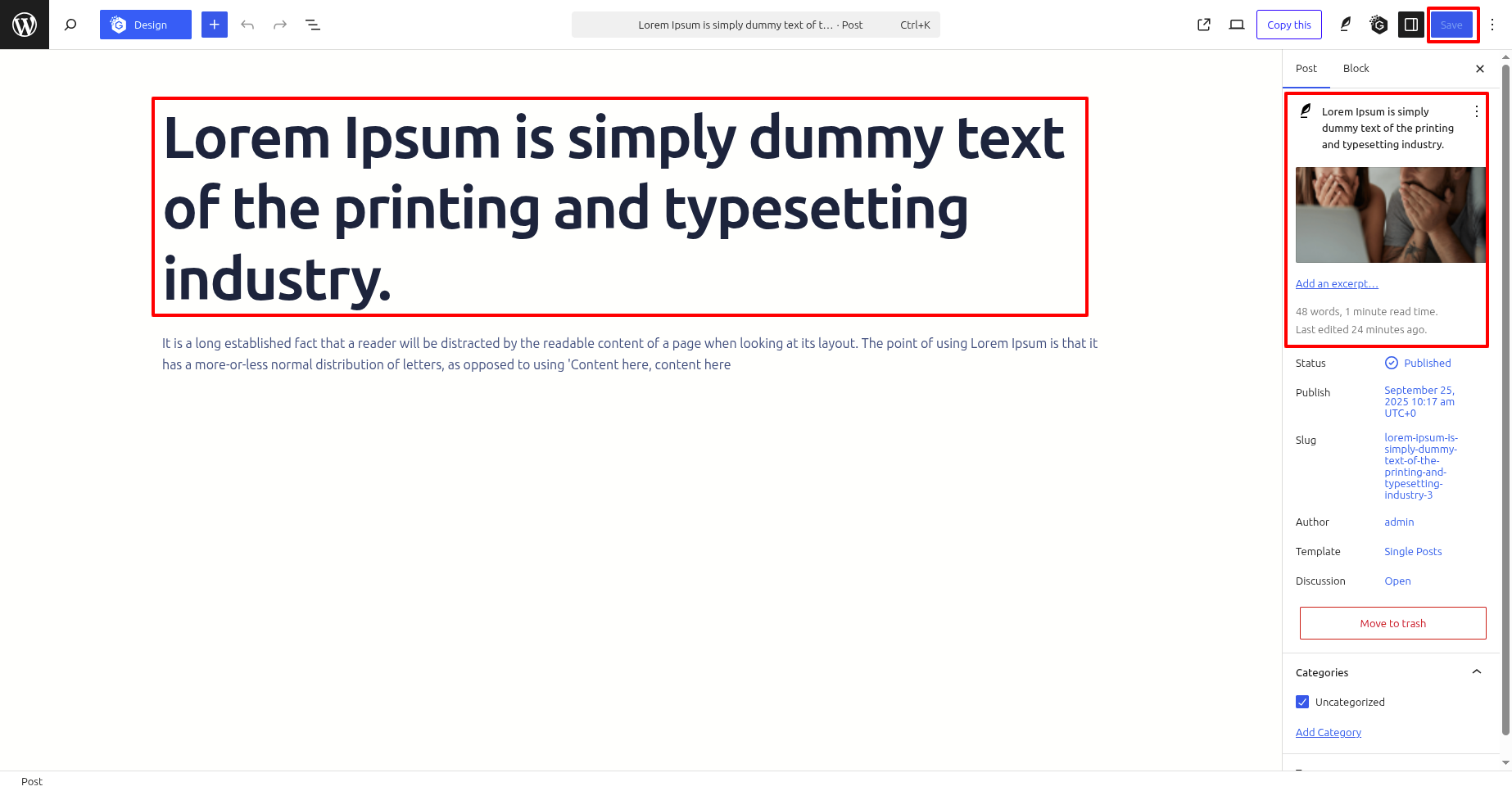
In the dashboard, go to Posts >> Add New Posts
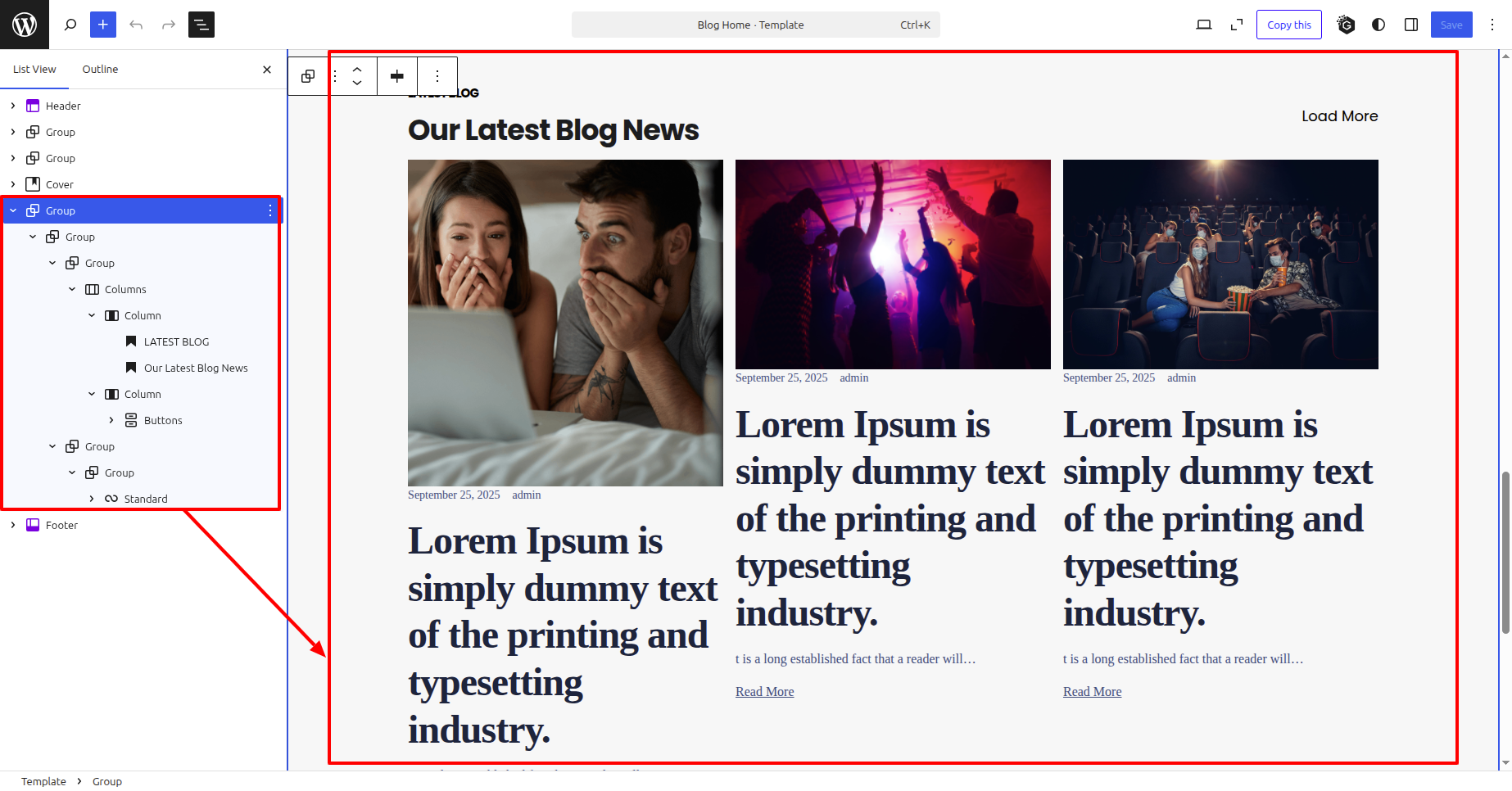
In the dashboard, go to Appearance >> Editor
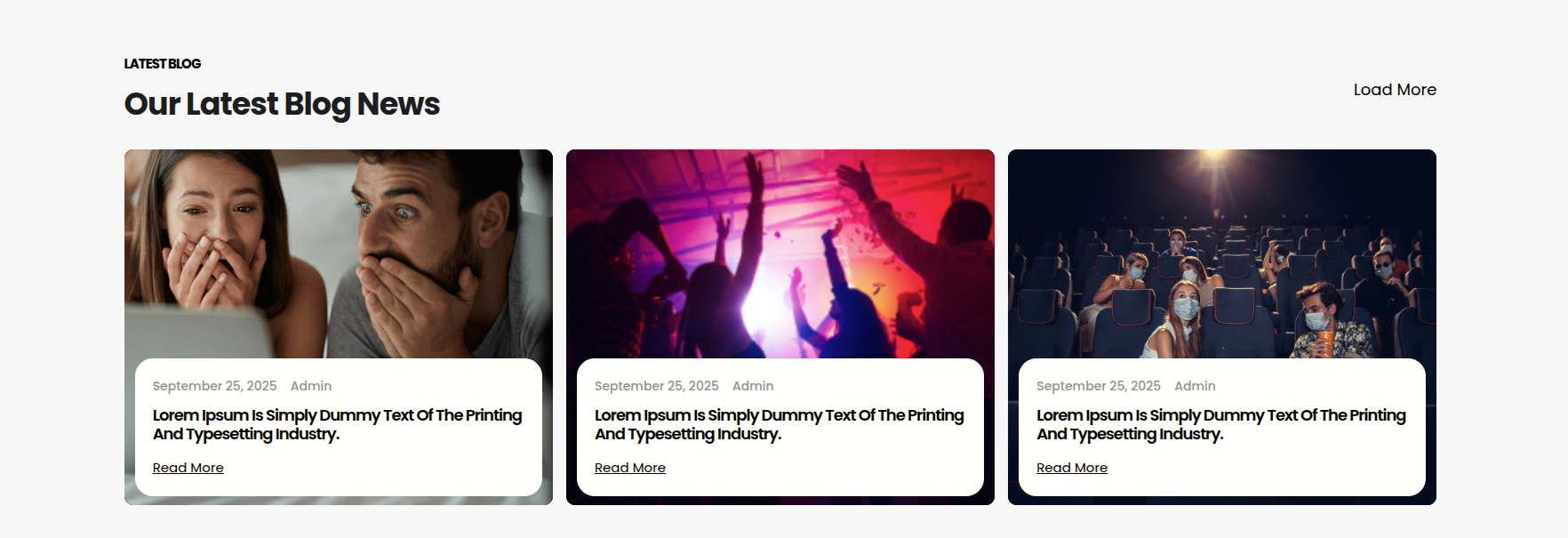
In front end, it will look like this.
Setup Footer Section
In order to proceed with Footer follow the below steps.
In the dashboard, go to Appearance >> Editor
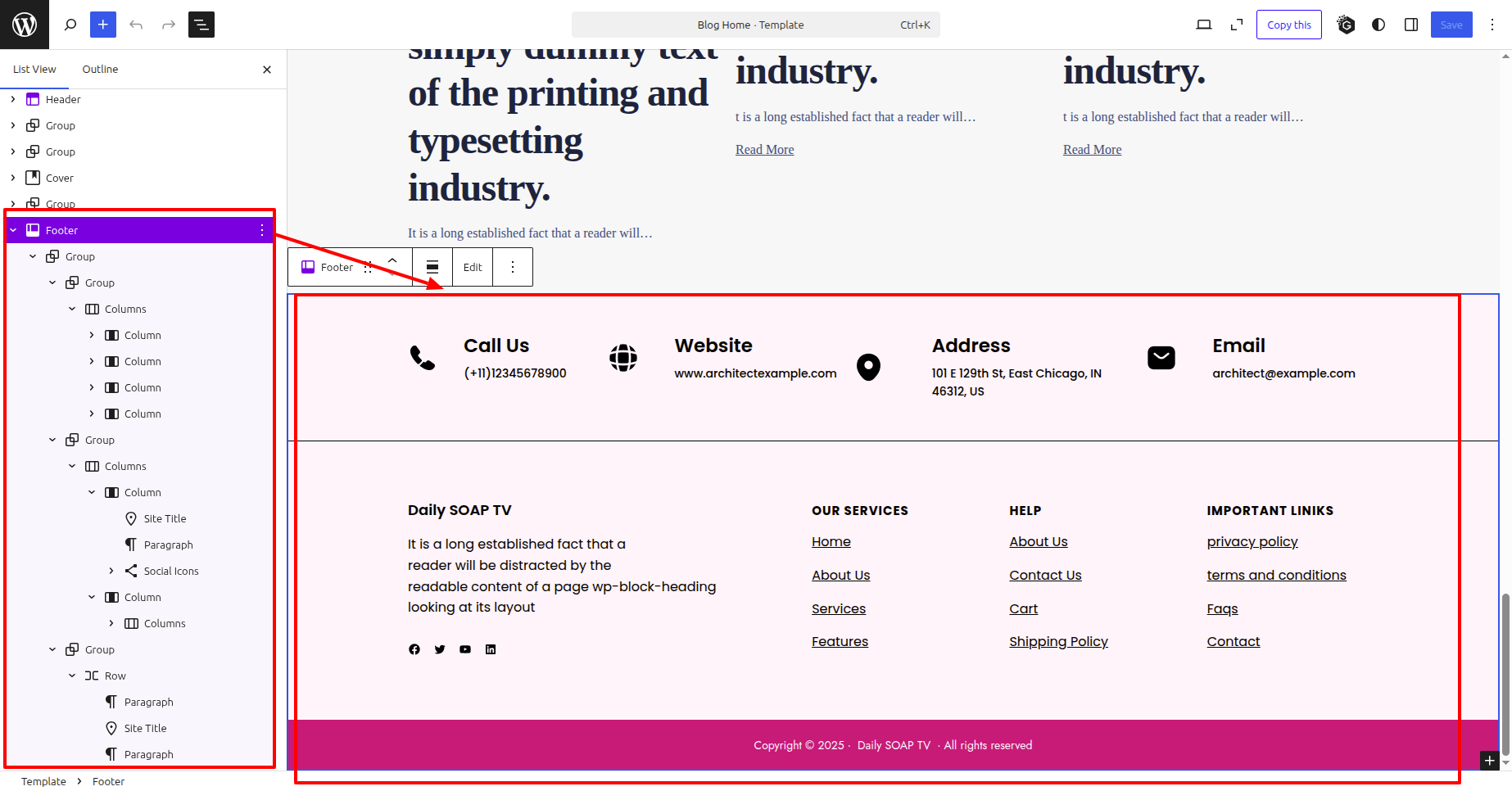
In front end, it will look like this.