Feminine Store Rental Free Documentation
Your awesome theme / template documentation
Introduction
- Theme Name : Feminine Store Rental
- Author : misbahwp
- Support Forum : https://wordpress.org/support/theme/feminine-store-rental/
- License : GNU General Public License v3 or later
- Discription :The Feminine WordPress Theme is a multipurpose solution designed to bring charm, elegance, and sophistication to your website. With its minimal and clean design, it caters to fashion stores, Designer Dress Rental, Luxury Dress Rental, Evening Wear Rental, Party Dress Rental, Cocktail Dress Rental, Formal Wear Rental, lifestyle blogs, creative agencies, and personal brands that want a modern yet luxurious digital presence. Fully responsive and retina-ready, the theme adapts seamlessly across all devices, ensuring that your site looks equally beautiful on desktops, tablets, and smartphones. Its user-friendly structure makes it ideal for beginners as well as professionals, while developers can enjoy working with its secure and clean code, built using Bootstrap and optimized code for faster page load time and flawless performance..
How to Establish the Theme
Setup Theme
Template installation is very simple process.
You can also install your theme using WP Admin
The first task is to log in to your WordPress admin area. Next, click on
1. In dashboard click on Appearance >> Themes
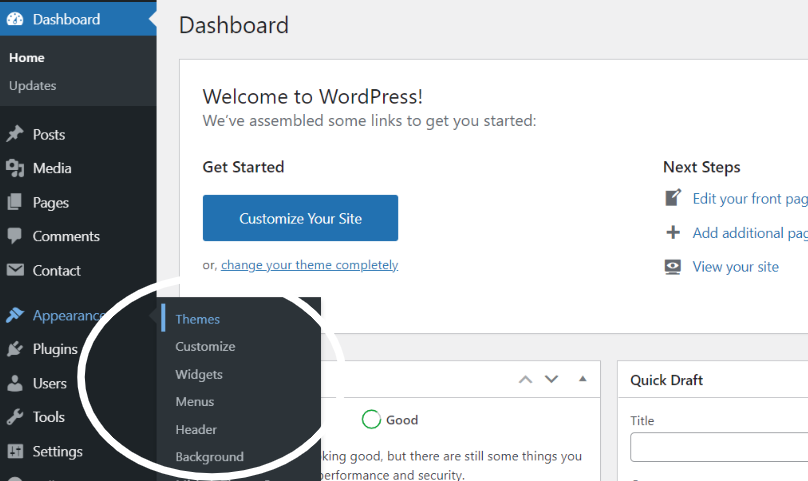
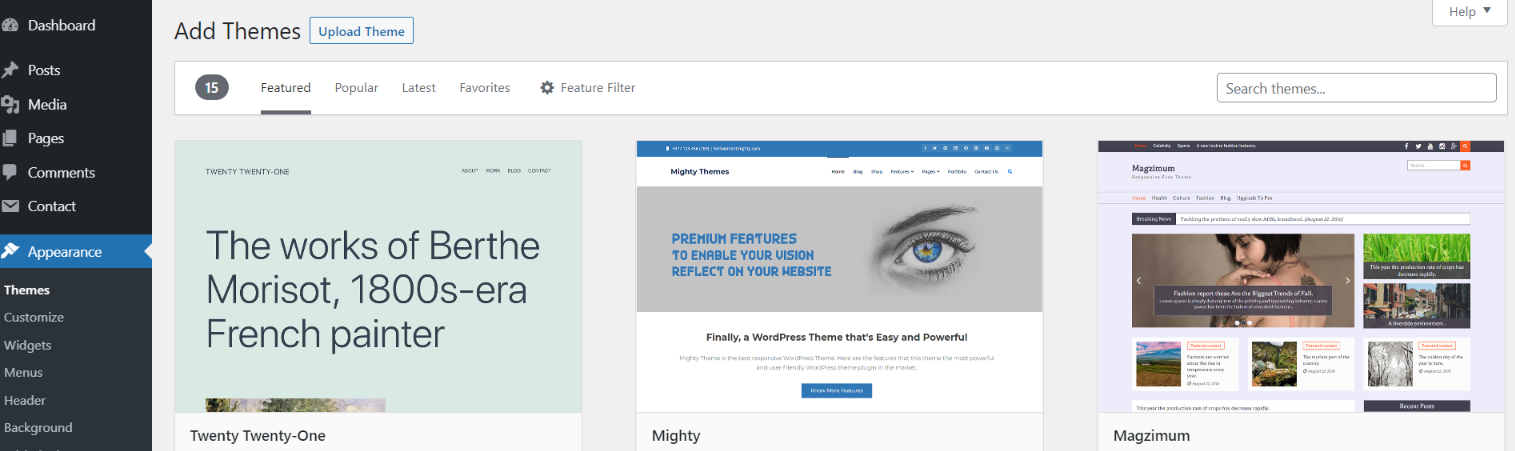
2. Click on the Add New button at the top of the themes page once page is loaded.
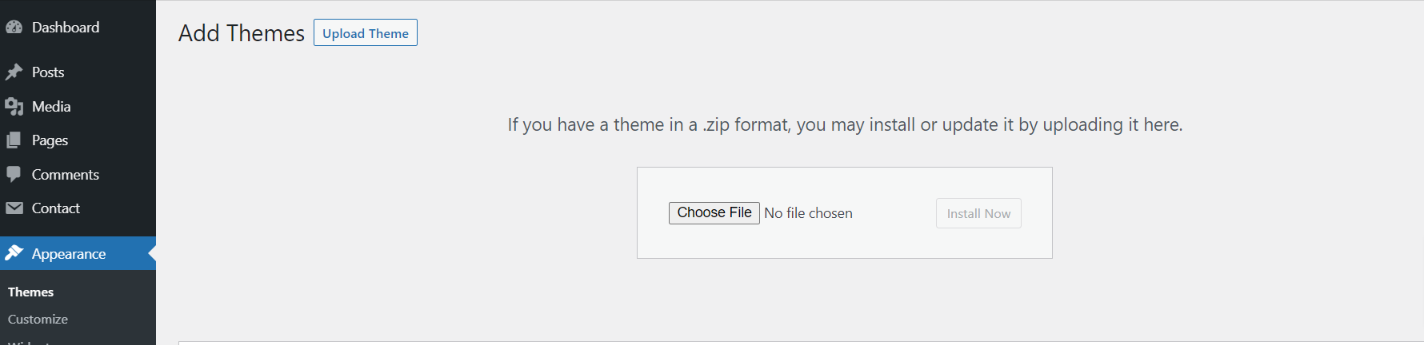
3. Click the button labelled as 'Upload Theme'.
4. Click on Browse Button then select your feminine-store-rental.zip theme and click on install now button.
5. WordPress will now install your theme and display a success message, as well as a link to activate or to see the live preview. Congratulations on completing the installation of your theme.
Necessary Plugins
When you initially activate the theme, you'll be asked to install these plugins on your Dashboard. You can ignore the message if you don't want to install these plugins on theme activation, and if you change your mind later, you can install them manually.
In the dashboard, go to Plugins >> Install Plugins.
Configure Menu
Configure Menu
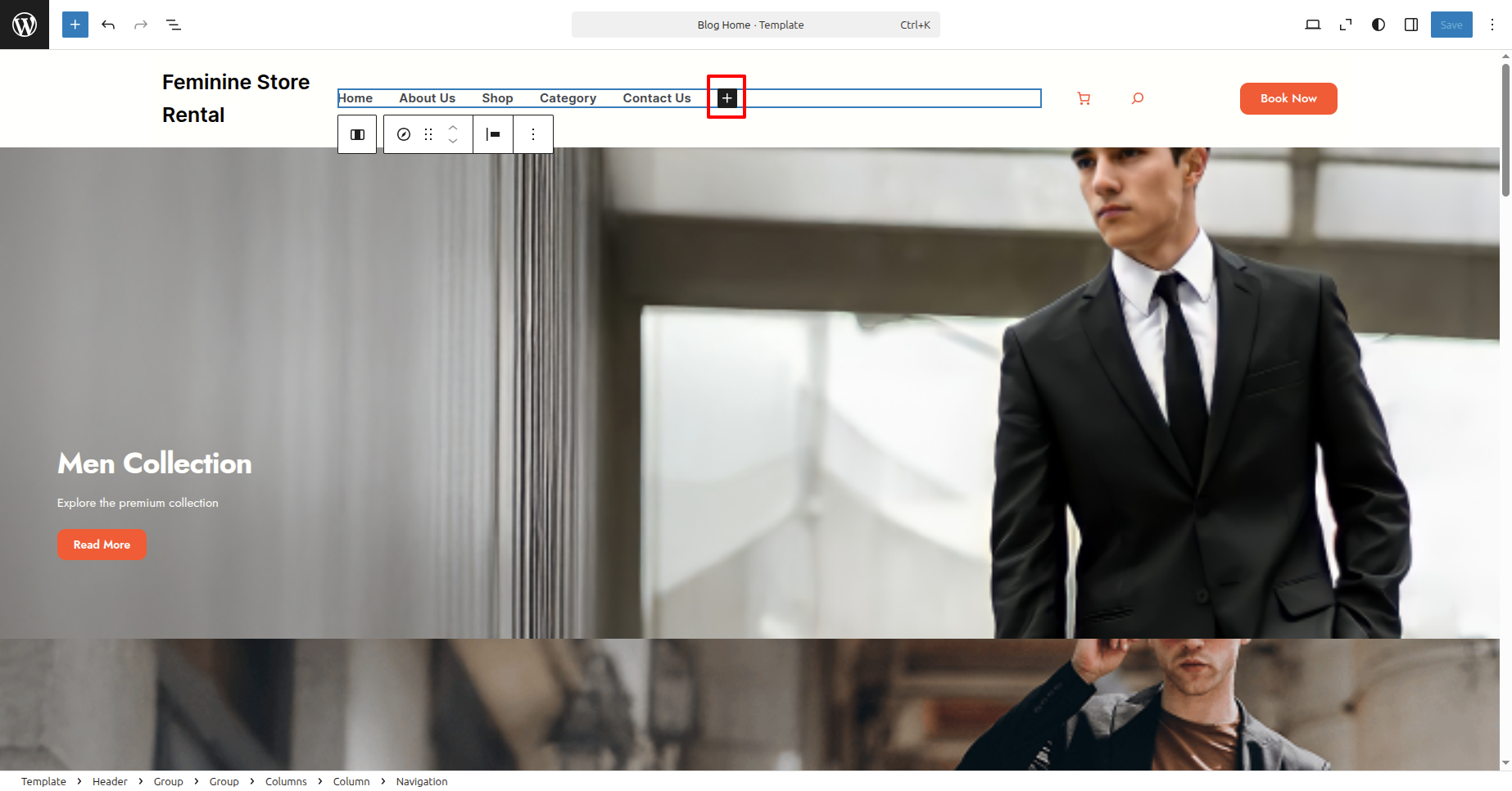
To construct a menu item with Editor, move on the steps provided.
Construct a menu.
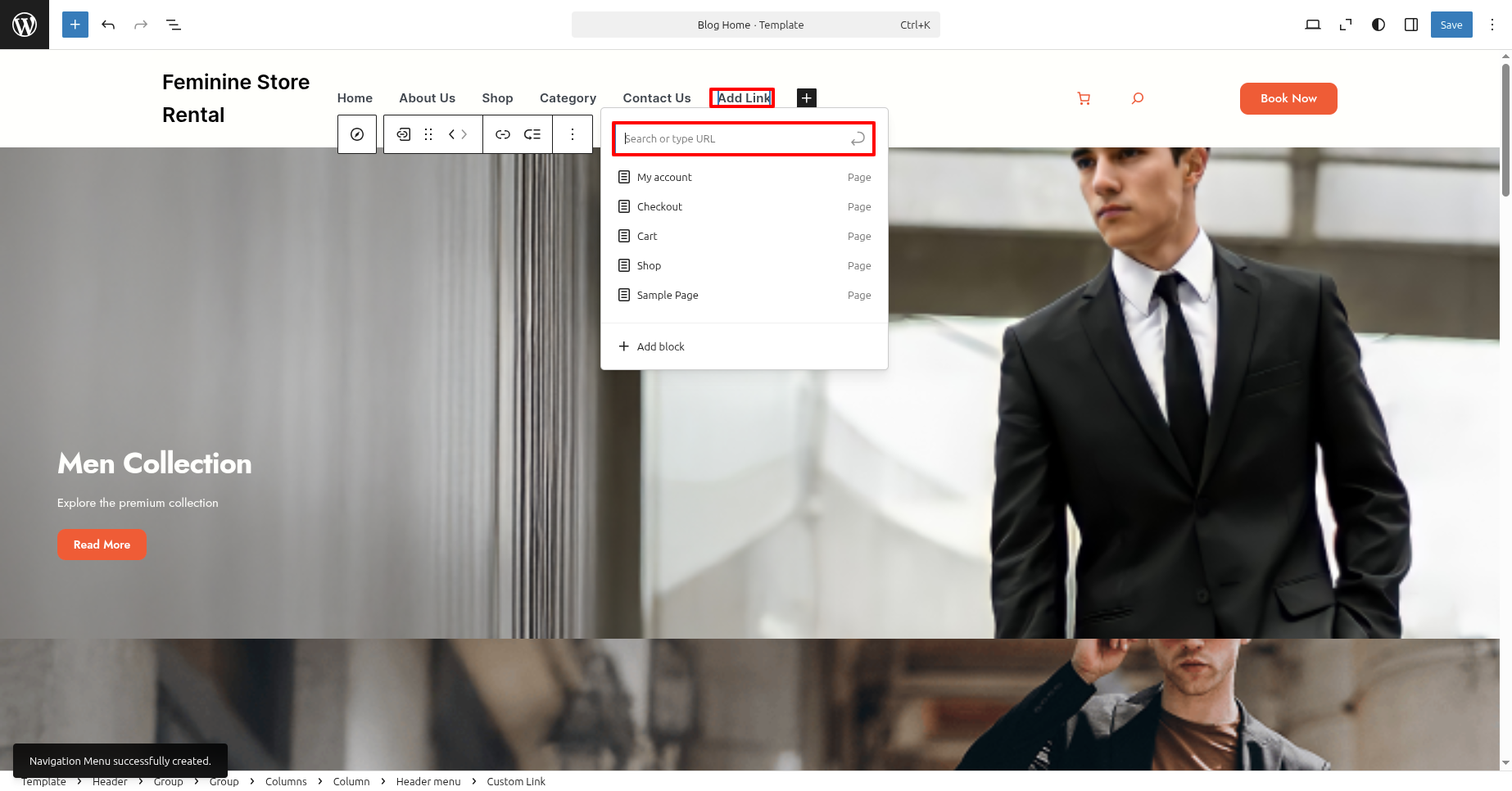
In the dashboard, go to Appearance >> Editor and touch on the plux icon.
You can search, provide a URL, or select a page from the list.
On the front end, the menu will appear as follows.

Feminine Store Rental Free Theme Setup
Configure Header
In order to proceed with Header follow the below steps.
In the dashboard, go to Appearance >> Editor
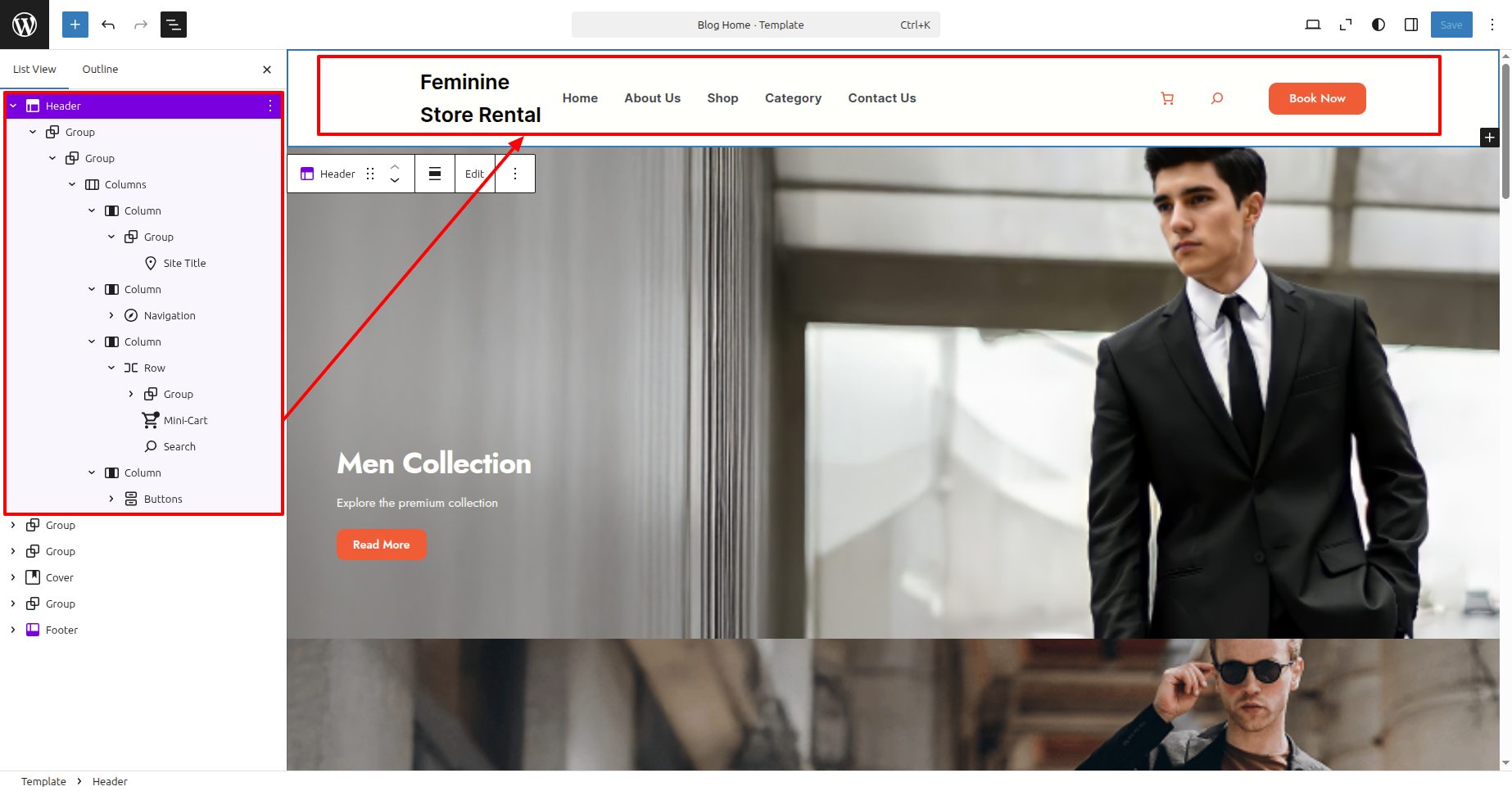
In front end, it will look like this.

Logo Setup
In order to proceed with Logo follow the below steps.
In the dashboard, go to Appearance >> Editor
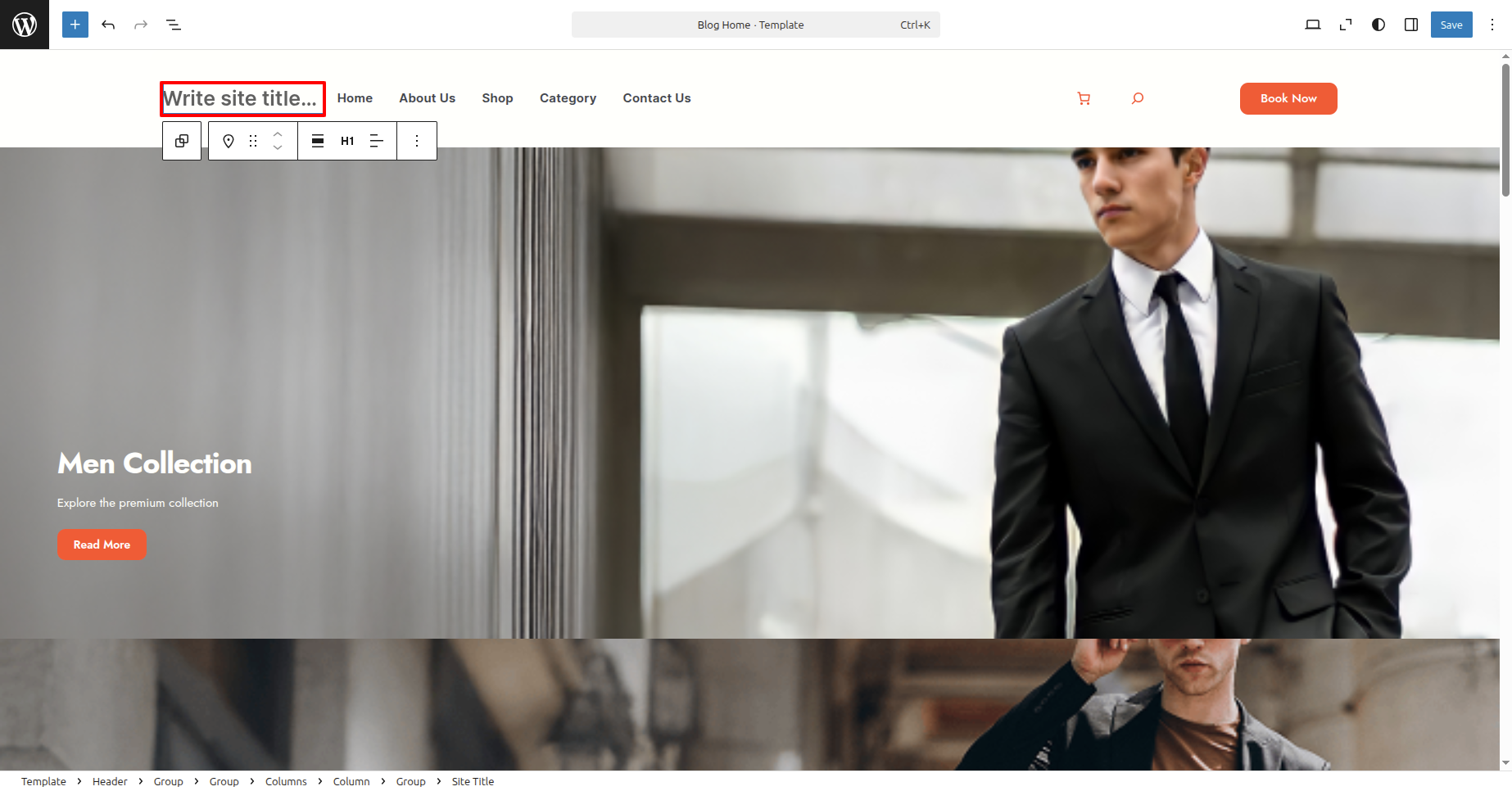
In front end, it will look like this.
Banner Section
In order to proceed with Banner follow the below steps.
In the dashboard, go to Appearance >> Editor
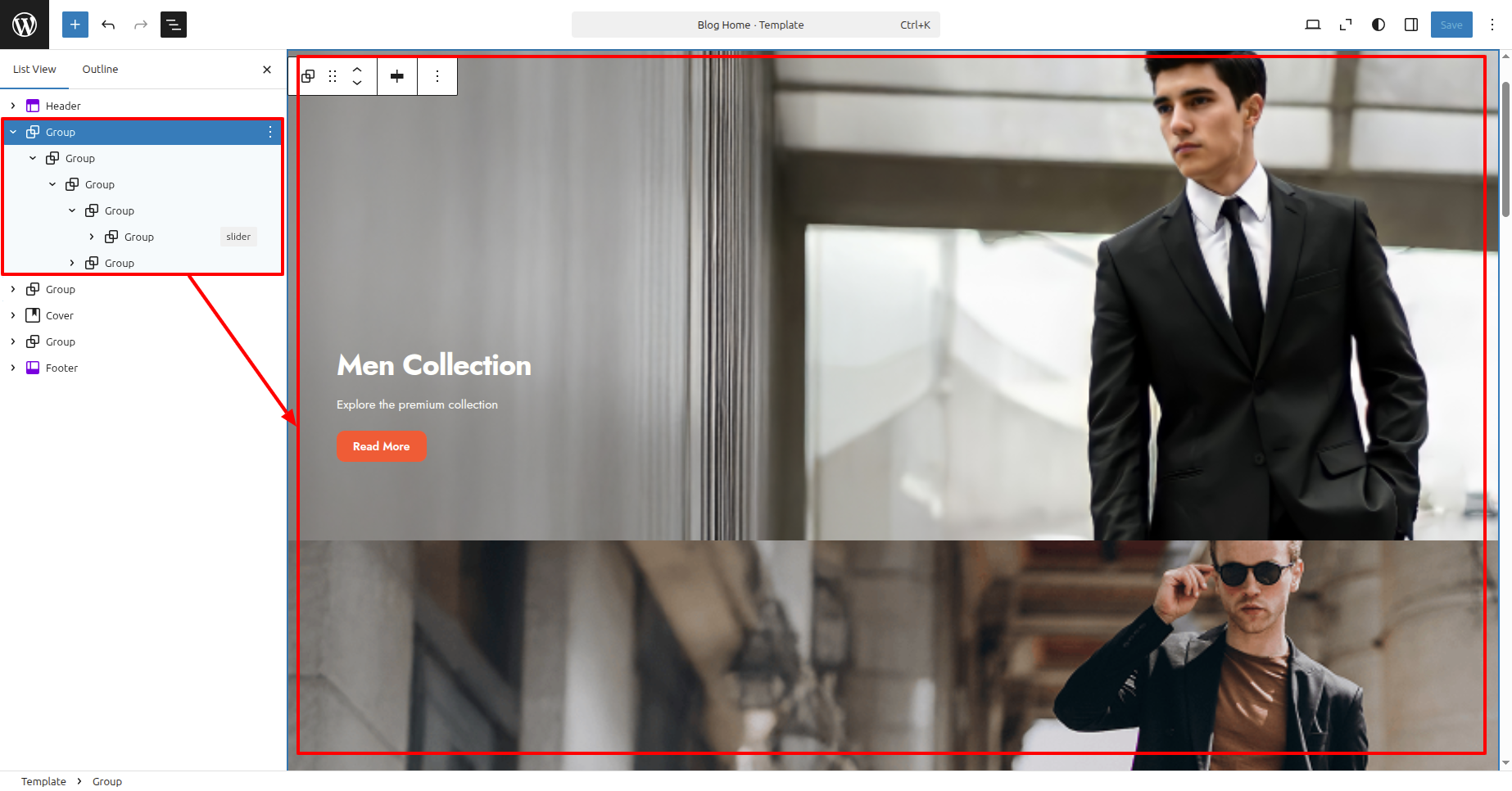
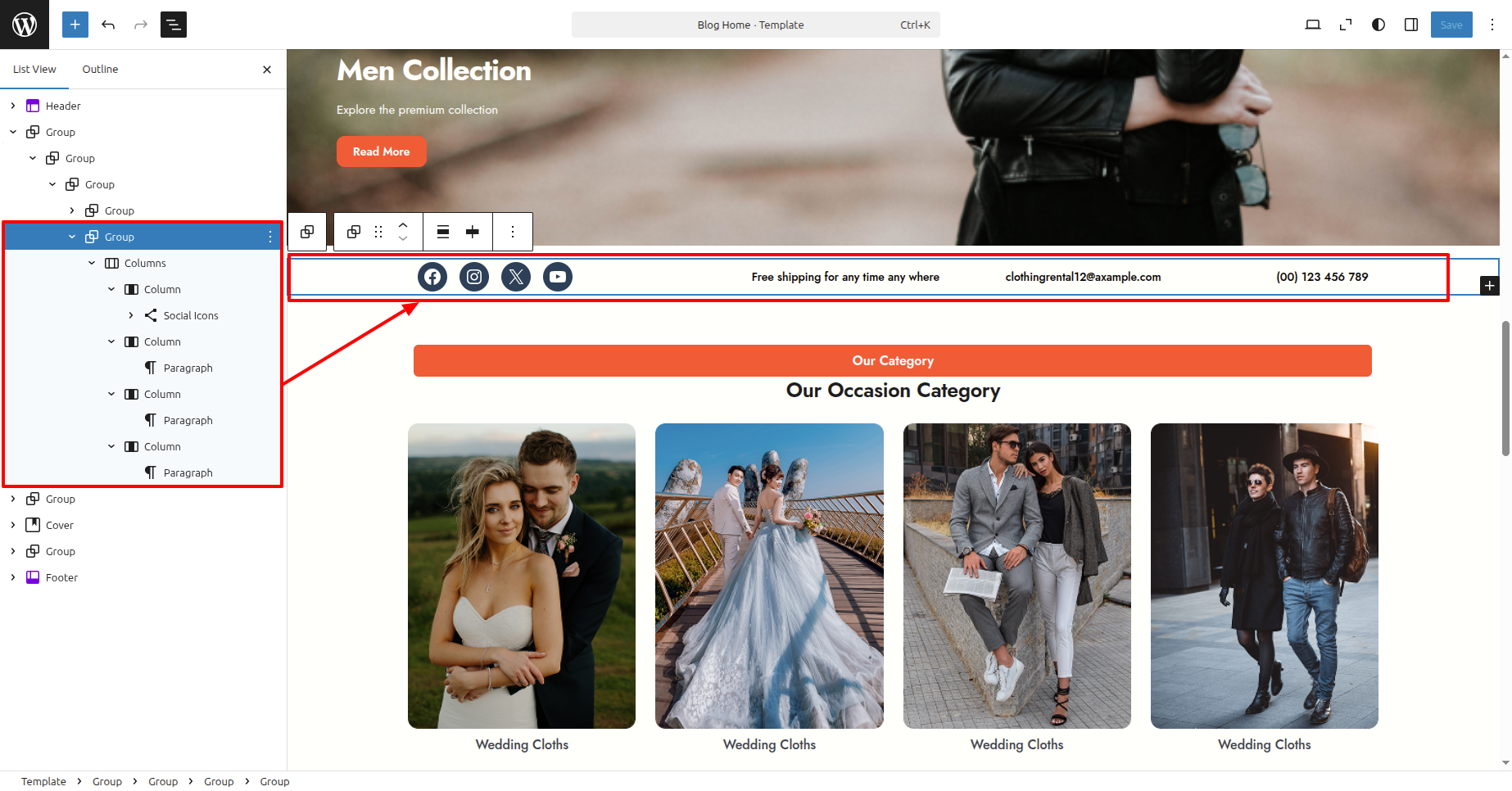
In front end, it will look like this.
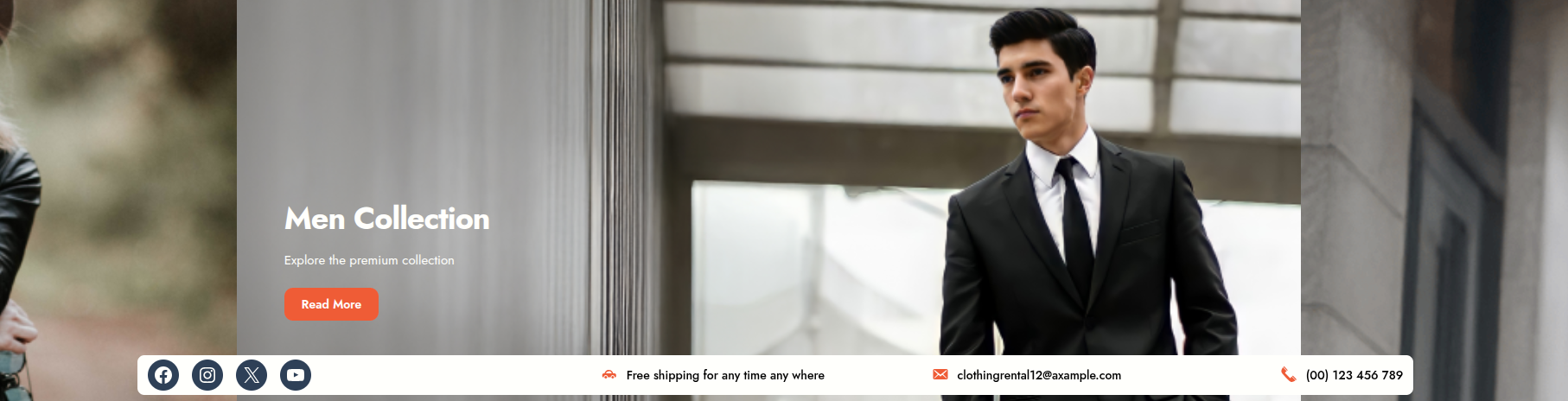
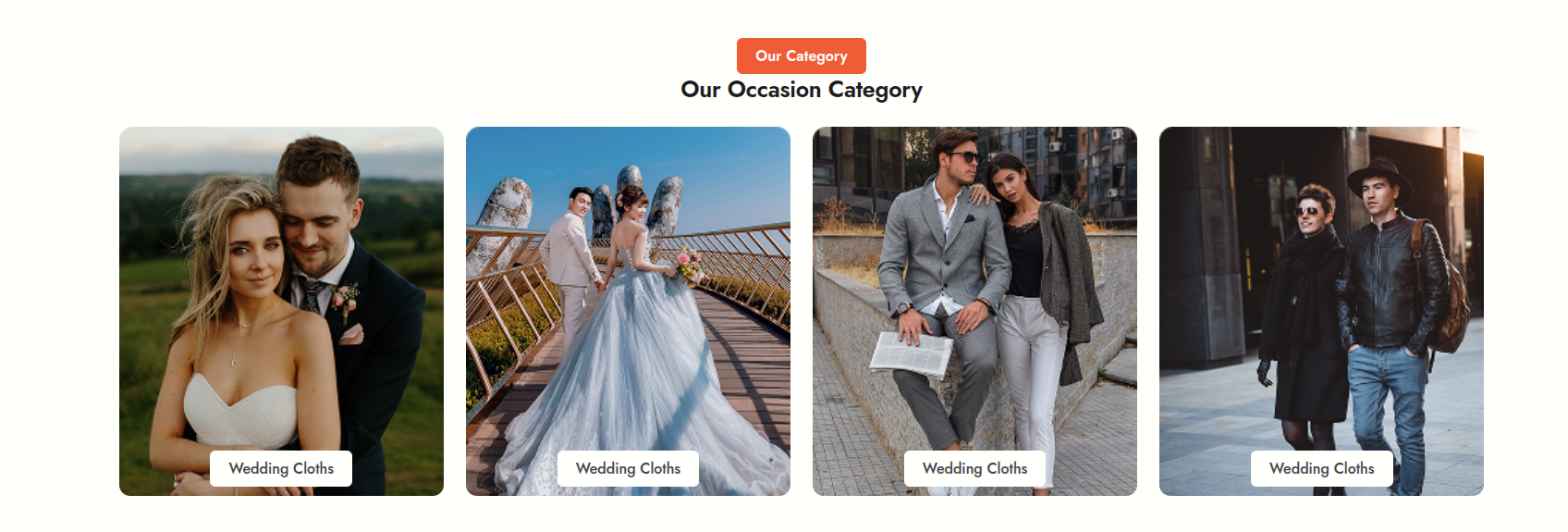
Our Category Section
In order to proceed with Our Category follow the below steps.
In the dashboard, go to Appearance >> Editor
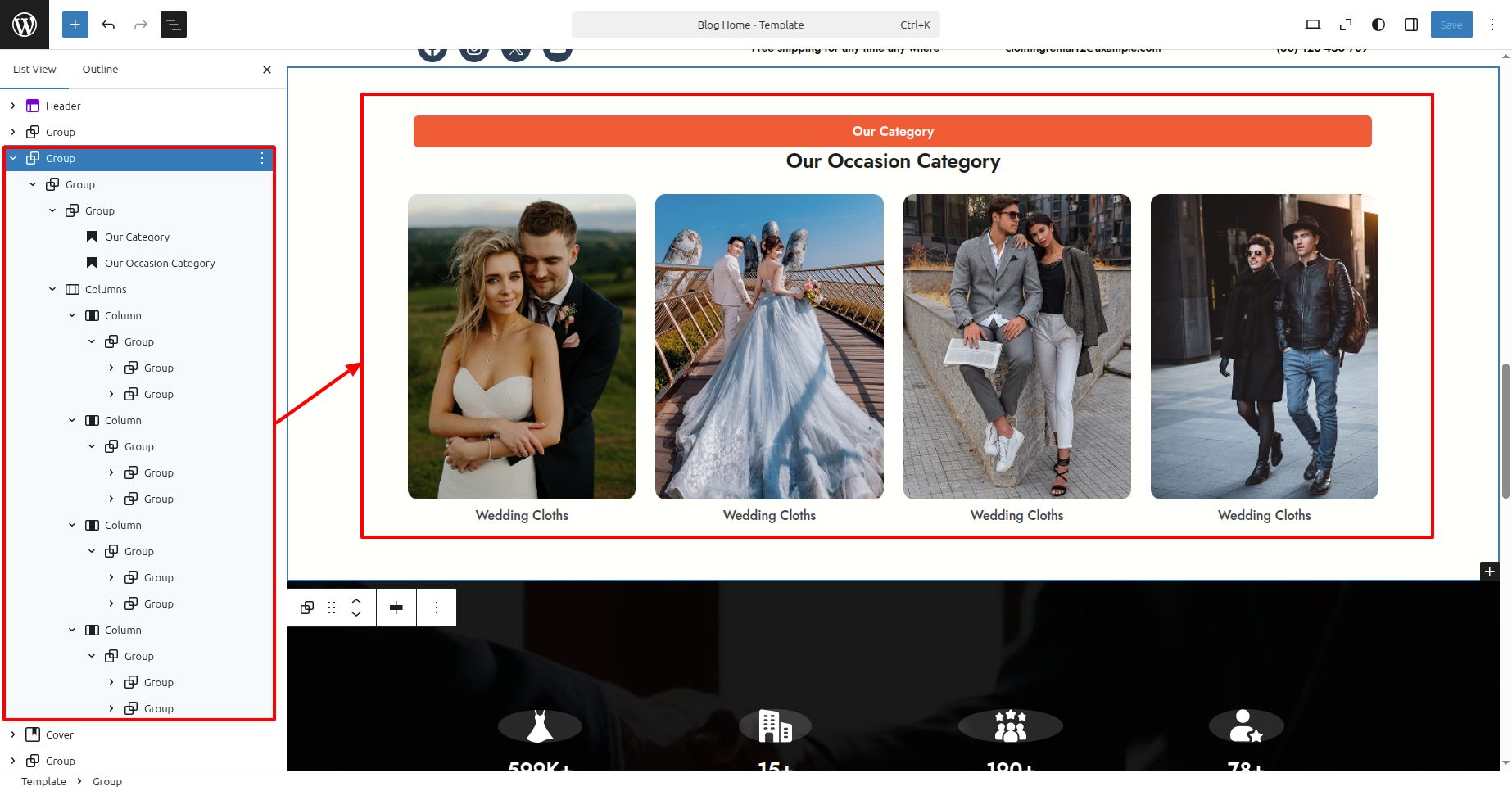
In front end, it will look like this.
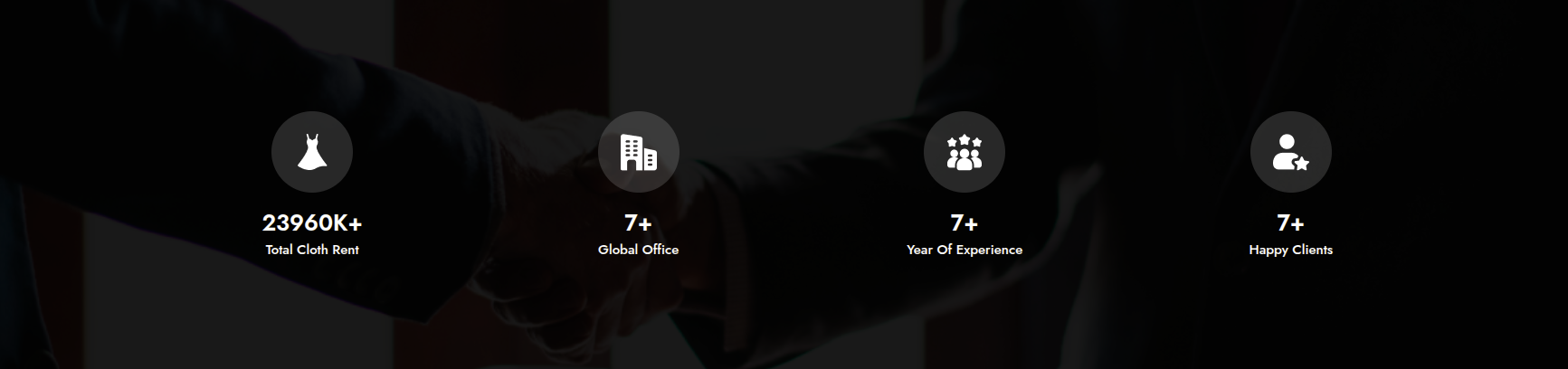
Counter Section
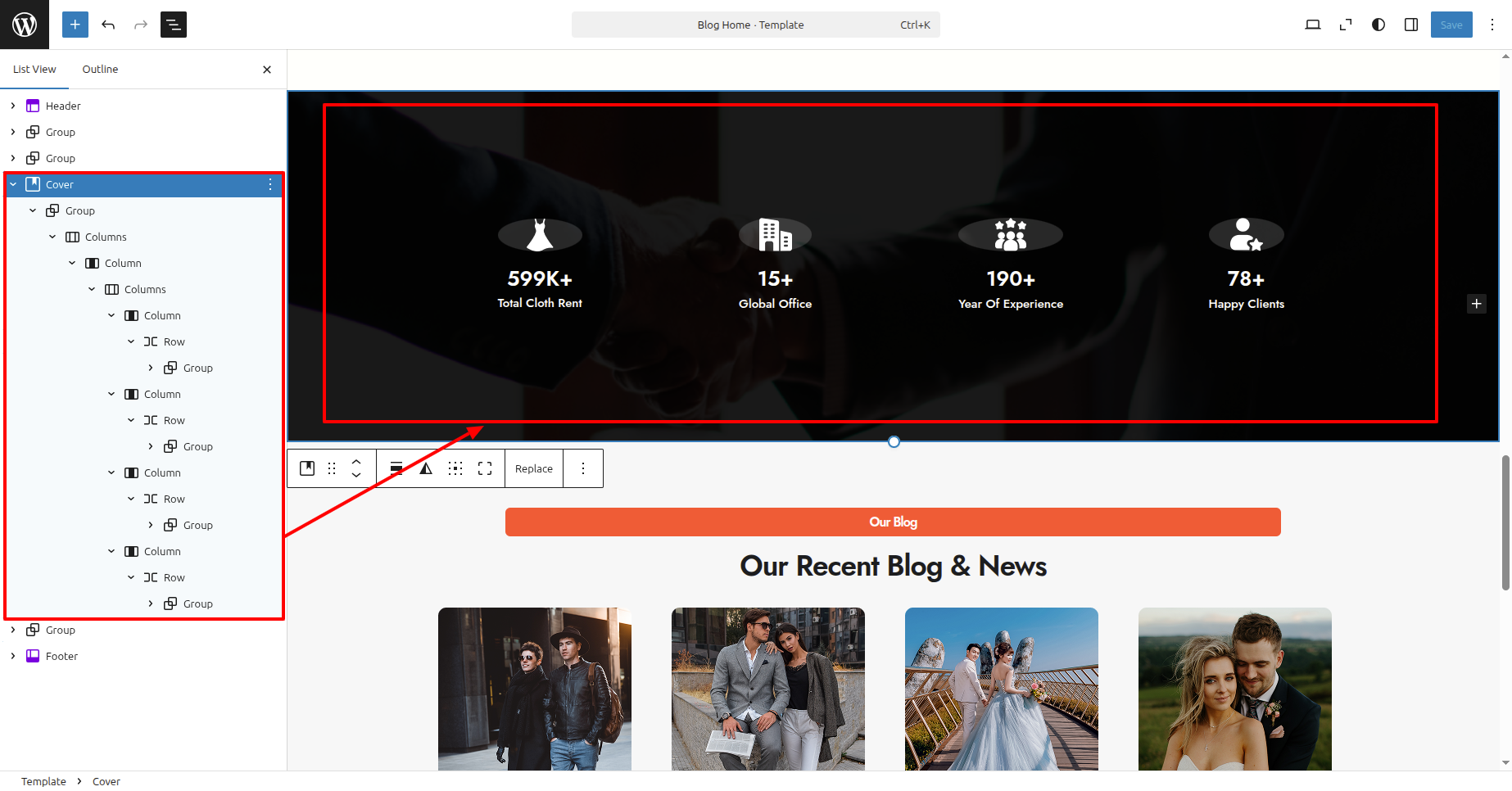
In order to proceed with Counter follow the below steps.
In the dashboard, go to Appearance >> Editor
In front end, it will look like this.
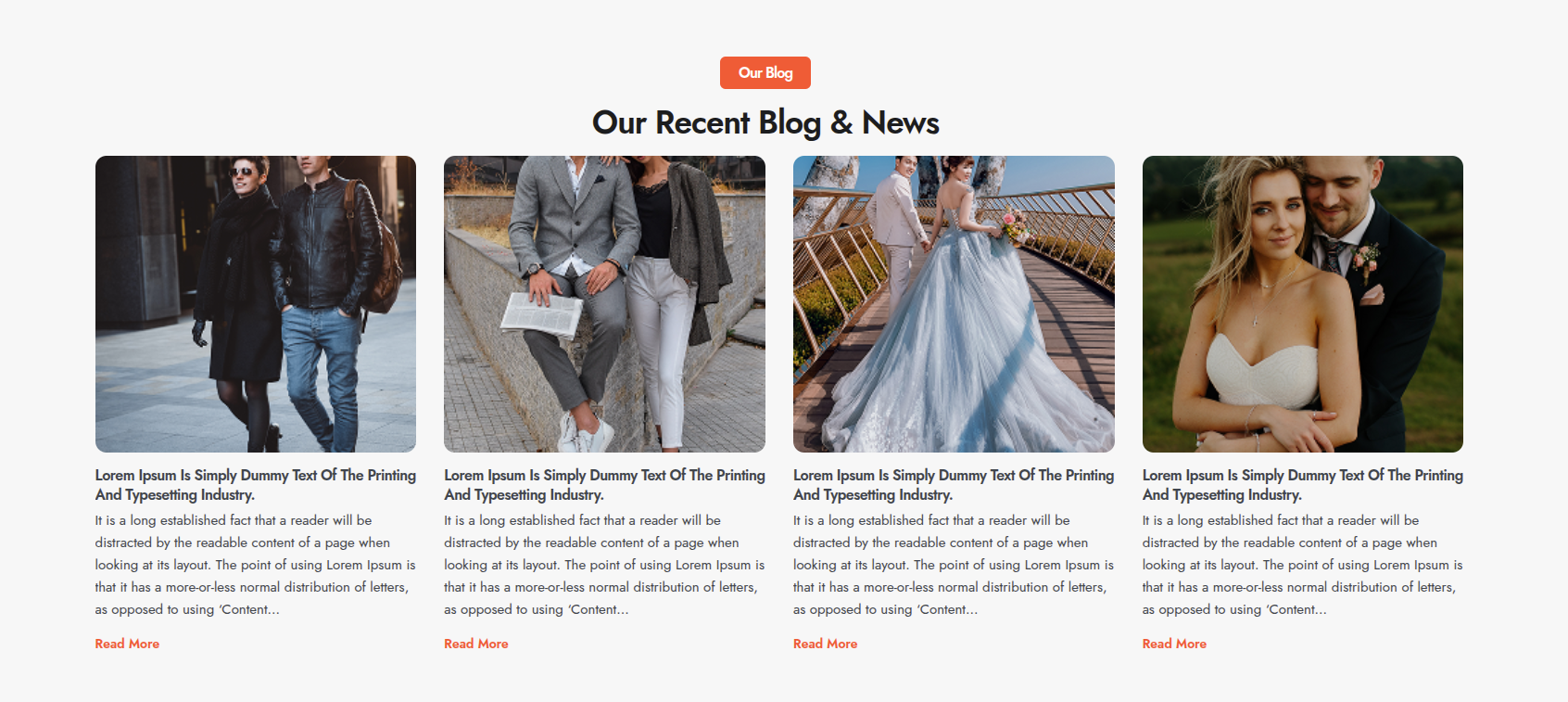
Latest News & Blog Section
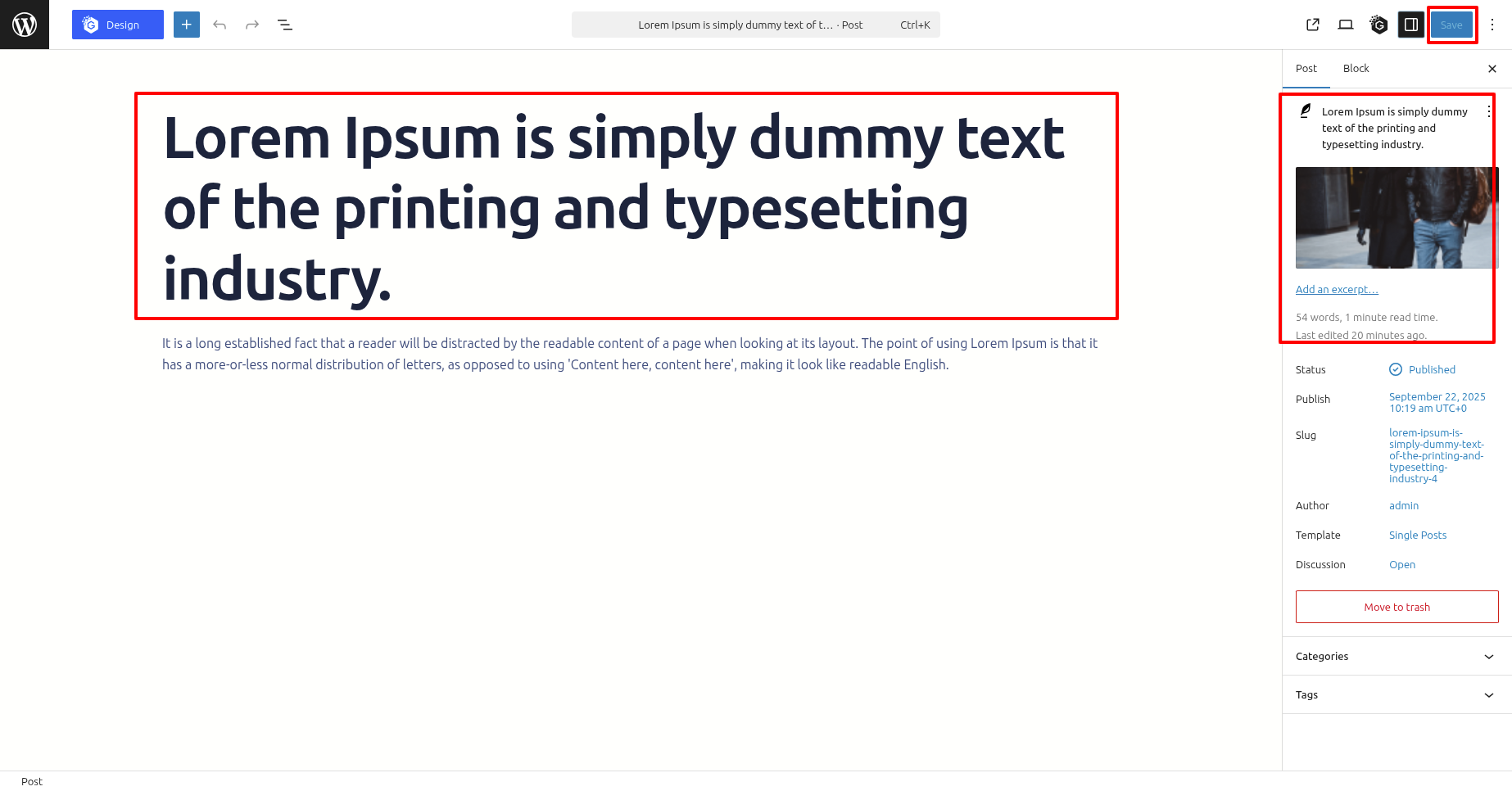
In order to proceed with Latest News & Blog follow the below steps.
In the dashboard, go to Posts >> Add New Posts
In the dashboard, go to Appearance >> Editor
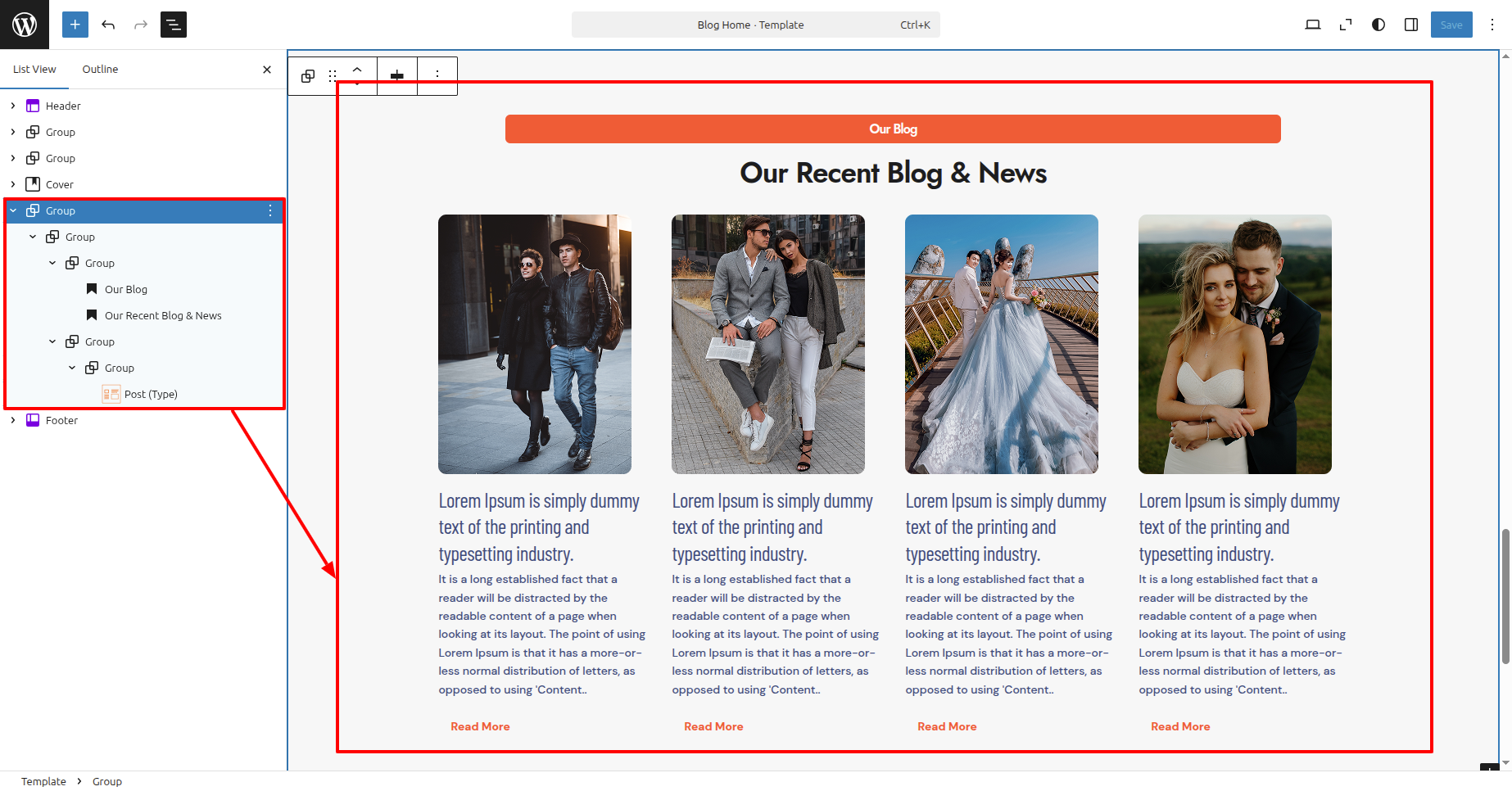
In front end, it will look like this.
Setup Footer Section
In order to proceed with Footer follow the below steps.
In the dashboard, go to Appearance >> Editor
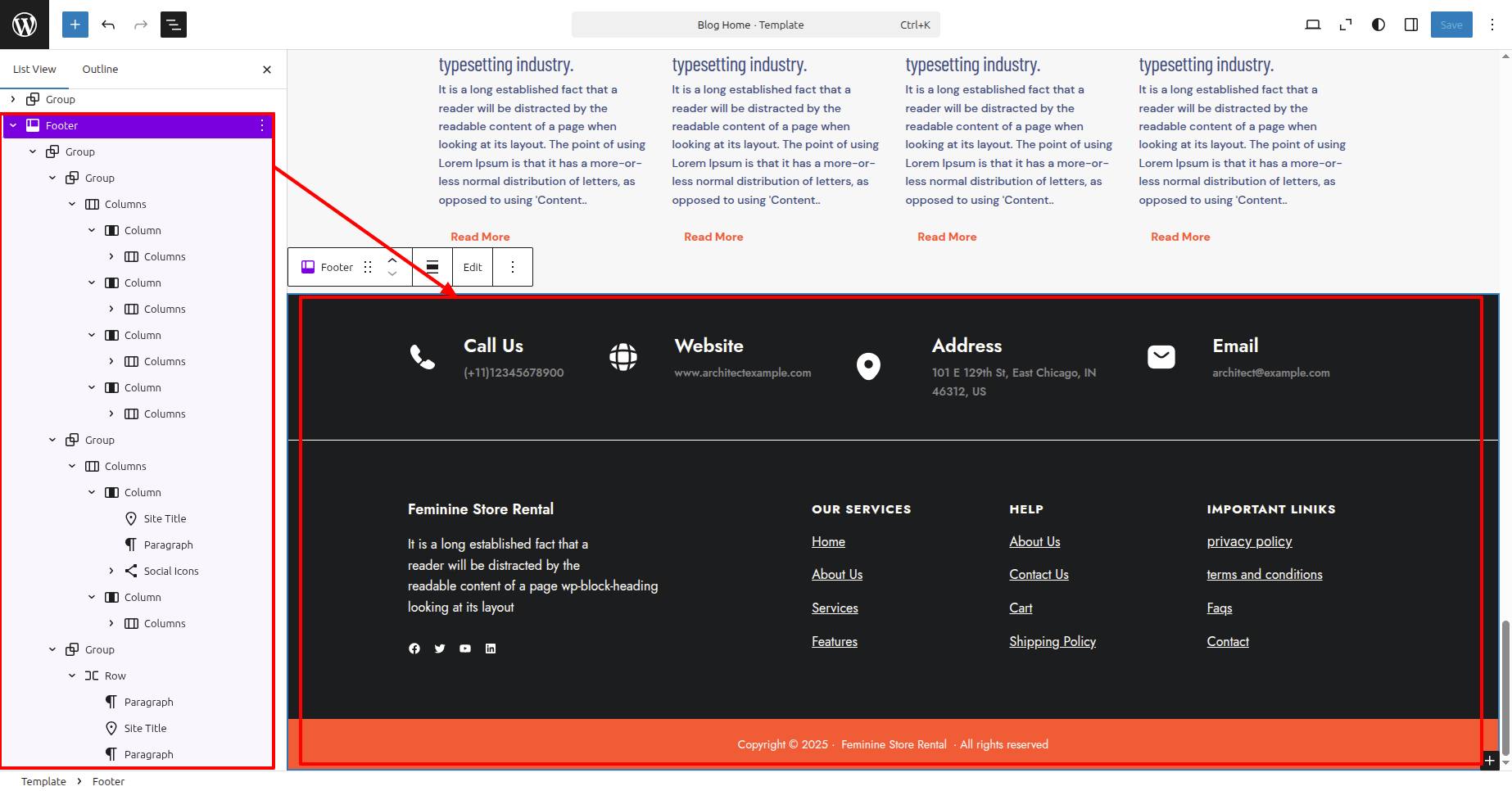
In front end, it will look like this.