Fundraiser Nonprofit Free Documentation
Your awesome theme / template documentation
Introduction
- Theme Name : Fundraiser Nonprofit
- Author : misbahwp
- Support Forum : https://wordpress.org/support/theme/fundraiser-nonprofit/
- License : GNU General Public License v3 or later
- Discription :Fundraiser Nonprofit is a clean and structured theme designed for organizations that managedonations, charity campaigns,and community initiatives. It includes layouts suitable for donation pages, campaign listings, volunteer information,event announcements, and impact updates.The design focuses on clear navigation, readable typography, and organized content sections that help visitors understand the mission and ongoing activities.The Fundraiser Nonprofit theme can be used by charitable organizations, NGOs, fundraising groups, community projects, educational initiatives, and social causes that need a simple website to present campaigns and share updates. It also supports blog sections, event details,and contact pages, allowing organizations to publish news, highlight projects, and maintain communication with supporters through a structured and accessible website layout.
How to Establish the Theme
Setup Theme
Template installation is very simple process.
You can also install your theme using WP Admin
The first task is to log in to your WordPress admin area. Next, click on
1. In dashboard click on Appearance >> Themes
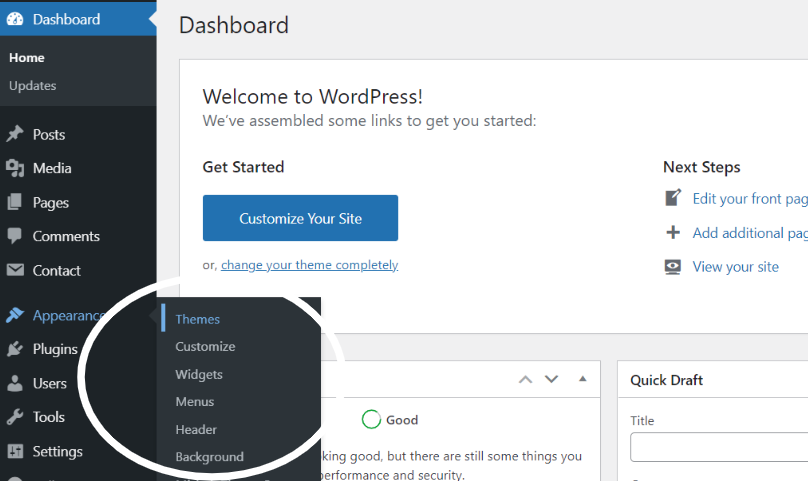
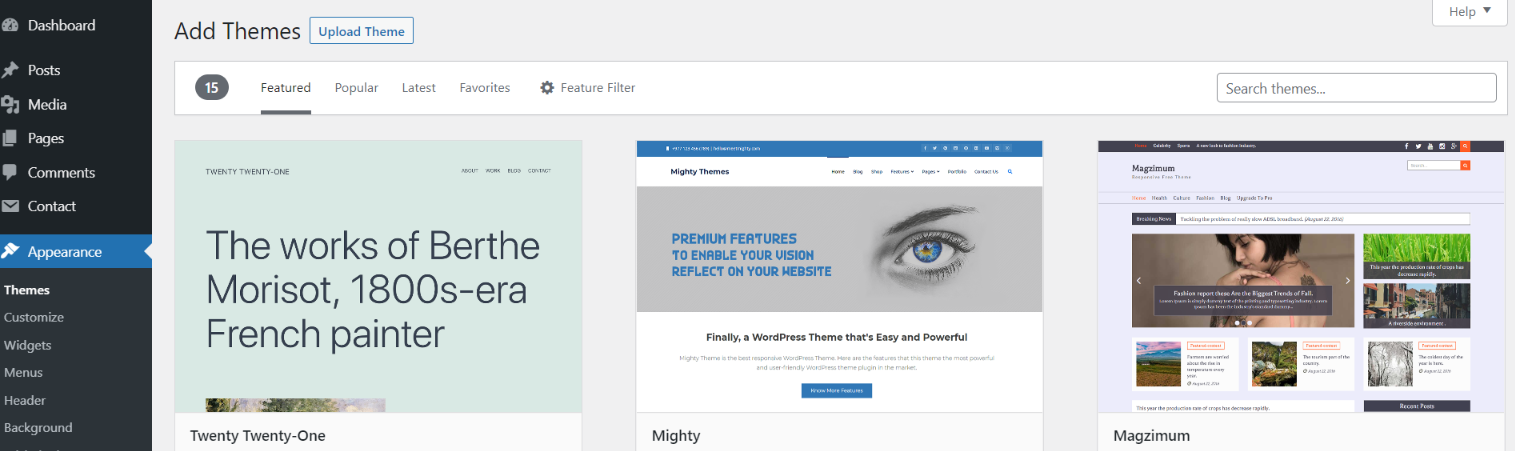
2. Click on the Add New button at the top of the themes page once page is loaded.
3. Click the button labelled as 'Upload Theme'.
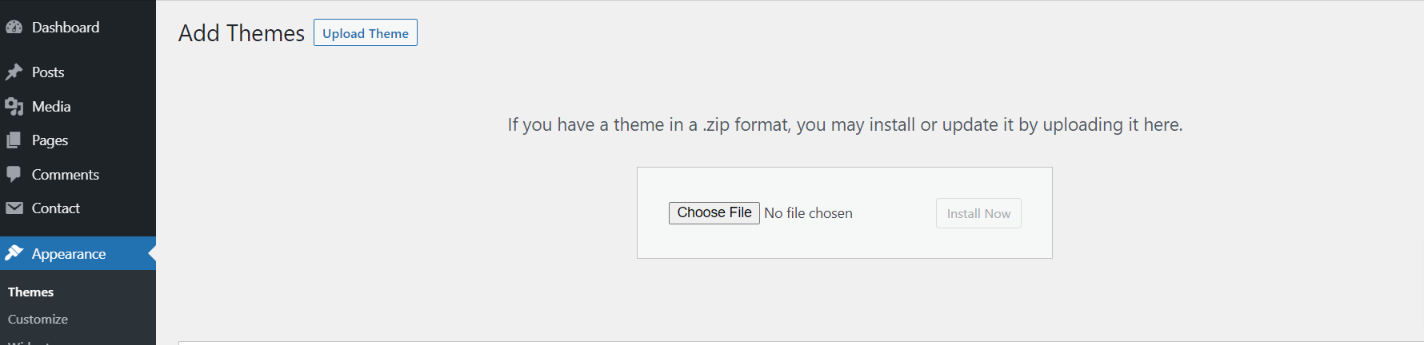
4. Click on Browse Button then select your fundraiser-nonprofit.zip theme and click on install now button.
5. WordPress will now install your theme and display a success message, as well as a link to activate or to see the live preview. Congratulations on completing the installation of your theme.
Configure Menu
Configure Menu
To construct a menu item with Editor, move on the steps provided.
Construct a menu.
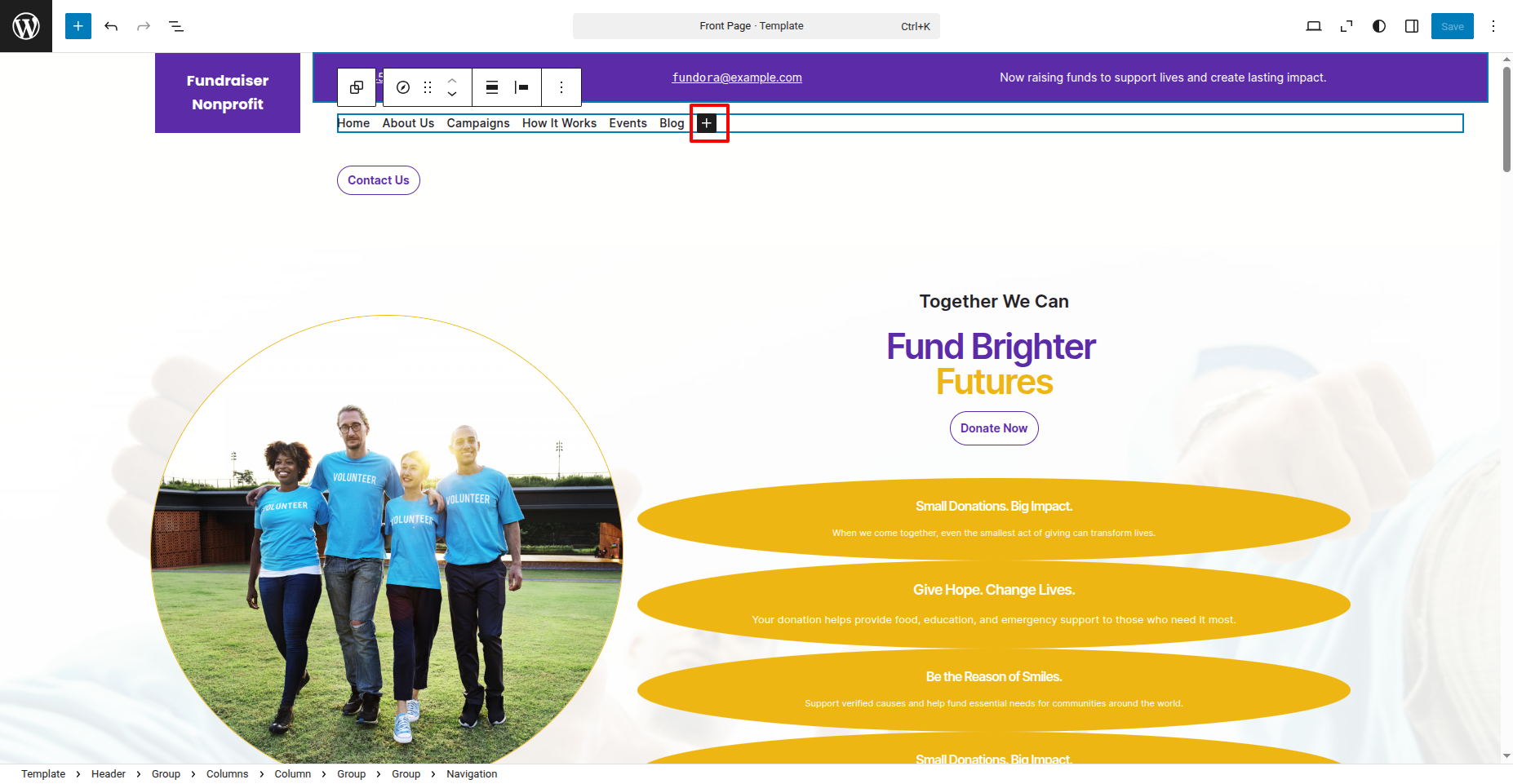
In the dashboard, go to Appearance >> Editor and touch on the plux icon.
You can search, provide a URL, or select a page from the list.
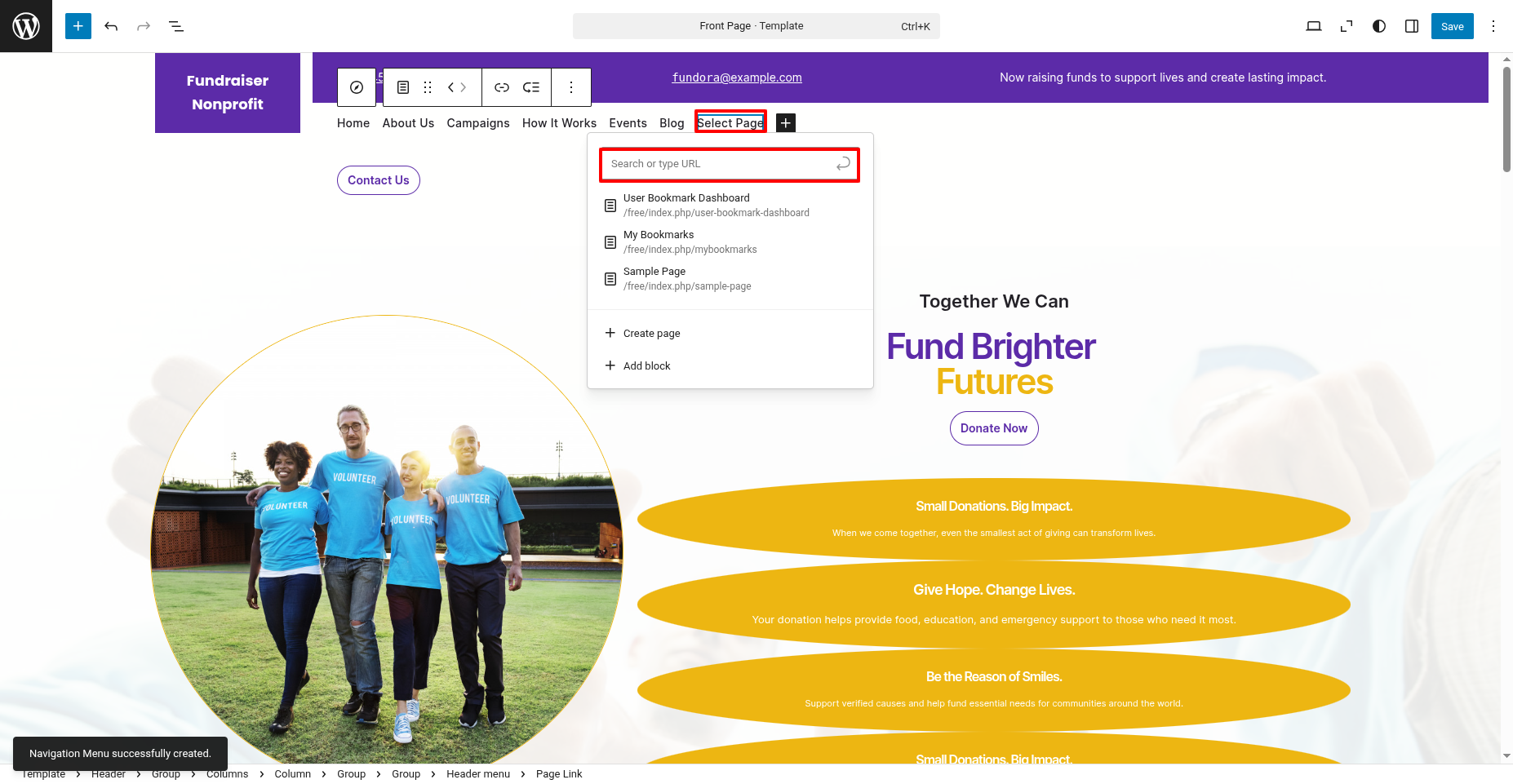
On the front end, the menu will appear as follows.

Fundraiser Nonprofit Free Theme Setup
Configure Header
In order to proceed with Header follow the below steps.
In the dashboard, go to Appearance >> Editor
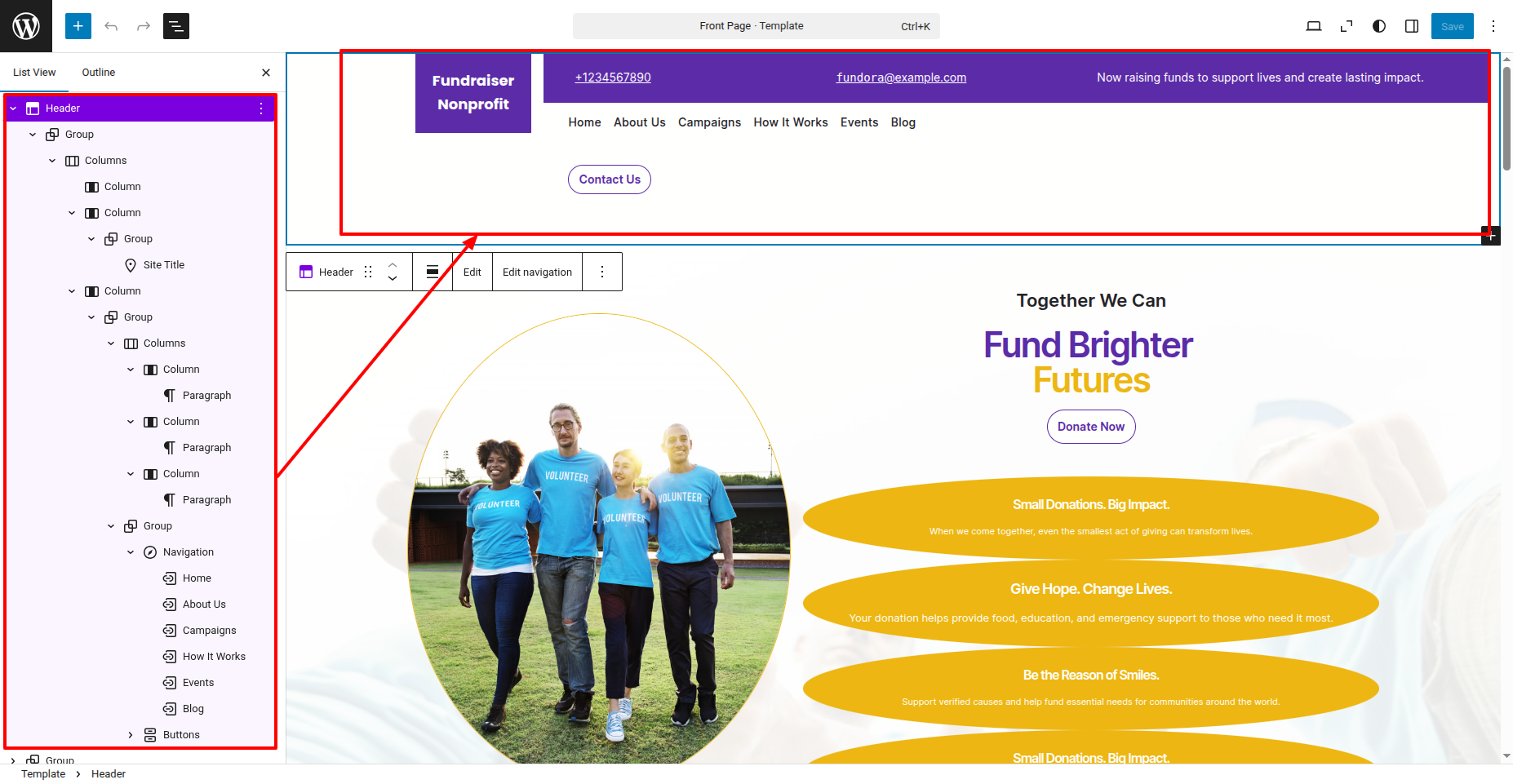
In front end, it will look like this.

Logo Setup
In order to proceed with Logo follow the below steps.
In the dashboard, go to Appearance >> Editor
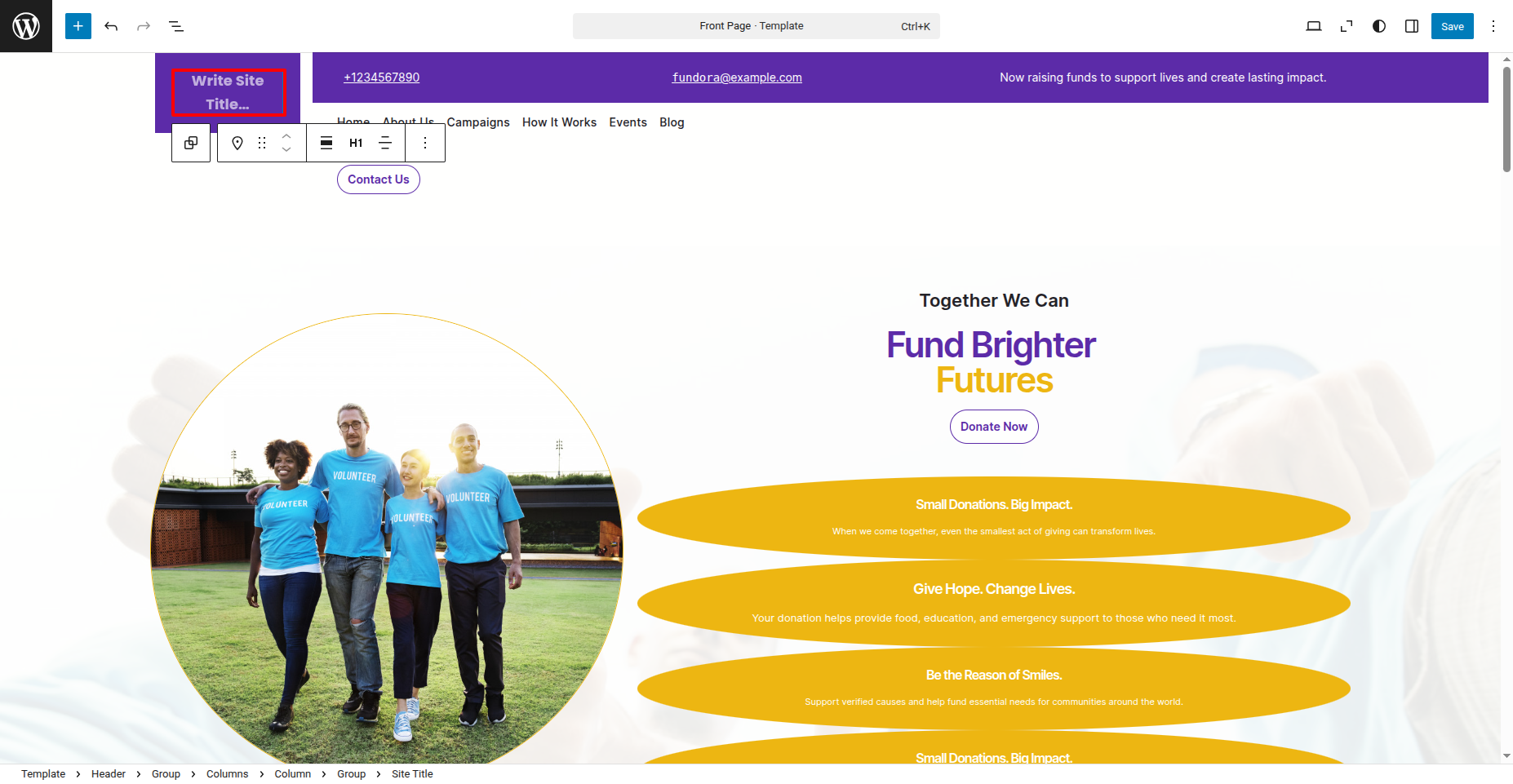
In front end, it will look like this.
Banner Section
In order to proceed with Banner follow the below steps.
In the dashboard, go to Appearance >> Editor
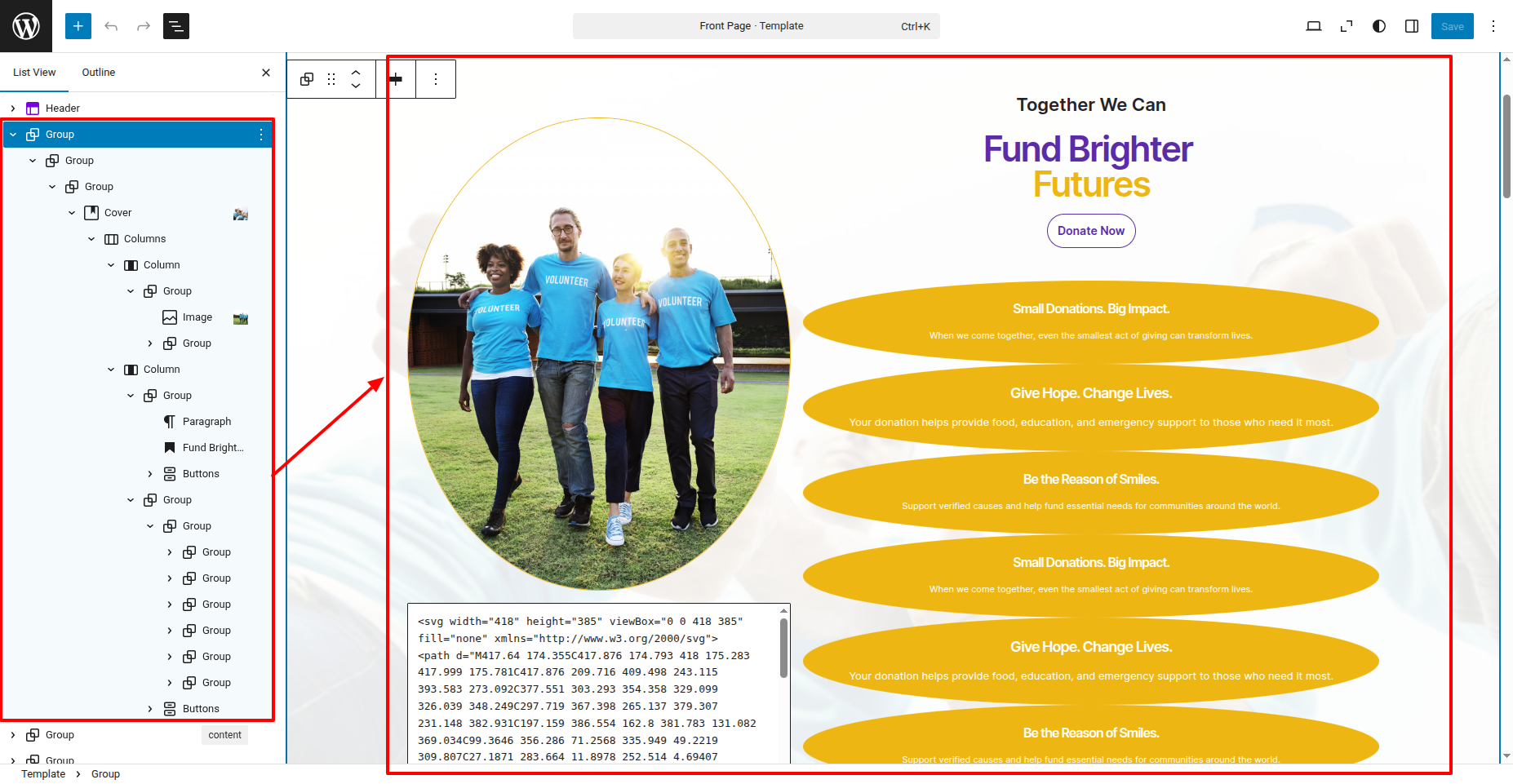
In front end, it will look like this.

Services Section
In order to proceed with Services follow the below steps.
In the dashboard, go to Posts >> Add New Posts
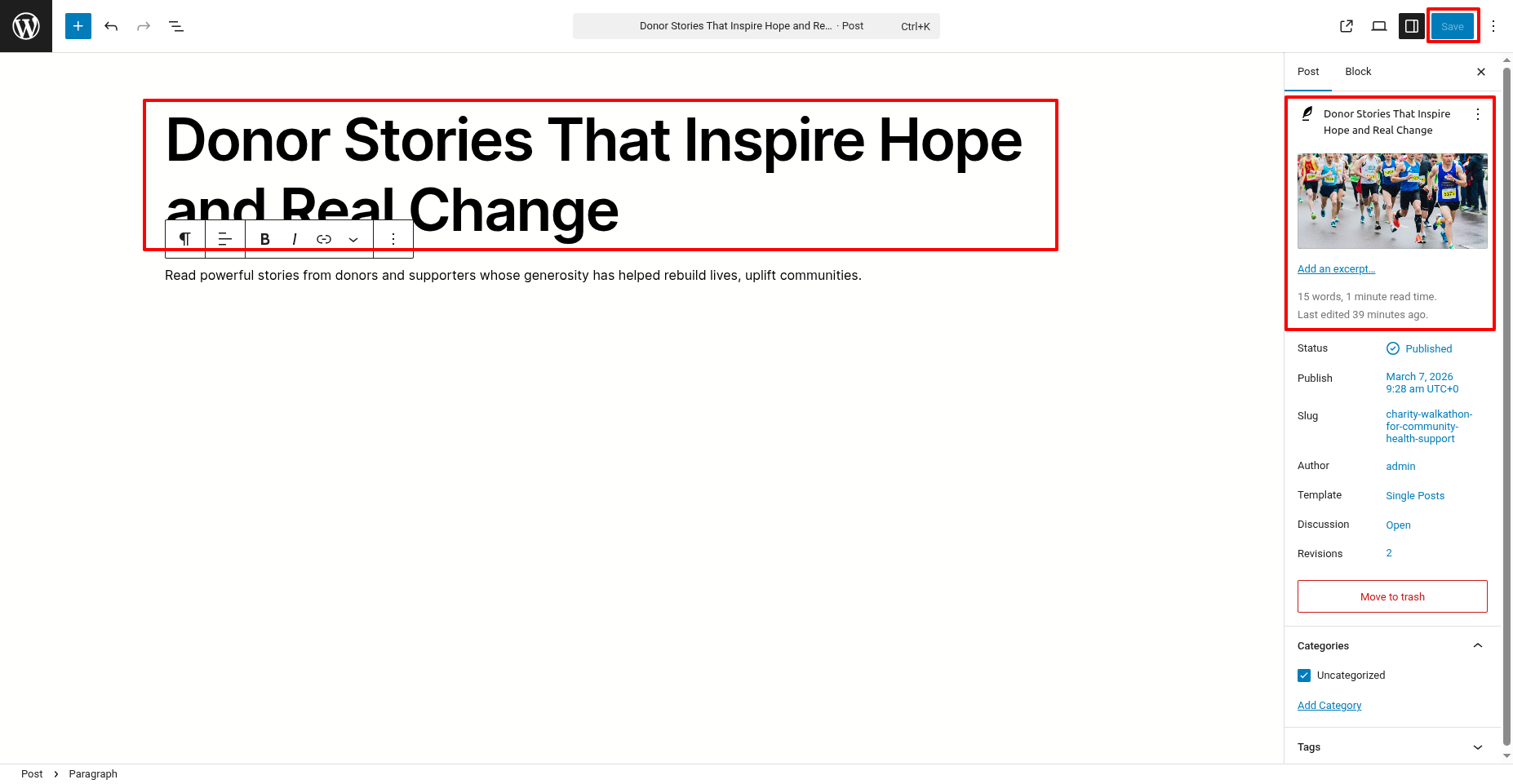
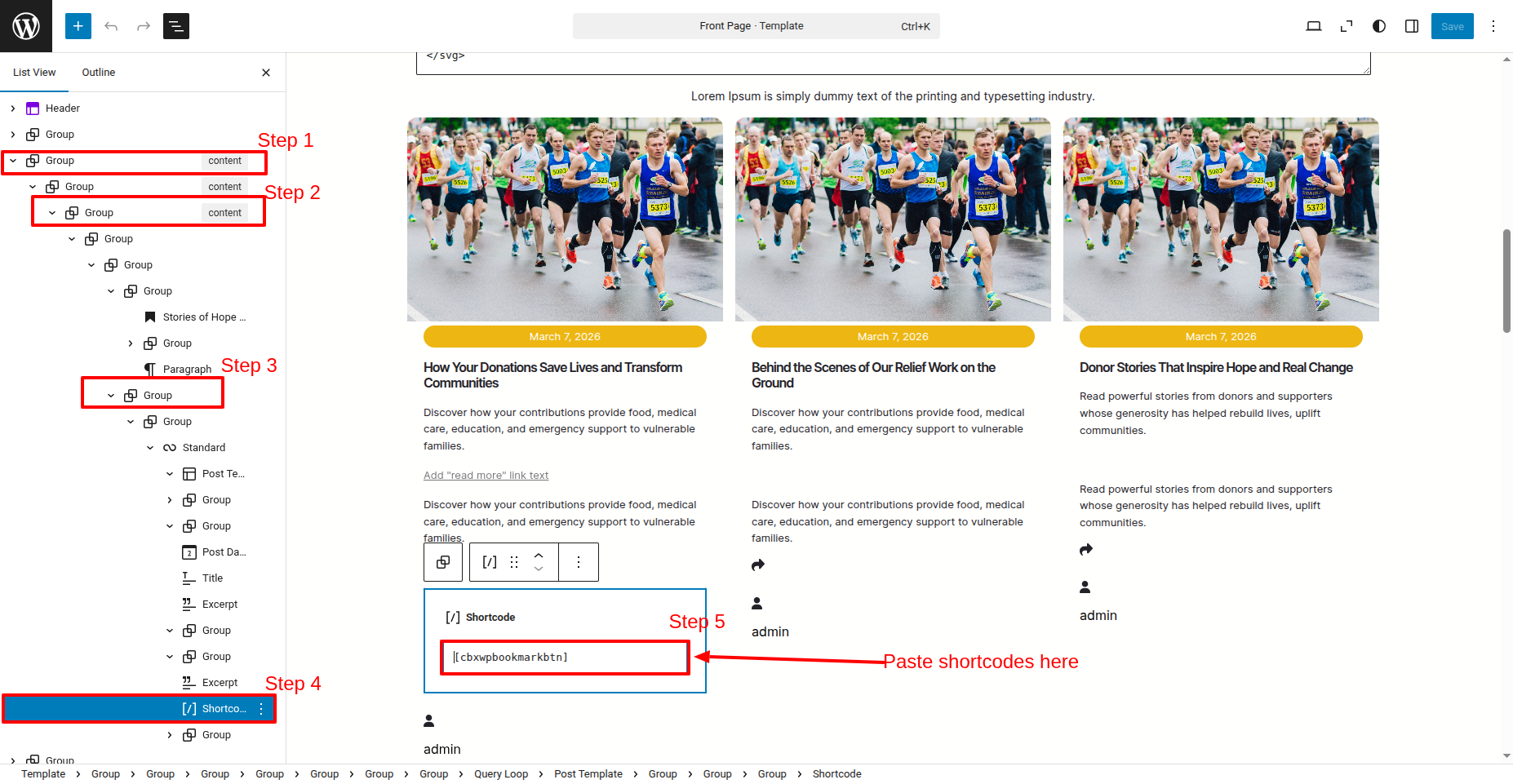
In the dashboard, go to Appearance >> Editor
[cbxwpbookmarkbtn]You have to copy these shortcodes and paste them into the editor as you see in this screenshot.
In front end, it will look like this.
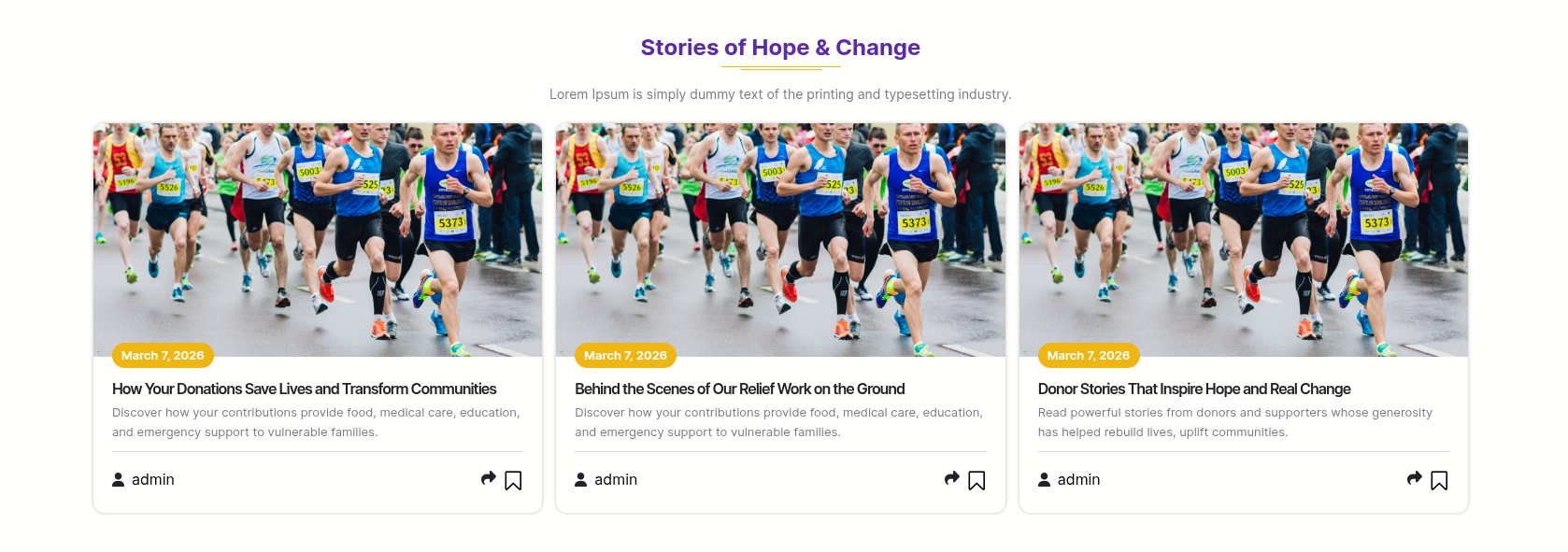
Donation Card Section
In order to proceed with Donation Card follow the below steps.
In the dashboard, go to Appearance >> Editor
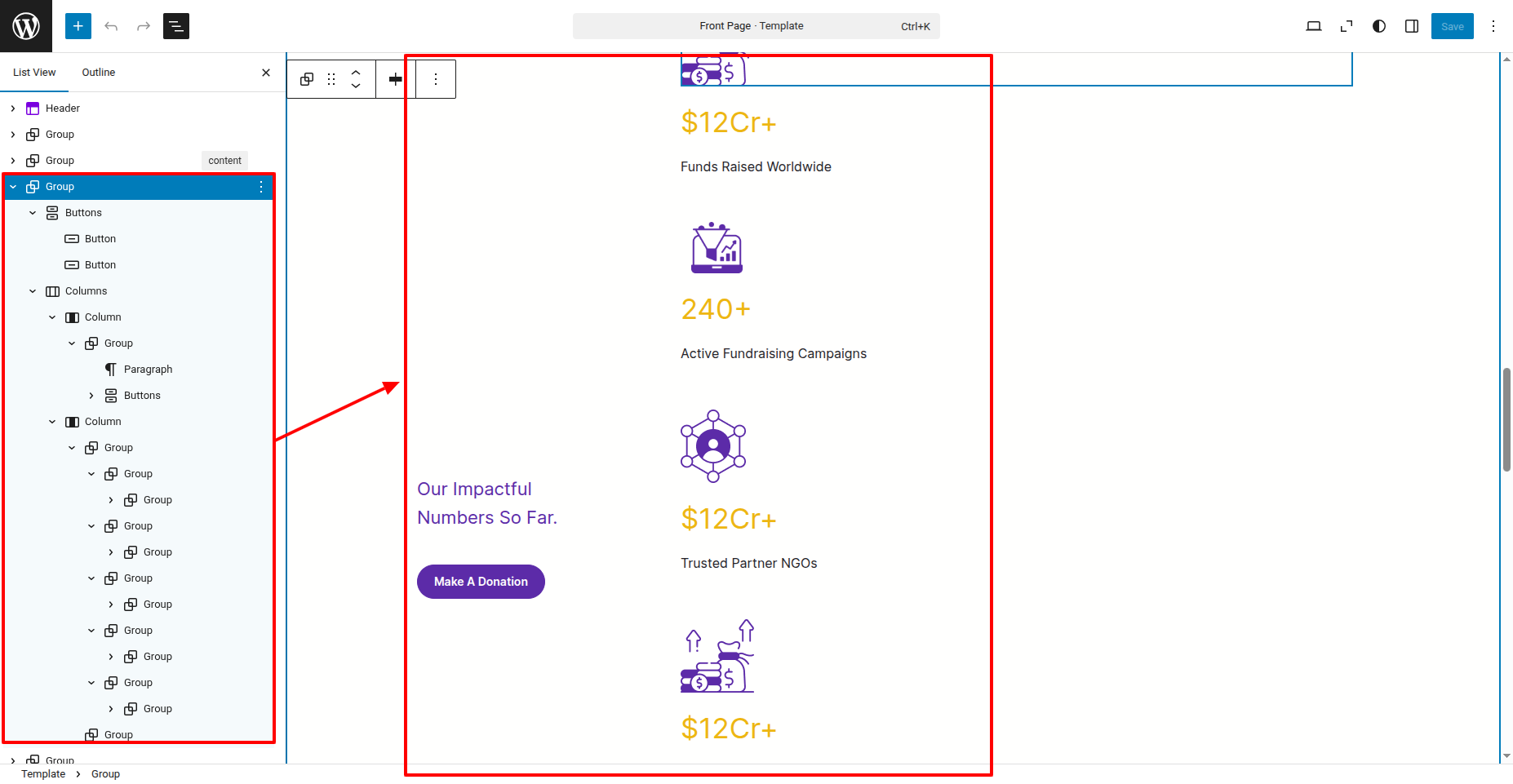
In front end, it will look like this.
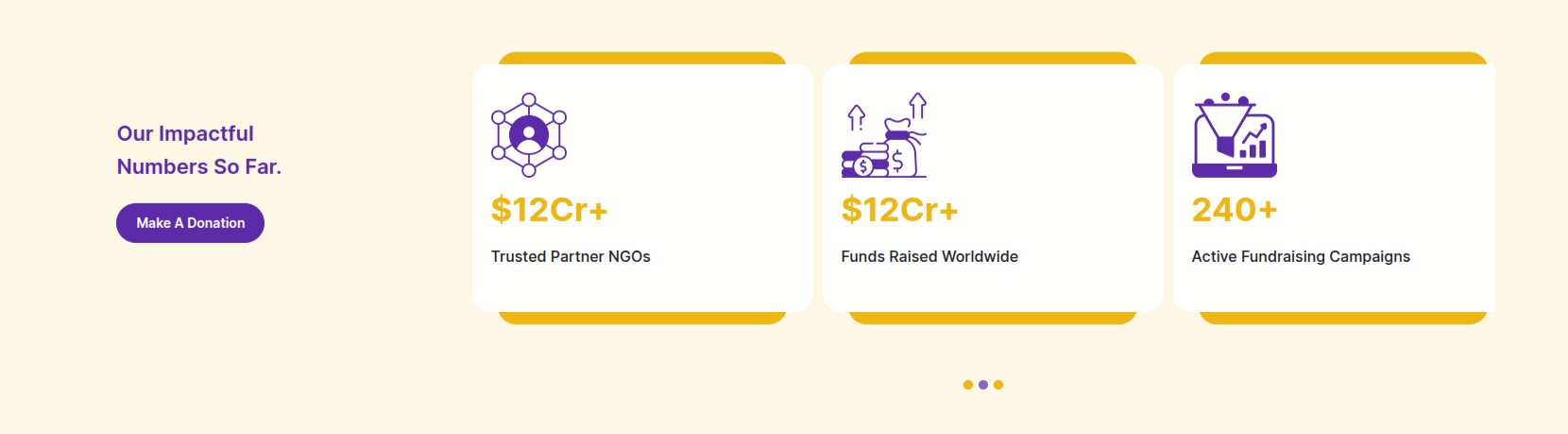
About Section
In order to proceed with About follow the below steps.
In the dashboard, go to Appearance >> Editor
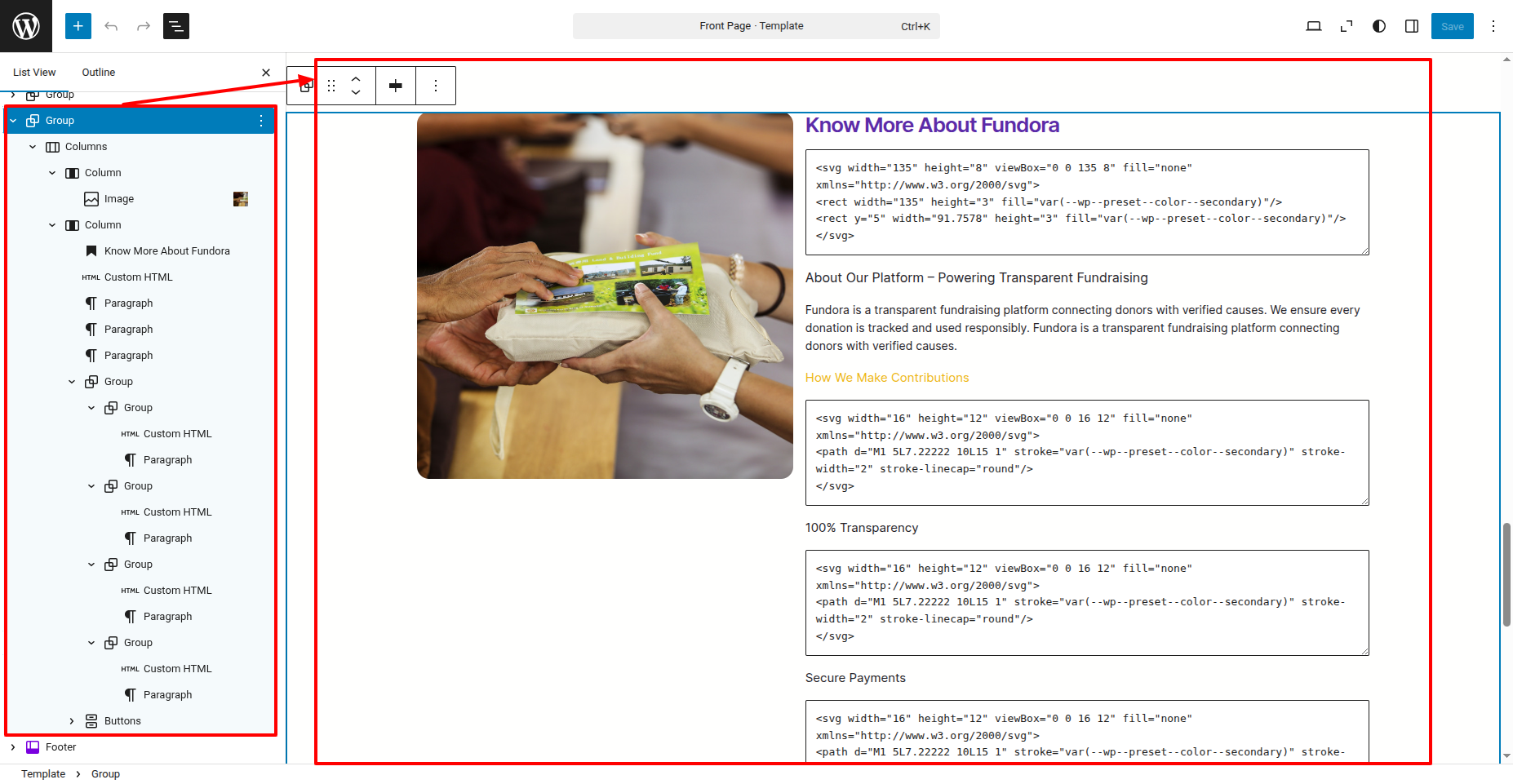
In front end, it will look like this.

Setup Footer Section
In order to proceed with Footer follow the below steps.
In the dashboard, go to Appearance >> Editor
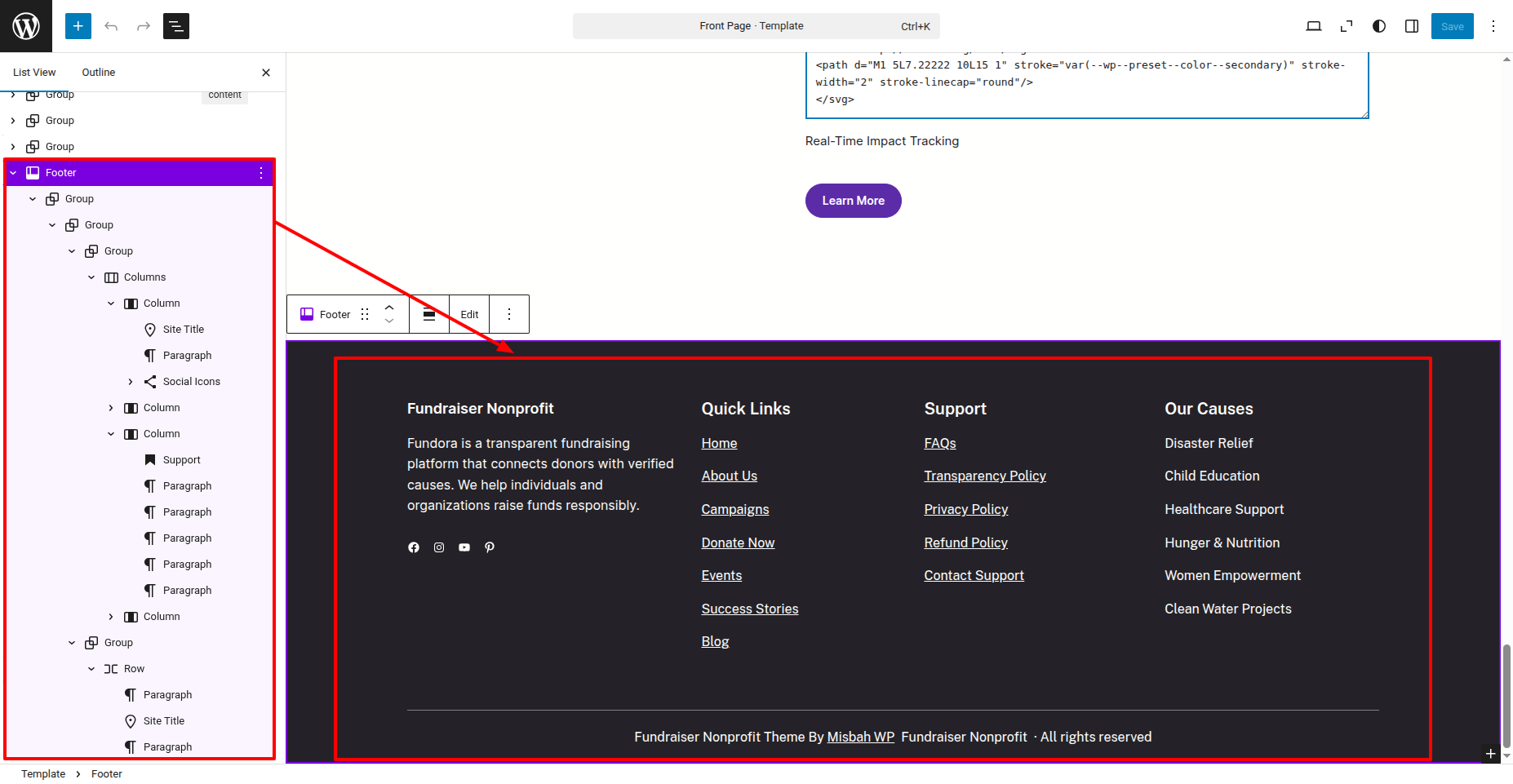
In front end, it will look like this.