Gym Training Center Free Documentation
Your awesome theme / template documentation
Introduction
- Theme Name : Gym Training Center
- Author : misbahwp
- Support Forum : https://wordpress.org/support/theme/gym-training-center/
- License : GNU General Public License v3 or later
- Discription :The Gym Training Center is a multipurpose WordPress theme designed for businesses such as a Gym, Fitness Center, Health Club, or Fitness Studio. It provides a structured layout suitable for presenting Gym Training services, Workout Programs, Strength Training sessions, Bodybuilding classes, and Weight Loss plans. The design follows a clean, minimal, and modern approach with an elegant and sophisticated visual style that suits both small studios and larger facilities. The theme includes dedicated sections to introduce a Personal Trainer, highlight team members, and display detailed service descriptions. A testimonial section allows clients to share feedback, while a prominent Banner area can be used for announcements or featured programs. Integrated Call to Action Button (CTA) elements support appointment bookings, membership inquiries, or program sign-ups. Social media integration enables Fitness Centers to link their profiles directly from the website. Built with bootstrap, the theme offers a responsive and mobile-friendly layout that adapts to various screen sizes. It is retina-ready, ensuring clear display quality on high-resolution devices. The structure is based on clean code and optimized codes to support faster page load time and stable performance. The secure and clean code base also makes it agency-friendly and suitable for further development by a Developer. Customization Options include personalization options for colors, fonts, and layouts without requiring advanced technical knowledge. Shortcodes allow users to add interactive and animated elements to pages with ease. The theme is translation-ready, making it suitable for multilingual Fitness Studio websites. Overall, the Gym Training Center theme combines functional design with practical features to support Gym Training businesses in presenting their services in a clear and organized manner.
How to Establish the Theme
Setup Theme
Template installation is very simple process.
You can also install your theme using WP Admin
The first task is to log in to your WordPress admin area. Next, click on
1. In dashboard click on Appearance >> Themes
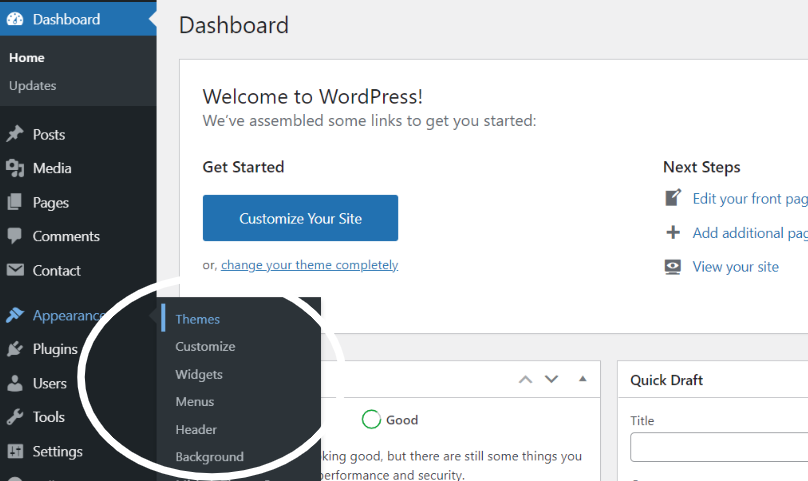
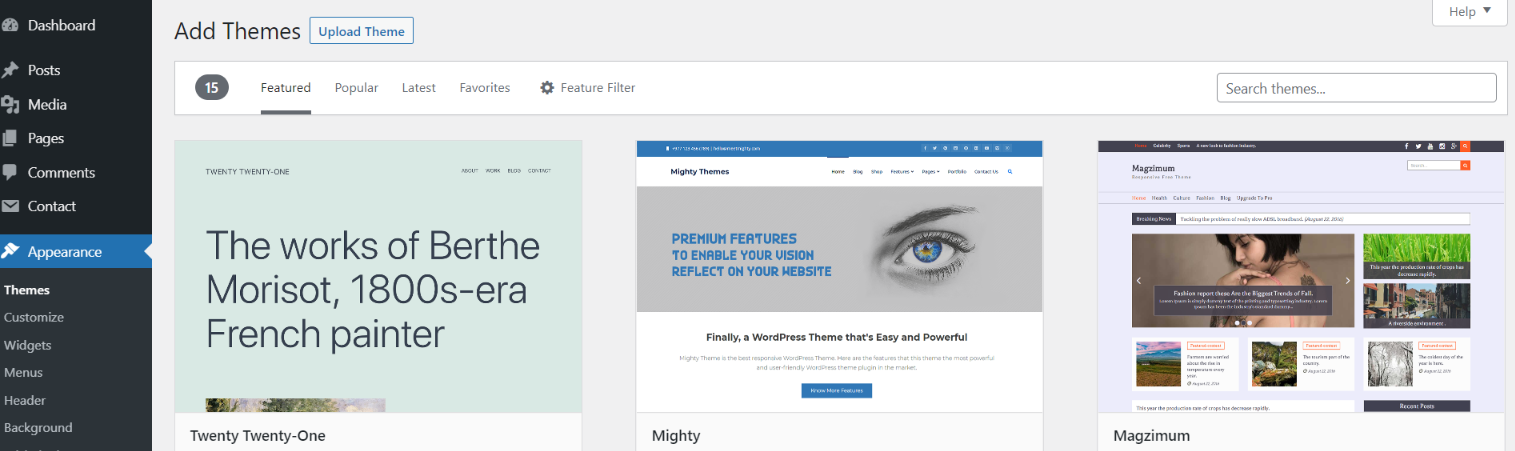
2. Click on the Add New button at the top of the themes page once page is loaded.
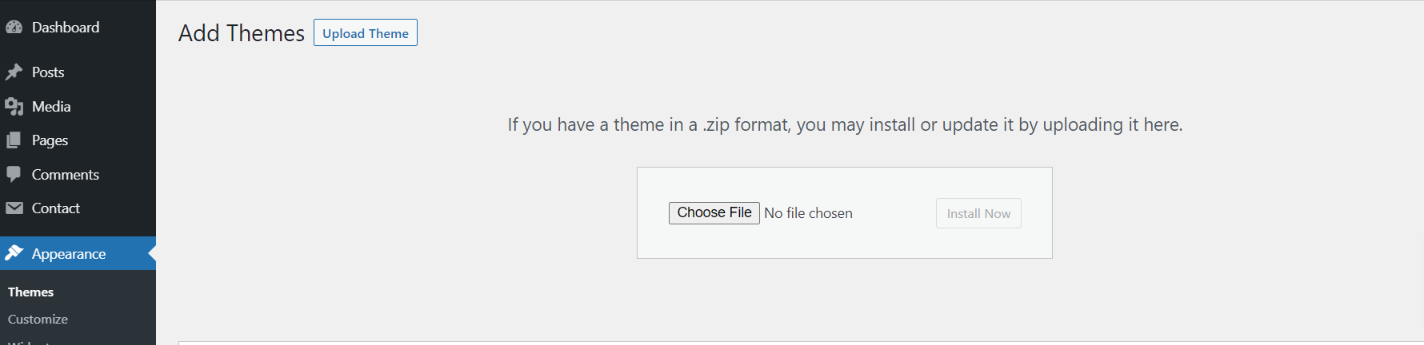
3. Click the button labelled as 'Upload Theme'.
4. Click on Browse Button then select your gym-training-center.zip theme and click on install now button.
5. WordPress will now install your theme and display a success message, as well as a link to activate or to see the live preview. Congratulations on completing the installation of your theme.
Configure Menu
Configure Menu
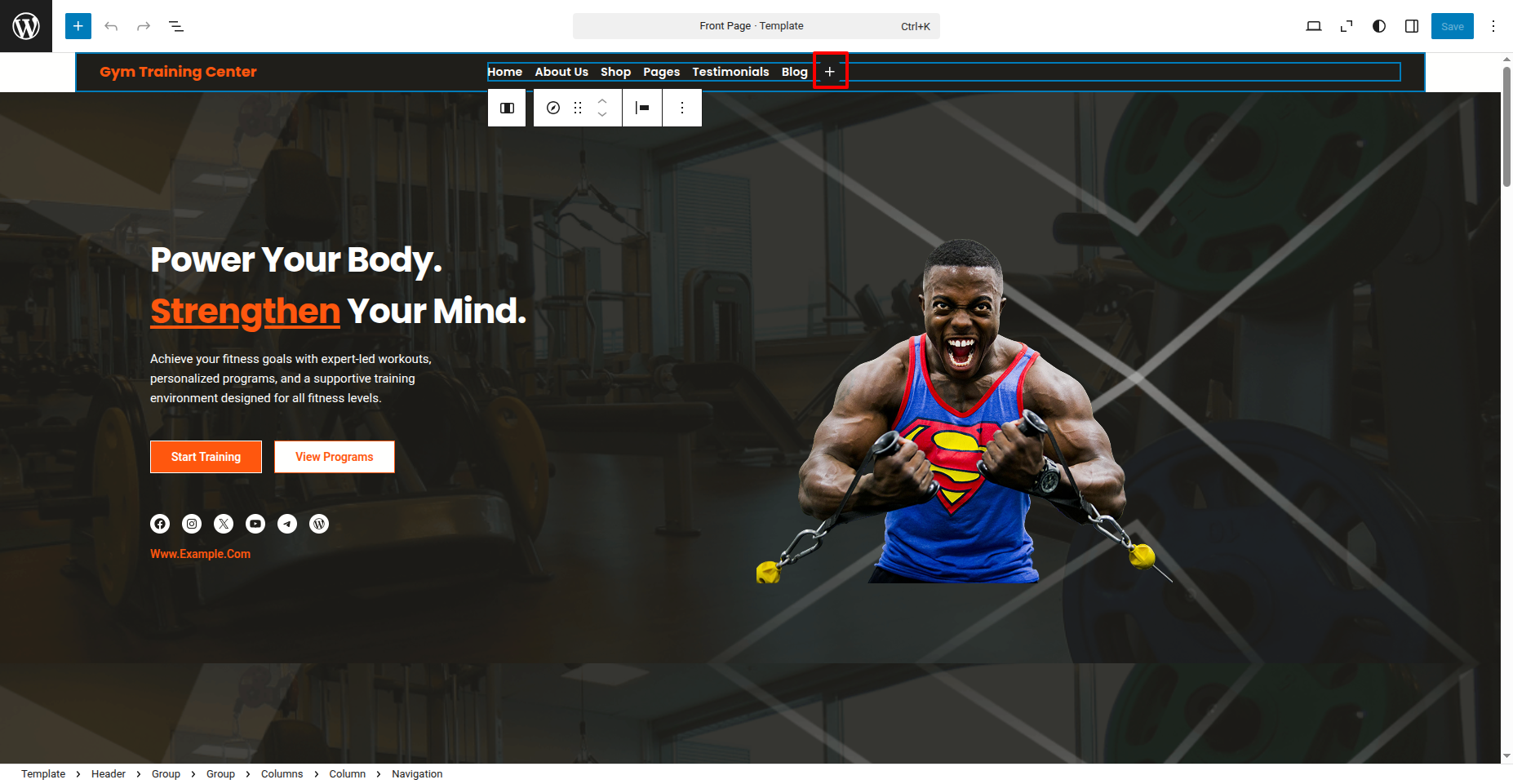
To construct a menu item with Editor, move on the steps provided.
Construct a menu.
In the dashboard, go to Appearance >> Editor and touch on the plux icon.
You can search, provide a URL, or select a page from the list.
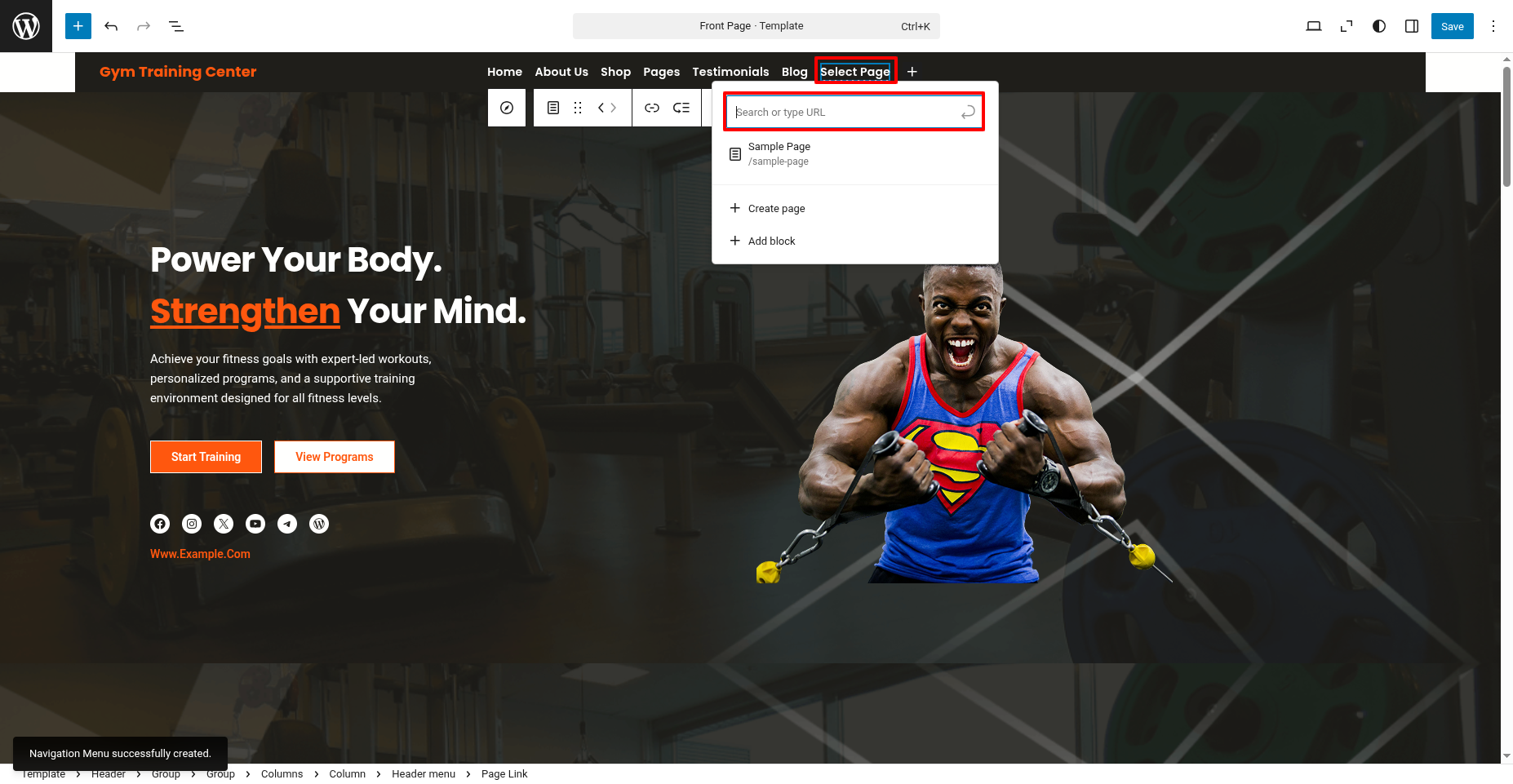
On the front end, the menu will appear as follows.

Gym Training Center Free Theme Setup
Configure Header
In order to proceed with Header follow the below steps.
In the dashboard, go to Appearance >> Editor
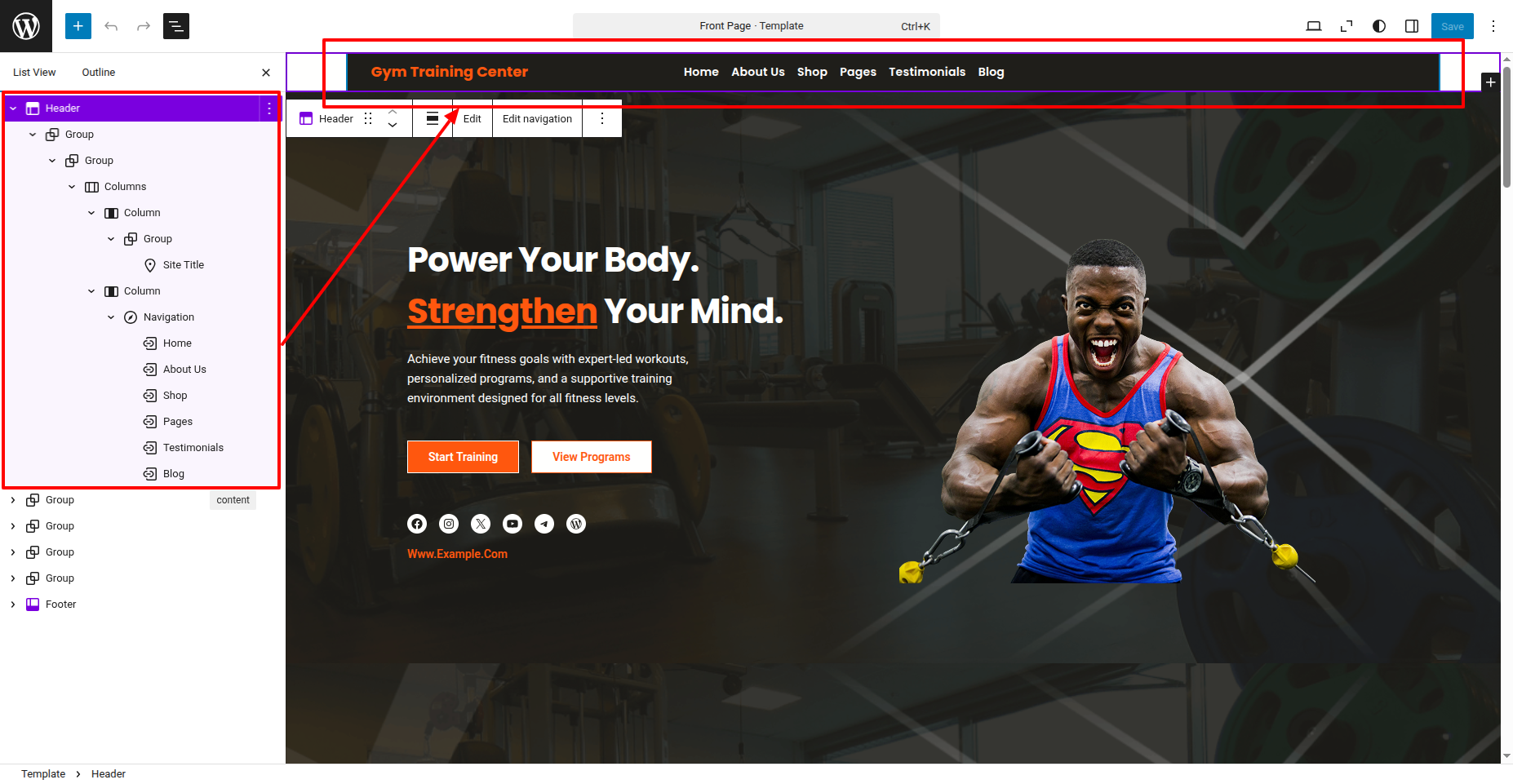
In front end, it will look like this.

Logo Setup
In order to proceed with Logo follow the below steps.
In the dashboard, go to Appearance >> Editor
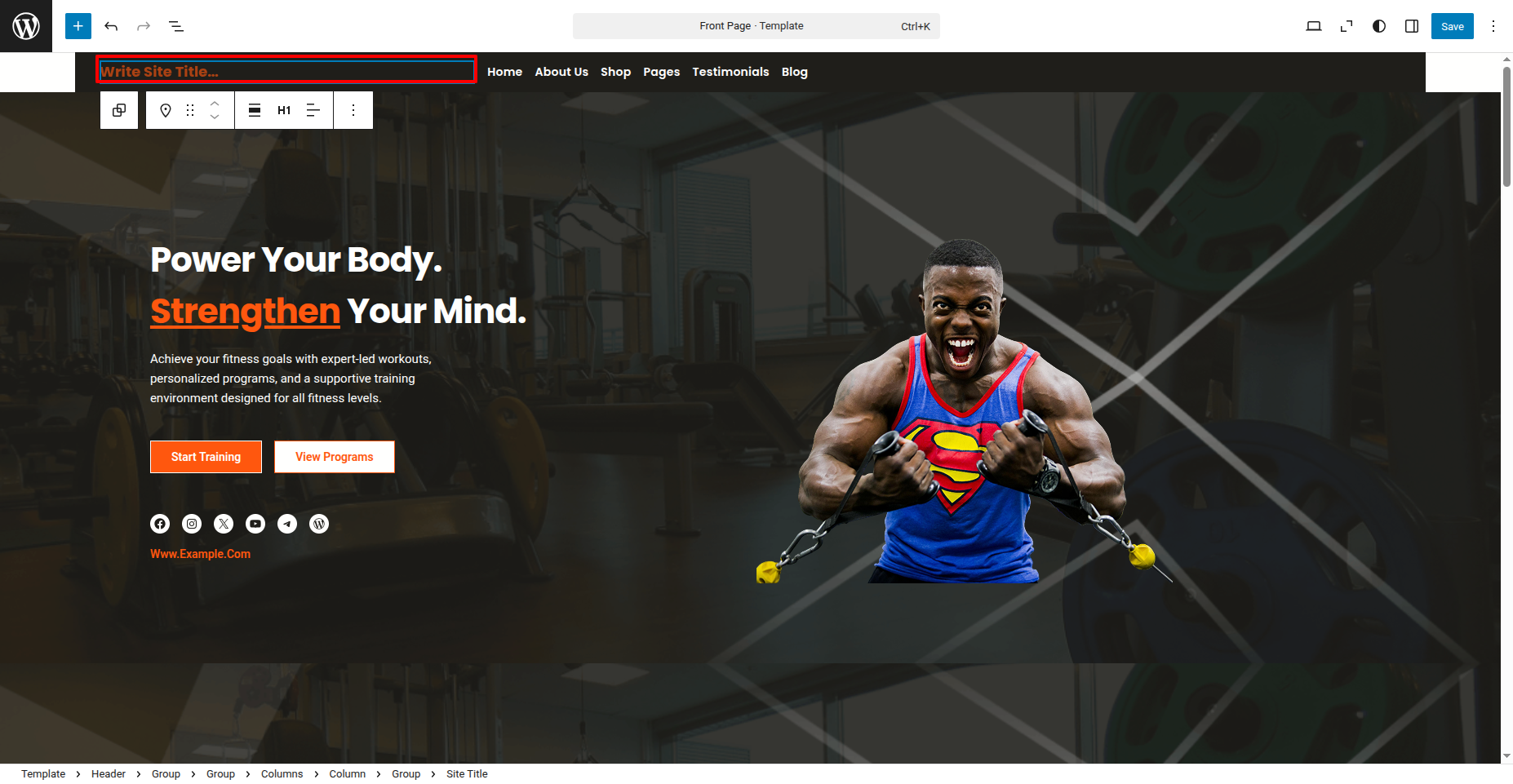
In front end, it will look like this.
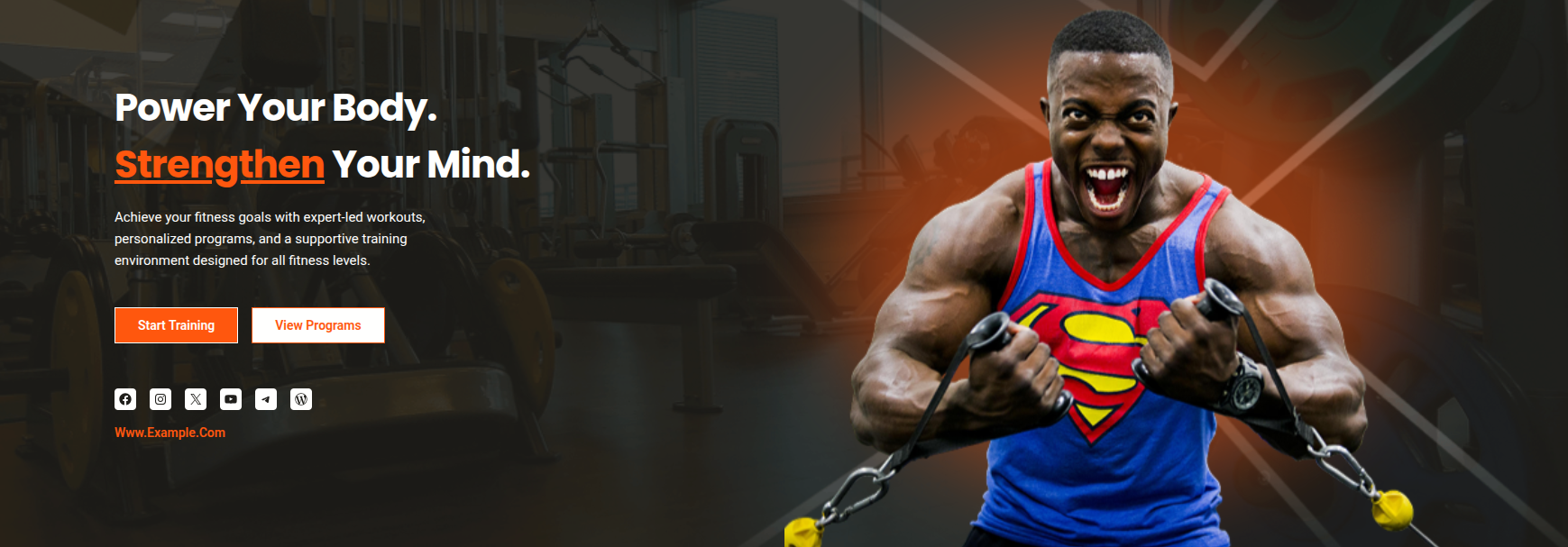
Banner Section
In order to proceed with Banner follow the below steps.
In the dashboard, go to Appearance >> Editor
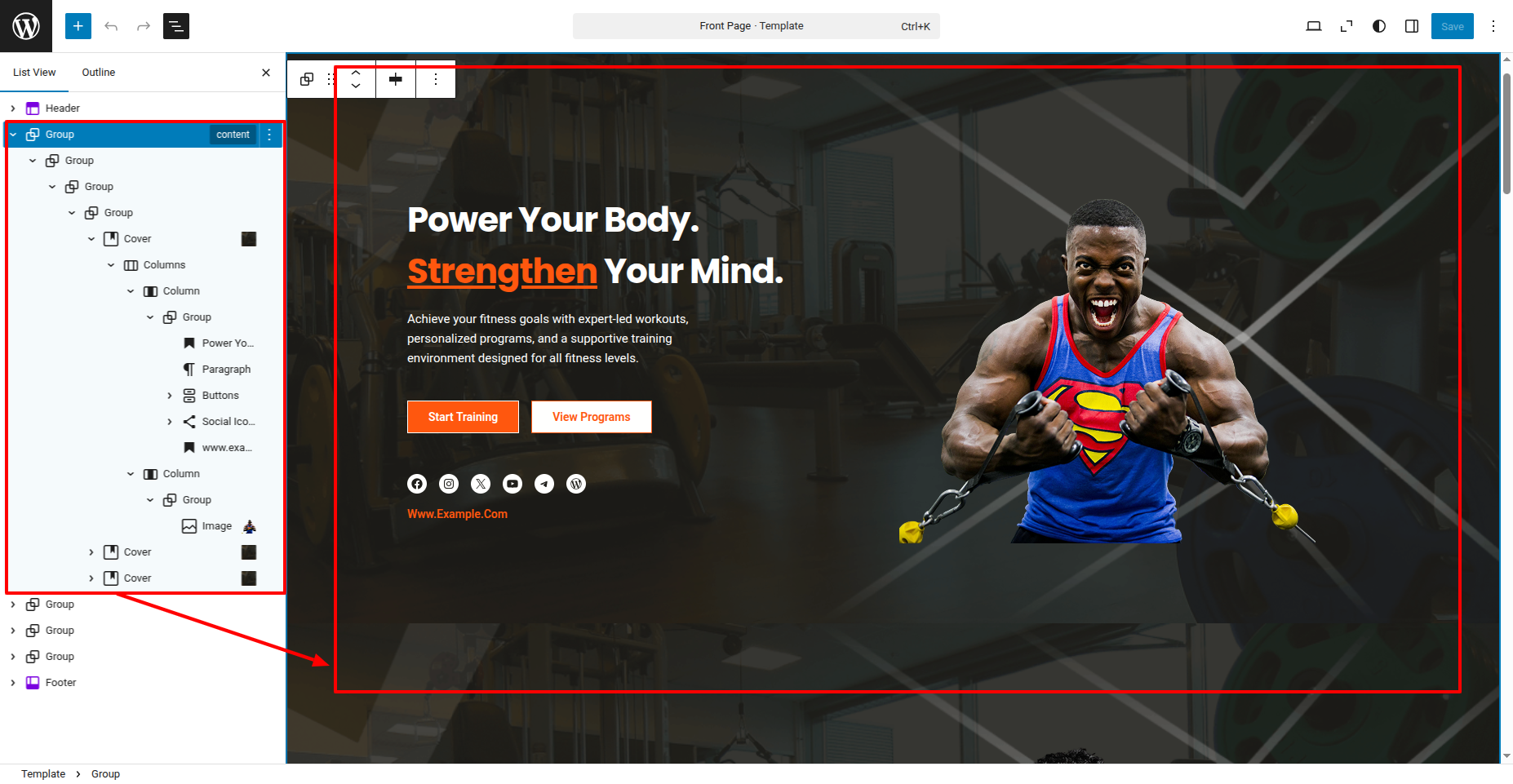
In front end, it will look like this.
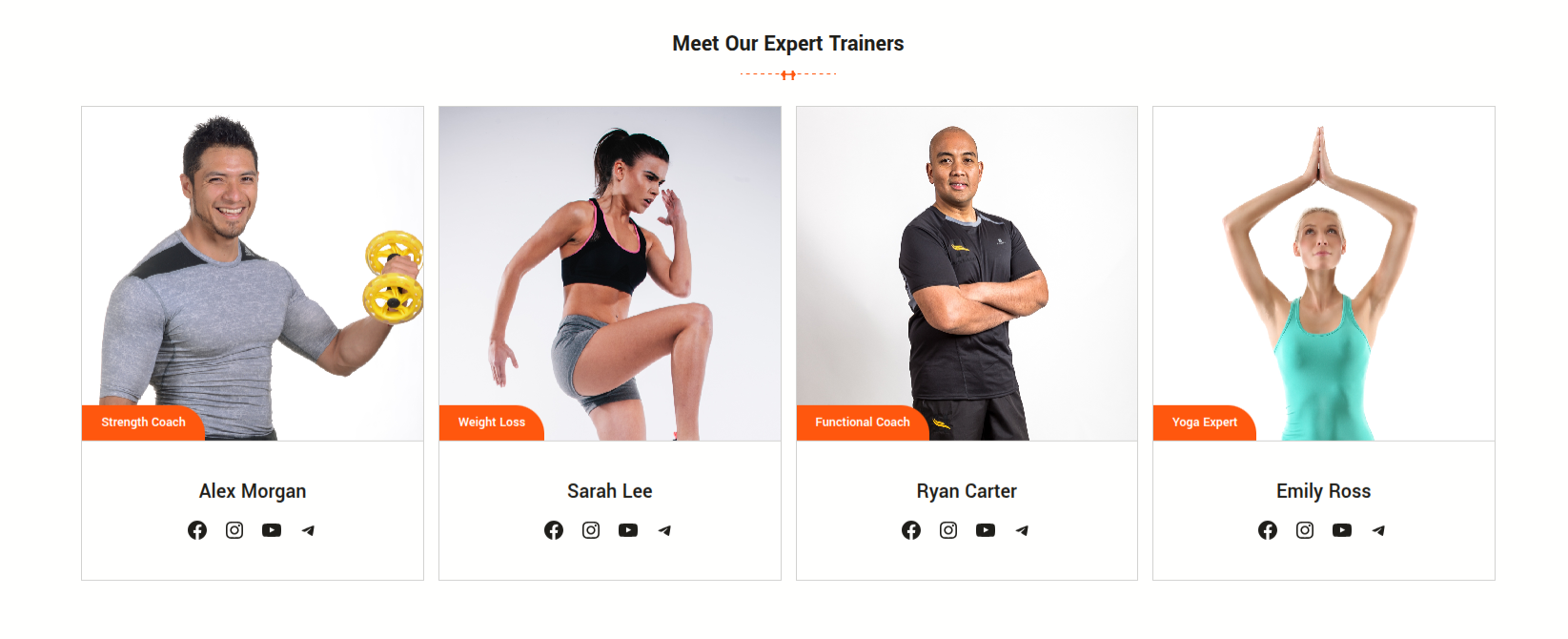
Trainers Section
In order to proceed with Trainers follow the below steps.
In the dashboard, go to Appearance >> Editor
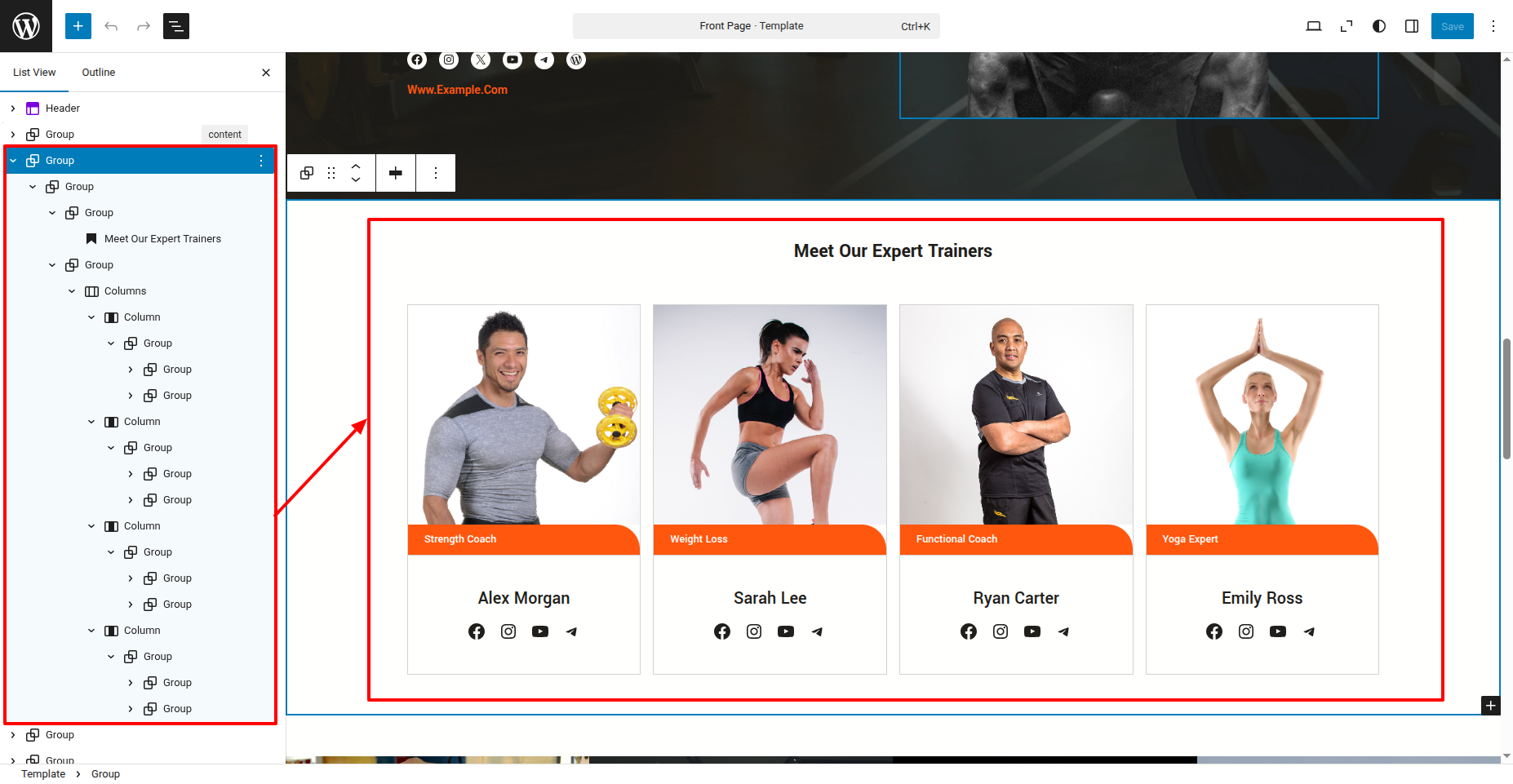
In front end, it will look like this.
Our Program Section
In order to proceed with Our Program follow the below steps.
In the dashboard, go to Appearance >> Editor
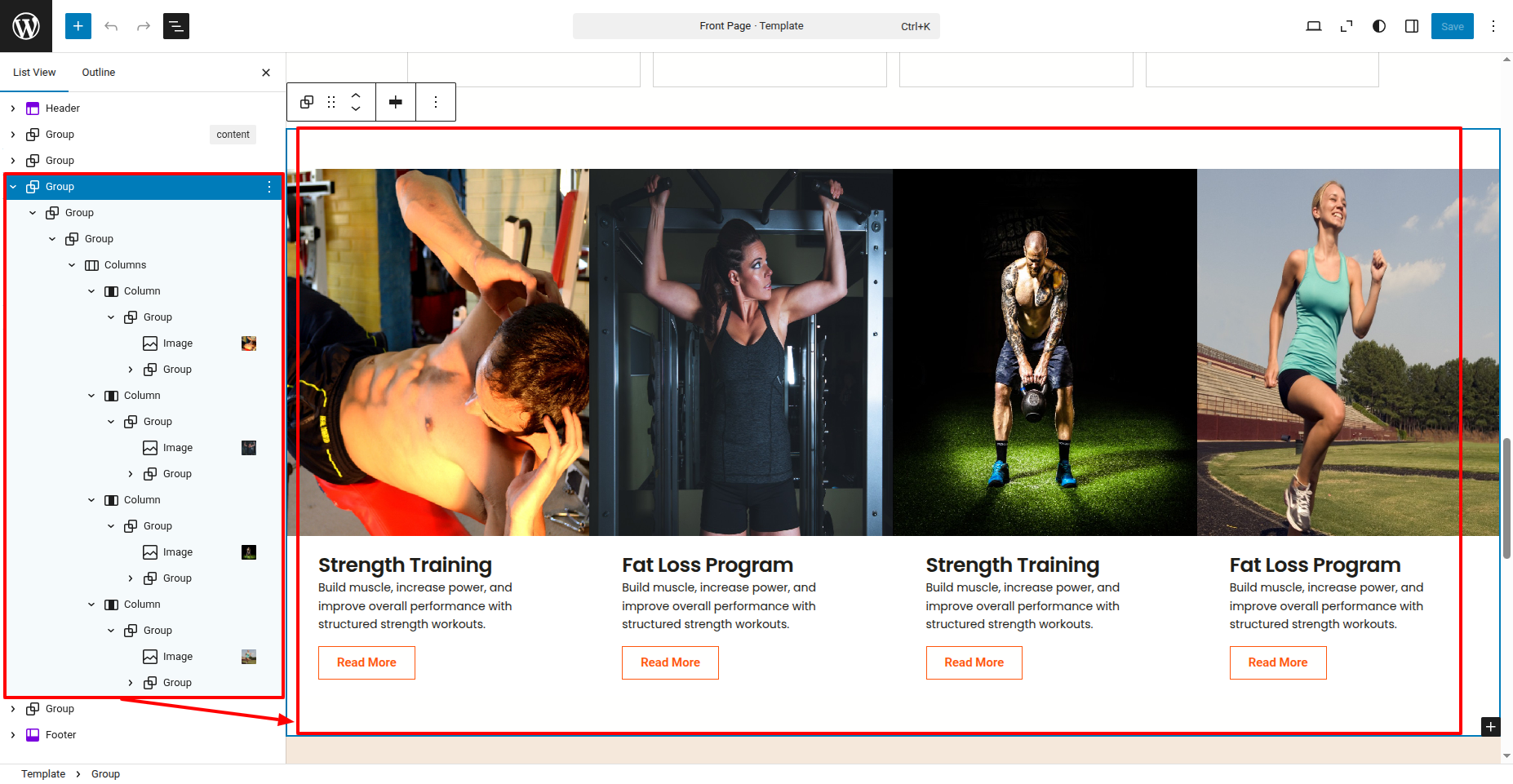
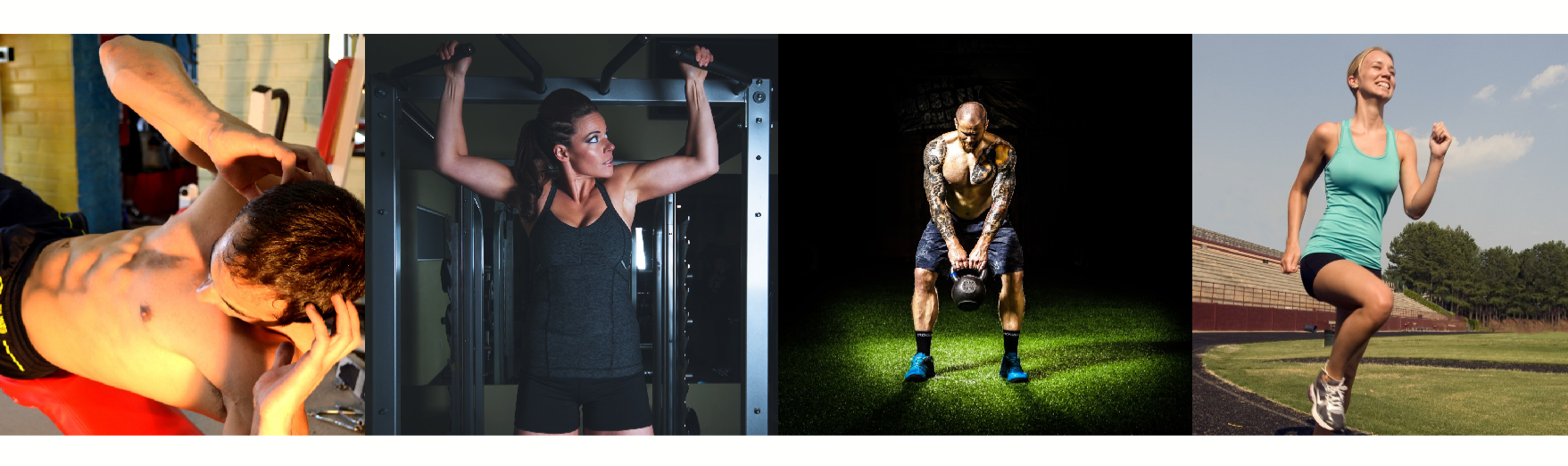
In front end, it will look like this.
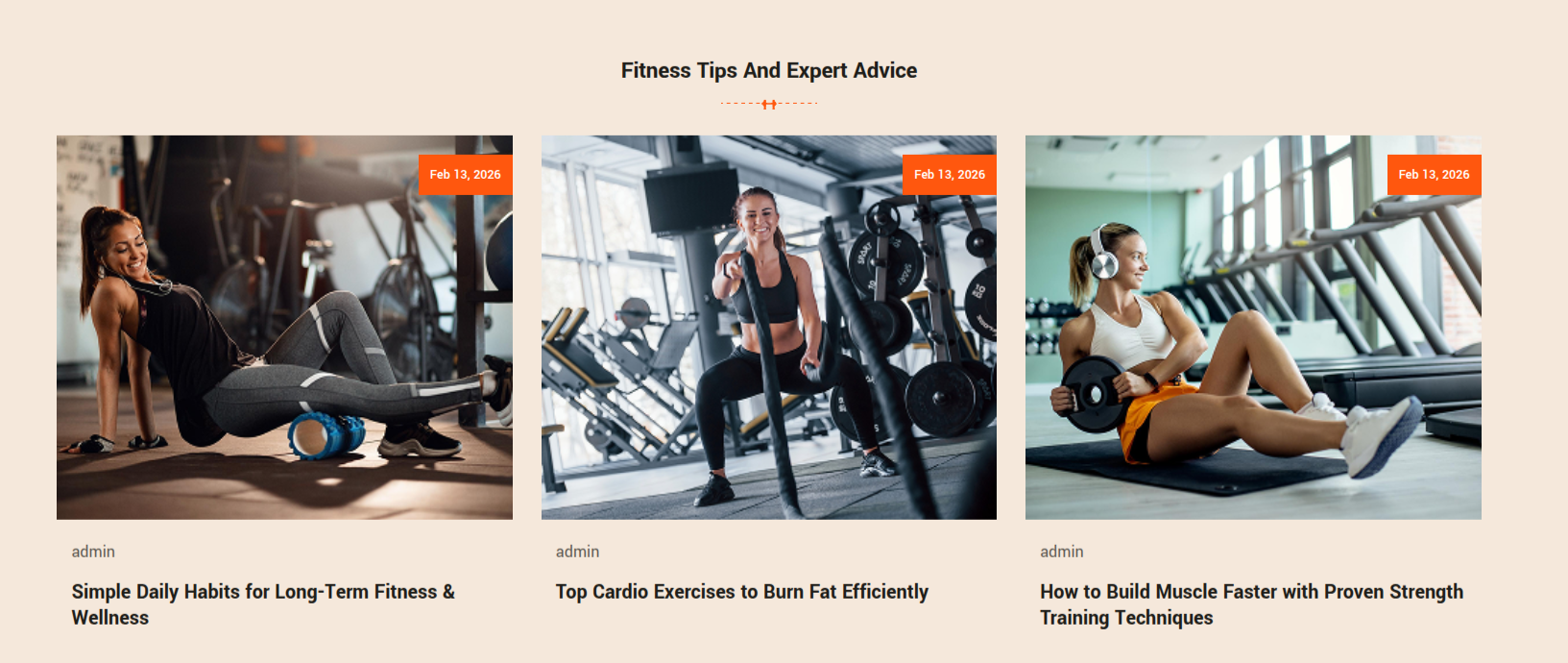
Latest News & Blog Section
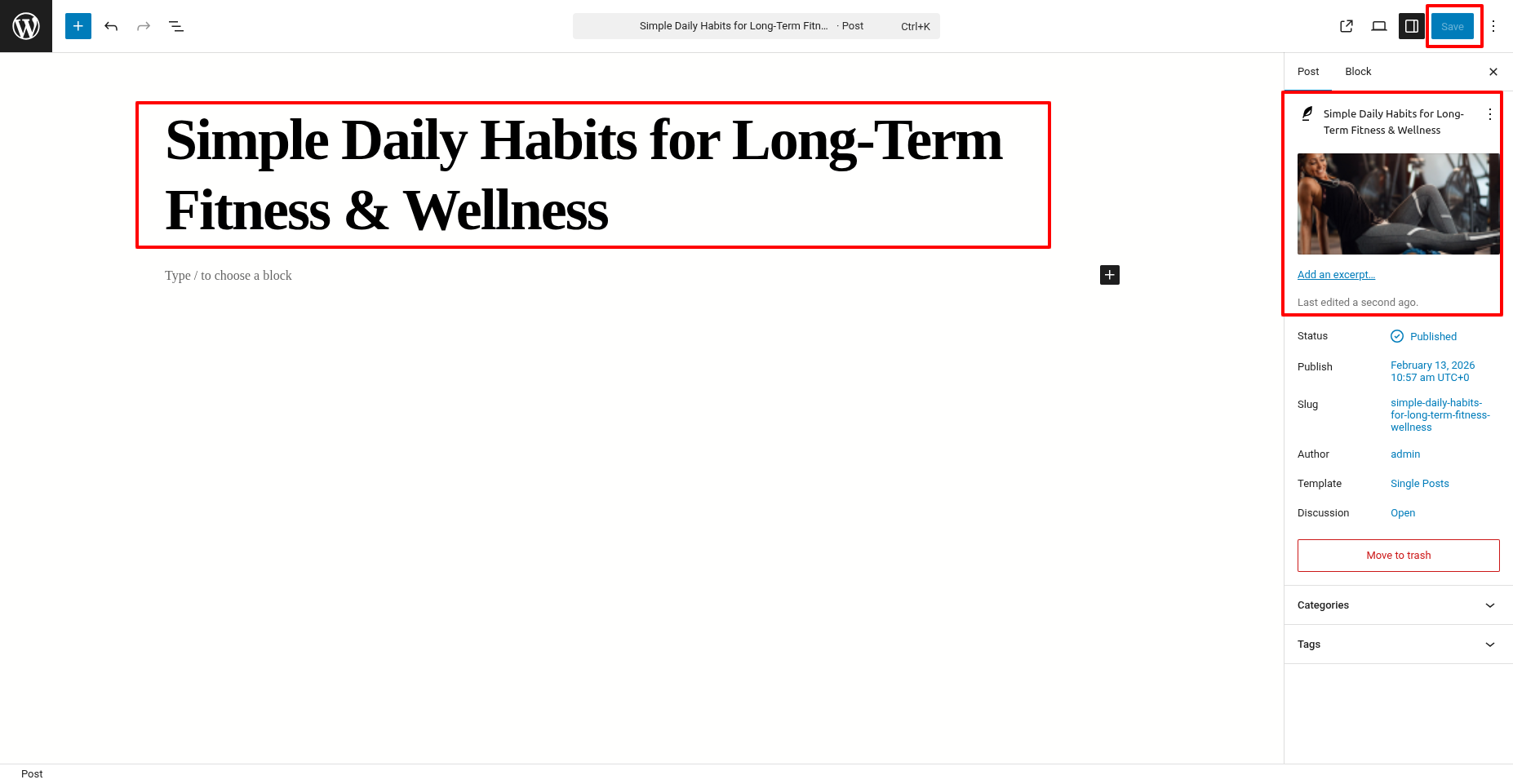
In order to proceed with Latest News & Blog follow the below steps.
In the dashboard, go to Posts >> Add New Posts
In the dashboard, go to Appearance >> Editor
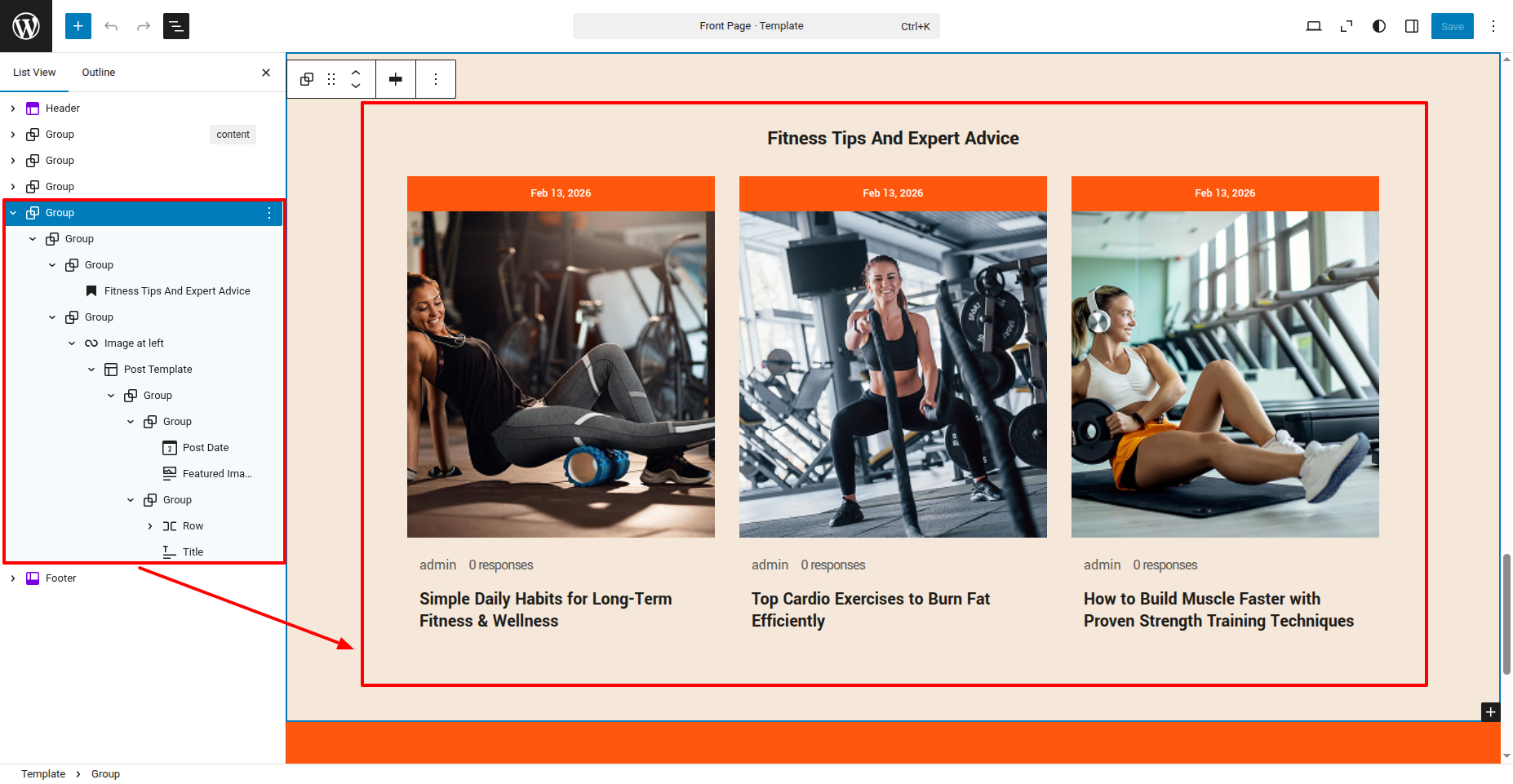
In front end, it will look like this.
Setup Footer Section
In order to proceed with Footer follow the below steps.
In the dashboard, go to Appearance >> Editor
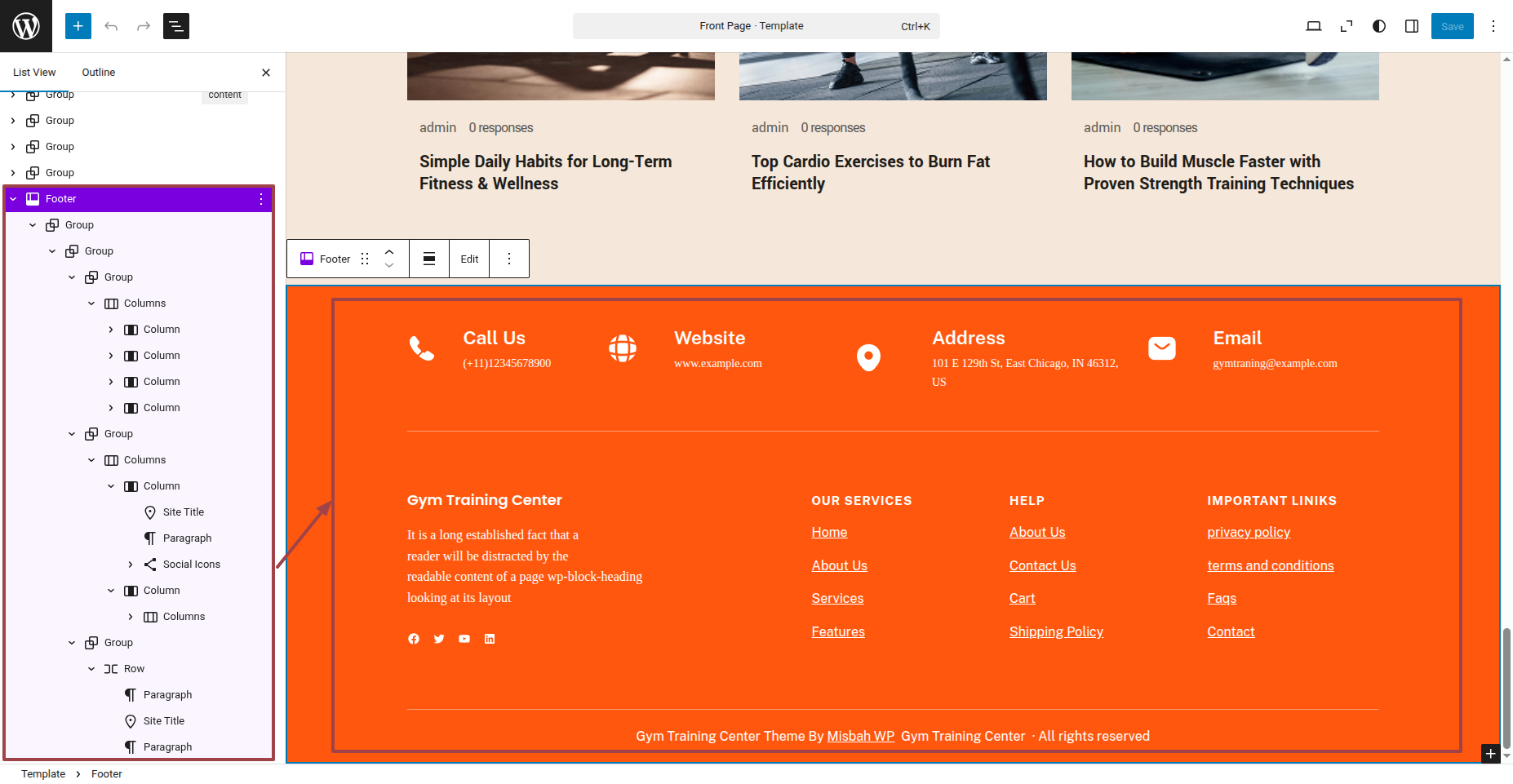
In front end, it will look like this.