Misbah Psychology Free Documentation
Your awesome theme / template documentation
Introduction
- Theme Name : Misbah Psychology
- Author : misbahwp
- Support Forum : https://wordpress.org/support/theme/misbah-psychology/
- License : GNU General Public License v3 or later
- Discription :Misbah Psychology Theme is a website layout designed for presenting psychology-related information and services. It includes structured sections for introducing the website, displaying service details, sharing relevant information, and providing contact options. The layout organizes content into clear sections, allowing visitors to navigate different pages and understand the information presented. The theme can include areas for an introductory banner, service descriptions, team profiles, testimonials, and contact details, depending on the selected layout and available customization options. These sections help organize information without requiring all content to appear on a single page. Text, images, headings, and other visual elements can be adjusted to match the website’s content requirements. Misbah Psychology Theme provides a framework for creating pages that explain psychological services, publish educational resources, and share updates. Its page structure supports the presentation of written content in a readable format, while navigation elements help visitors move between different sections. Contact information can also be displayed to make communication details accessible. The theme’s appearance can be adapted through available settings, including changes to colors, typography, images, and page content. Website owners can arrange the available sections according to their needs and maintain a consistent layout across pages. The theme offers a starting point for building an organized website focused on psychology-related information.
How to Establish the Theme
Setup Theme
Template installation is very simple process.
You can also install your theme using WP Admin
The first task is to log in to your WordPress admin area. Next, click on
1. In dashboard click on Appearance >> Themes
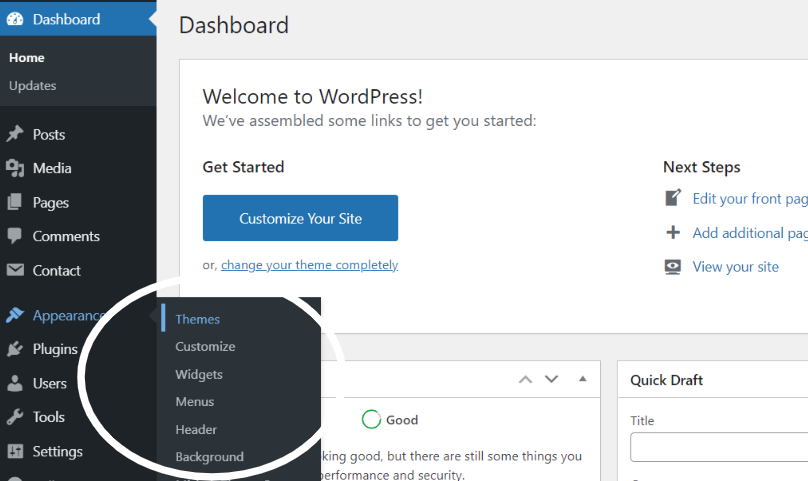
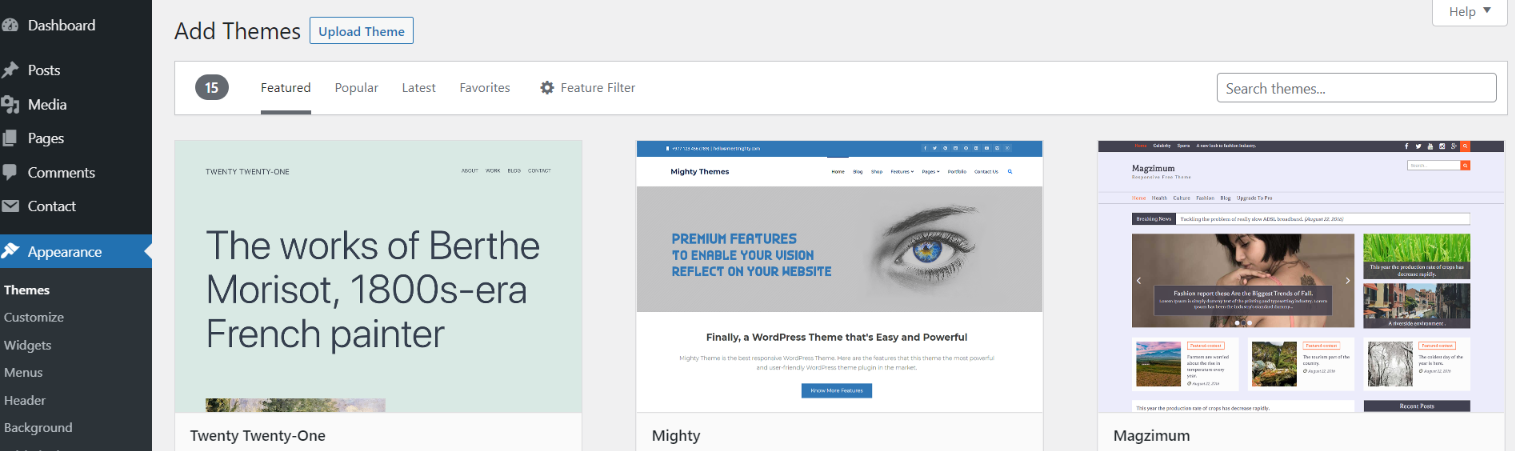
2. Click on the Add New button at the top of the themes page once page is loaded.
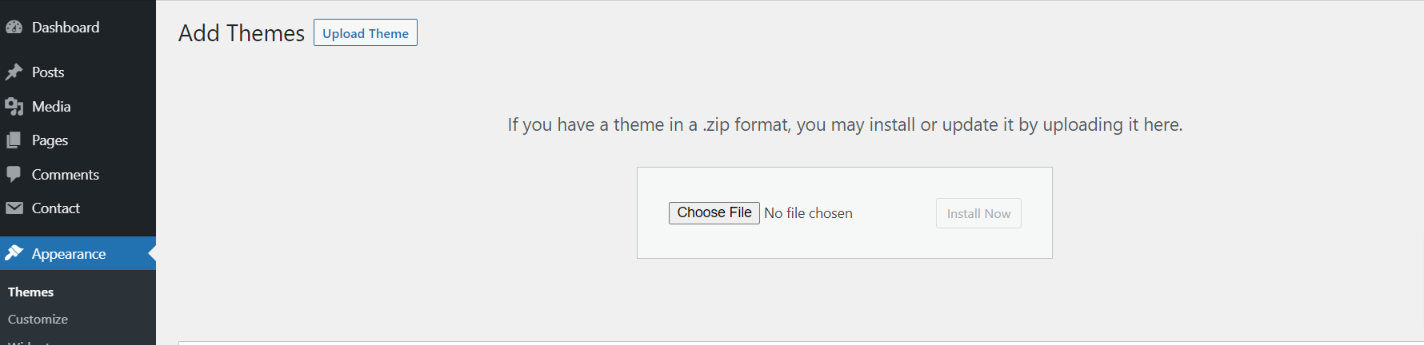
3. Click the button labelled as 'Upload Theme'.
4. Click on Choose File Button then select your misbah-psychology.zip theme and click on install now button.
5. WordPress will now install your theme and display a success message, as well as a link to activate or to see the live preview. Congratulations on completing the installation of your theme.
Setup Home Page
The options of this page template (like sections location, disabling sections, number of posts they display) can be controlled it.
To design a home page, follow these steps.
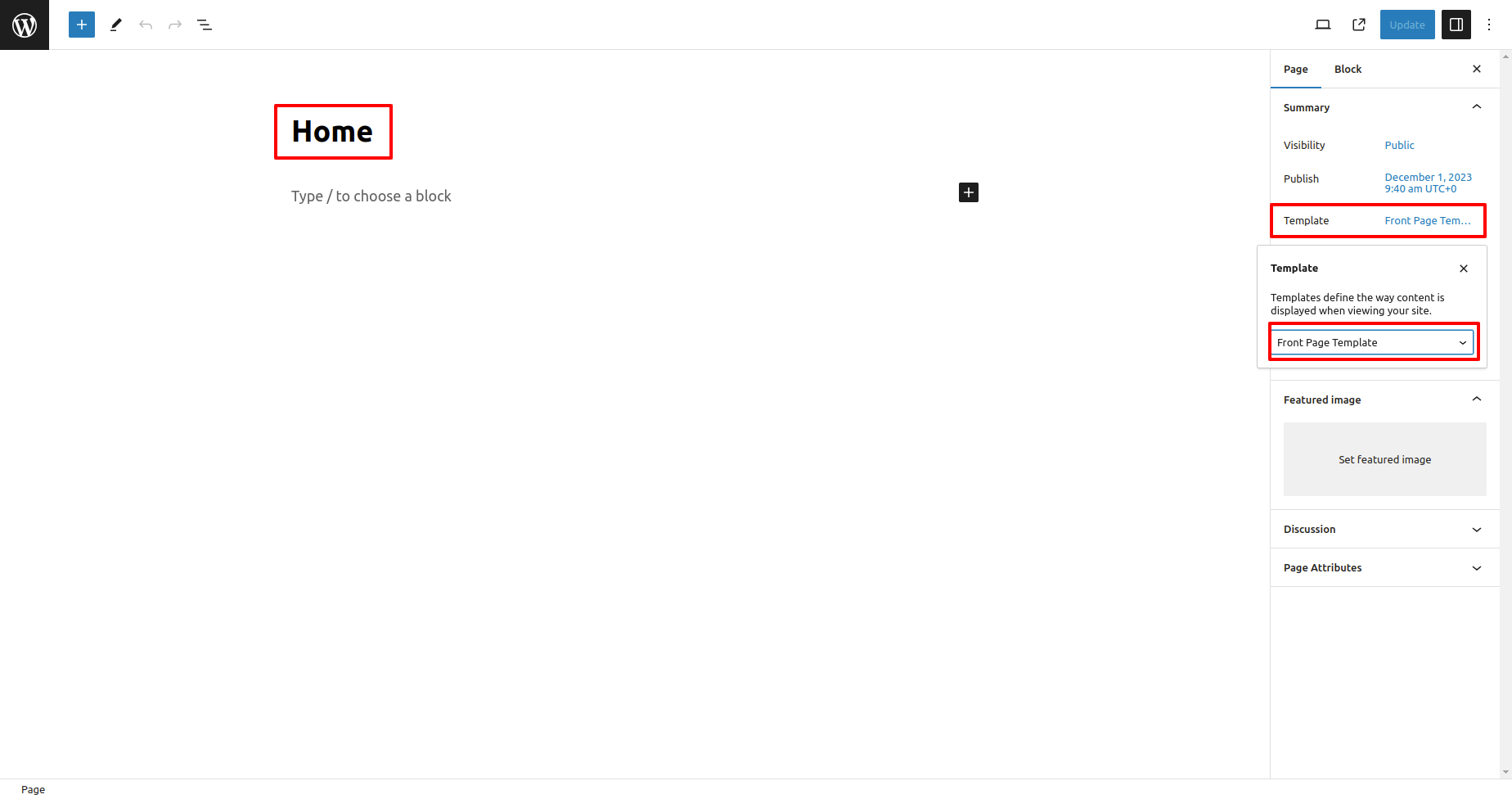
1. Make a page to set the template: Go to Dashboard Pages >> Add New Page
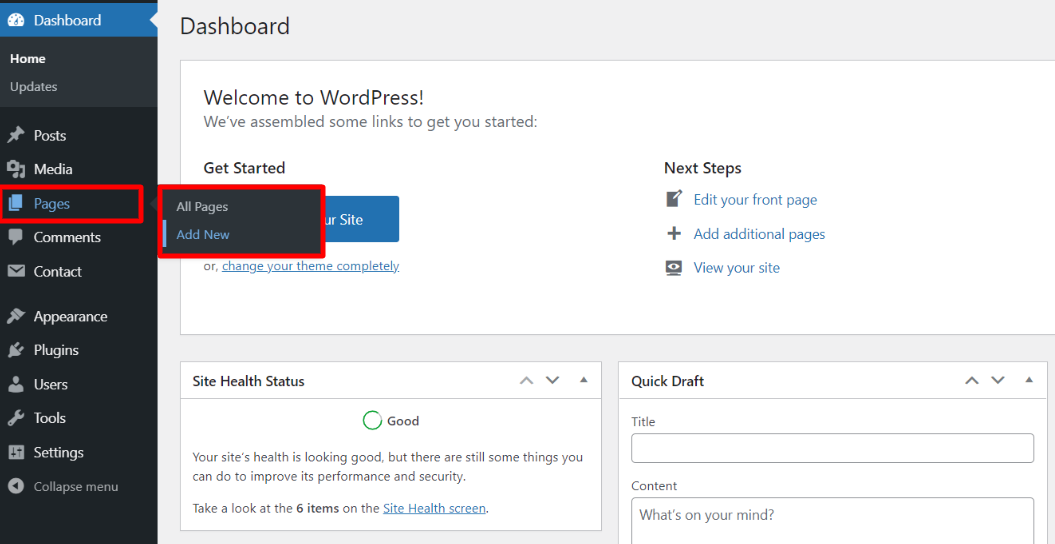
Name it "home" or anything as you like. Then, from the template dropdown, pick "front page template".
The Page Attributes section provides your page a parent page and a template.
1. Make a page to set the template: Go to Dashboard Pages >> Add New Page
Design the front page as follows: Go to Setting >> Reading >> Set the front page display static page to home page.
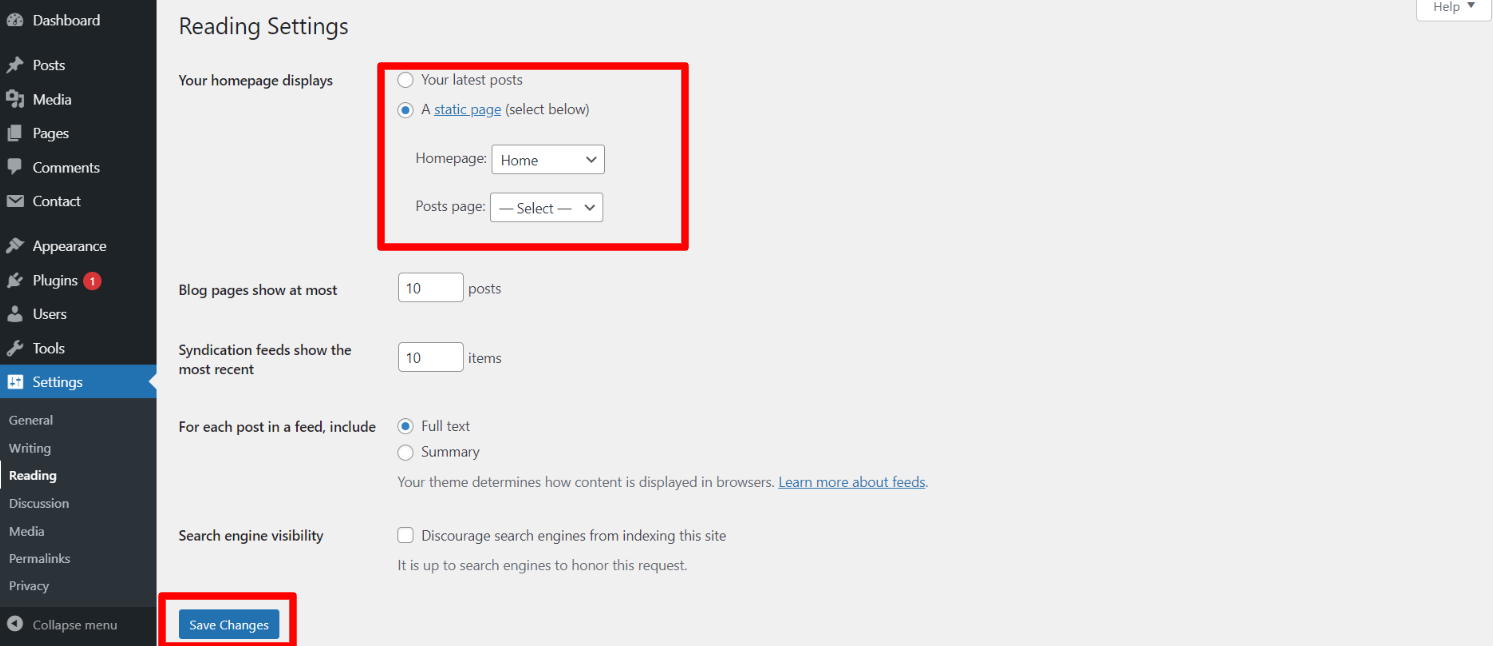
When you're finished, you'll be able to see all of the demo content on the front page.
Necessary Plugins
When you initially activate the theme, you'll be asked to install these plugins on your Dashboard. You can ignore the message if you don't want to install these plugins on theme activation, and if you change your mind later, you can install them manually.
In the dashboard, go to Plugins >> Install Plugins.
Kirki
Plugin download link kirki
Classic Widgets
Plugin download link Classic Widgets
Configure Menu
Configure Menu
In the dashboard, visit Appearance >> Menu
To access the Menu Editor, visit the Dashboard and click on the 'Appearance' menu on the left-hand side. From there, select the 'Menus' option.
To create a new menu, follow these steps:At the top of the page, select "Create a new menu".Enter a name for your new menu in the "Menu Name" box.Click on the "Create Menu" button.
Your new custom menu has been successfully created.
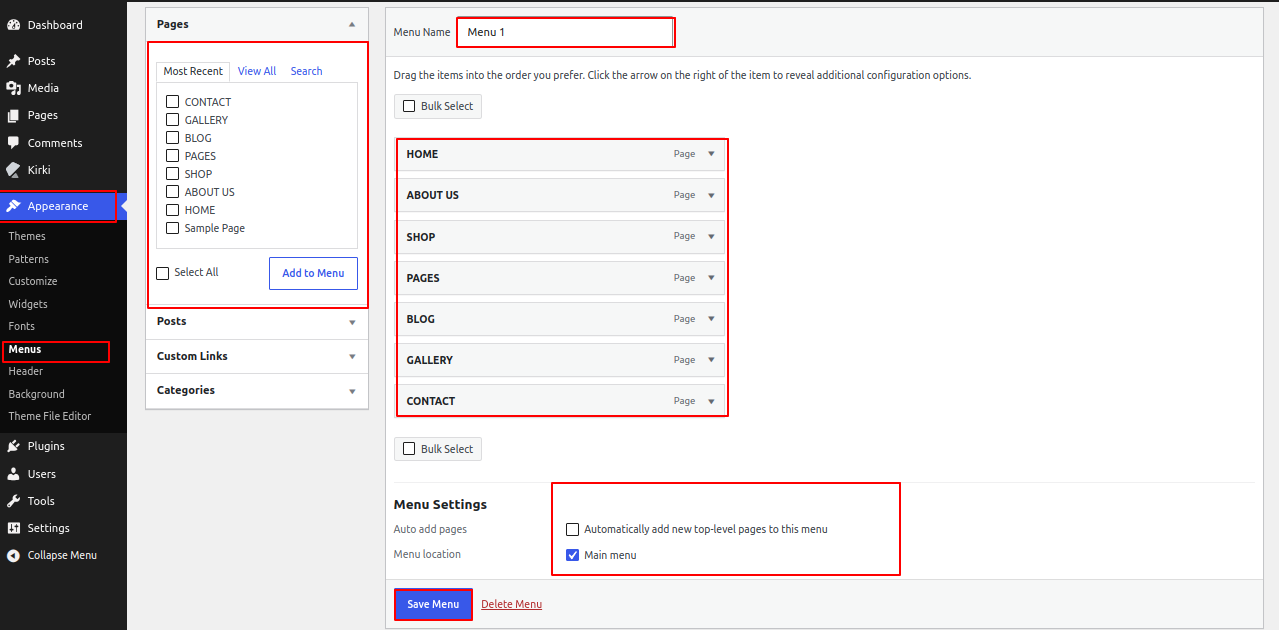
On the front end, the menu will appear as follows.

Misbah Psychology Free Theme Setup
Configure Header
In order to proceed with You can set top header text and header button , so follow the below steps.
In the dashboard, go to Appearance >> Widgets
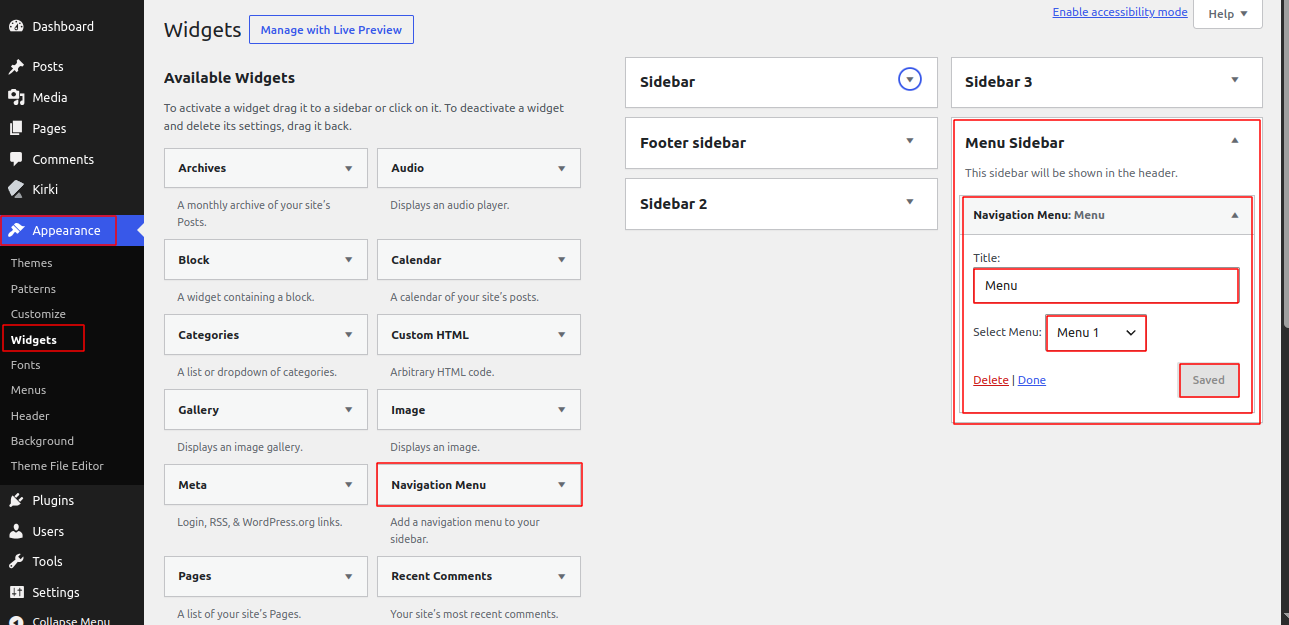
In the dashboard, go to Appearance >> Customize >> Theme Options >> Header Settings
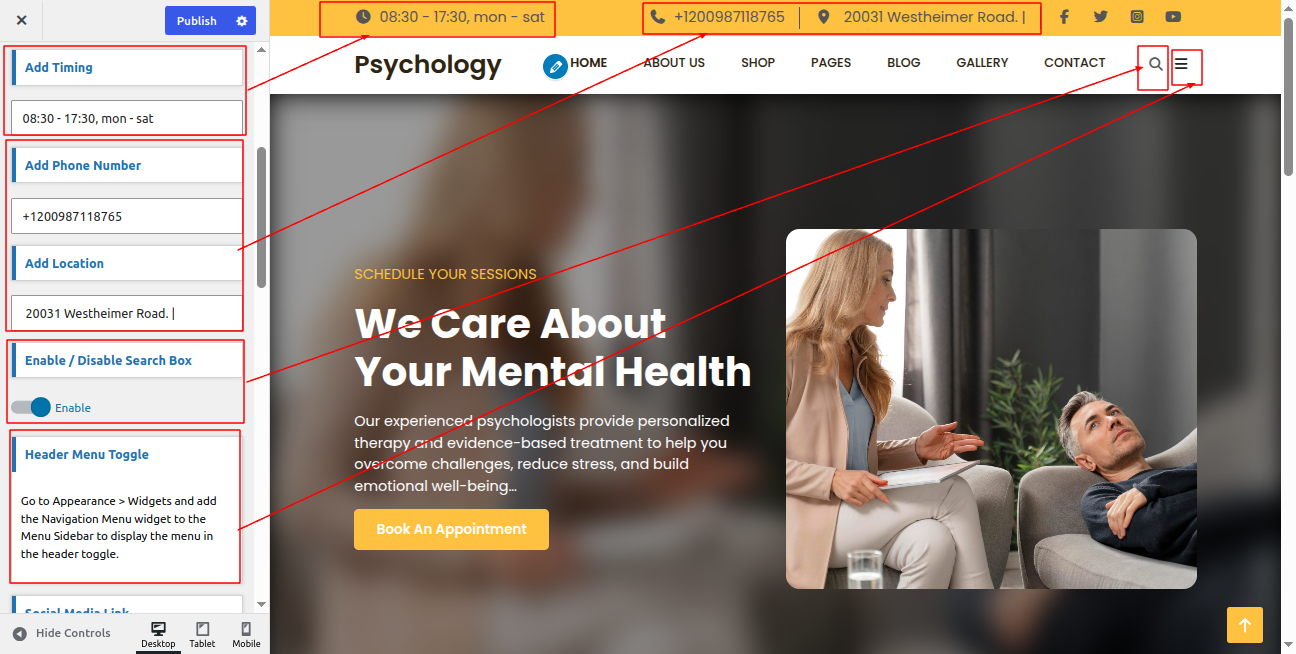
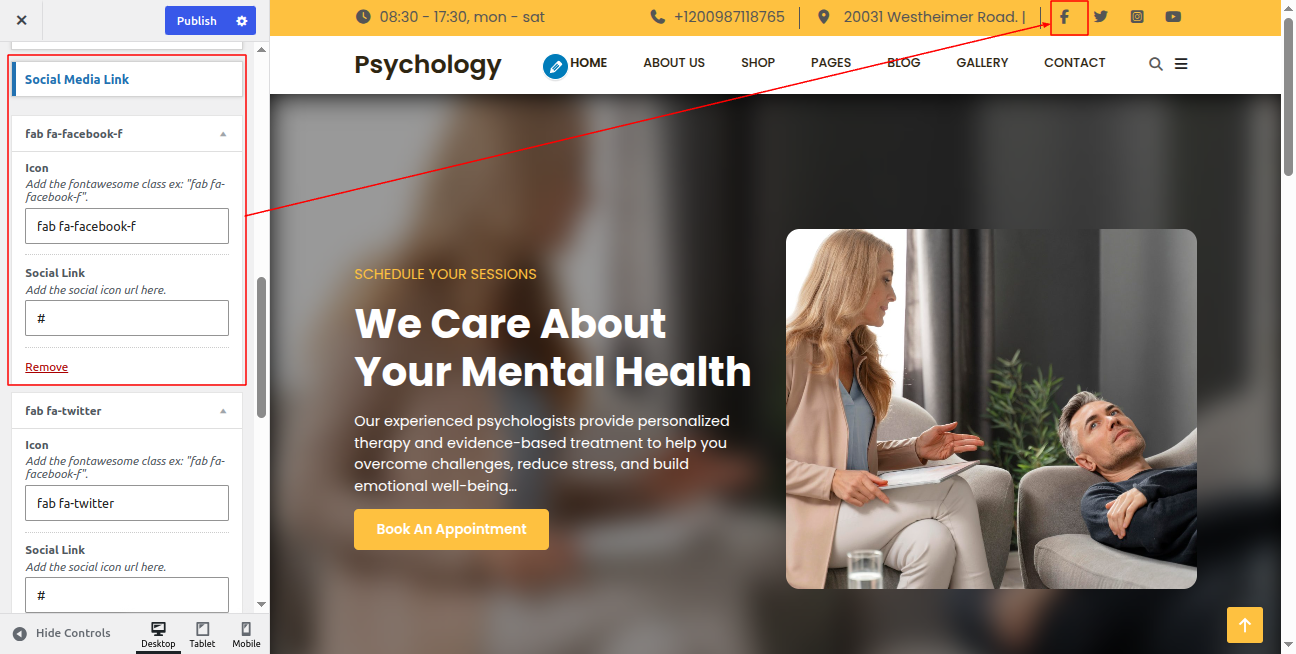
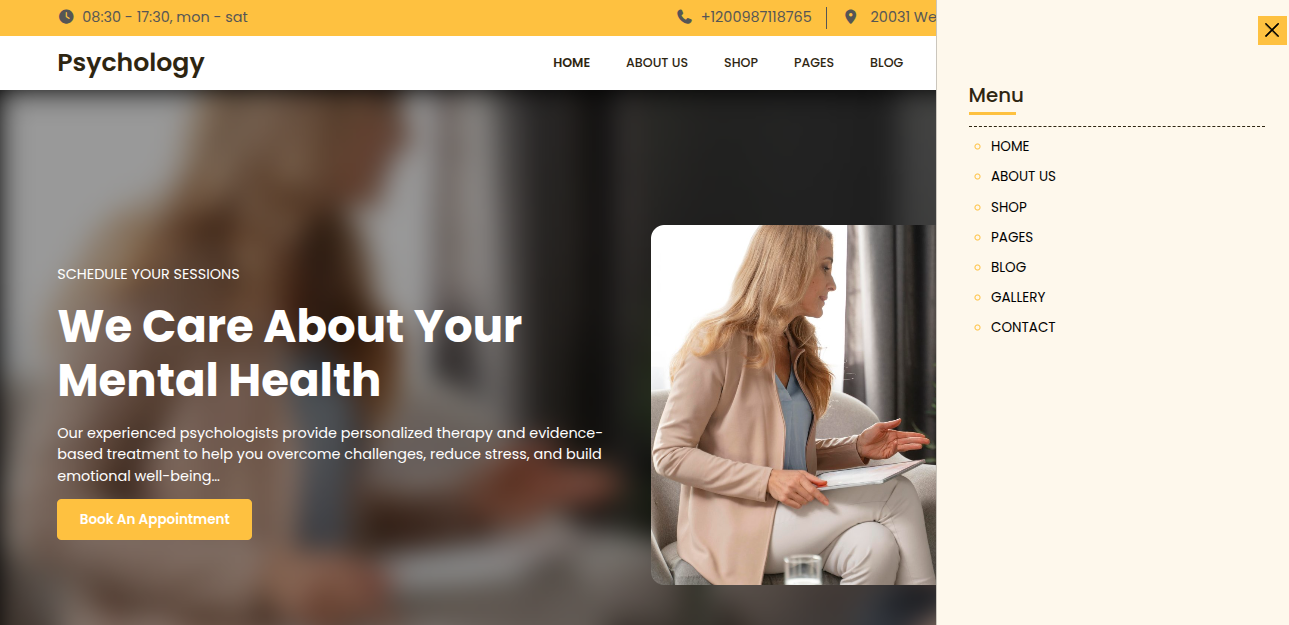
In front end, it will look like this.
Logo Setup
In order to proceed with Theme Logo setup, you can set site title and tagline, follow the below steps.
In the dashboard, go to Appearance >> Customize >> Site Identity >> Set Logo , Site Title and Tagline You can also make the tagline hidden.
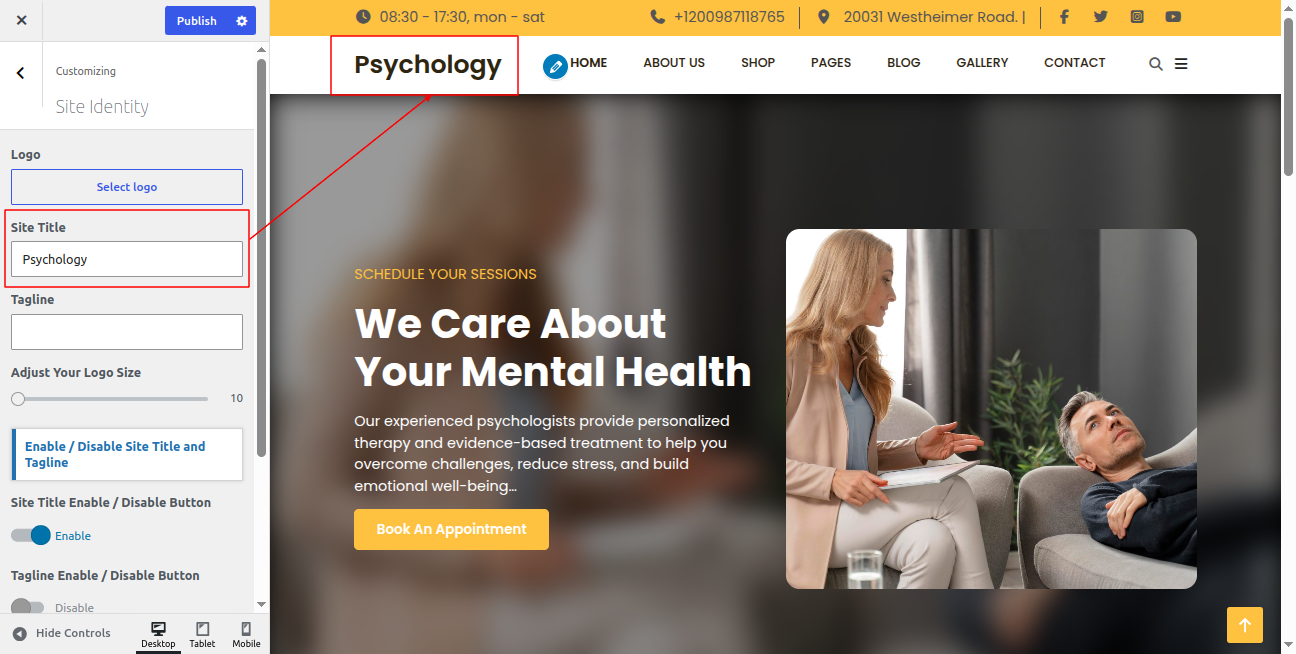
In front end, it will look like this.
Slider Section
Fetch Categories
This screen is divided into 2 sections, the Add New Category and category table sections.
All of the categories are listed in this table. Categories are organized alphabetically and hierarchically.
In order to proceed with Theme social icon, so follow the below steps.
Follow the below steps to setup Category Settings.
In the dashboard, go to Posts >> Categories >> Add New
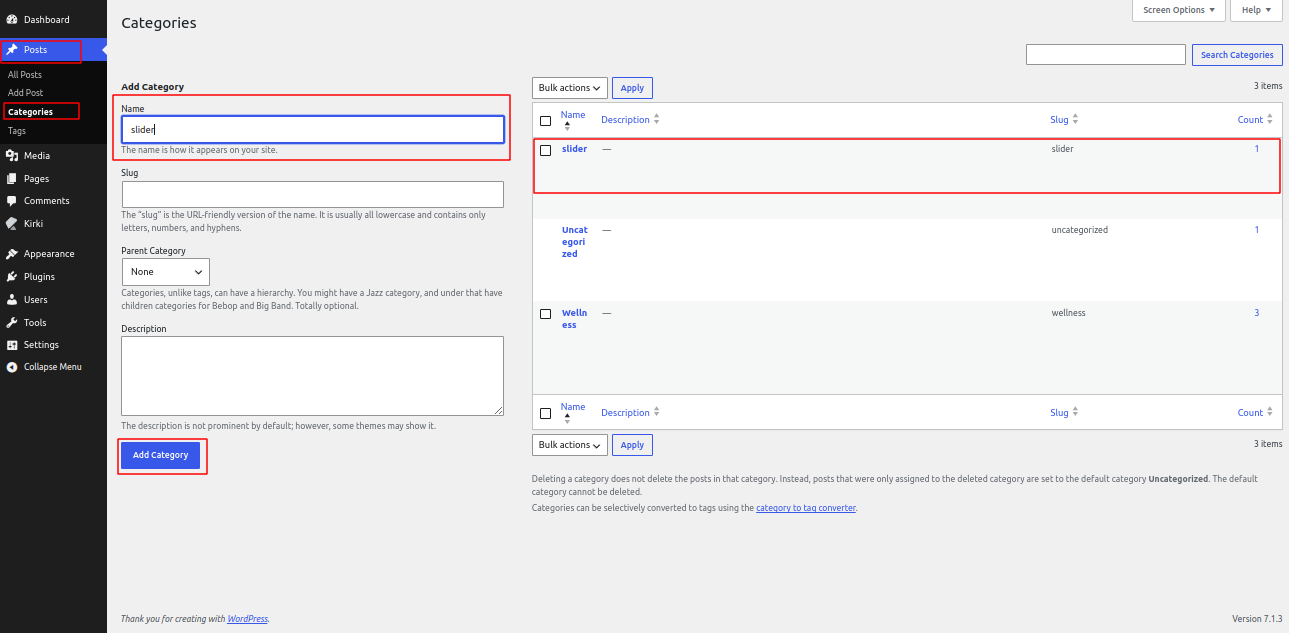
Once you have done with this you will see the categories on your theme customize.
In this section, you have to add new category for each post.
Fetch Post
In the dashboard, go to Posts >> Add New
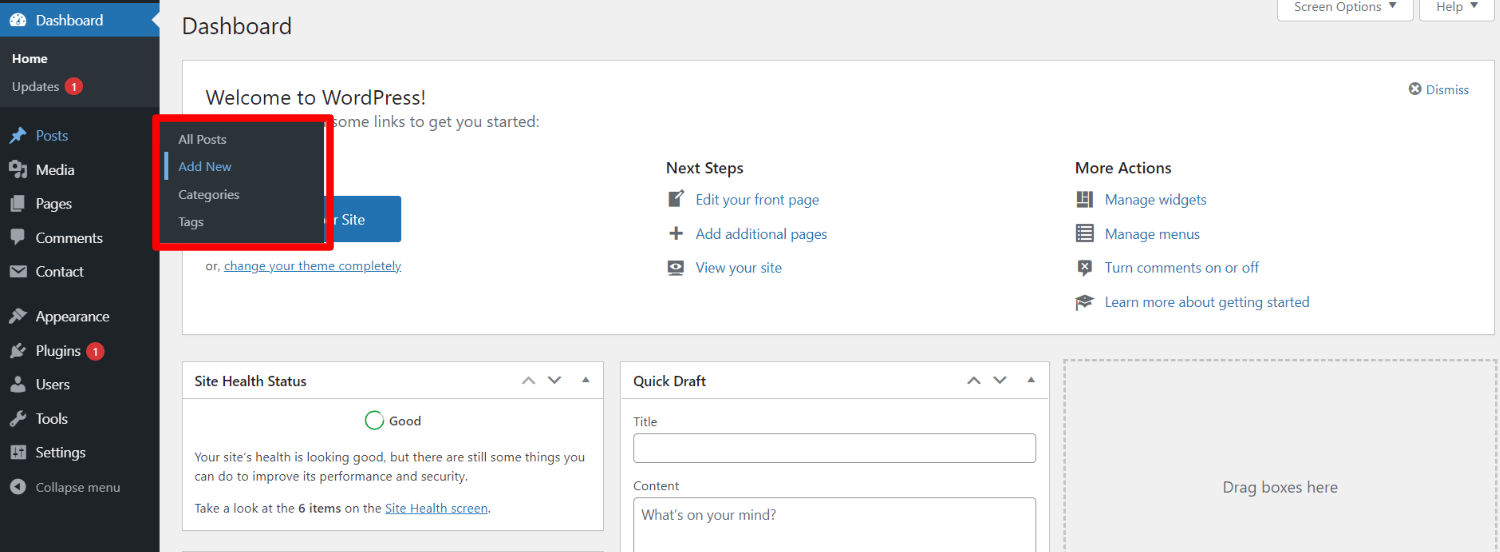
In order to proceed with Post Settings, You can set post title and content. And Select which Category you want this post to show.
Follow the below steps to setup Post Settings.
In the dashboard, go to Posts >> Add New
You can make multiple posts for category.
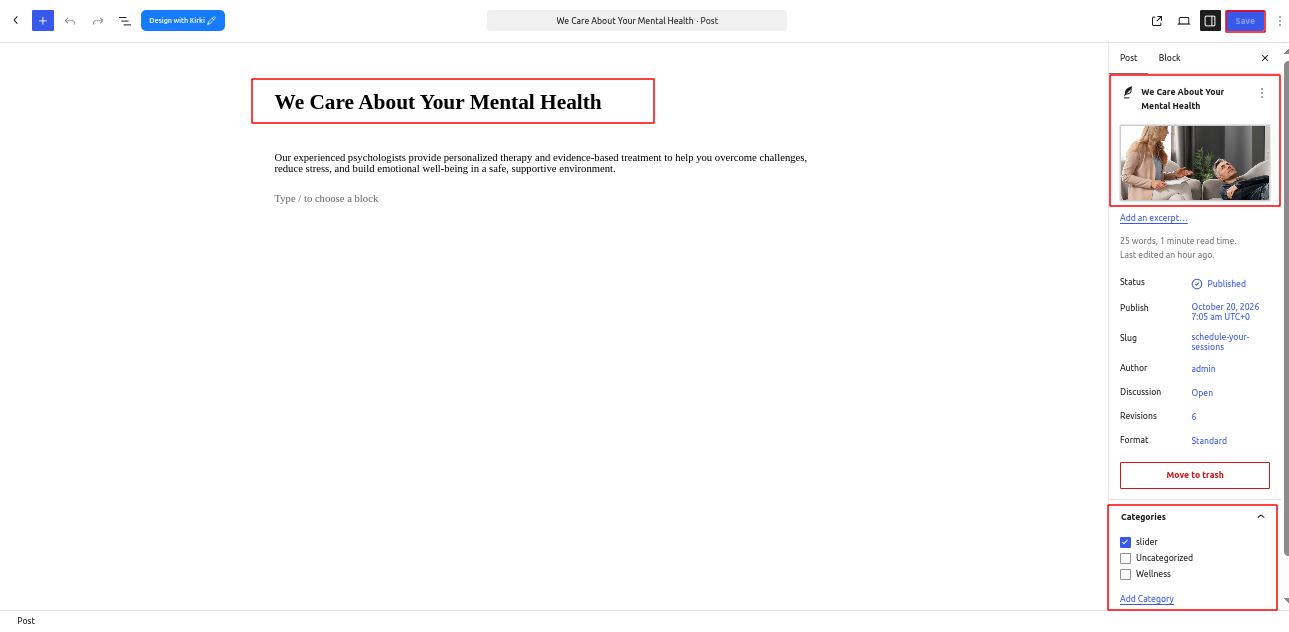
Once you have done with this you will see the post on your front page.
Slider Settings
In order to proceed with Theme Slider Settings , you can set slide show , follow the below steps.
In the dashboard, go to Appearance >> Customize >> Theme Options >> Slider Settings
Select number slides to show, then select the category which you have to show on slider.
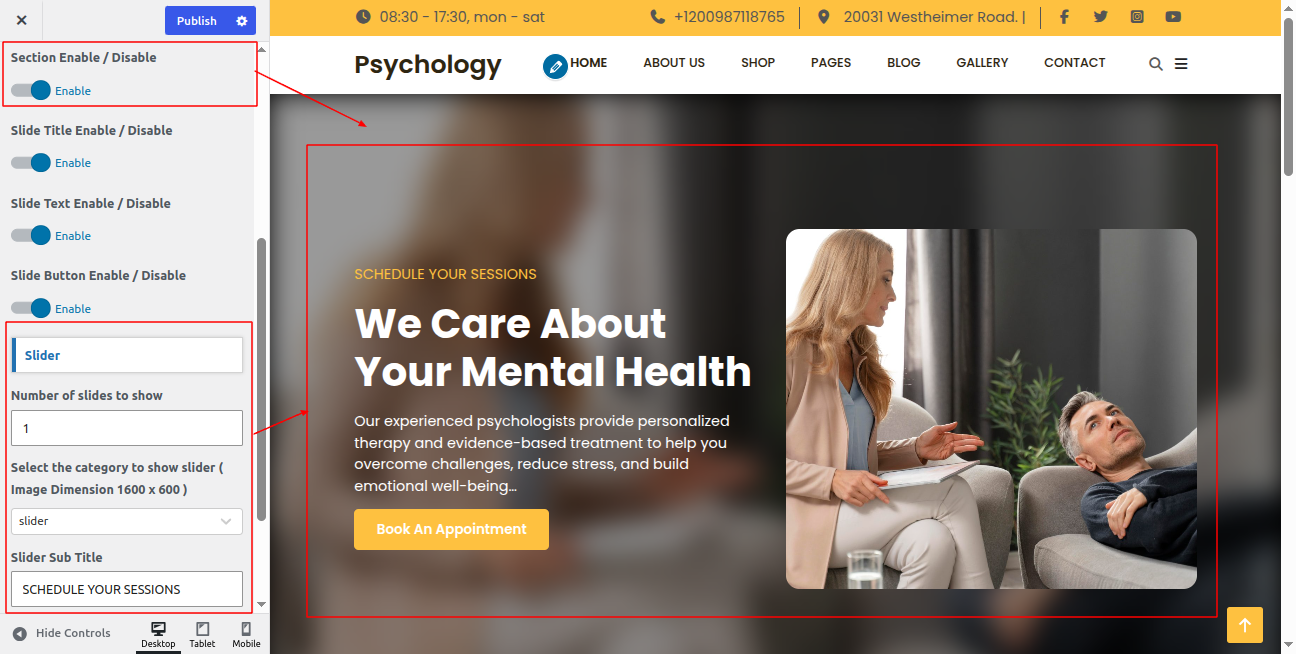
In front end, it will look like this.

Our Achievements Section
In order to proceed with Theme Our Achievements Settings , follow the below steps.
In the dashboard, go to Appearance >> Customize >> Theme Options >>Our Achievements Section
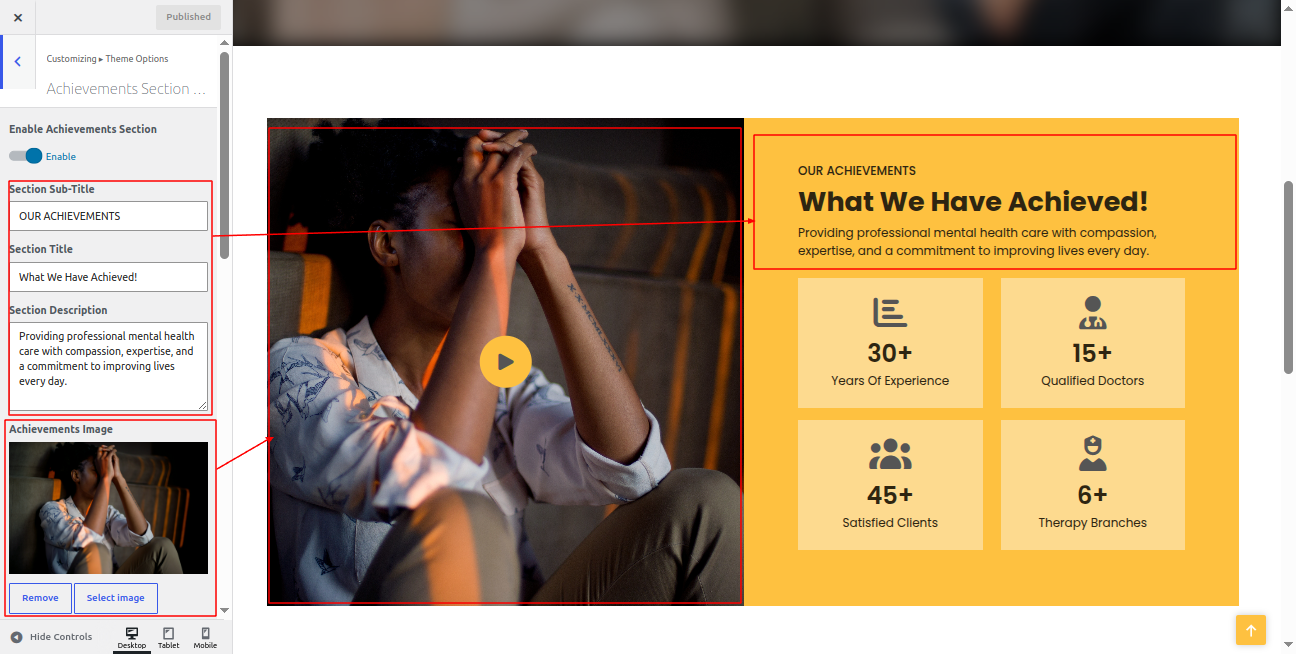
In front end, it will look like this.
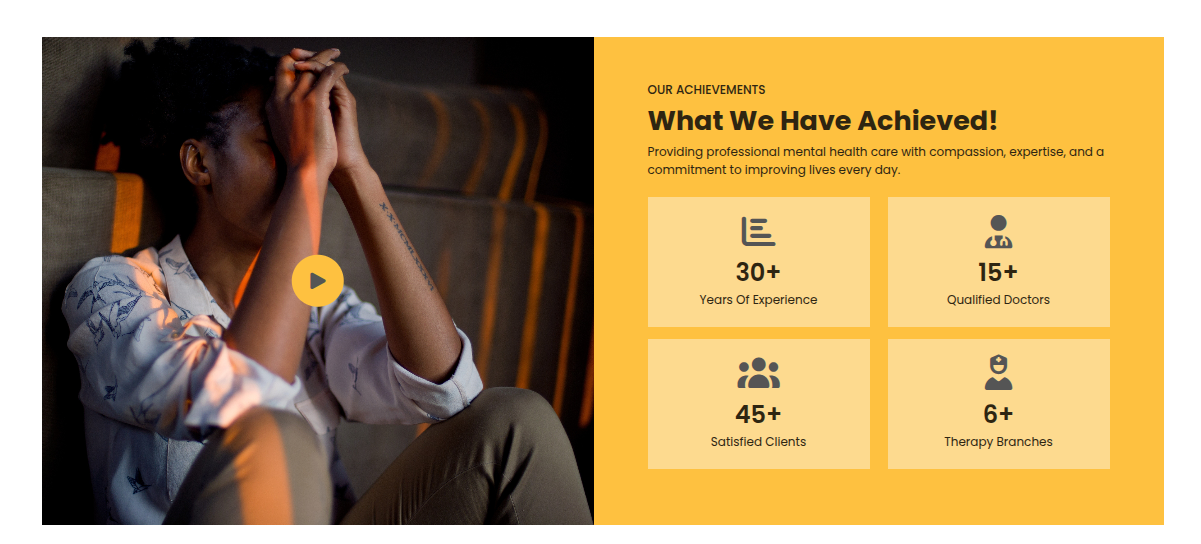
Our Session Section
Fetch Categories
This screen is divided into 2 sections, the Add New Category and category table sections.
All of the categories are listed in this table. Categories are organized alphabetically and hierarchically.
In order to proceed with Theme social icon, so follow the below steps.
Follow the below steps to setup Category Settings.
In the dashboard, go to Posts >> Categories >> Add New
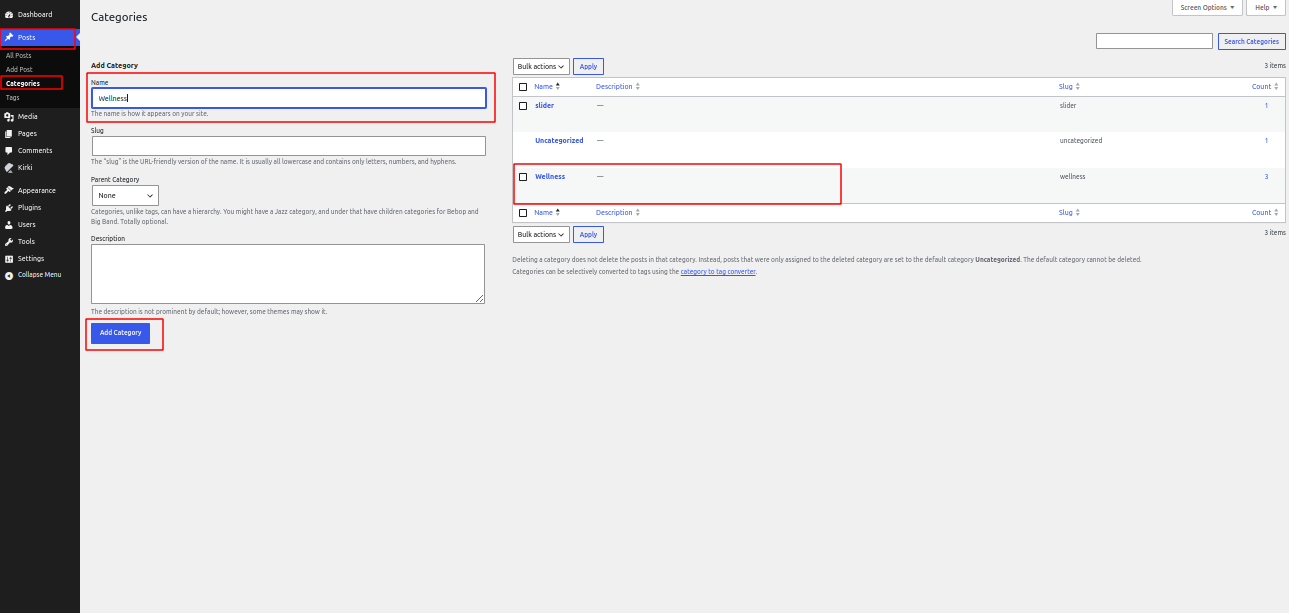
Once you have done with this you will see the categories on your theme customize.
In this section, you have to add new category for each post.
Fetch Post
In the dashboard, go to Posts >> Add New
In order to proceed with Post Settings, You can set post title and content. And Select which Category you want this post to show.
Follow the below steps to setup Post Settings.
In the dashboard, go to Posts >> Add New
You can make multiple posts for category.
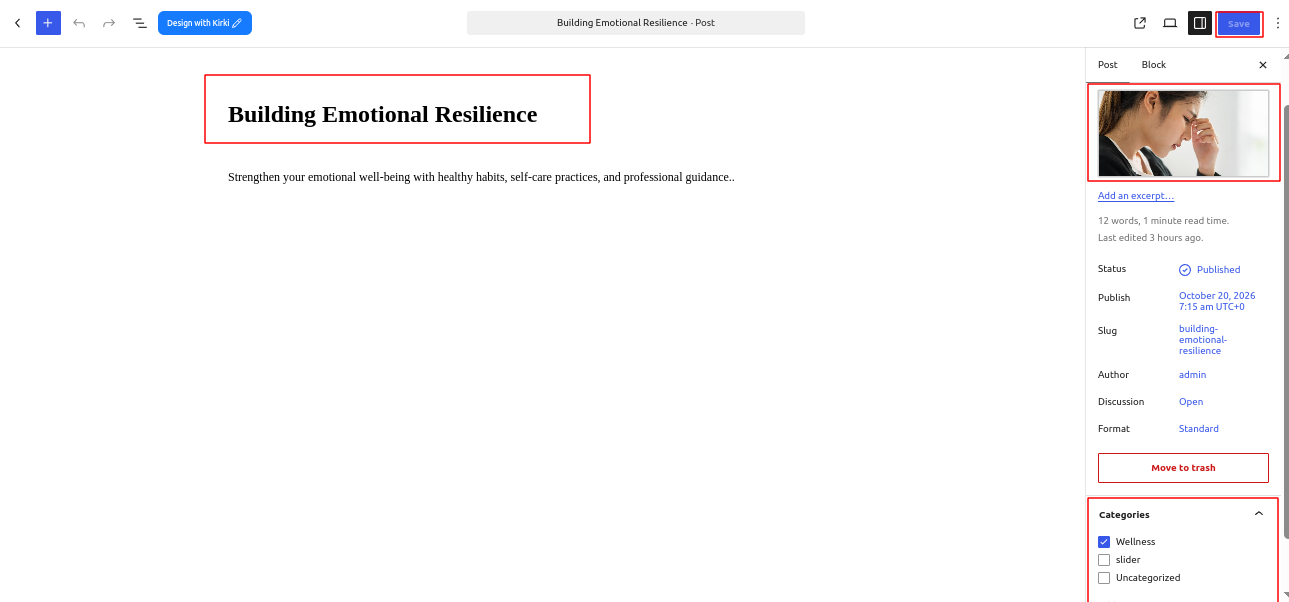
Once you have done with this you will see the categories on your theme customize.
Our Session Settings
In order to proceed with Theme Our Session Settings , follow the below steps.
In the dashboard, go to Appearance >> Customize >> Theme Options >>Our Session Settings
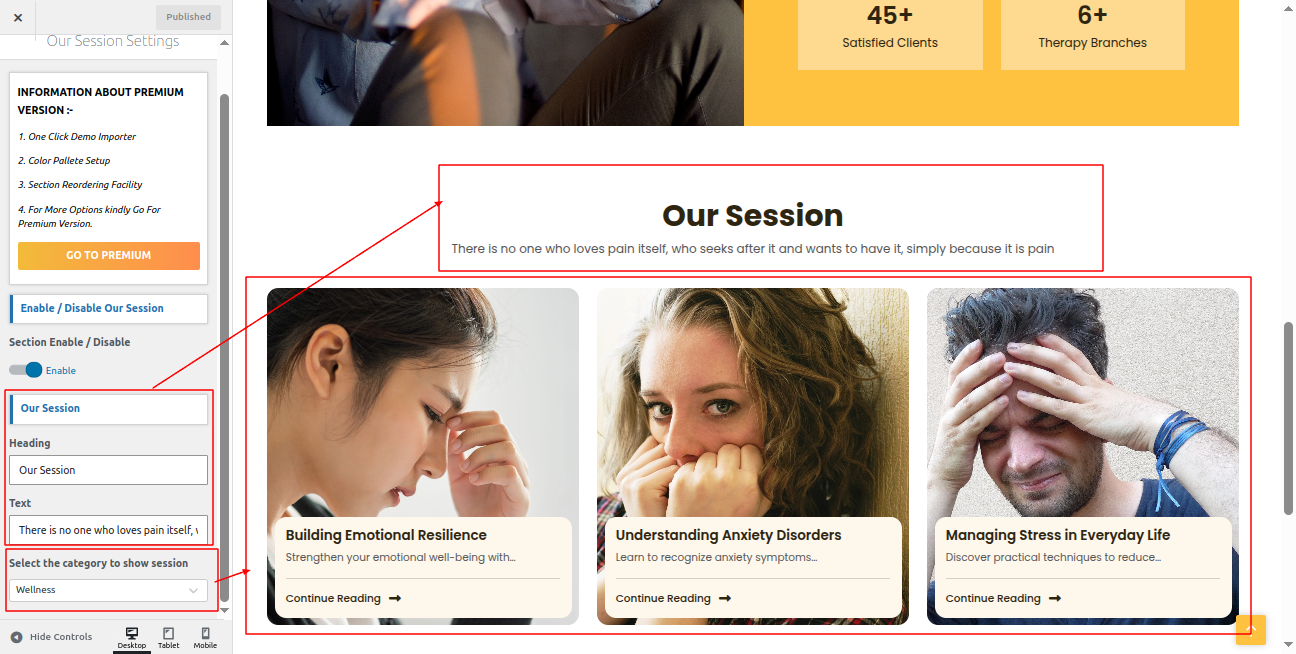
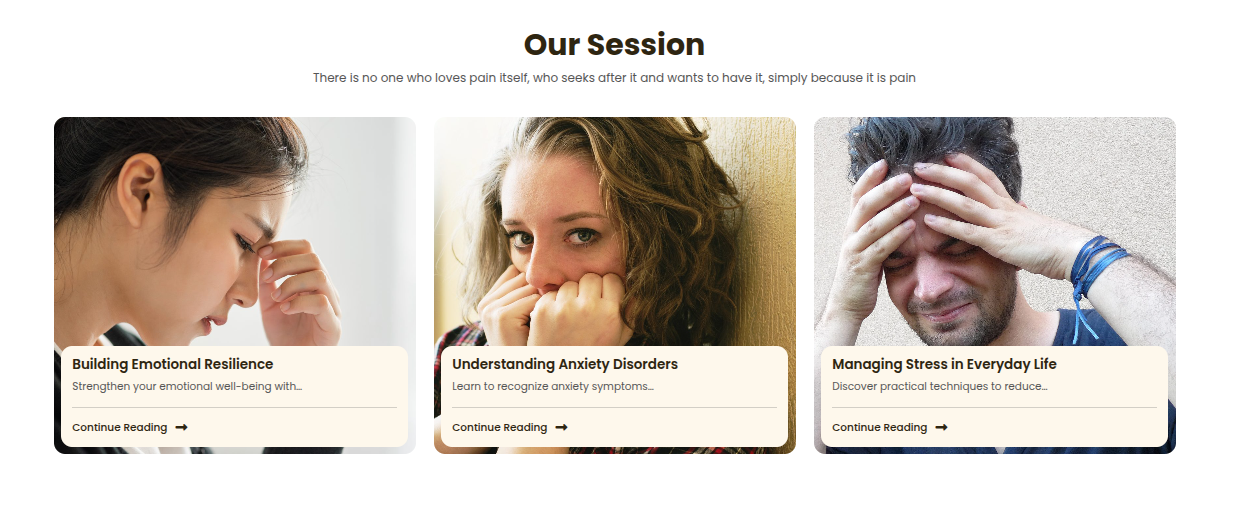
In front end, it will look like this.
Setup Footer Section
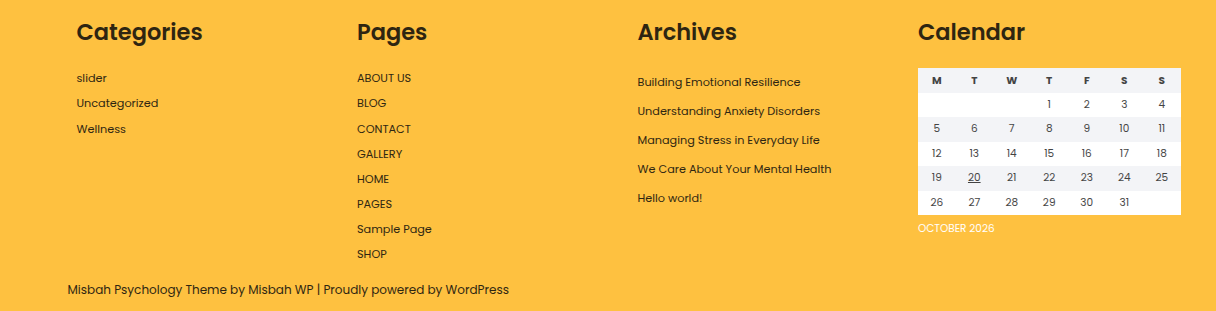
There are four columns in the footer. Any widget can be added there..
For Adding widgets first you have to add classic widget plugins.
1. In the dashboard, go to Appearance >> Widgets
To add widgets to the footer, see the screenshot below.
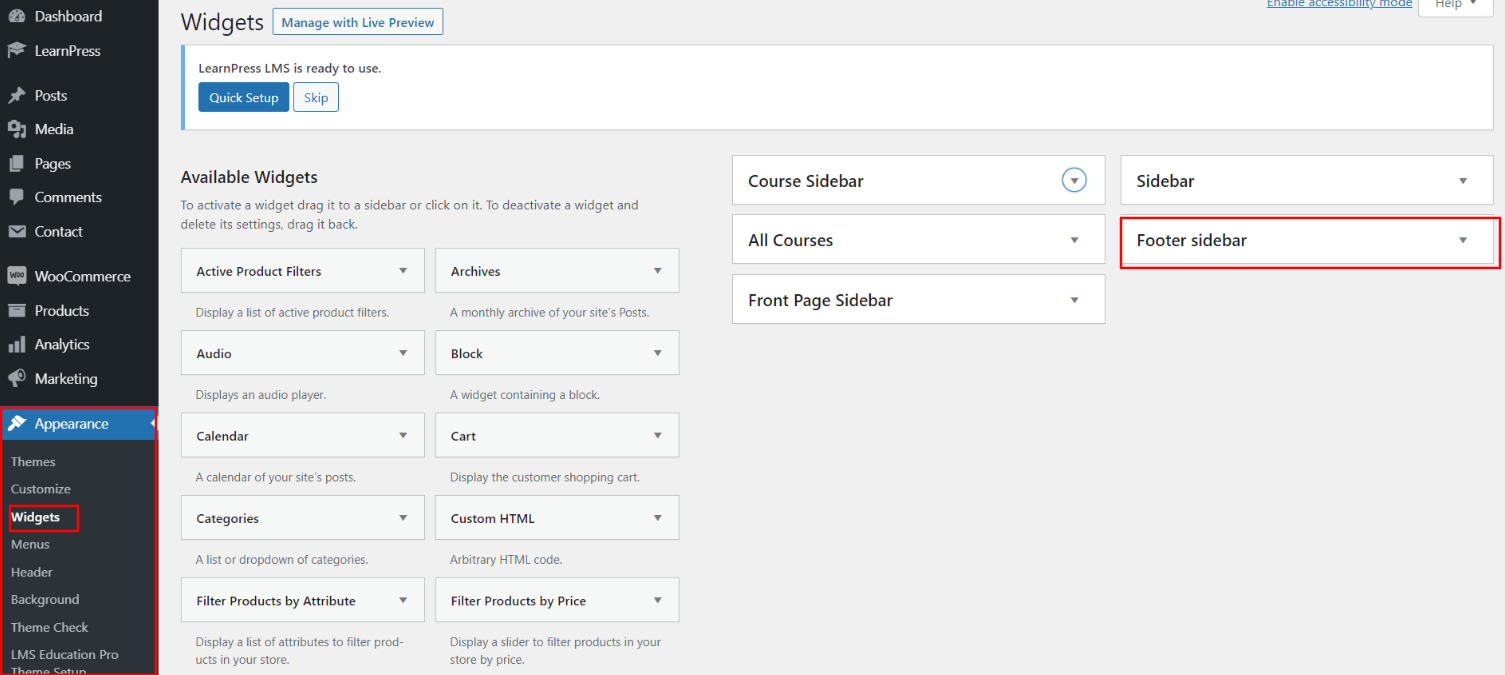
You can add footer coloumns, for that you need to select widgets like text, image, gallery, etc which allows you to add text or image as per your choice with ease.
In order to manage content for footer and add some widgets, navigate to, follow the below steps.
2. In the dashboard, go to Appearance >> Widgets >> Footer Sidebar
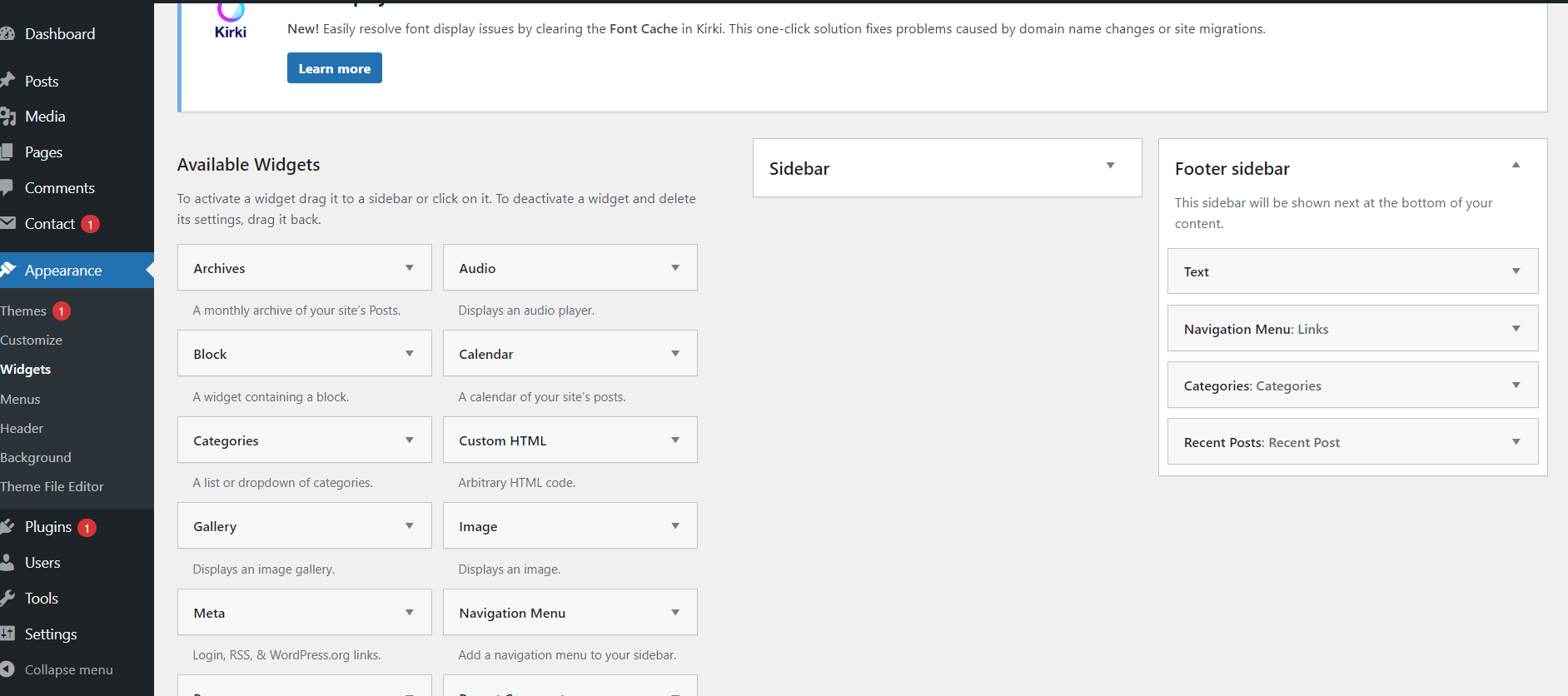
Your footer will appear like this once you have added widgets to it.
Footer Copyright Text
In order to proceed with footer Settings, You can fill the copyright content to footer copyright Settings.
5. In the dashboard, go to Appearance >> Customize >> Theme Options >> Footer Setting
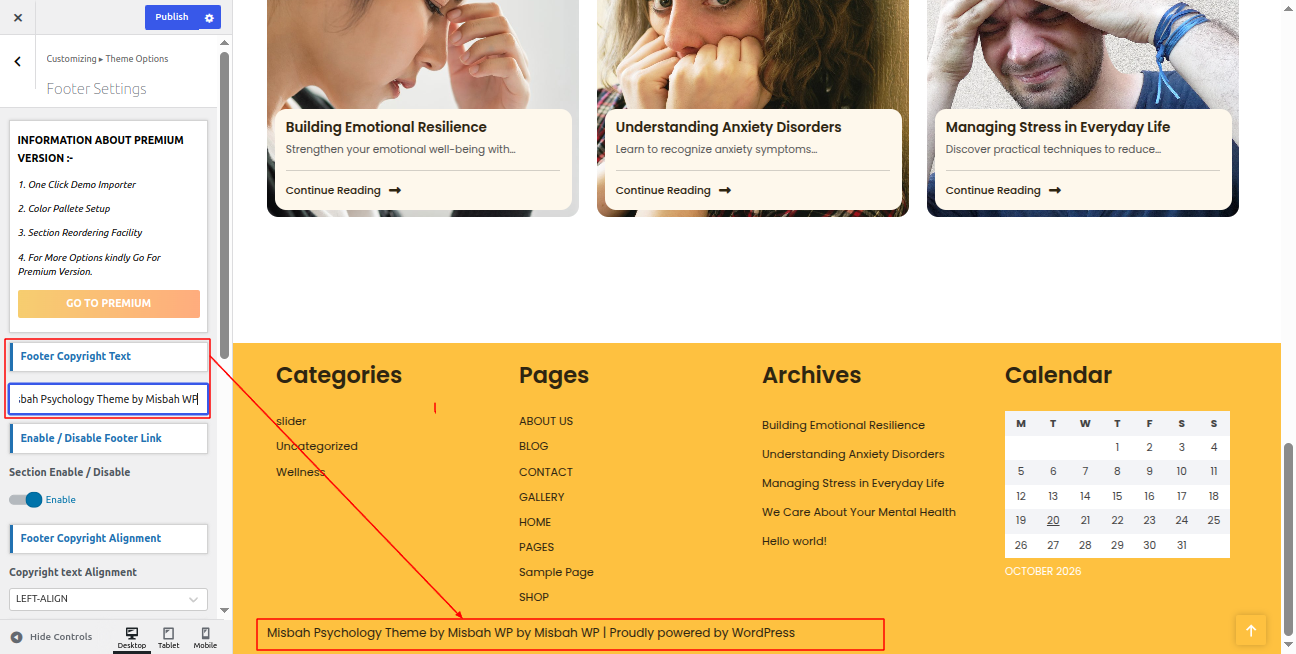
In front end, it will look like this.