Super Mart Store Pro Documentation
Your awesome theme / template documentation
Introduction
- Theme Name : Super Mart Store Pro
- Author : misbahwp
- Support Forum : httpshttps://www.misbahwp.com/pages/community
- License : GNU General Public License v3 or later
- Discription : Super Mart Store Pro WordPress Theme is specially designed for nature websites of personal use or business. The premium theme has an elegant but luxurious, modern and sophisticated, beautiful and retina-ready design which is worth your every penny. It is a SEO-friendly theme which will make your website rank soon on all major search engines. It is mobile-friendly too with a responsive layout. It has been improved for performance, resulting in quicker page load times. It also has safe and clean codes. It supports RTL layout and is translation-ready. It is built using the Bootstrap framework, which makes it very user-friendly. There's a whole lot of features in this theme. Let's get to know them all in full. It makes use of the customizer API to access Theme Settings.The logo, title, favicon and tagline all can be changed. You can use custom CSS/JS if you like. You can use shortcodes also to make your website more useful. Make your website stunning with the help of Advanced Color Options, Color Pallets and 100+ font family options.
How to Establish the Theme
Setup Theme
Template installation is very simple process.
You can also install your theme using WP Admin
he first task is to log in to your WordPress admin area. Next, click on
1. In dashboard click on Appearance >> Themes
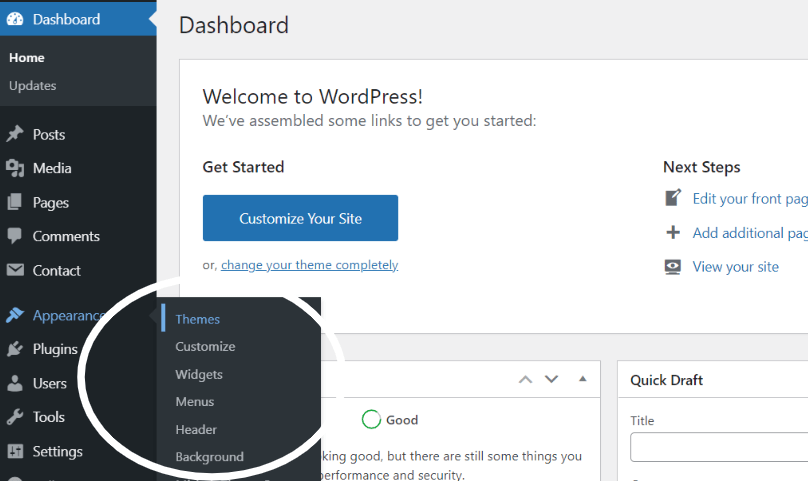
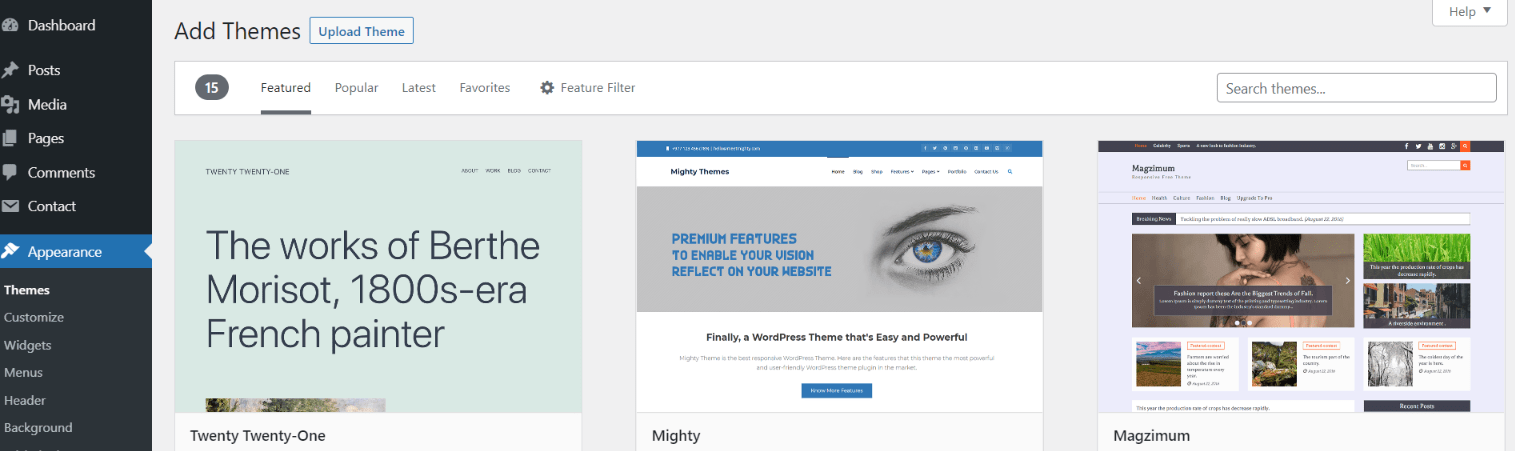
2. Click on the Add New button at the top of the themes page once page is loaded
3. Click the button labelled as 'Upload Theme'.
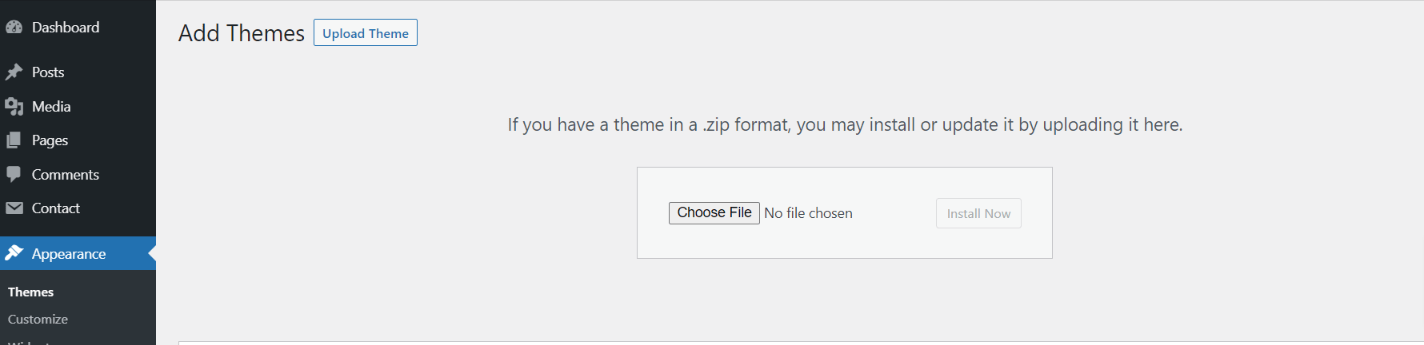
Select the super-mart-store-pro.zip theme from the Browse Button, then click the Install Now button
5. WordPress will now install your theme and display a success message, as well as a link to activate or to see the live preview. Congratulations on completing the installation of your theme.
Demo Importer -
Follow below instructions to setup super-mart-store-pro theme.
In the Dashboard, go to Appearance >> Super Mart Store Pro Themes Setup
Once you are on the Super Mart Store Pro themes setup, click on the start button.
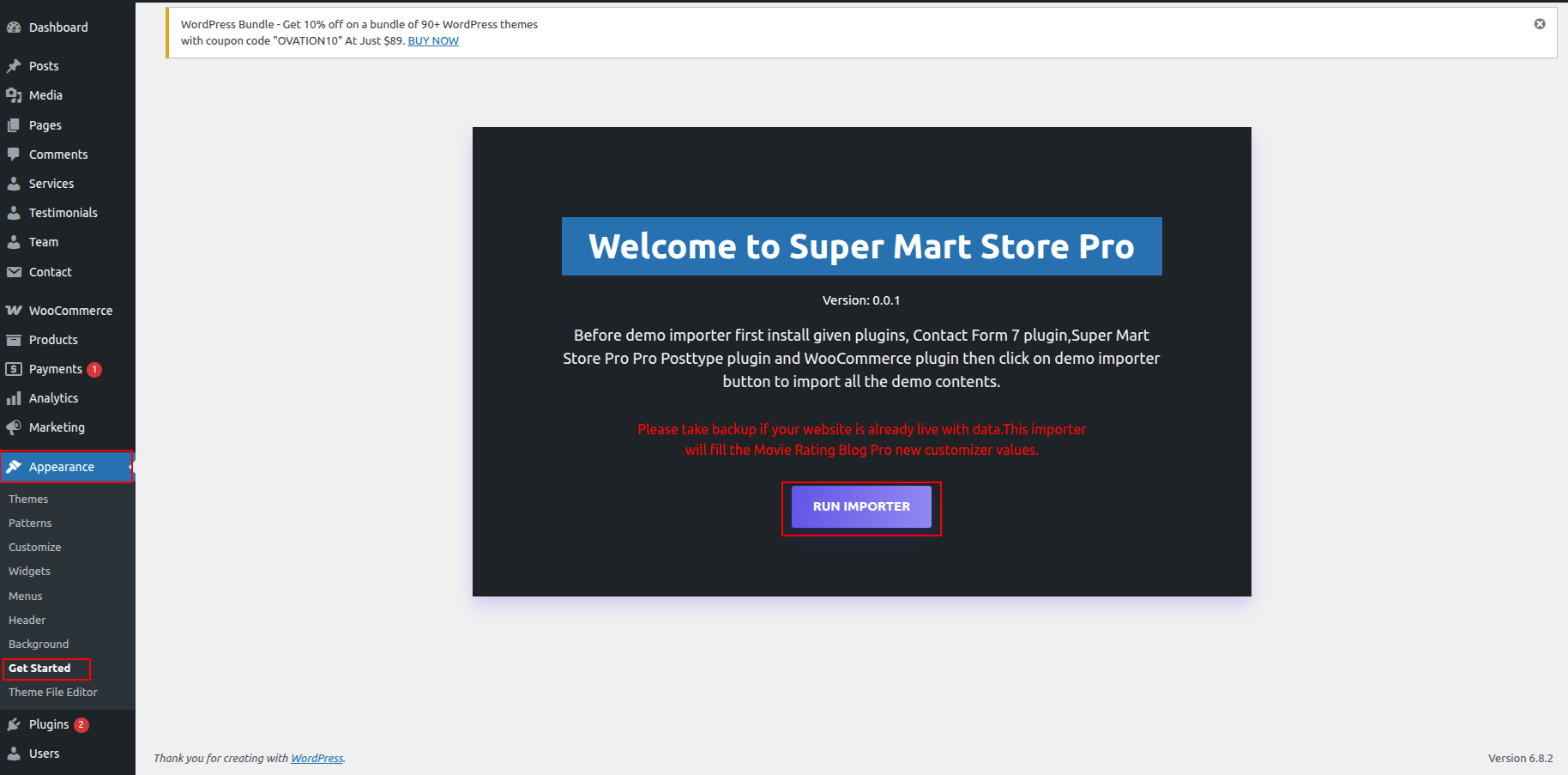
As the demo importer process finish then check your site, all the content will imported and theme will display like live demo.
Necessary Plugins
When you initially activate the theme, you'll be asked to install these plugins on your Dashboard. You can ignore the message if you don't want to install these plugins on theme activation, and if you change your mind later, you can install them manually.
In the Dashboard, click on Plugins >> Install Plugins.
Contact Form 7
Plugin download link contact-form-7
WooCommerce
Plugin download link WooCommerce
Setup Menu
Setup Menu
In the dashboard, go to Appearance >> Menu
From the 'Appearance' menu on the left-hand side of the Dashboard, select the 'Menus' option to bring up the Menu Editor.
Select Create a new menu at the top of the page. Enter a name for your new menu in the Menu Name box. Click the Create Menu button.
Your new custom menu has now been defined.
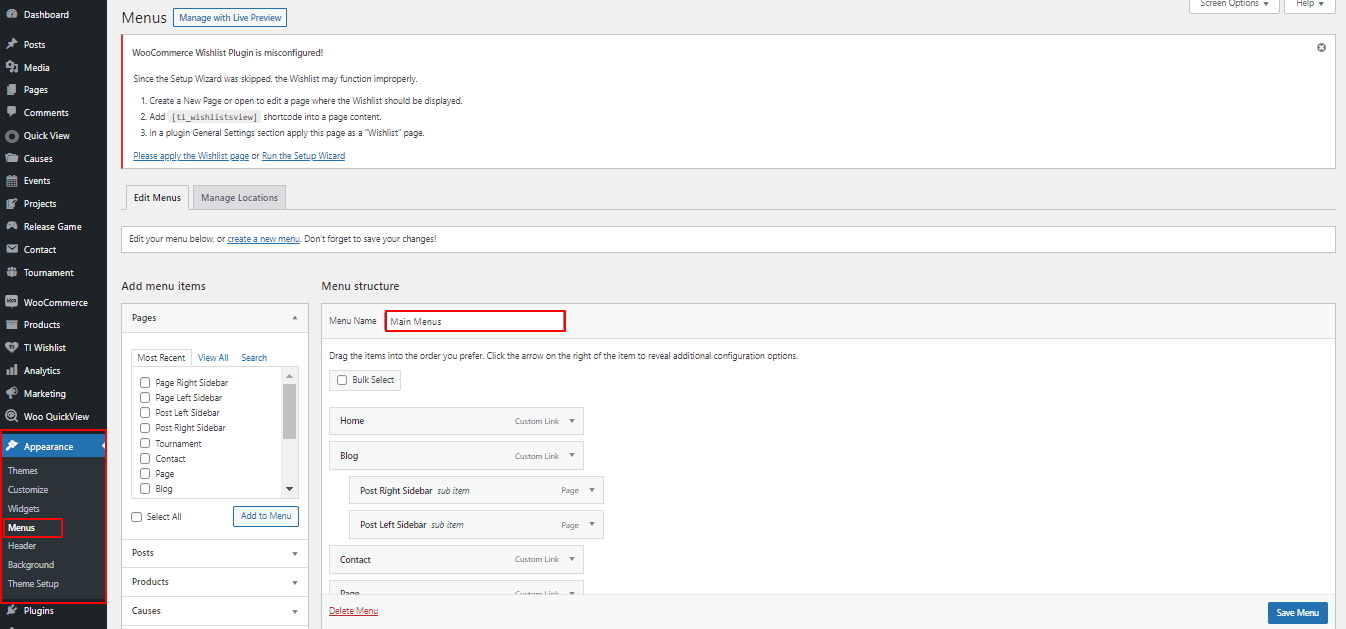
Adding Items to a Menu
Select the Pages that you want to add by clicking the checkbox next to each Page's title.
Click the Add to Menu button located at the bottom of this pane to add your selection(s) to the menu that you created in the previous step.
Click the Save Menu button once you've added all the menu items you want.
Your custom menu has now been saved.
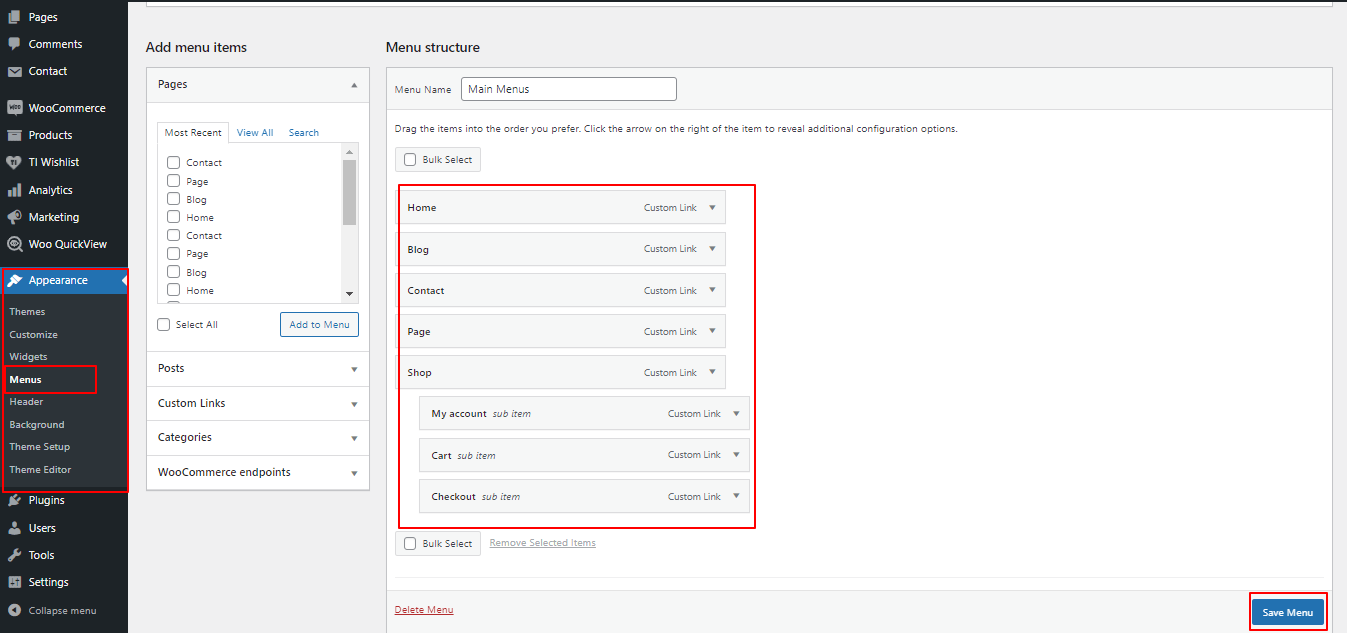
In front end, it will look like this.

Super Mart Store Pro Theme Setup
Topbar Settings
In order to proceed with you can follow the instructions given below.
In the Dashboard, go to Appearance >> Customize >> Theme Settings >> Topbar Settings
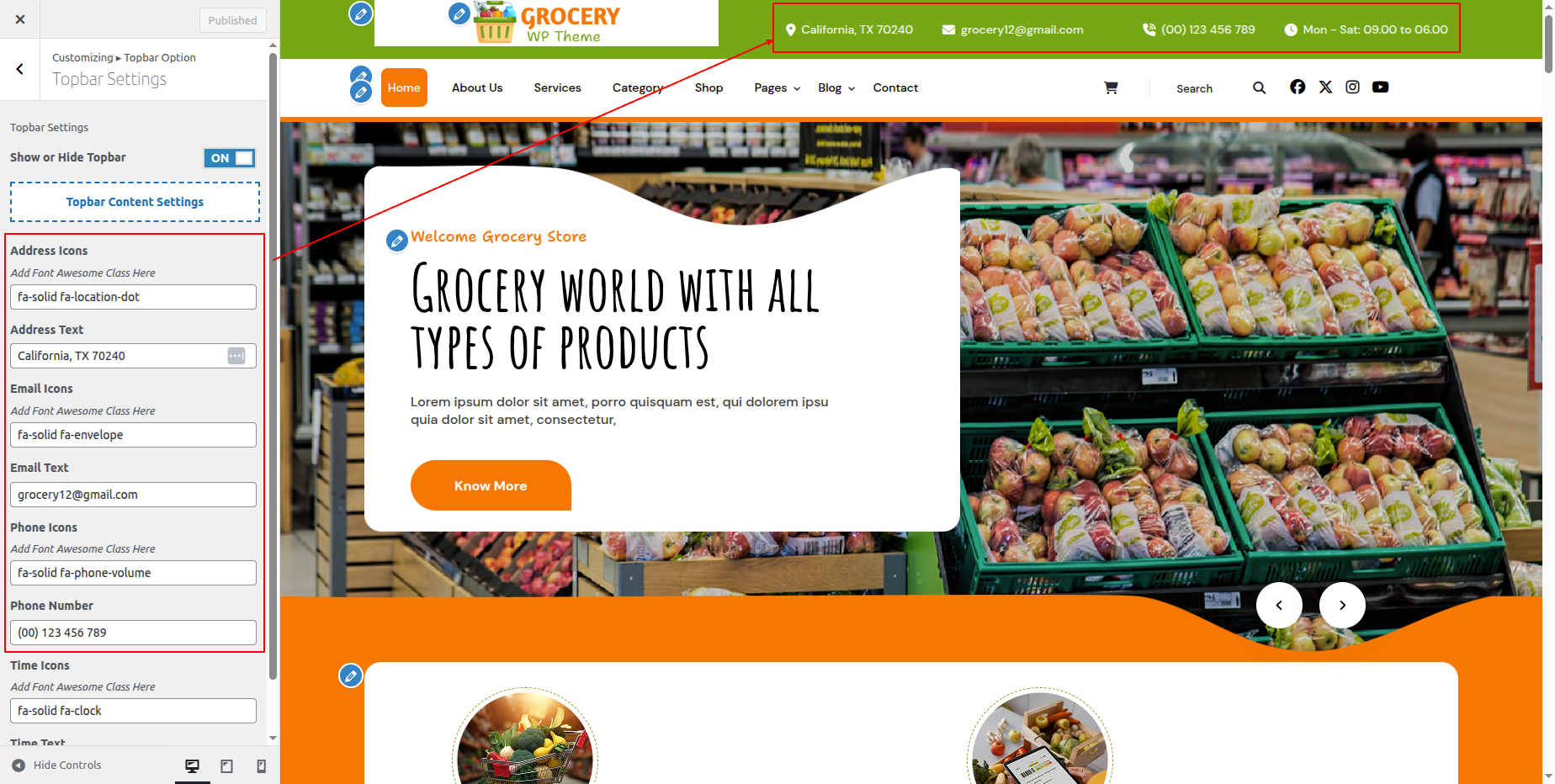
In front end, it will look like this.

Logo Setup
In order to proceed with Theme Logo setup, you can set site title and tagline, follow the instructions given below.
In the Dashboard, go to Appearance >> Customize >> Site Identity >> Logo Or Set Title and Tagline You can also Enable / Disable Site Title and Tagline
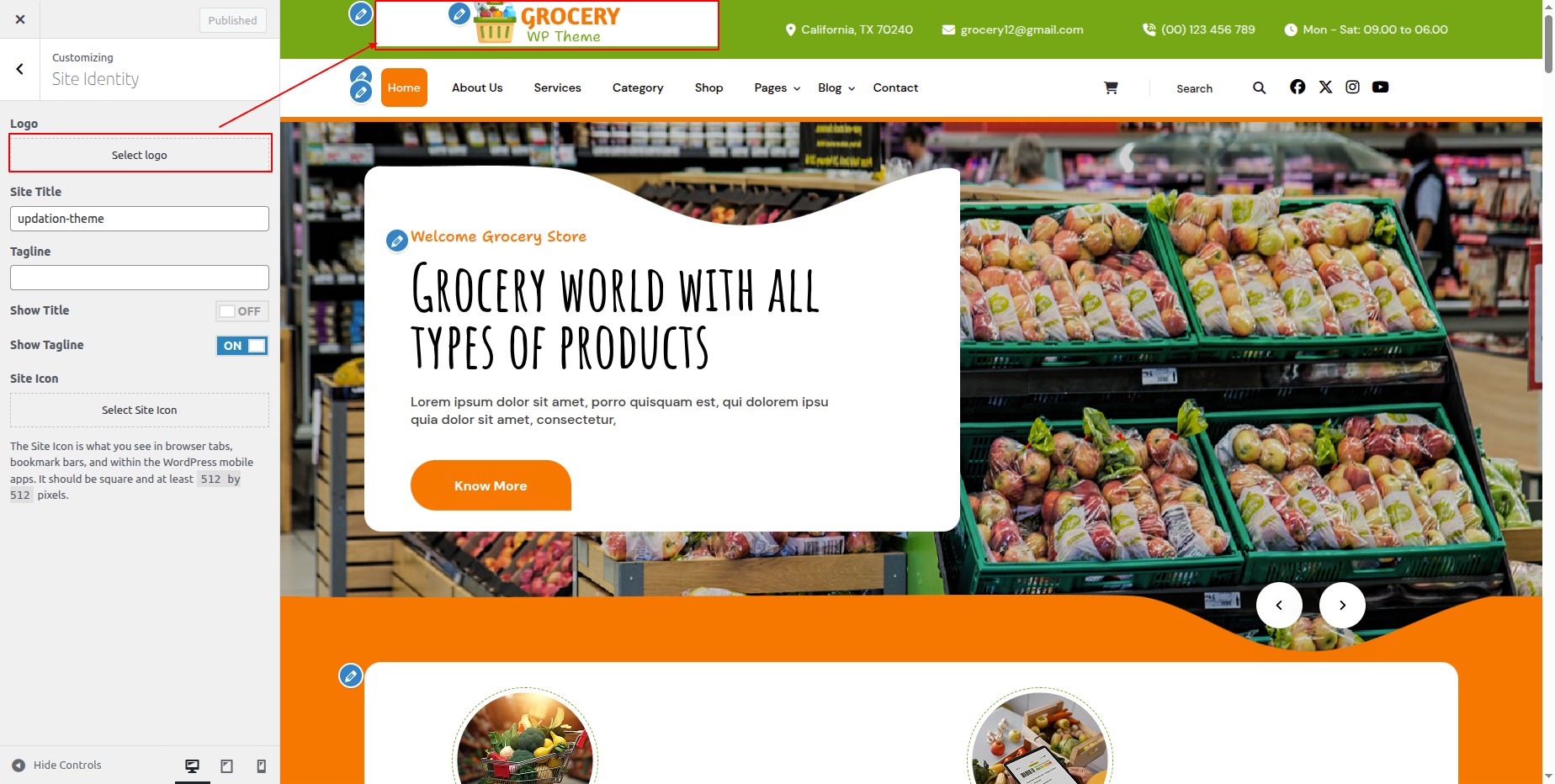
In front end, it will look like this.

Header Settings
In order to proceed with you can follow the instructions given below.
In the Dashboard, go to Appearance >> Customize >> Theme Settings >> Header Option >> Header Settings
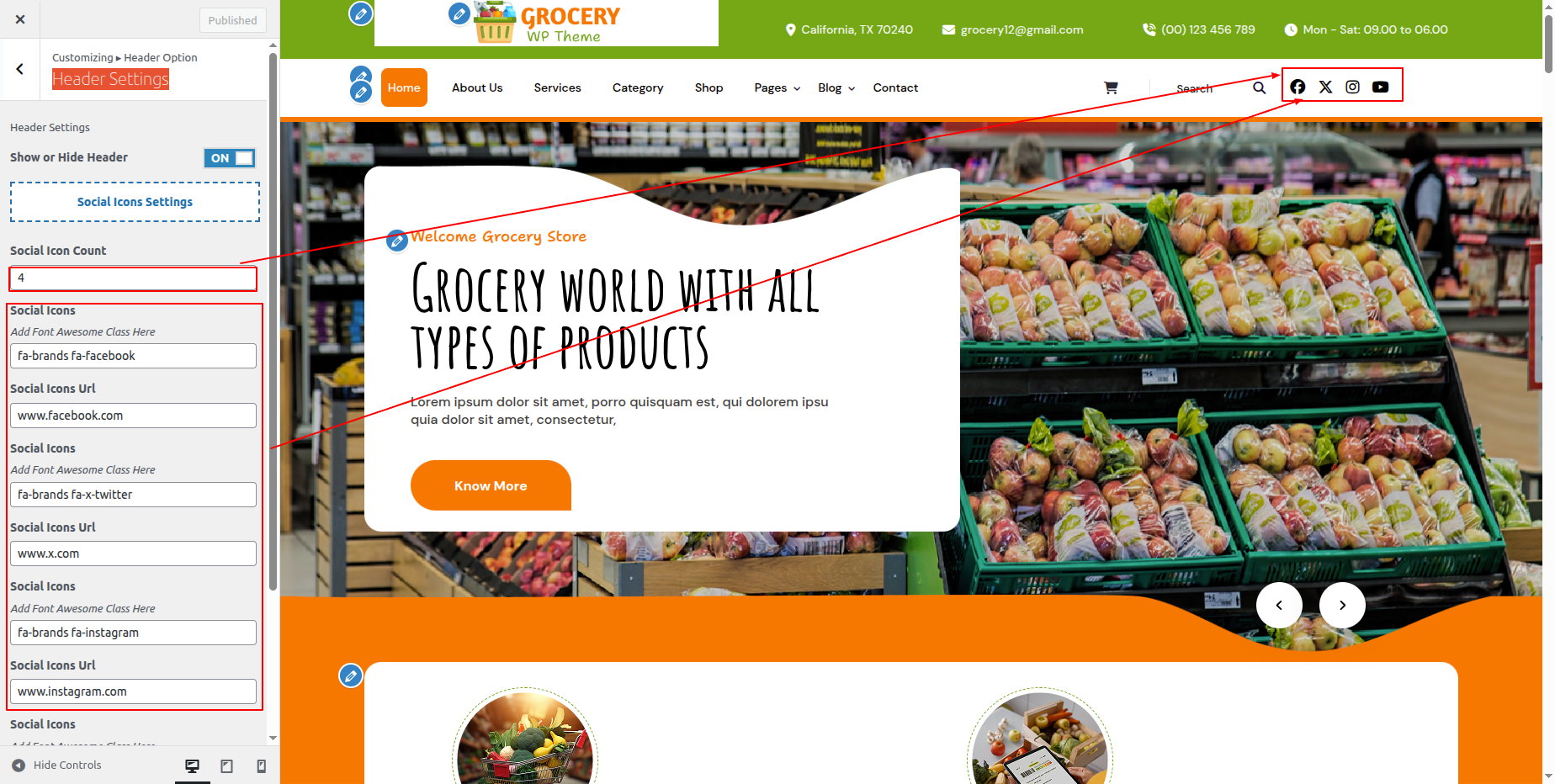
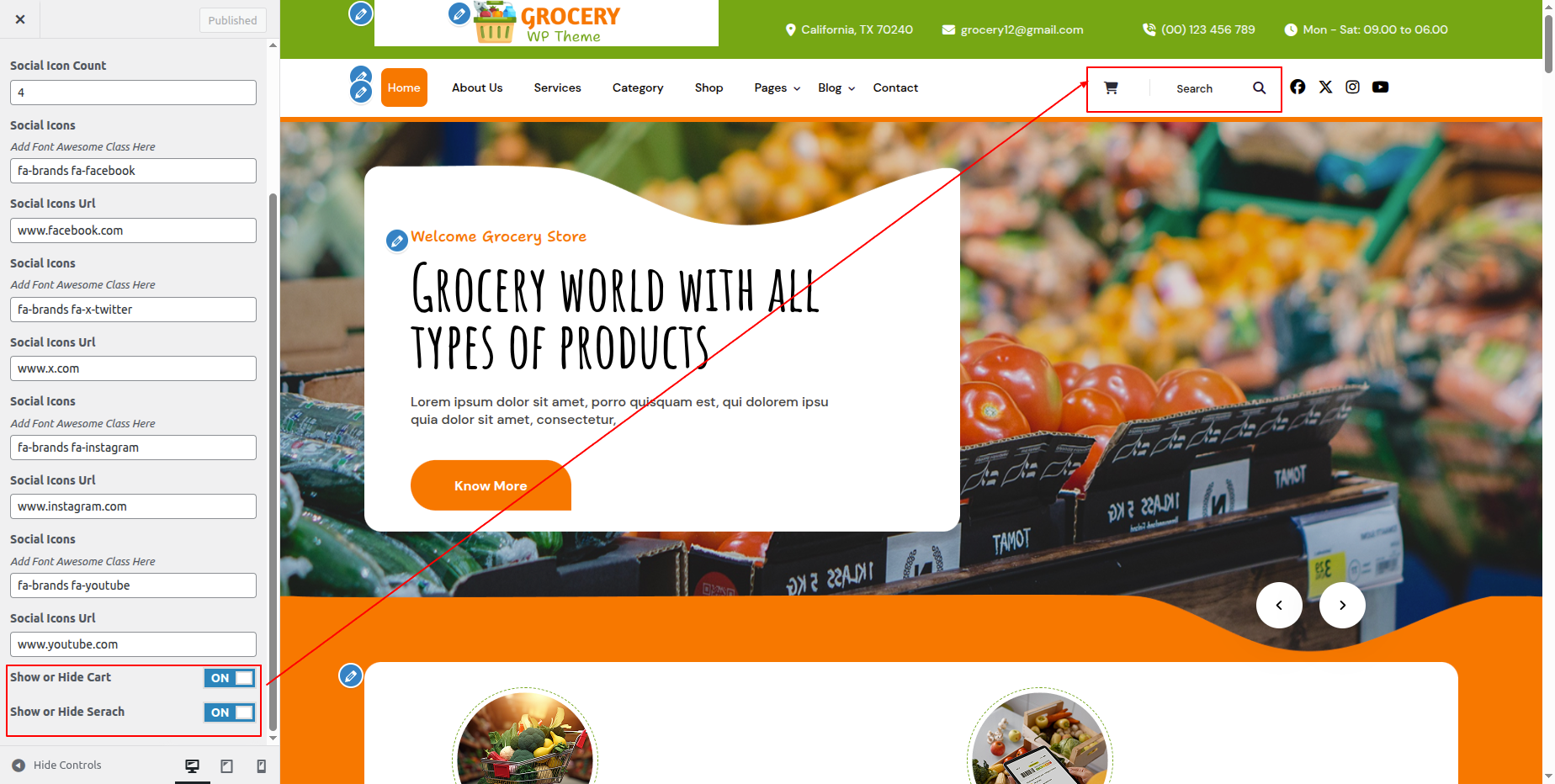
In front end, it will look like this.

Slider Section
Slider Settings
In order to proceed with Theme Slider Settings , you can set slide show , follow the instructions given below.
In the Dashboard, go to Appearance >> Customize >> Theme Settings >> Slider Option >> Slider Settings
You can set heading, content, image, button text and button url. You can choose from this options for each banner option.
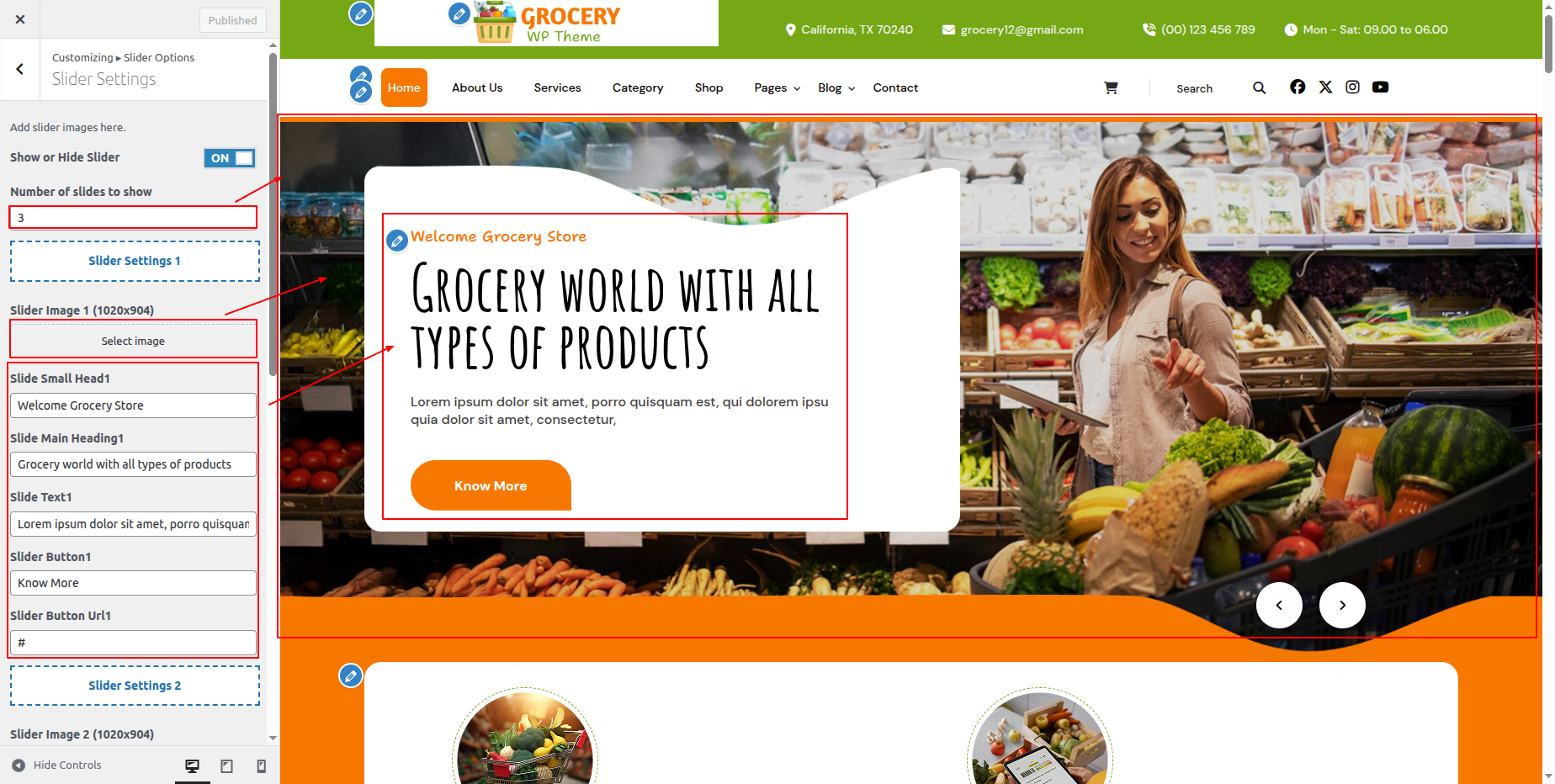
In front end, it will look like this.

Our Features Section
Our Features Setting
In order to proceed with Our Features Settings follow the instructions given below.
In the Dashboard, go to Appearance >> Customize >> Theme Settings >> Our Features Option >> Our Features Settings
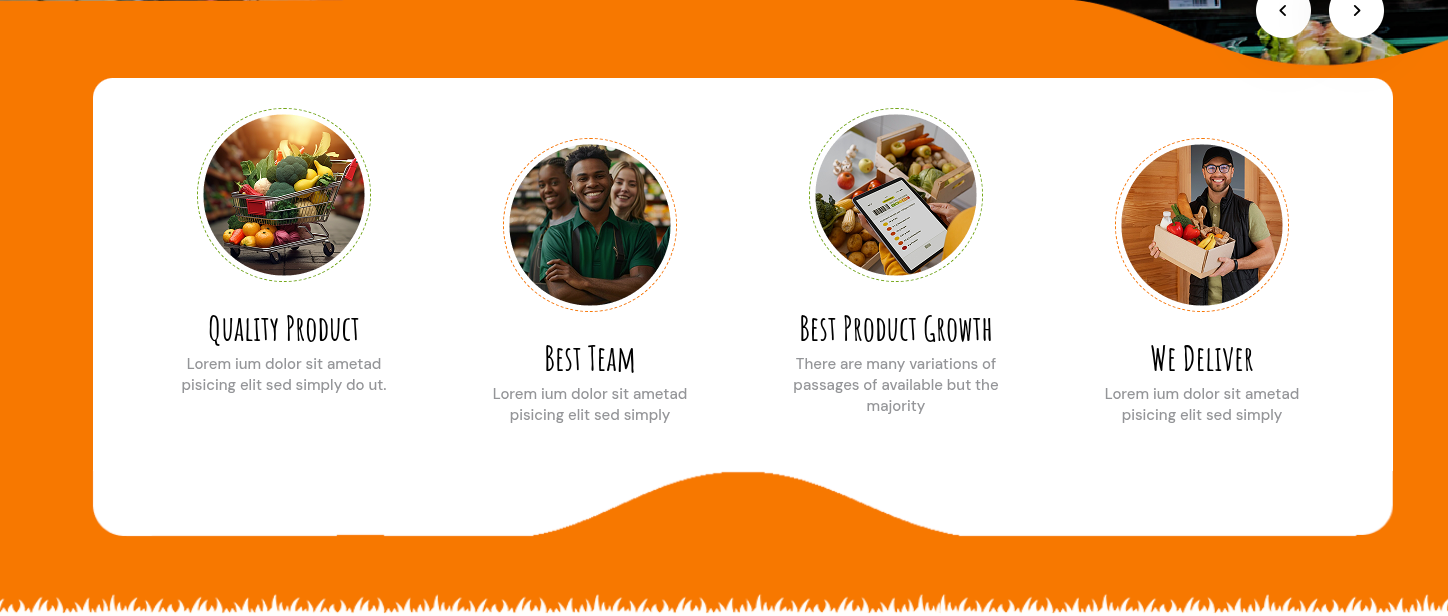
You can set heading and sub heading for section and content. And set image, text and url.
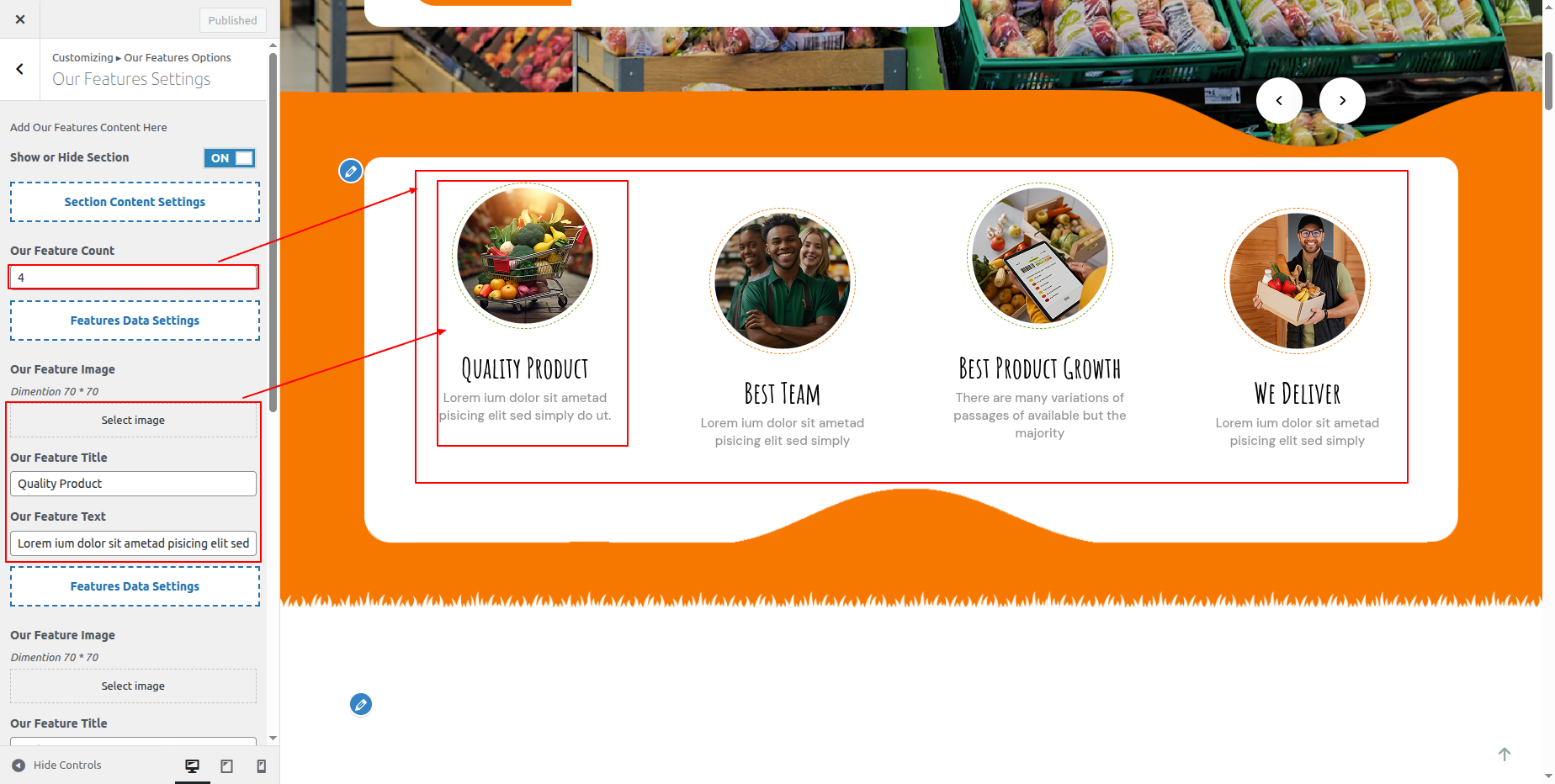
In front end, it will look like this.
About Us Section
About Us Settings
In order to proceed with About Us Section Settings follow the instructions given below.
In the Dashboard, go to Appearance >> Customize >> Theme Settings >> About Us Option >> About Settings
You can set heading and sub heading for section.
Set images to show. You can set also button text with button url. You can choose from this options for each About Us
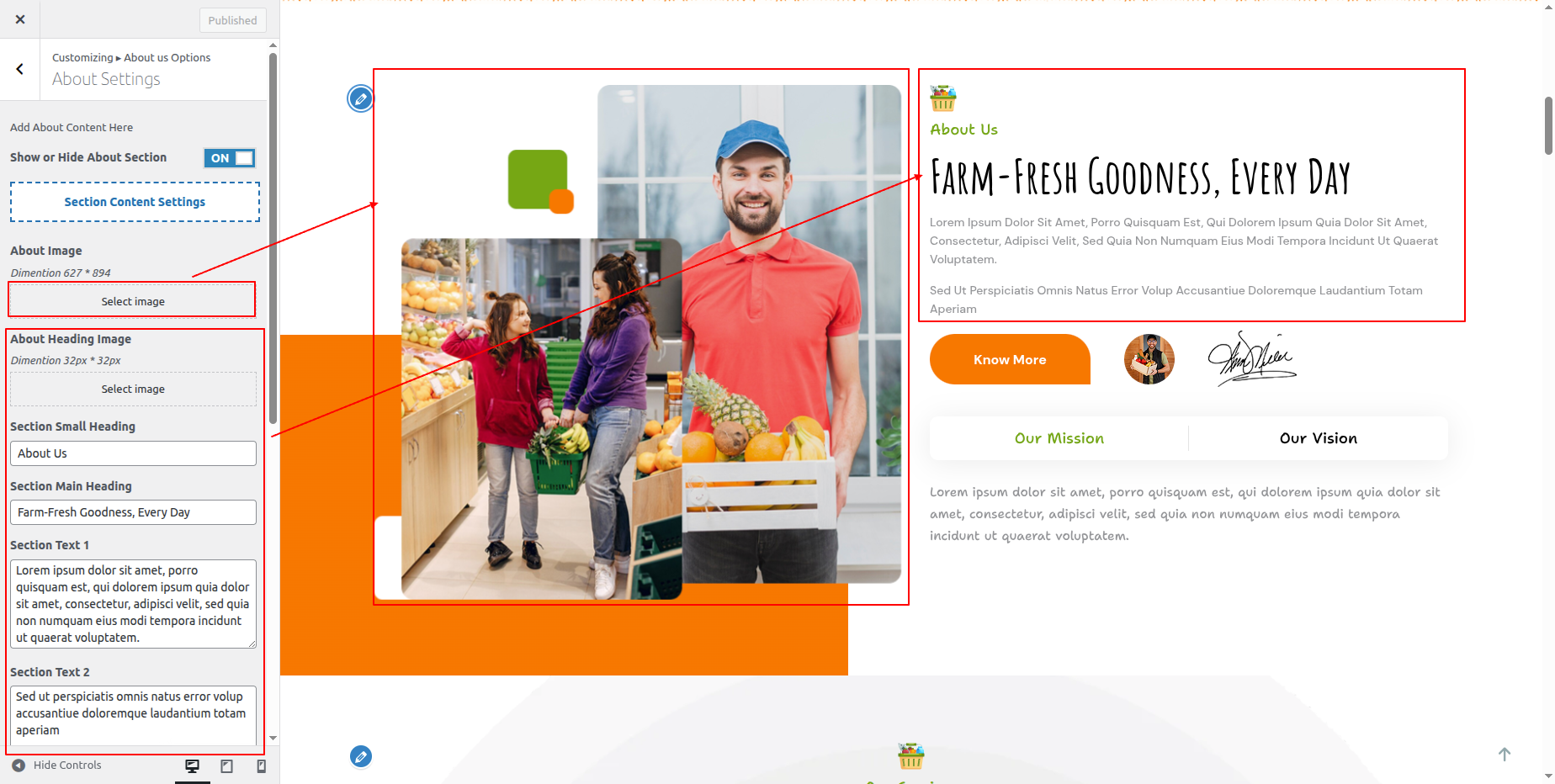
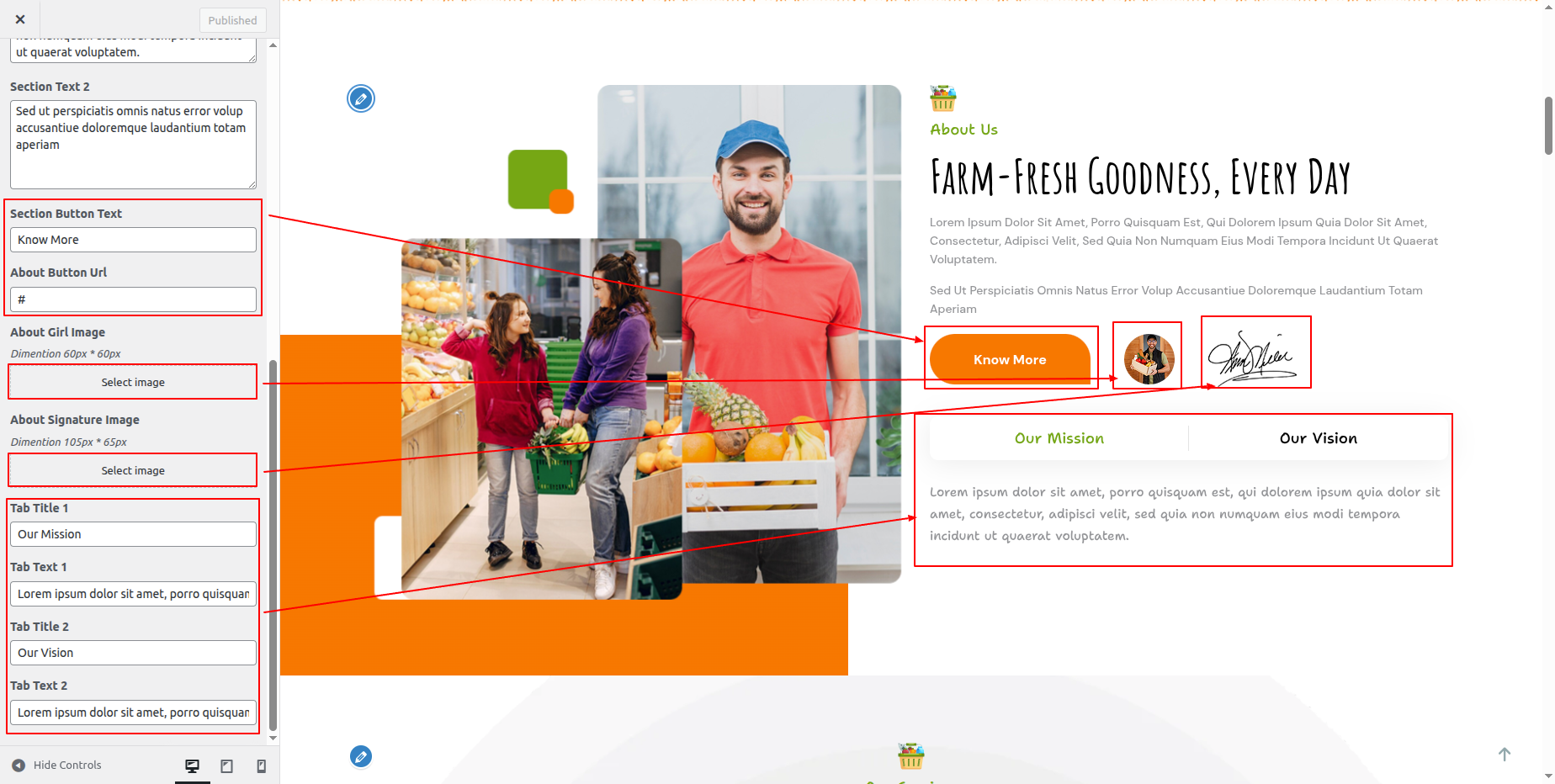
In front end, it will look like this.

Services Section
Services Settings
In Order to proceed with service section,First install and activate Super Mart Store Pro Pro Posttype plugin
After activation services section appears on Dashboard.
Fetch Service Post
In the Dashboard, go to Services >> Add Post
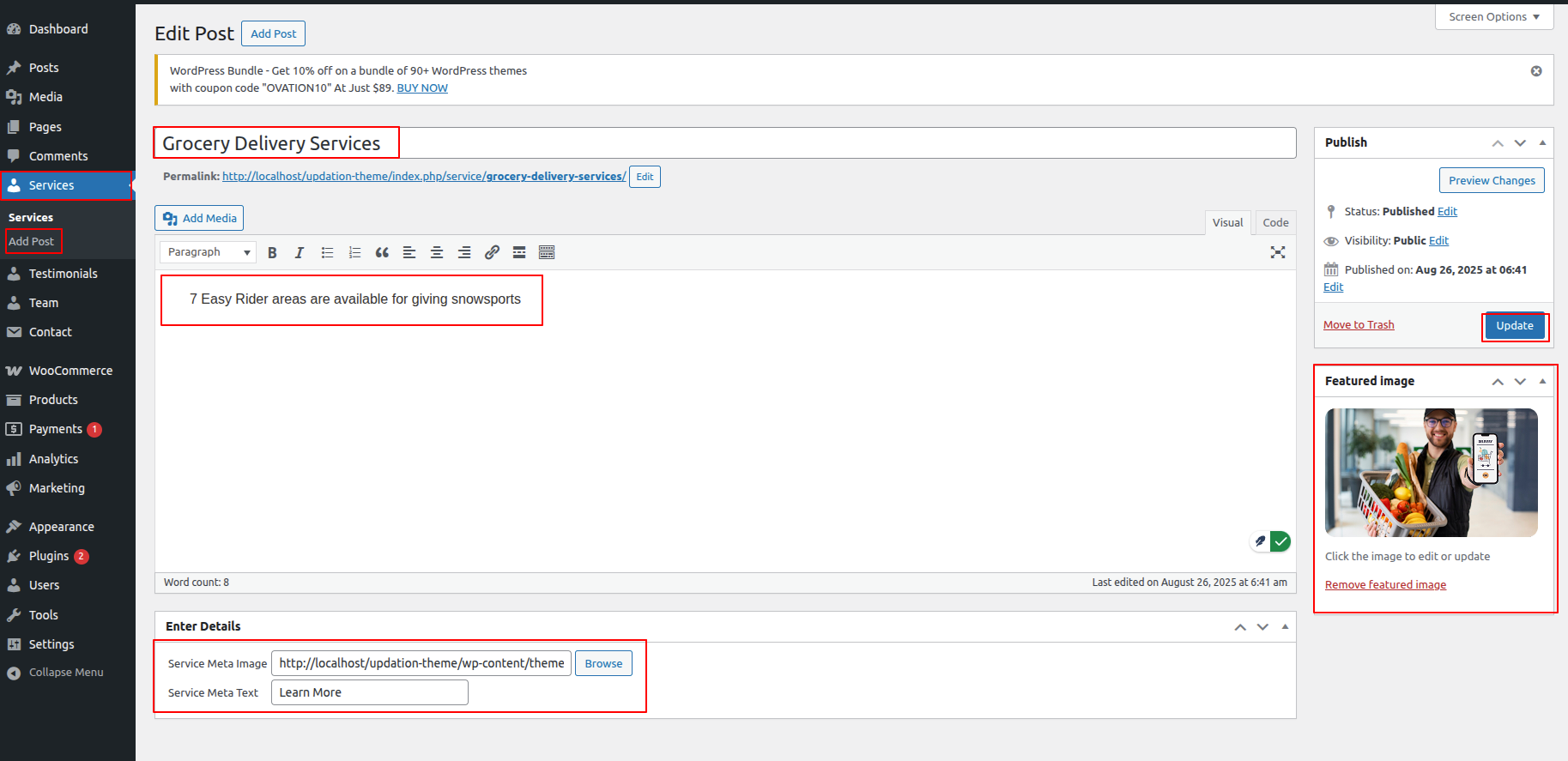
In order to proceed with Services Settings, You can set service titel, service description and image.
In order to proceed with Services Settings follow the instructions given below.
In the Dashboard, go to Appearance >> Customize >> Theme Settings >> Services Option >> Our Services Settings
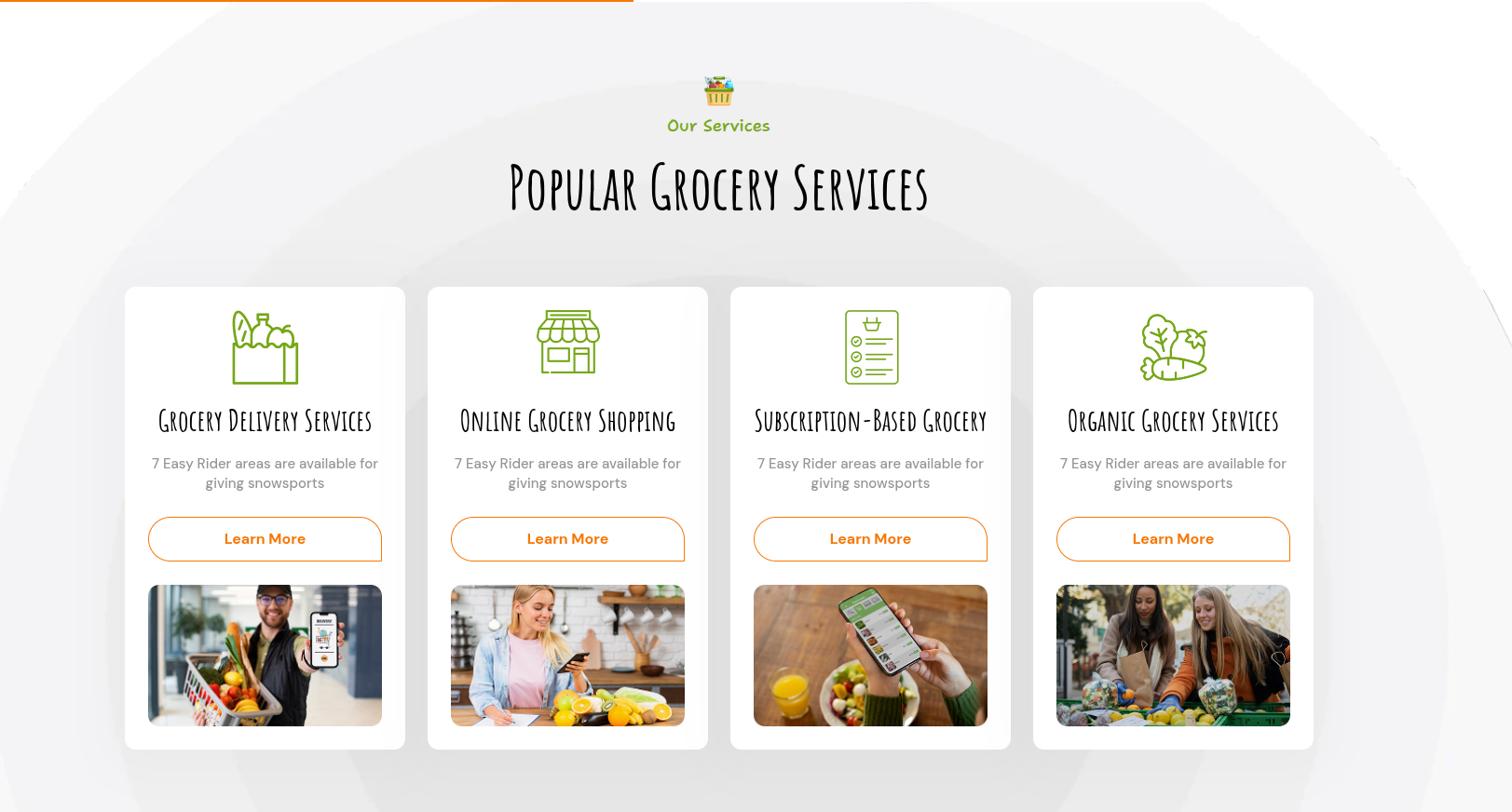
You can set heading and sub heading for section. You can choose from this options for each Services settings.
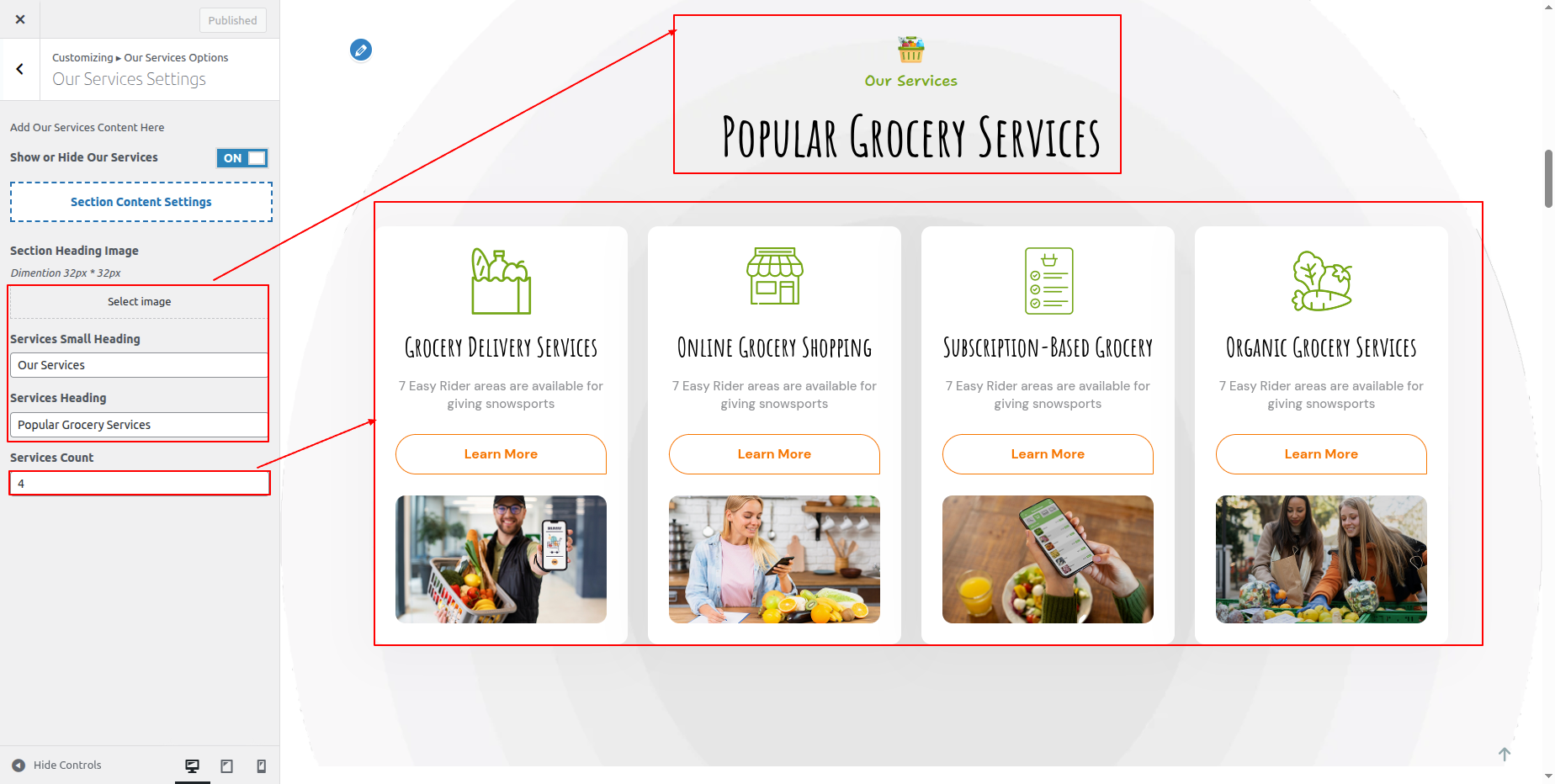
In front end, it will look like this.
Our Product Section
Our Product Settings
Fetch Categories
Important Step: Install WooCommerce plugin in your wordpress.
In the Dashboard, go to Products >> Categories >> Add New
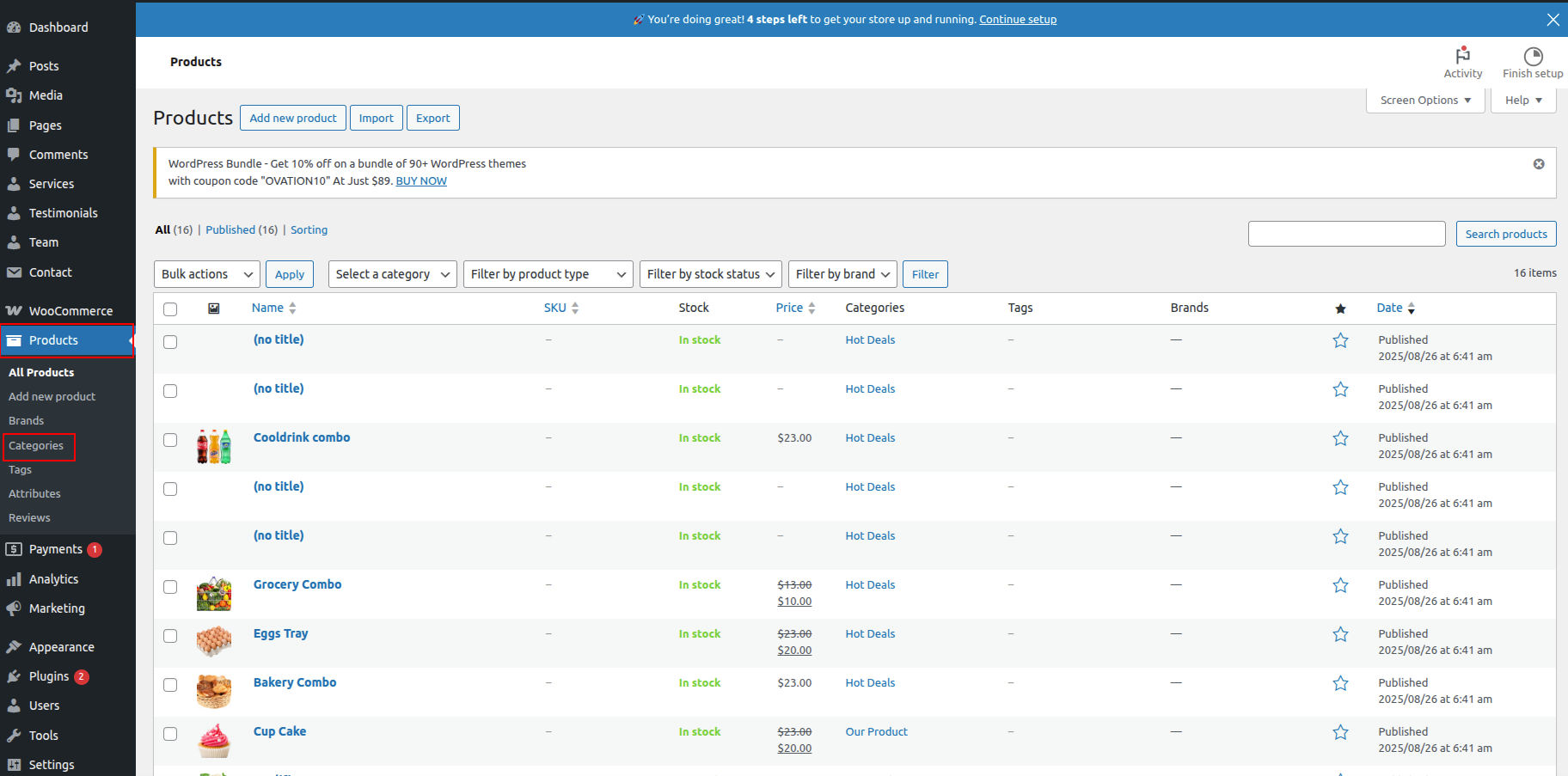
This screen is divided into 2 sections, the Add New Category and category table sections.
All of the categories are listed in this table. Categories are organized alphabetically and hierarchically.
Follow the instructions given below to setup Category Settings.
Once you have done with this you will see the categories on your theme customize.
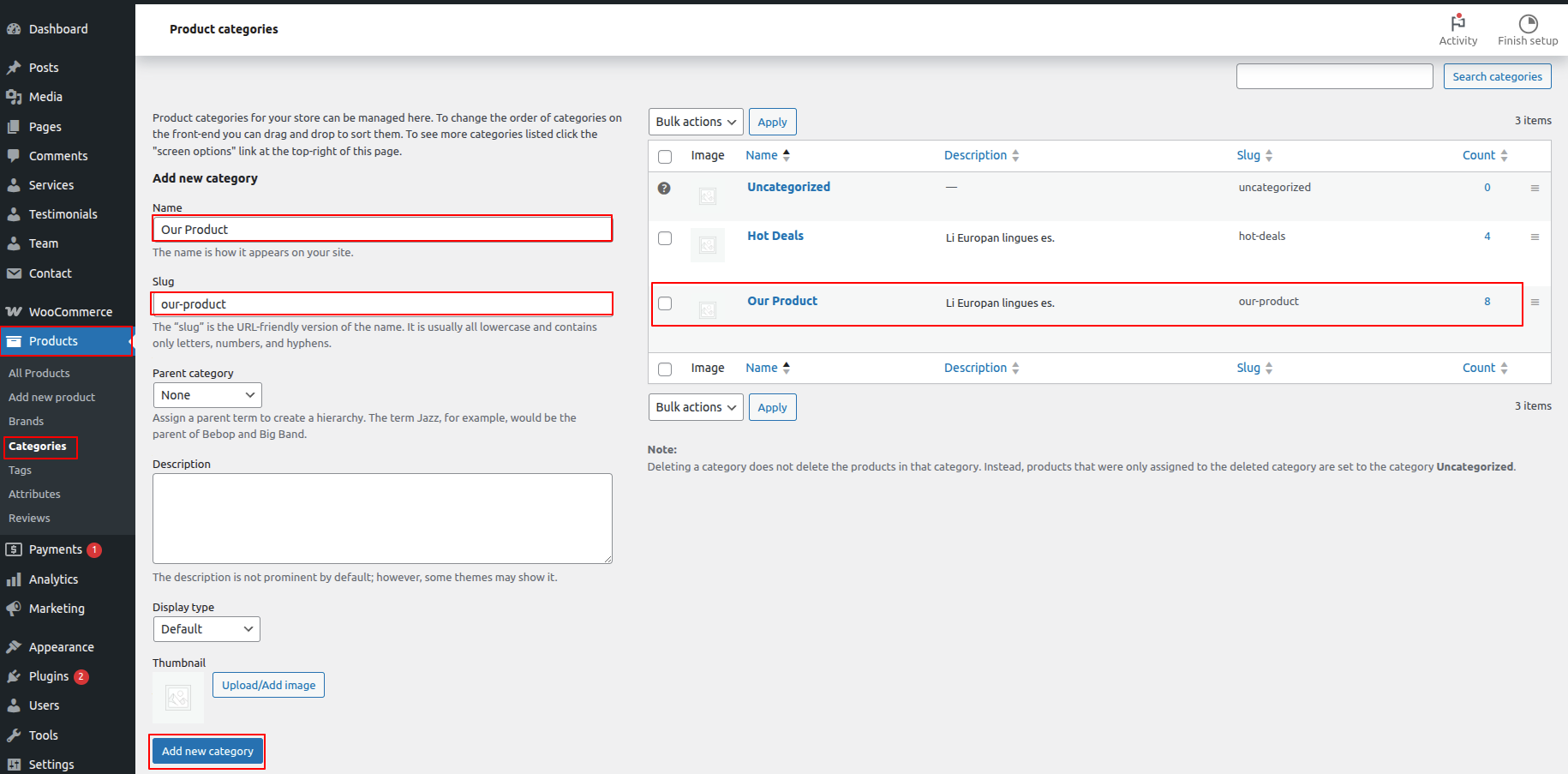
In this section, you have to add new category for each product.
Fetch Products
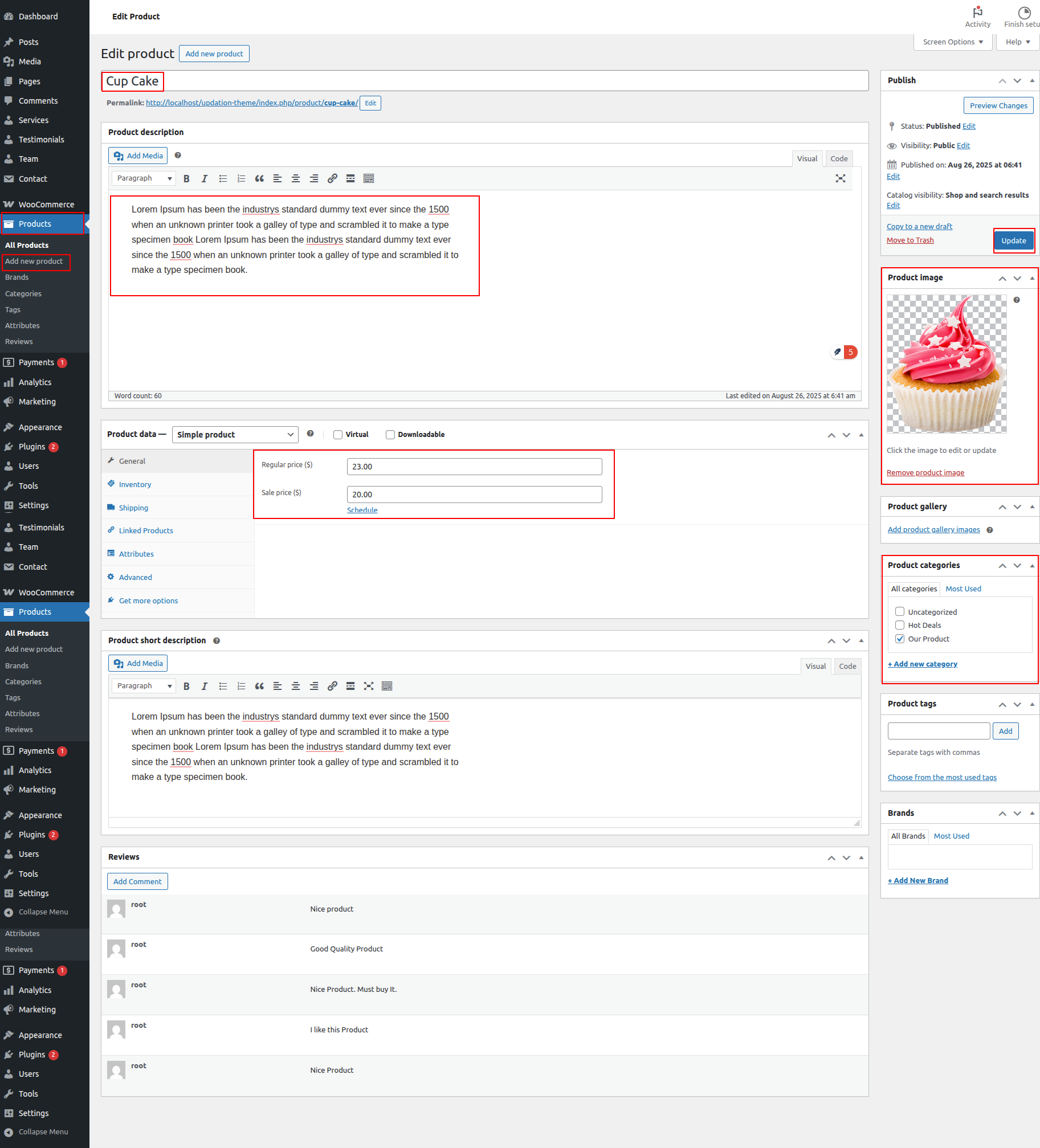
In the Dashboard, go to Products >> Add New
In order to proceed with Products Settings, You can set product titel, product description, price and image. And select which category you want this product to show.
Follow the instructions given below to setup product settings.
In the Dashboard, go to Products >> Add New
You can make multiple latest products for category.
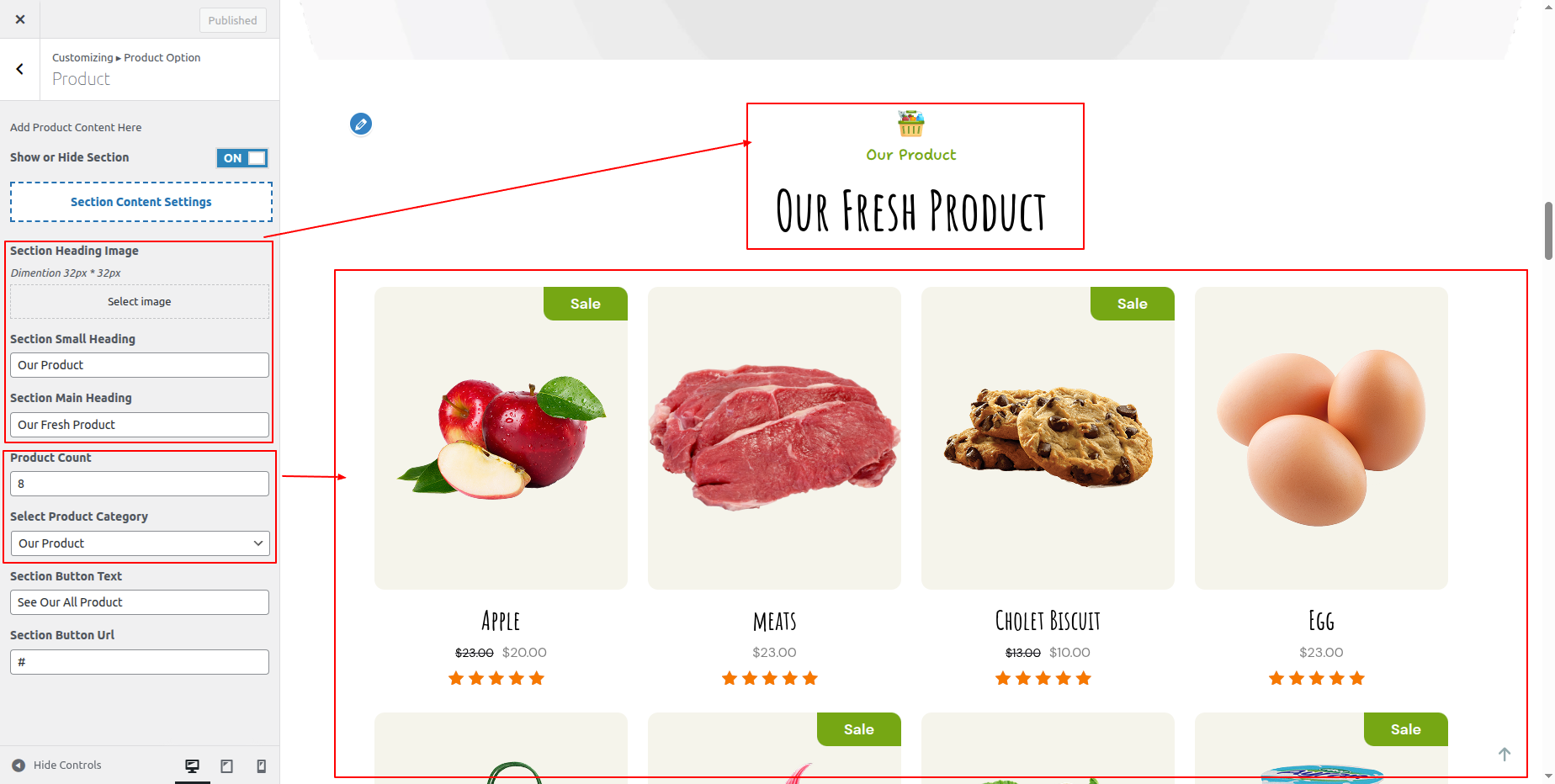
In order to proceed with Our Product Settings follow the instructions given below.
In the Dashboard, go to Appearance >> Customize >> Theme Settings >> Our Product Option >> Our Product Settings
You can set heading and sub heading for section. You can choose from this options for each Our Product settings.
You can select number of proucts to show in section. You can select category to display product choose from this options for each settings.
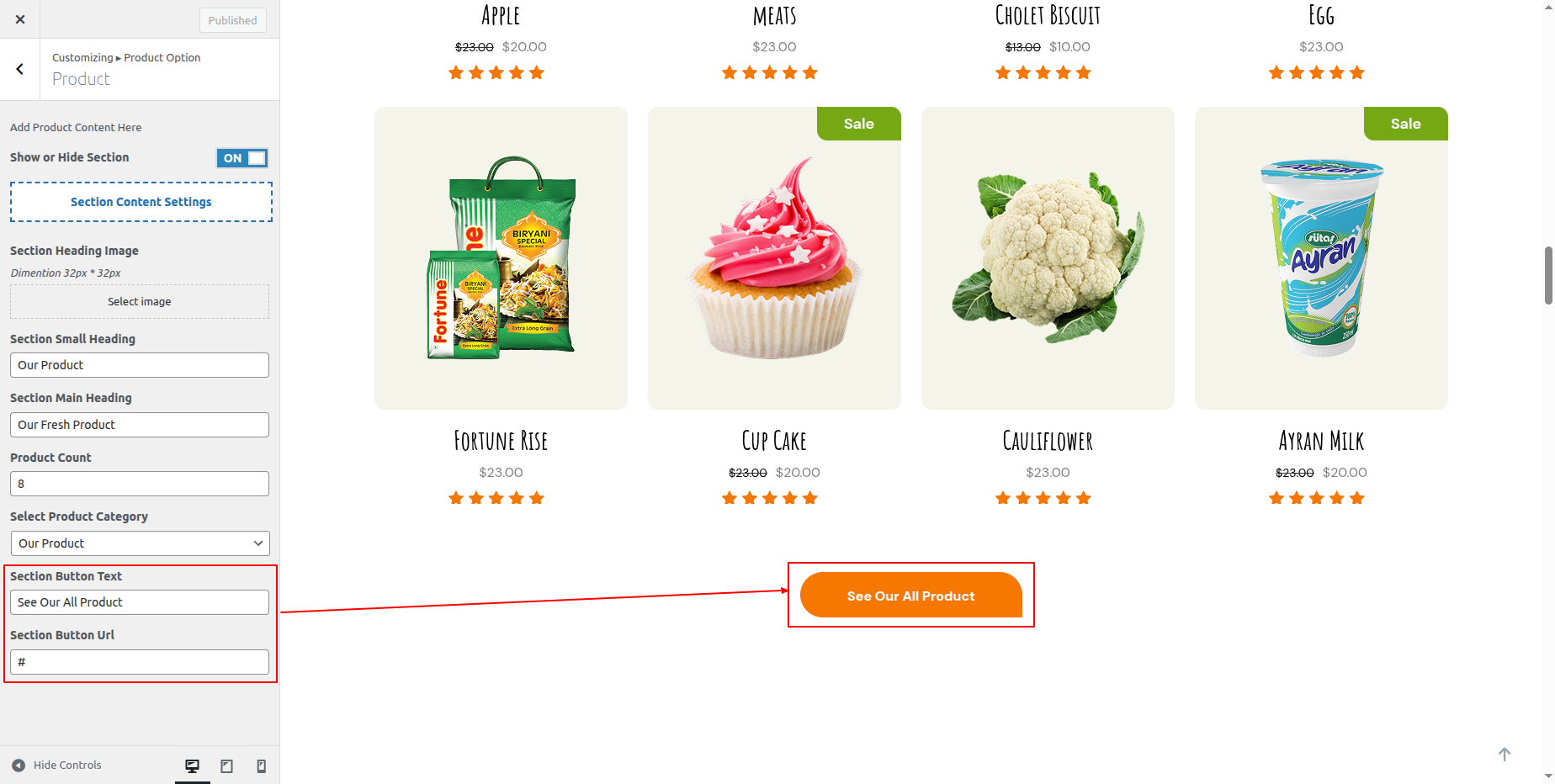
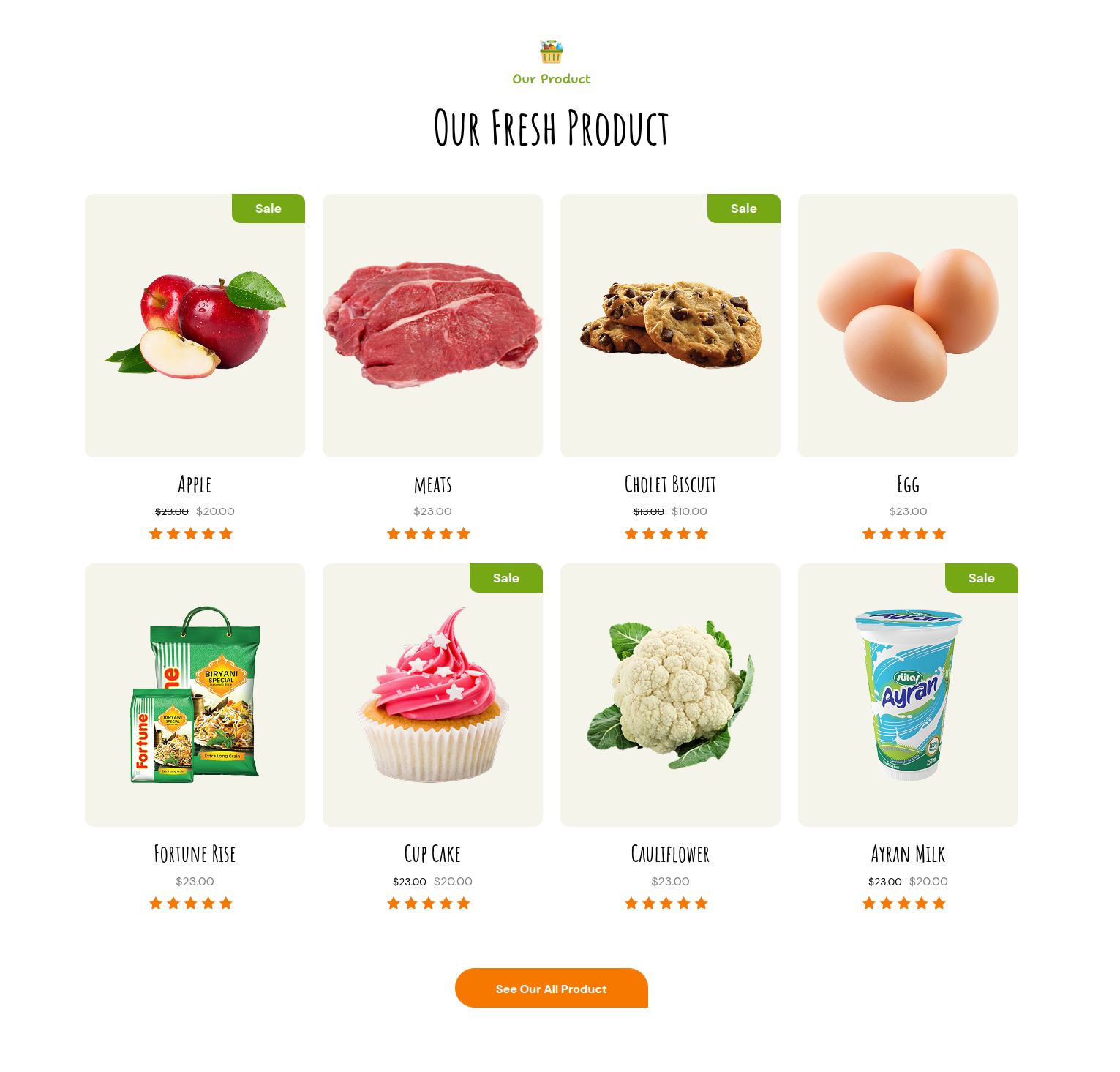
In front end, it will look like this.
Why Choose Us Section
Why Choose Us Settings
In order to proceed with Why Choose Us Settings follow the instructions given below.
In the Dashboard, go to Appearance >> Customize >> Theme Settings >> Why Choose Us Option >> Why Choose Us Settings
You can set text and set image
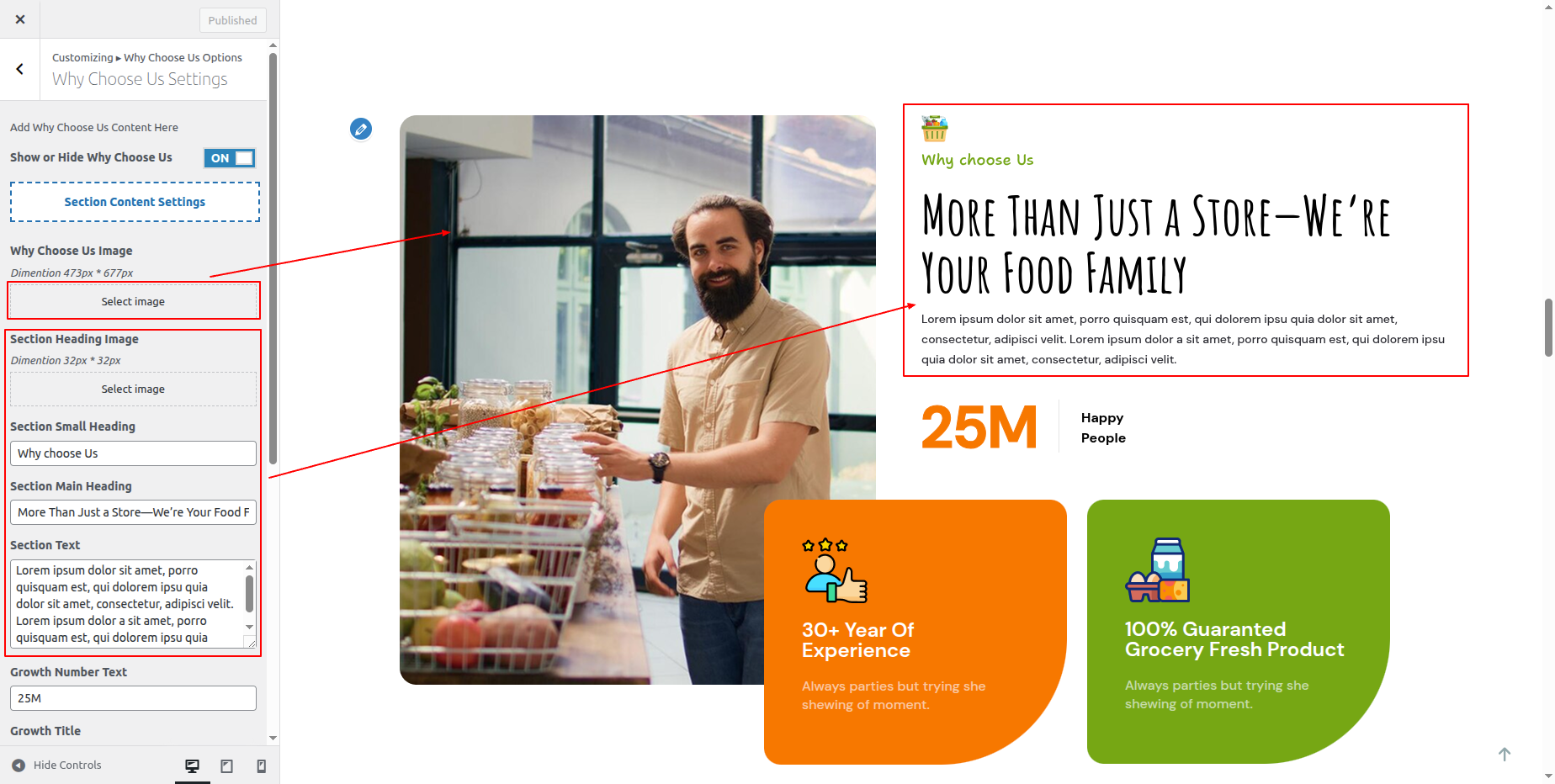
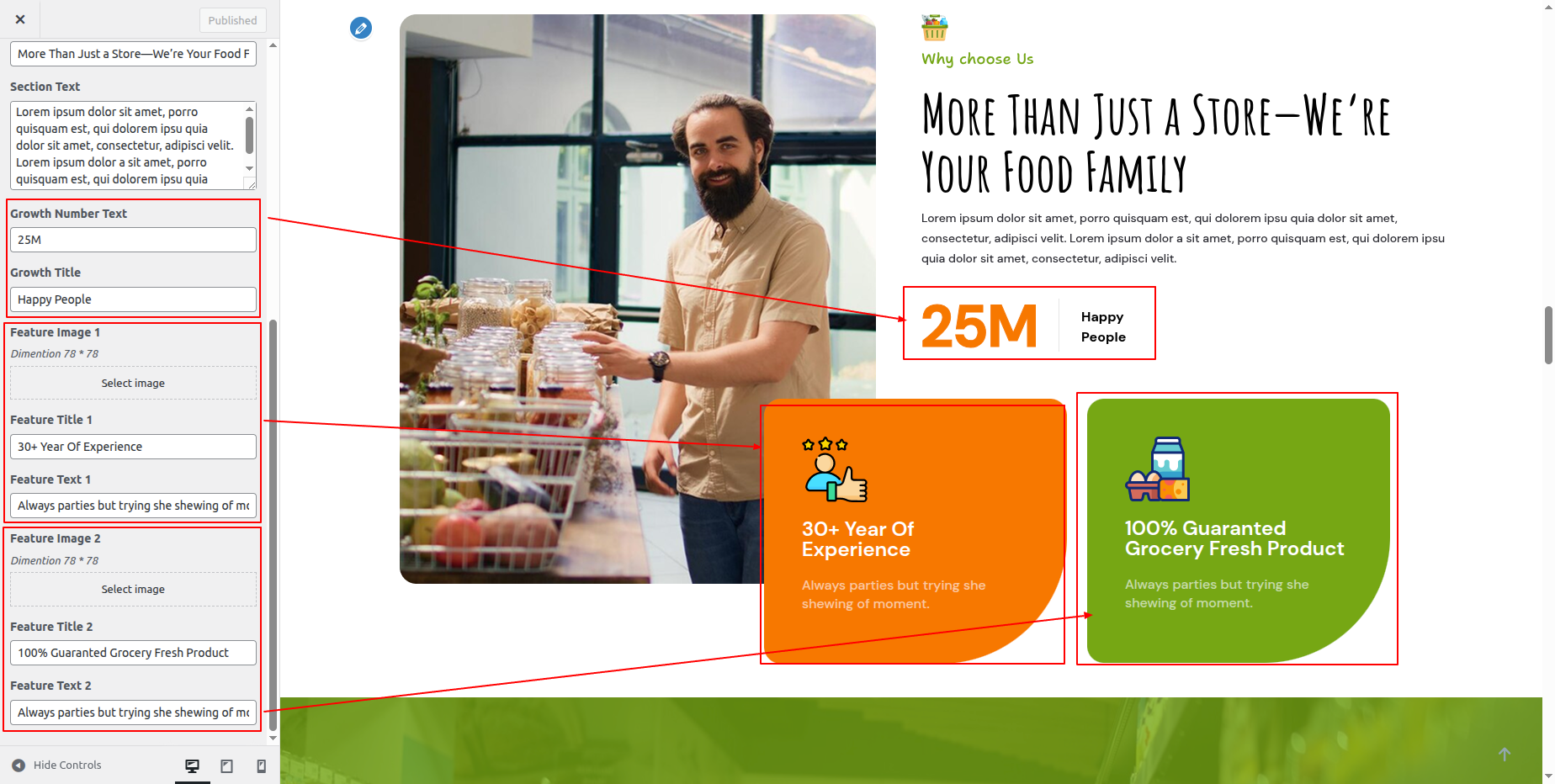
In front end, it will look like this.

Counter Section
Counter Settings
In order to proceed with Counter Settings follow the instructions given below.
In the Dashboard, go to Appearance >> Customize >> Theme Settings >> Counter Settings
You can set heading and sub heading for section. You can choose from this options for each Counter settings.
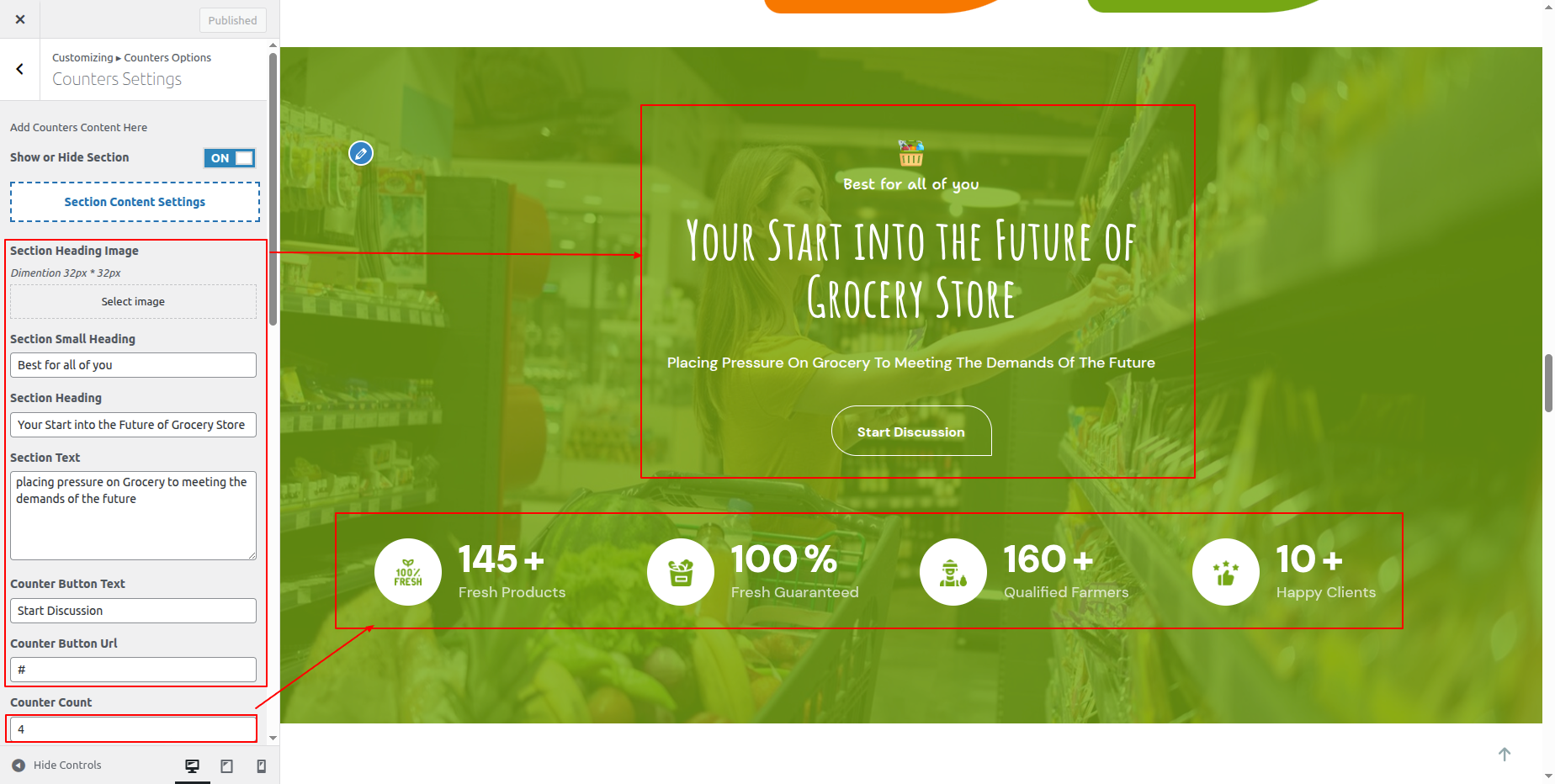
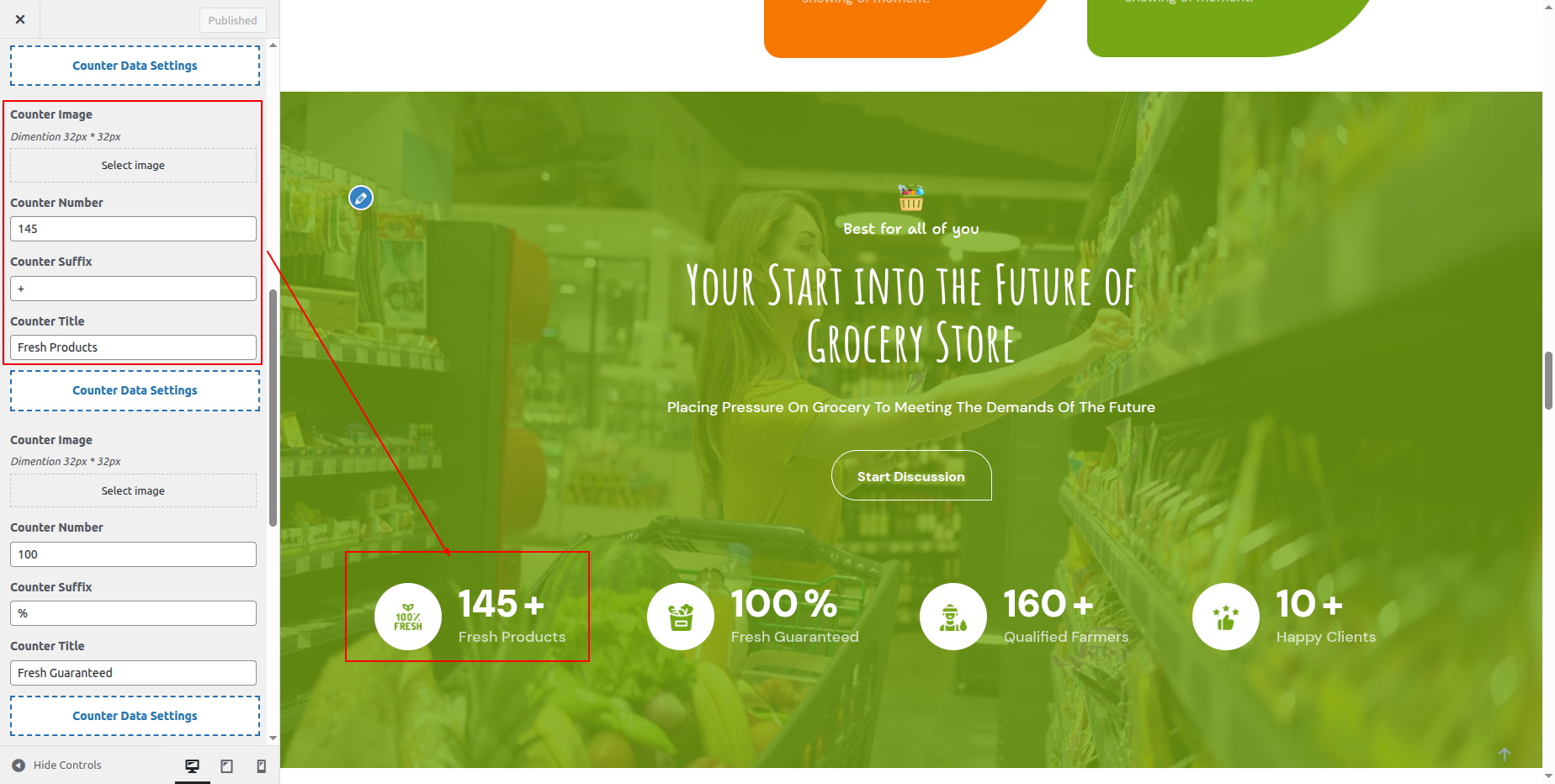
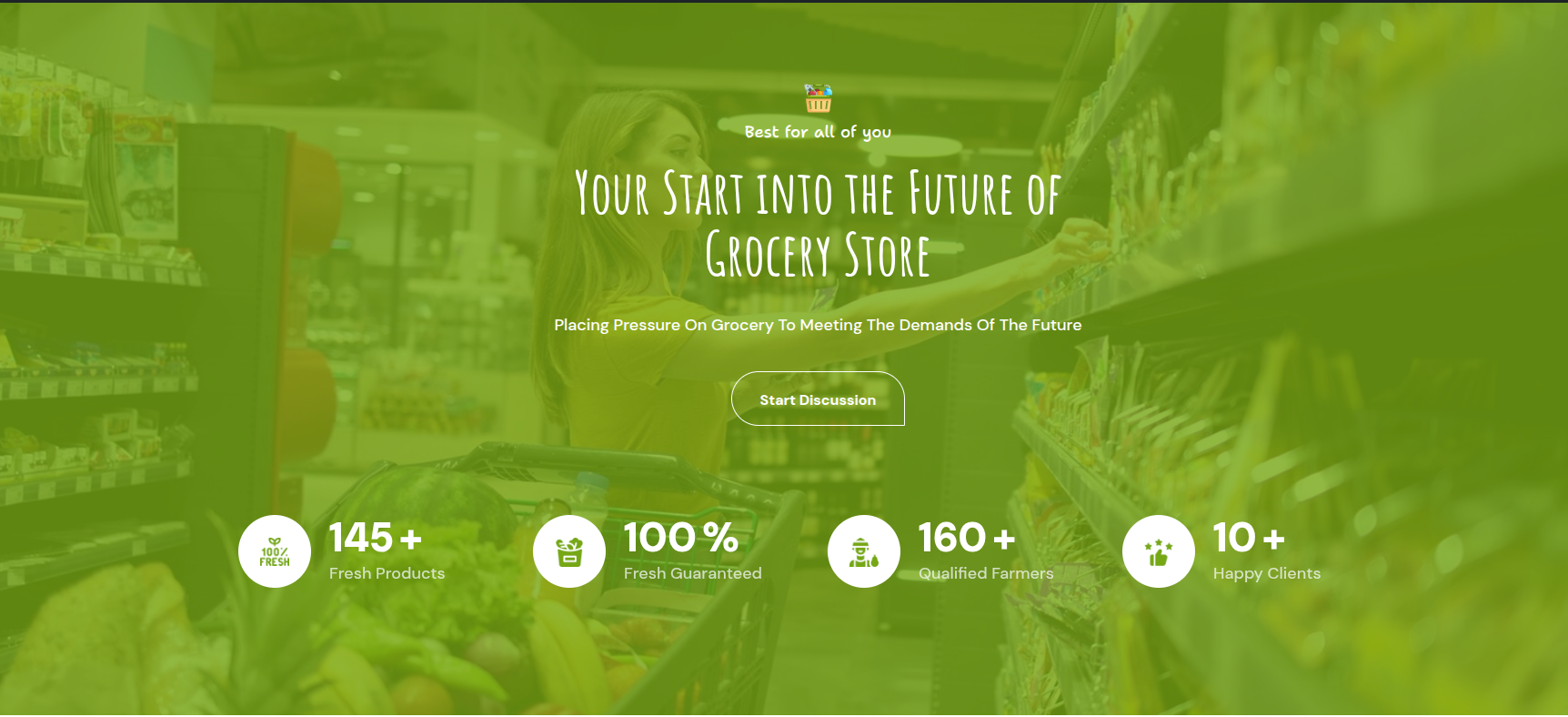
In front end, it will look like this.
Hot Deals Products Section
Hot Deals Products Settings
Fetch Categories
Important Step: Install WooCommerce plugin in your wordpress.
In the Dashboard, go to Products >> Categories >> Add New
This screen is divided into 2 sections, the Add New Category and category table sections.
All of the categories are listed in this table. Categories are organized alphabetically and hierarchically.
Follow the instructions given below to setup Category Settings.
Once you have done with this you will see the categories on your theme customize.
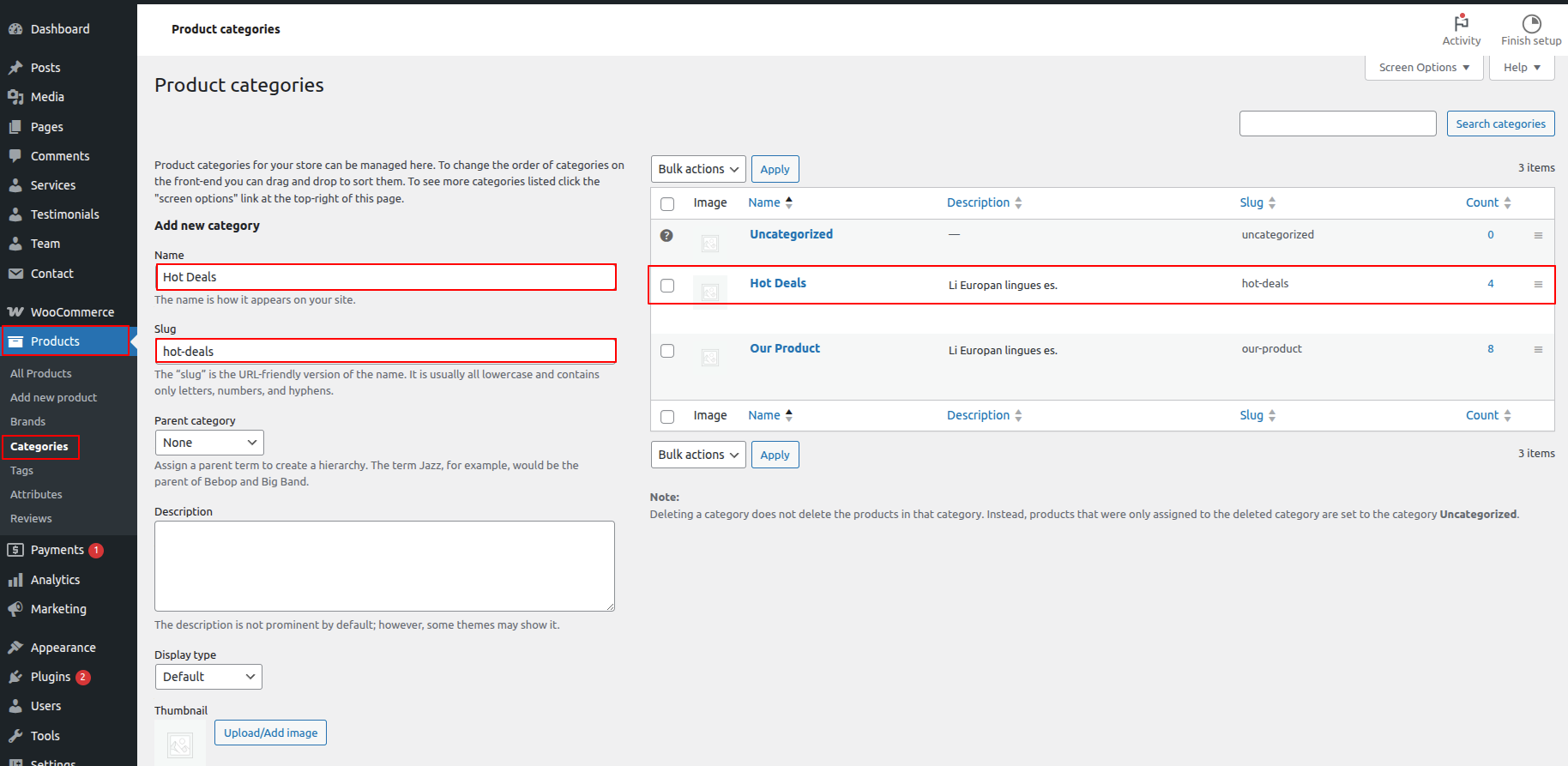
In this section, you have to add new category for each product.
Fetch Products
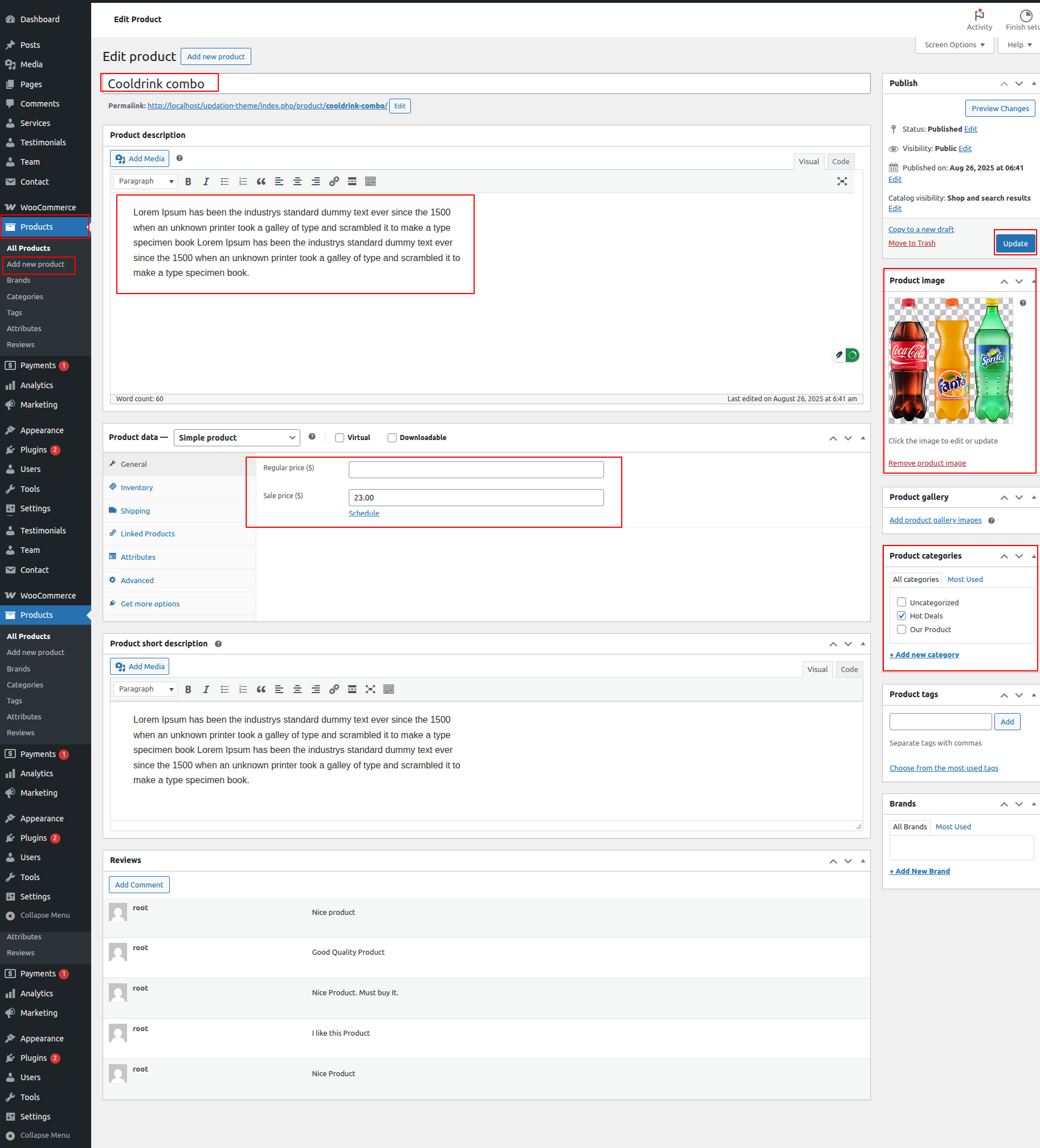
In the Dashboard, go to Products >> Add New
In order to proceed with Products Settings, You can set product titel, product description, price and image. And select which category you want this product to show.
Follow the instructions given below to setup product settings.
In the Dashboard, go to Products >> Add New
You can make multiple latest products for category.
In order to proceed with Hot Deals Product Settings follow the instructions given below.
In the Dashboard, go to Appearance >> Customize >> Theme Settings >> Hot Deals Product Option >> Hot Deals Product Settings
You can set heading and sub heading for section. You can choose from this options for each Hot Deals Product settings.
You can select number of proucts to show in section. You can select category to display product choose from this options for each settings.
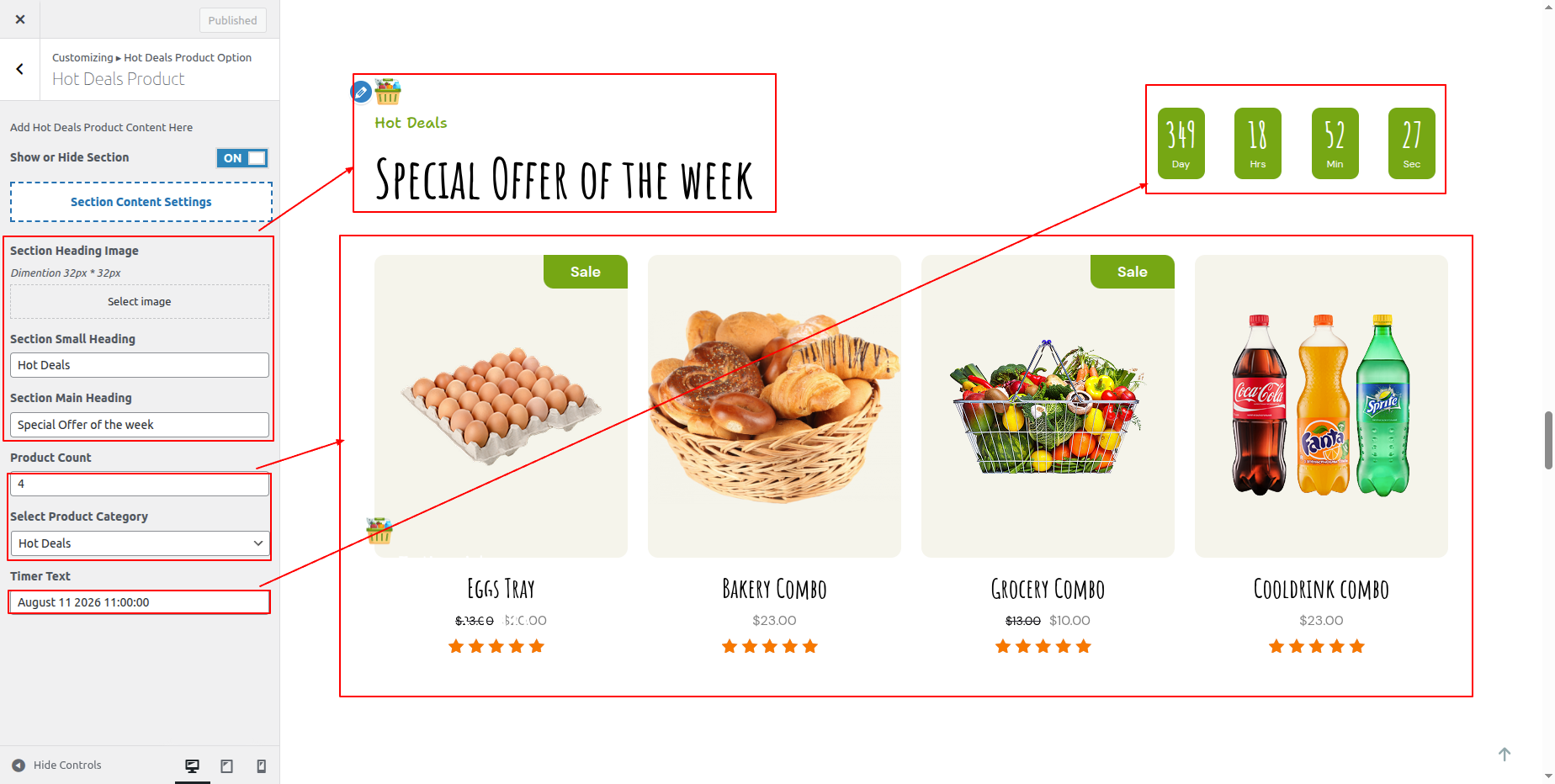
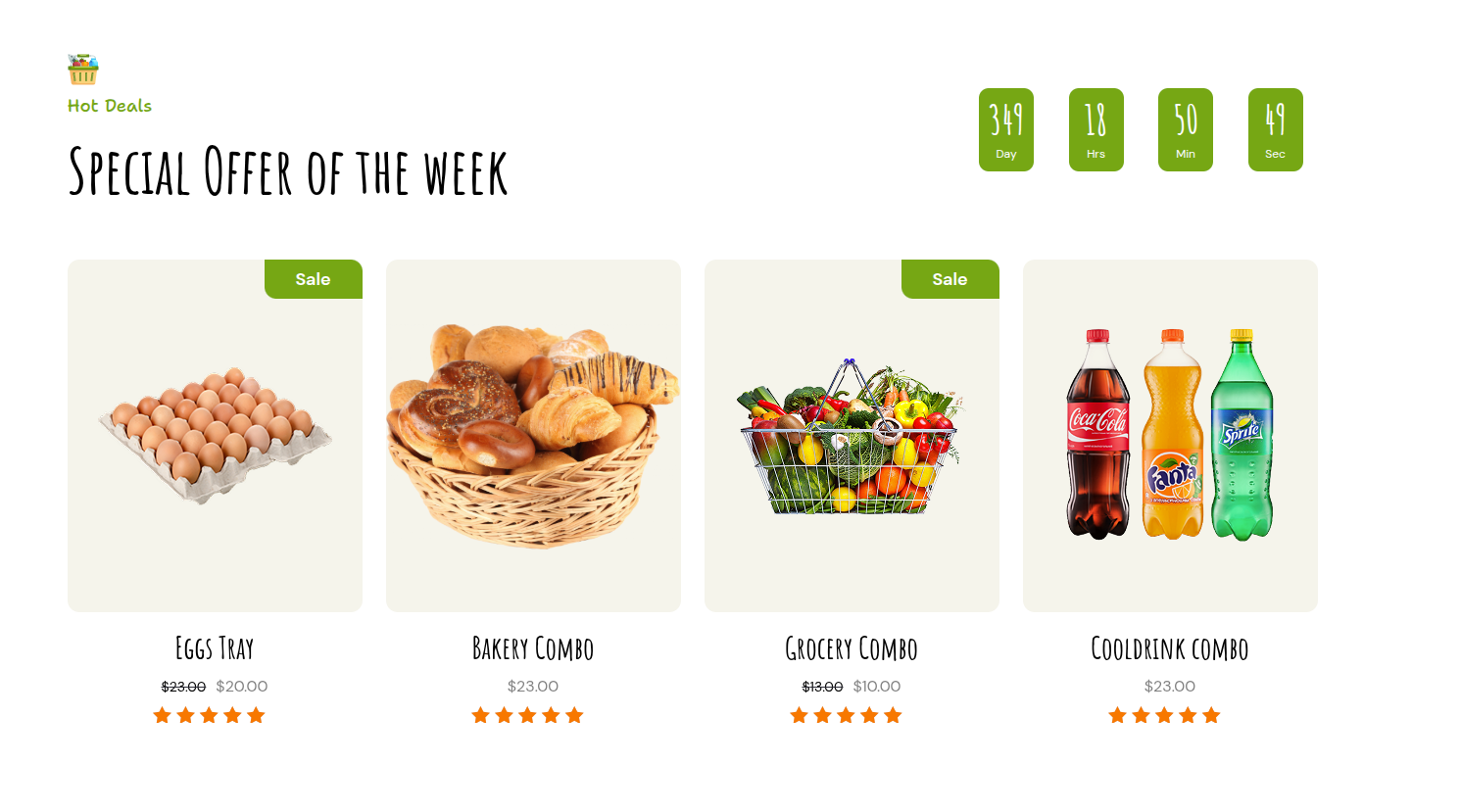
In front end, it will look like this.
Testimonial Section
Testimonial Settings
In Order to proceed with Testimonial section,First install and activate Super Mart Store Pro Pro Posttype plugin
After activation Testimonial section appears on Dashboard.
Fetch Testimonial Post
In the Dashboard, go to Testimonial >> Add Post
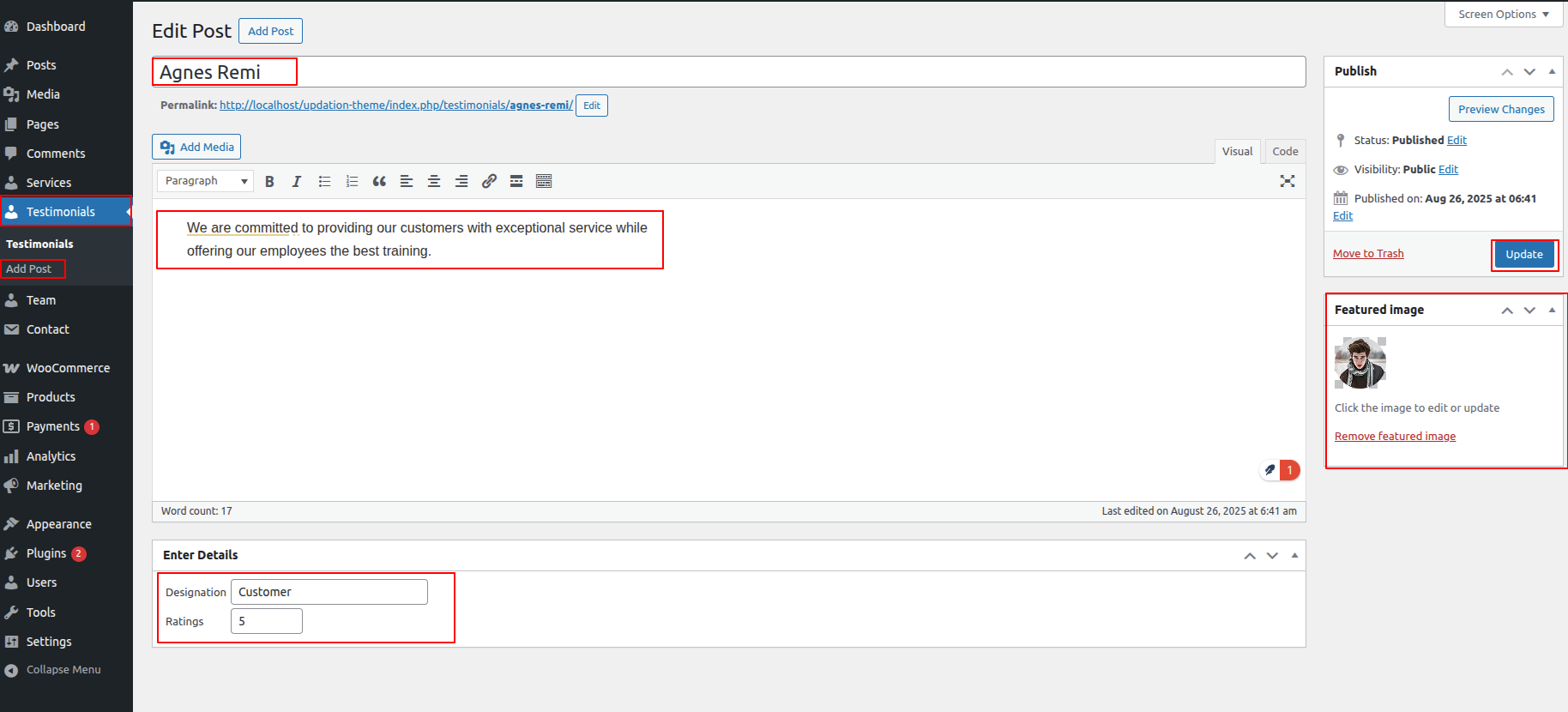
In order to proceed with Testimonial Settings, You can set Testimonial titel, Testimonial description and image.
In order to proceed with Testimonial Settings follow the instructions given below.
In the Dashboard, go to Appearance >> Customize >> Theme Settings >> Testimonial Option >> Our Testimonial Settings
You can set heading and sub heading for section. You can choose from this options for each Testimonial settings.
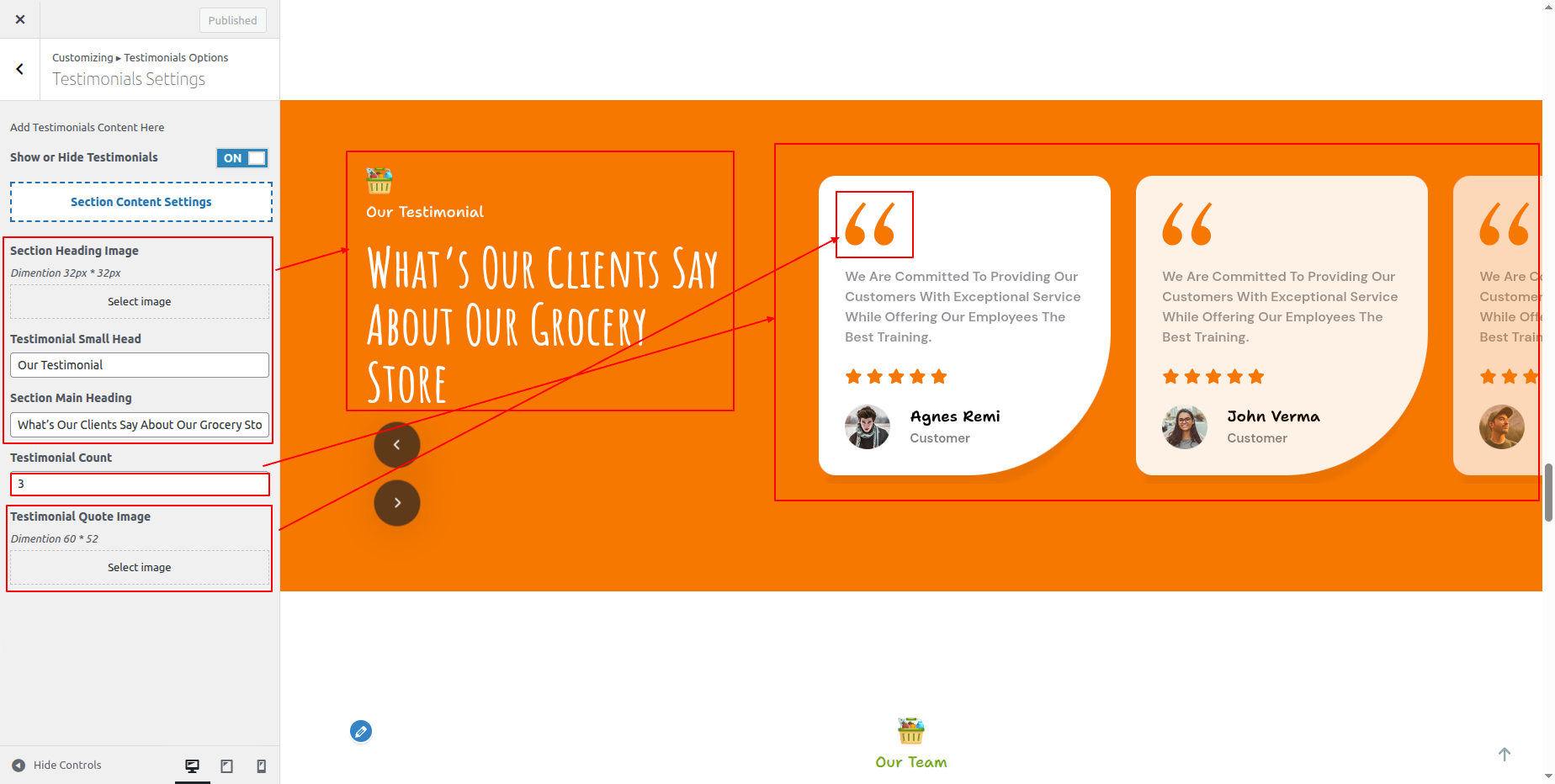
In front end, it will look like this.

Team Section
Team Settings
In Order to proceed with Team section,First install and activate Super Mart Store Pro Pro Posttype plugin
After activation Team section appears on Dashboard.
Fetch Team Post
In the Dashboard, go to Team >> Add Post
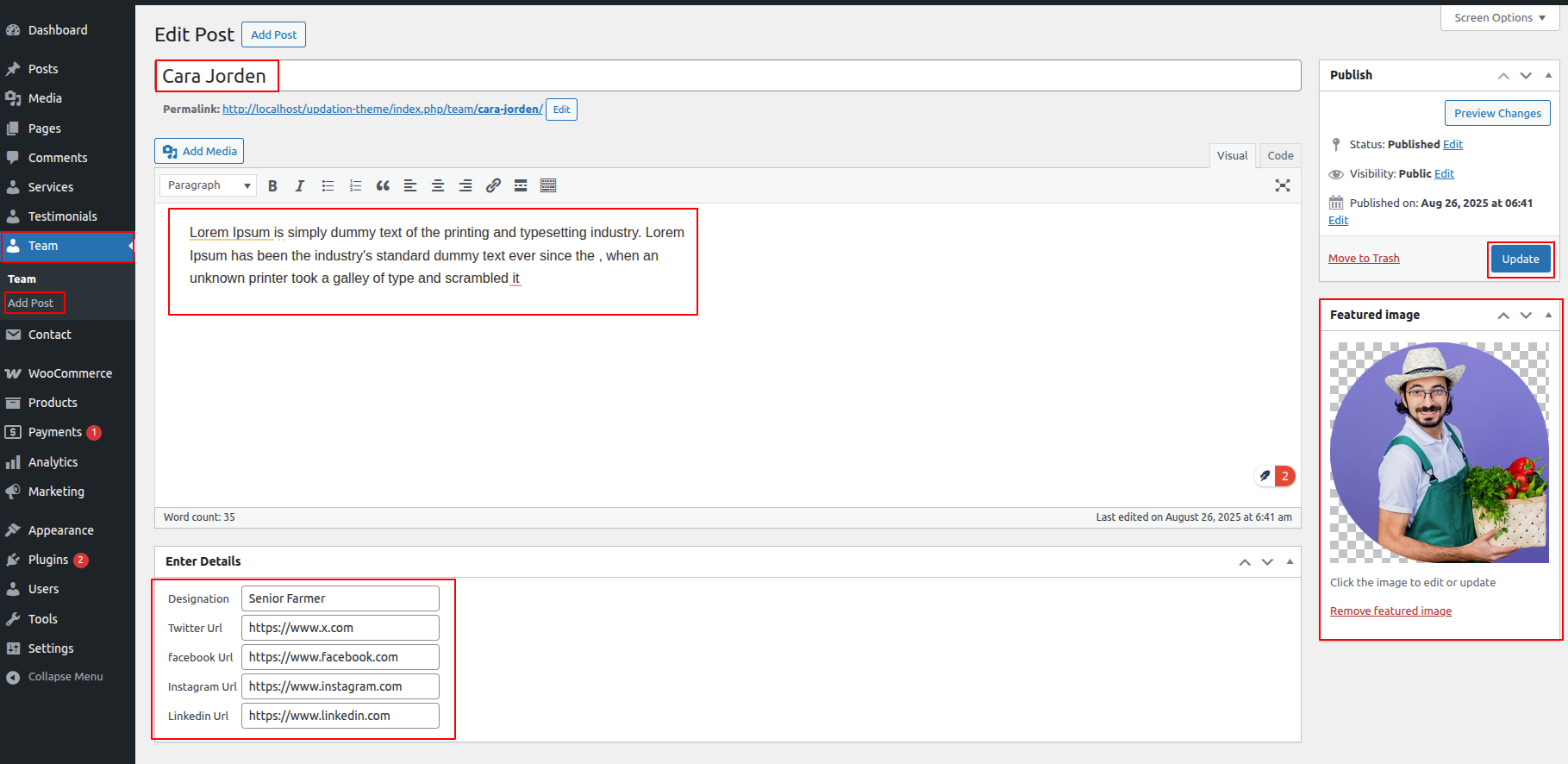
In order to proceed with Team Settings, You can set Team titel, Team description and image.
In order to proceed with Team Settings follow the instructions given below.
In the Dashboard, go to Appearance >> Customize >> Theme Settings >> Team Option >> Our Team Settings
You can set heading and sub heading for section. You can choose from this options for each Team settings.
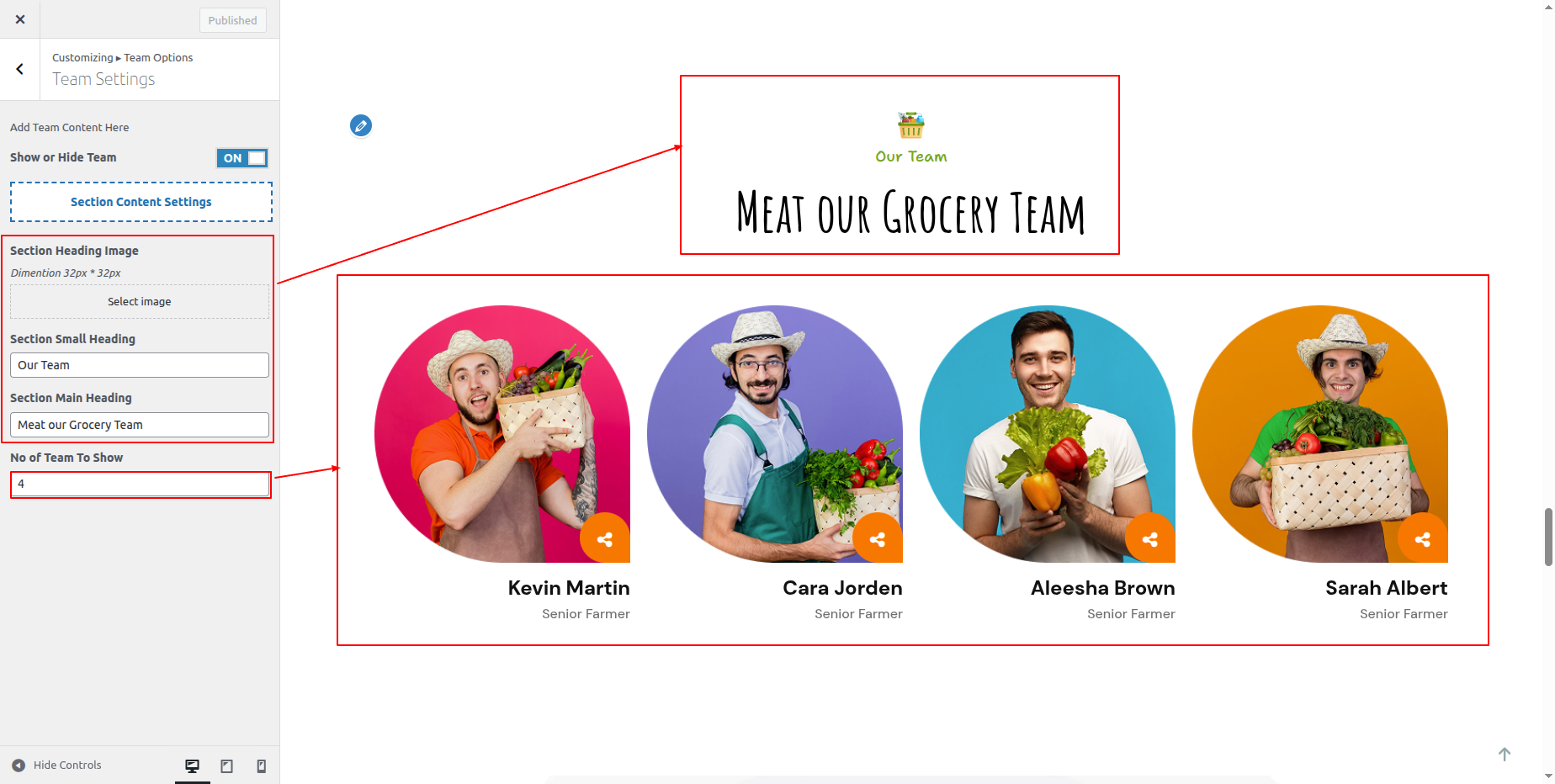
In front end, it will look like this.

Latest News Section
Fetch Post
To proceed with Post, you should first choose the post title, content, and featured image, and then choose the category in which you want your post to appear.
Follow the instructions given below to setup Post Settings.
In the Dashboard, go to Posts >> Add New
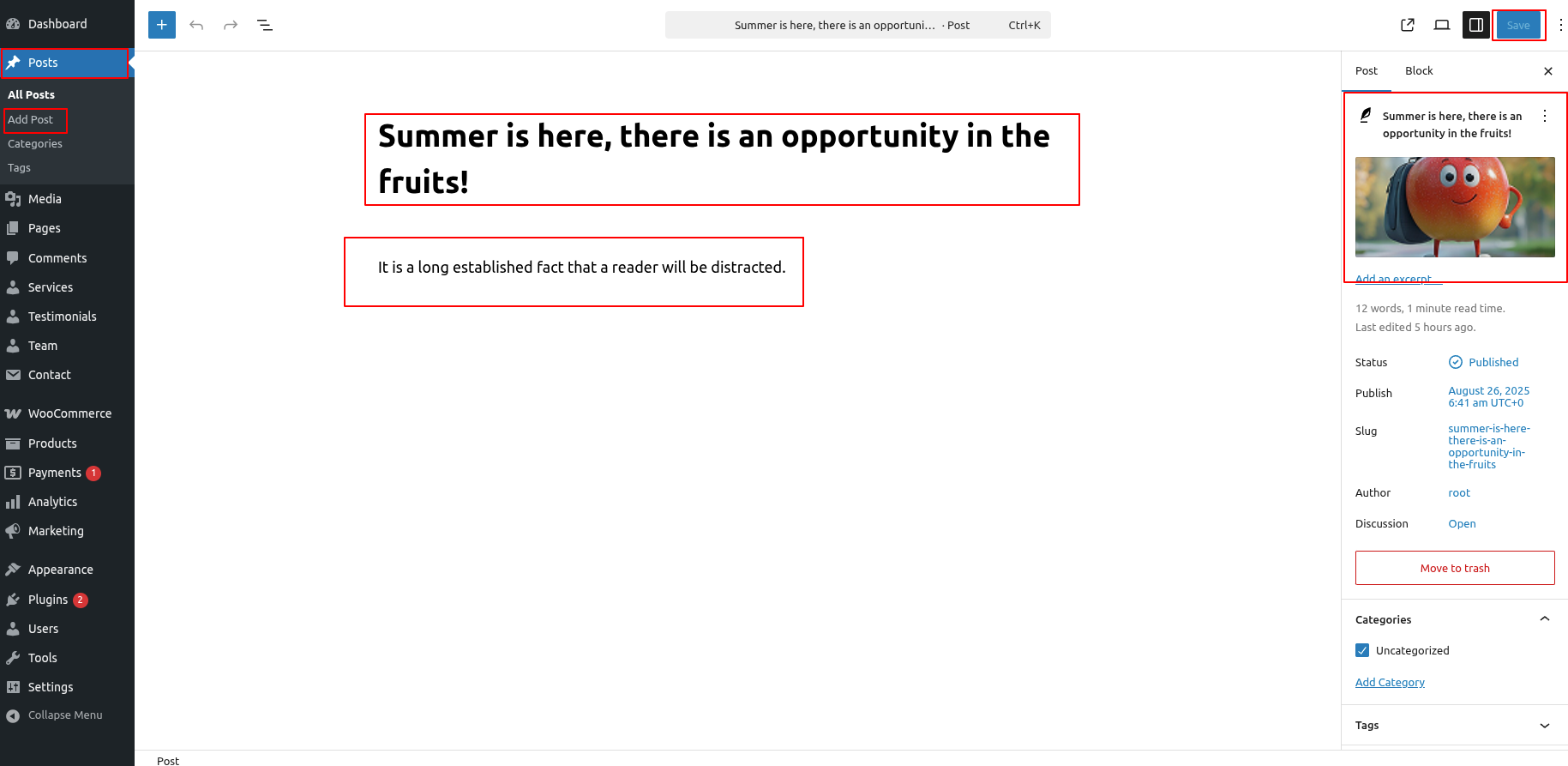
Once you have done with this you will see the post on your front page.
Latest News Post Settings
You can set heading and content of section. You can choose from this options in recent blogs settings.
In order to proceed with Theme Latest News Post Settings , you can set tab post , follow the instructions given below.
In the Dashboard, go to Appearance >> Customize >> Theme Settings >> Latest News Settings
Select the number of posts to view. You have the choice of picking Category. You can choose from this options for each Latest News Post Settings.
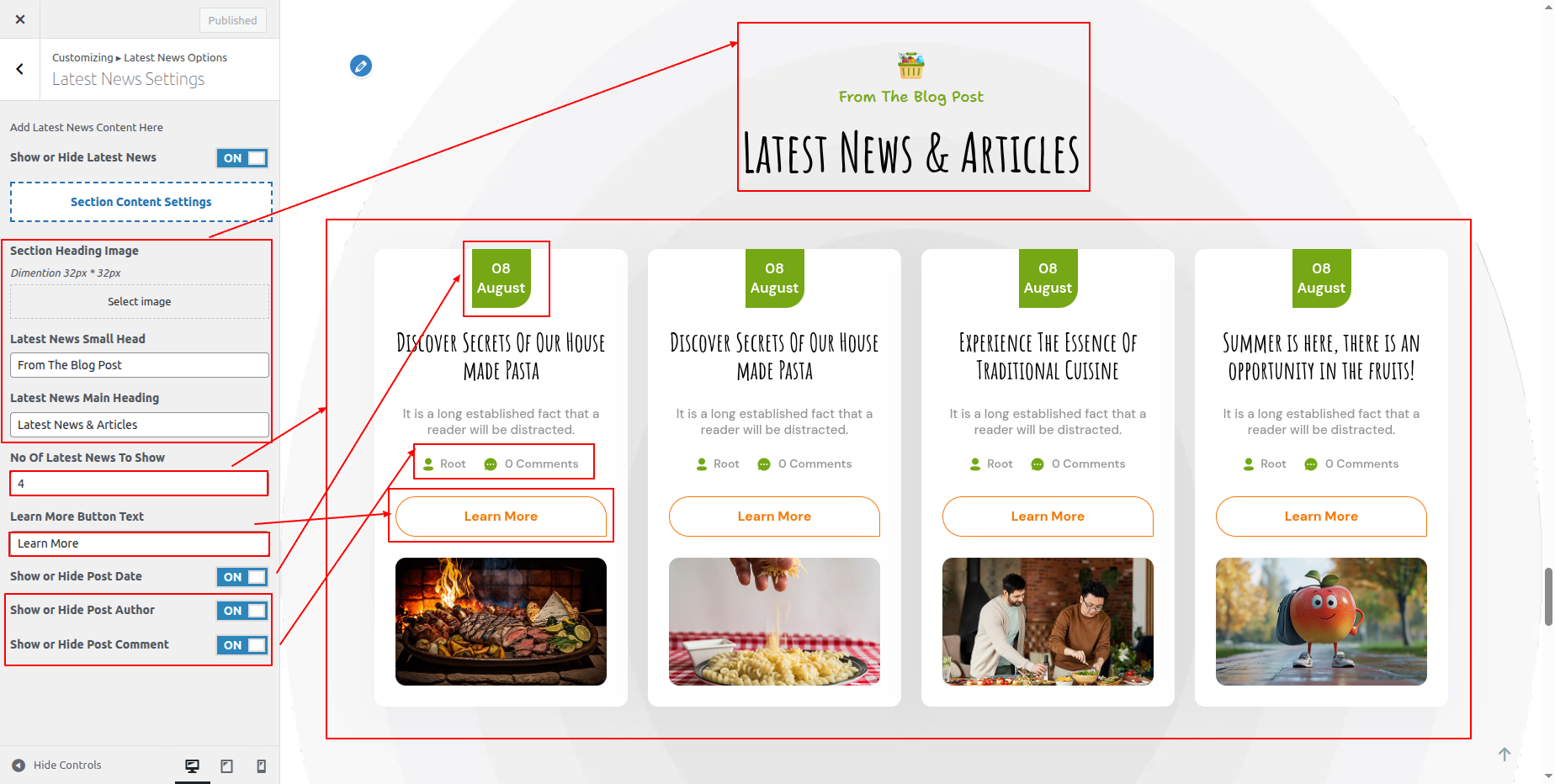
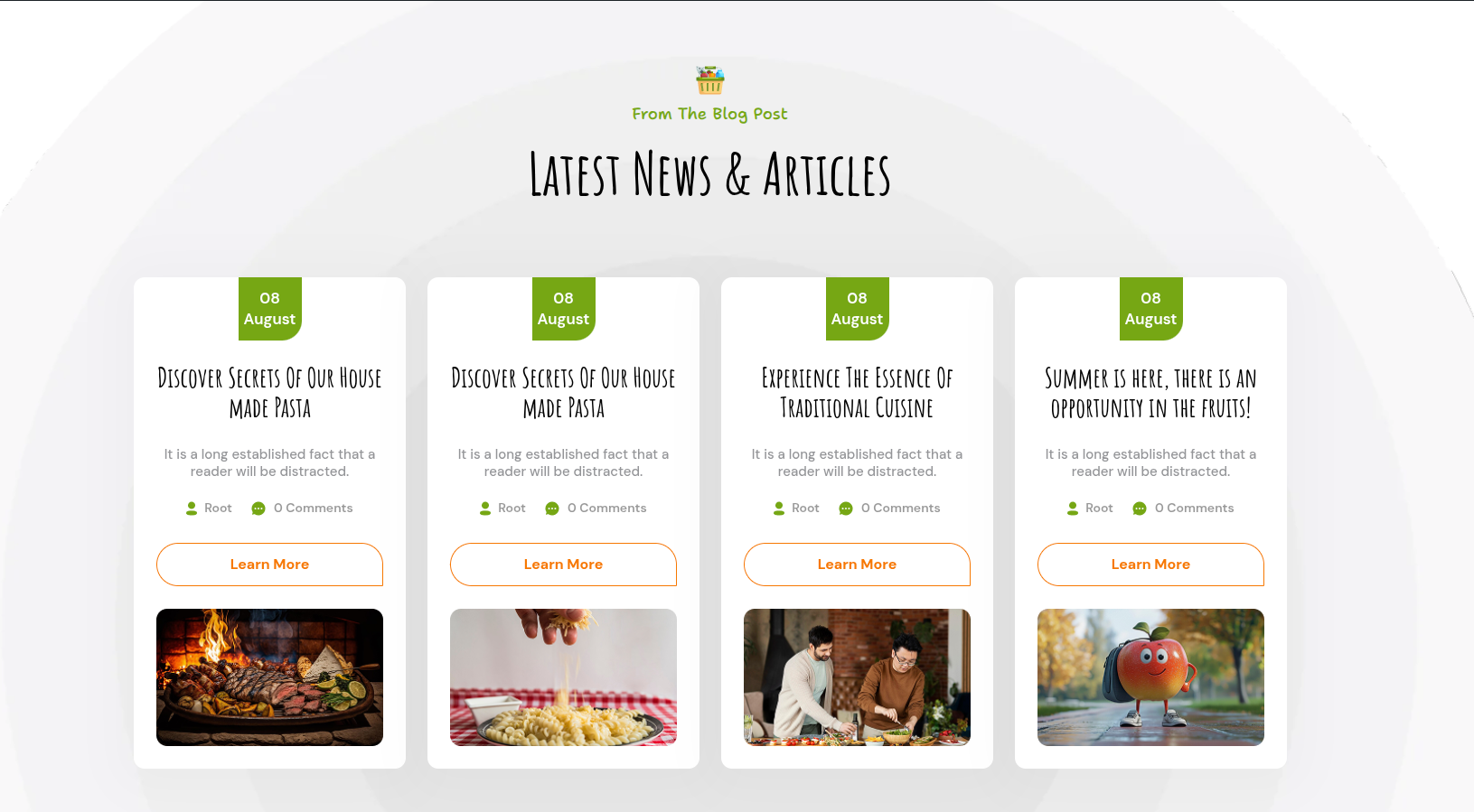
Once you have done with this you will see the post on your front page.
Home Contact Section
Home Contact Settings
The Contact Form 7 plugin is installed in the usual way. Click Plugins > Add New in the WordPress dashboard and type Contact Form 7 in the Search box. From the search result, select the plugin and click the Install Now option.
Building a new form of contact -
Scroll to Form and give this new contact form a name. You can make modifications to contact form template from here.
The multiple fields which will display on your form, as well as the labels that will be next to those fields, are defined by the template.
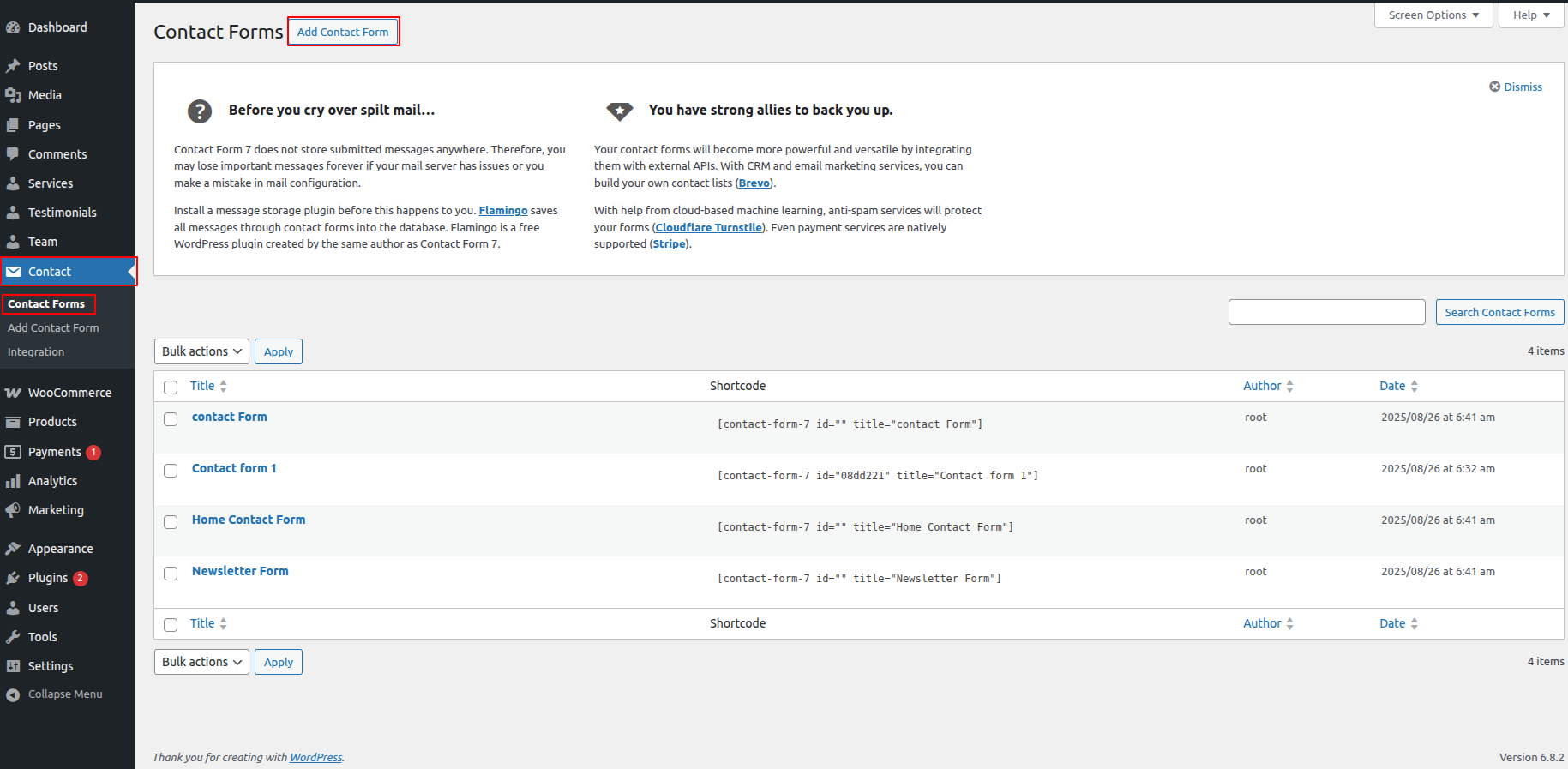
When you are done with changes, click Save.
A key step is to copy the Shortcode that displays next to your contact form. This is displayed in the form editor as well.
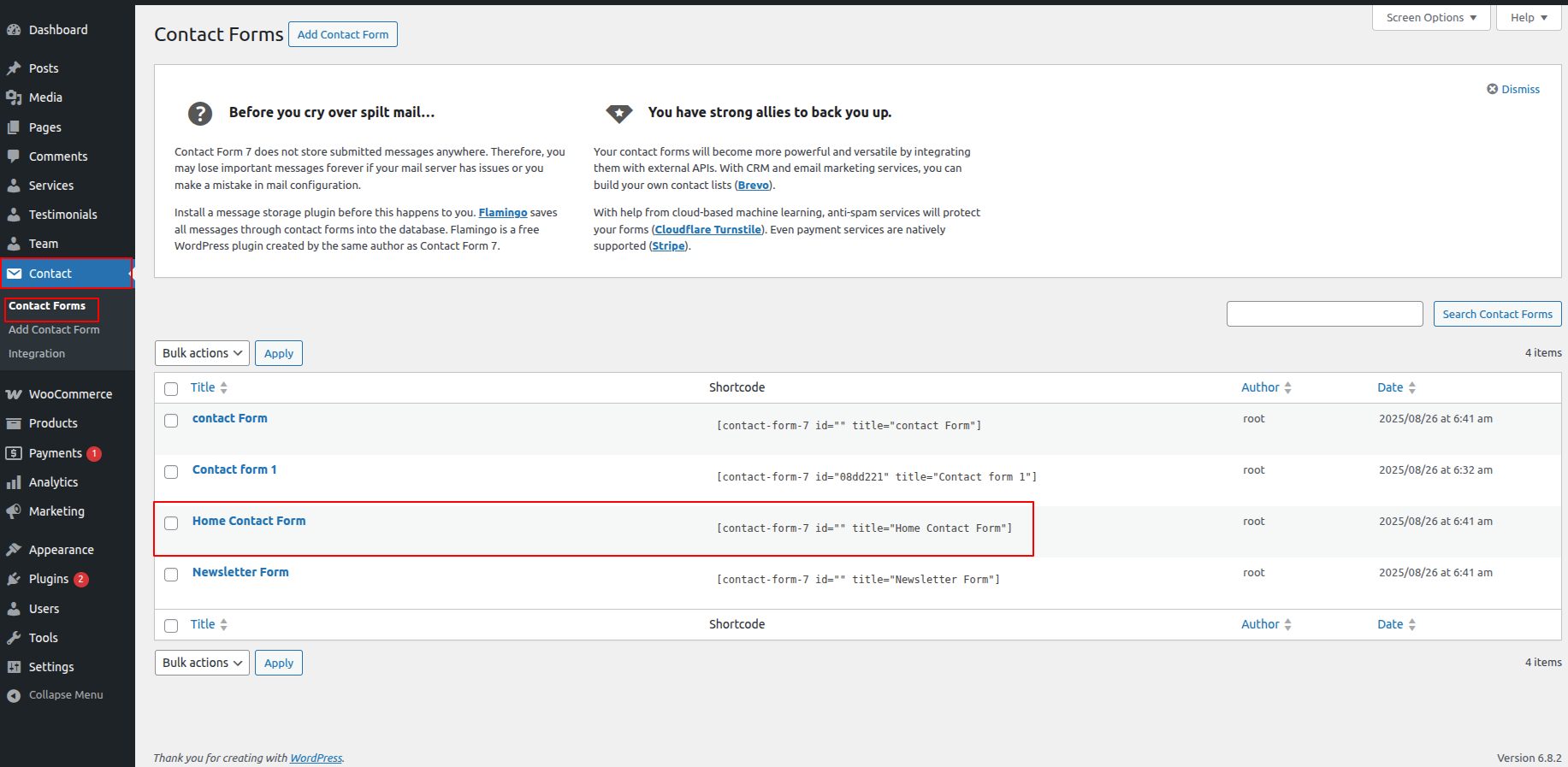
In order to proceed with Home Contact Settings follow the instructions given below.
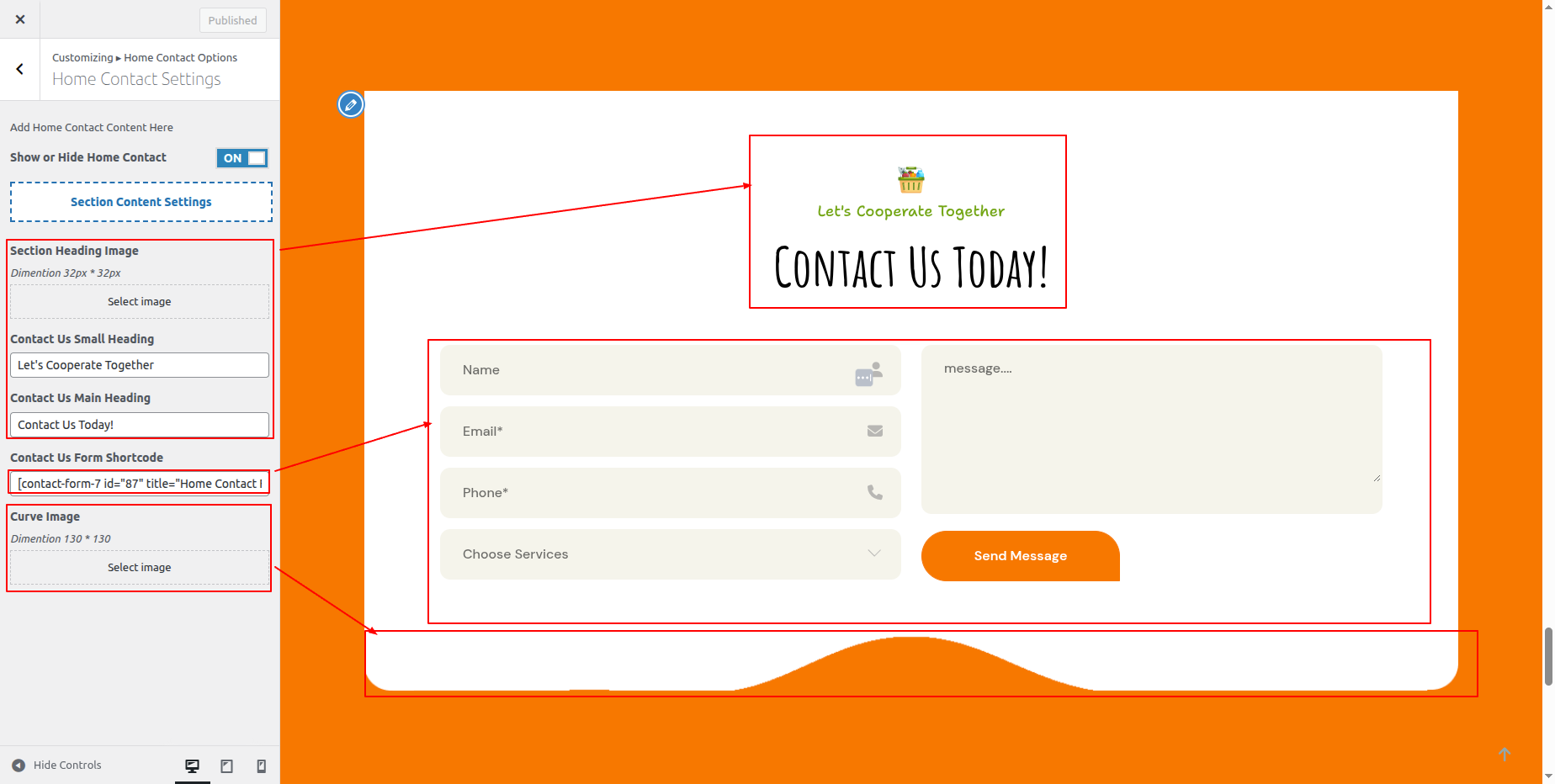
In the Dashboard, go to Appearance >> Customize >> Theme Settings >> Home Contact Settings
You can set heading and content of section. You can choose from this options for each Home Contact settings.
You can set images to show you can choose from this options for each Home Contact settings.
Important Step:- Contact Form-7 plugin is necessary for creating a contact form.
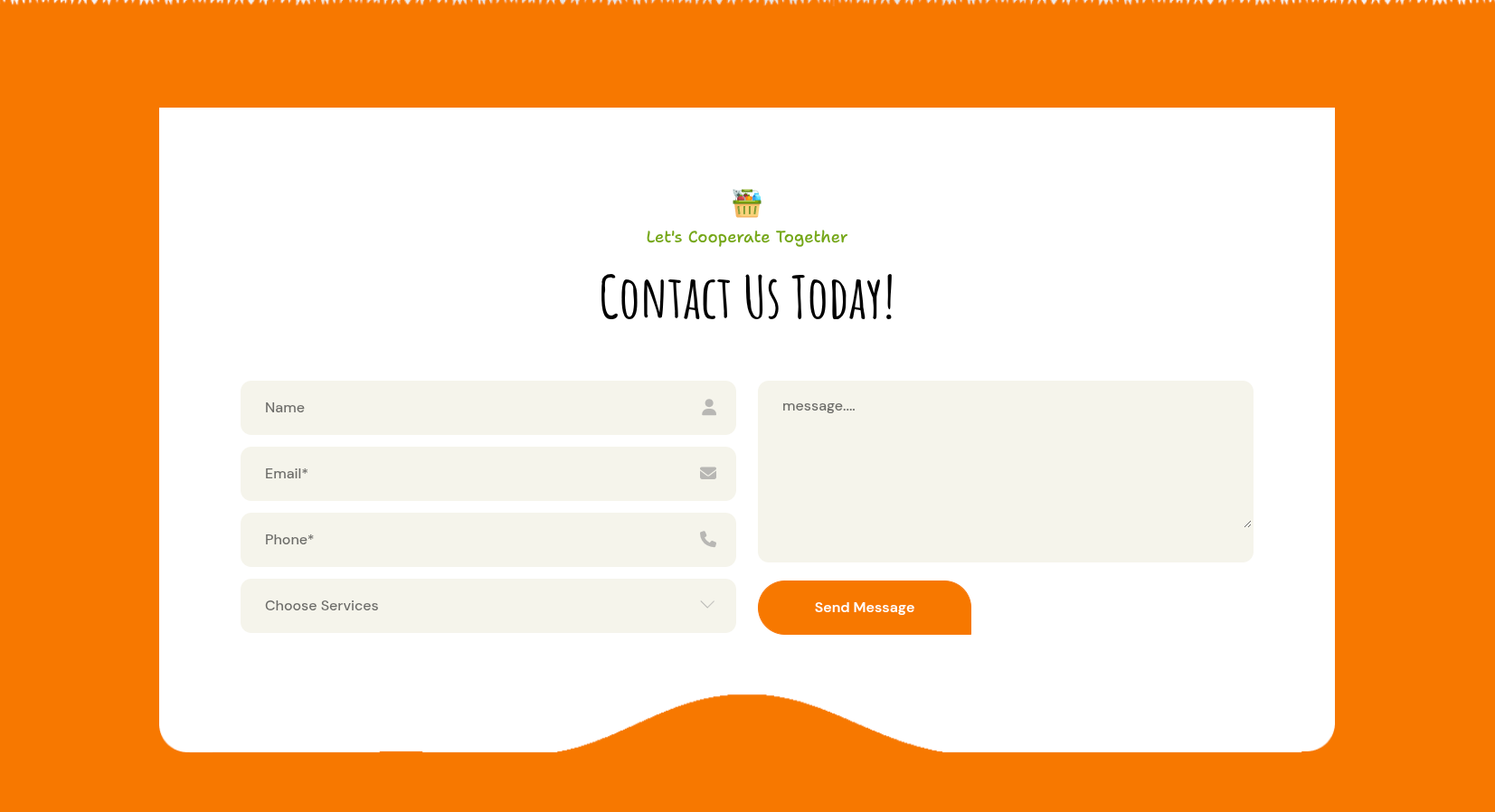
In front end, it will look like this.
Sponsor Section
Sponsor Settings
In order to proceed with Sponsor Settings follow the instructions given below.
In the Dashboard, go to Appearance >> Customize >> Theme Settings >> Sponsor Option >> Sponsor Settings
You can set heading and content of section. You can choose from this options for each Sponsor settings.
You can set number of story to show, and set story titel and date for story choose from this options for each Sponsor settings.
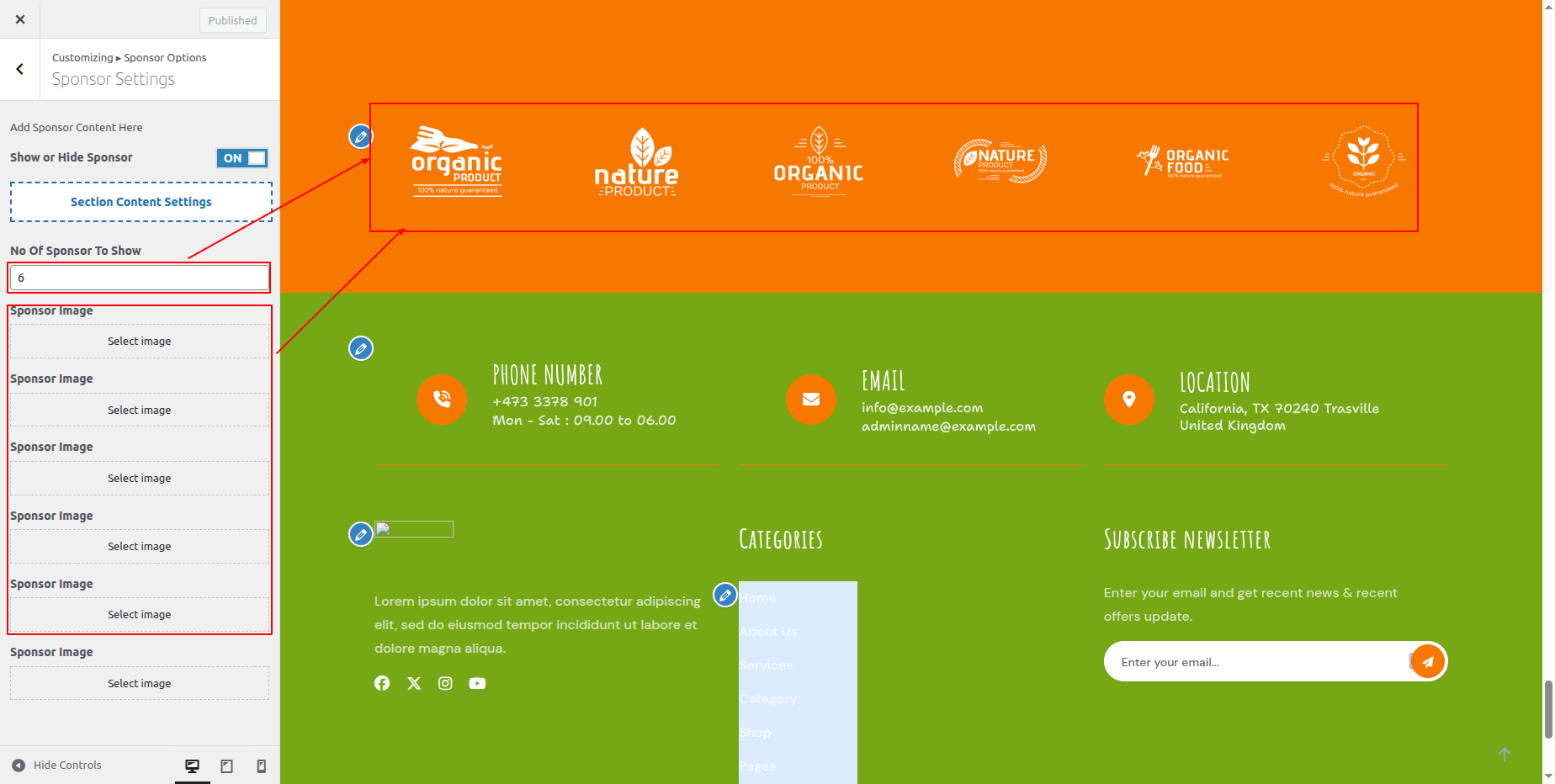
In front end, it will look like this.

Footer Contact Section
Footer Contact Settings
In order to proceed with Footer Contact Settings follow the instructions given below.
In the Dashboard, go to Appearance >> Customize >> Theme Settings >> Footer Option >> Footer Contact Settings
You can set heading and content of section. You can choose from this options for each Footer Contact settings.
You can set number of story to show, and set story titel and date for story choose from this options for each Footer Contact settings.
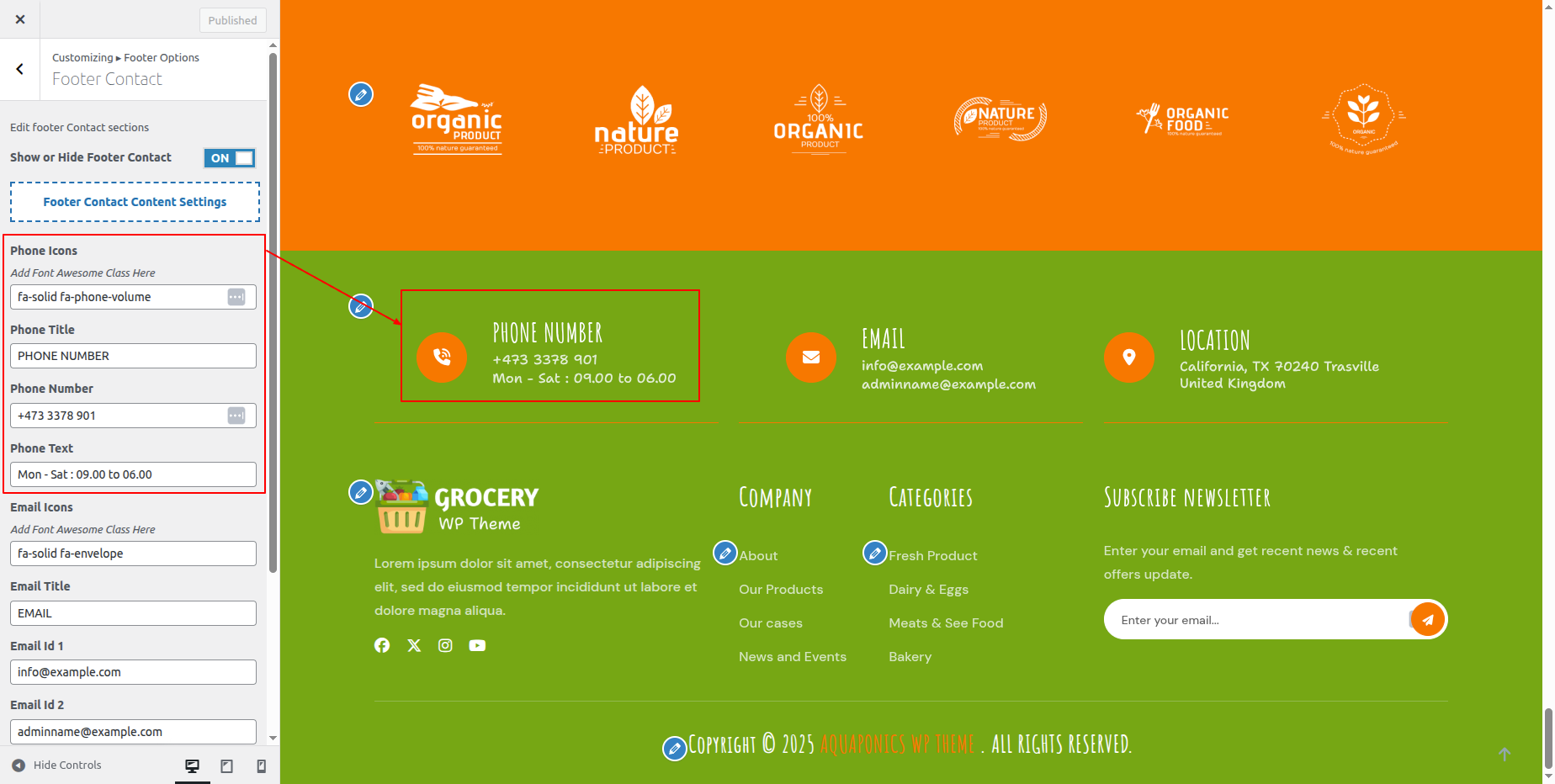
In front end, it will look like this.

Footer Setup Section
There are four columns in the footer. Any widget can be added there.
1. In the Dashboard, go to Appearance >> Widgets
To add widgets to the footer, see the screenshot below.
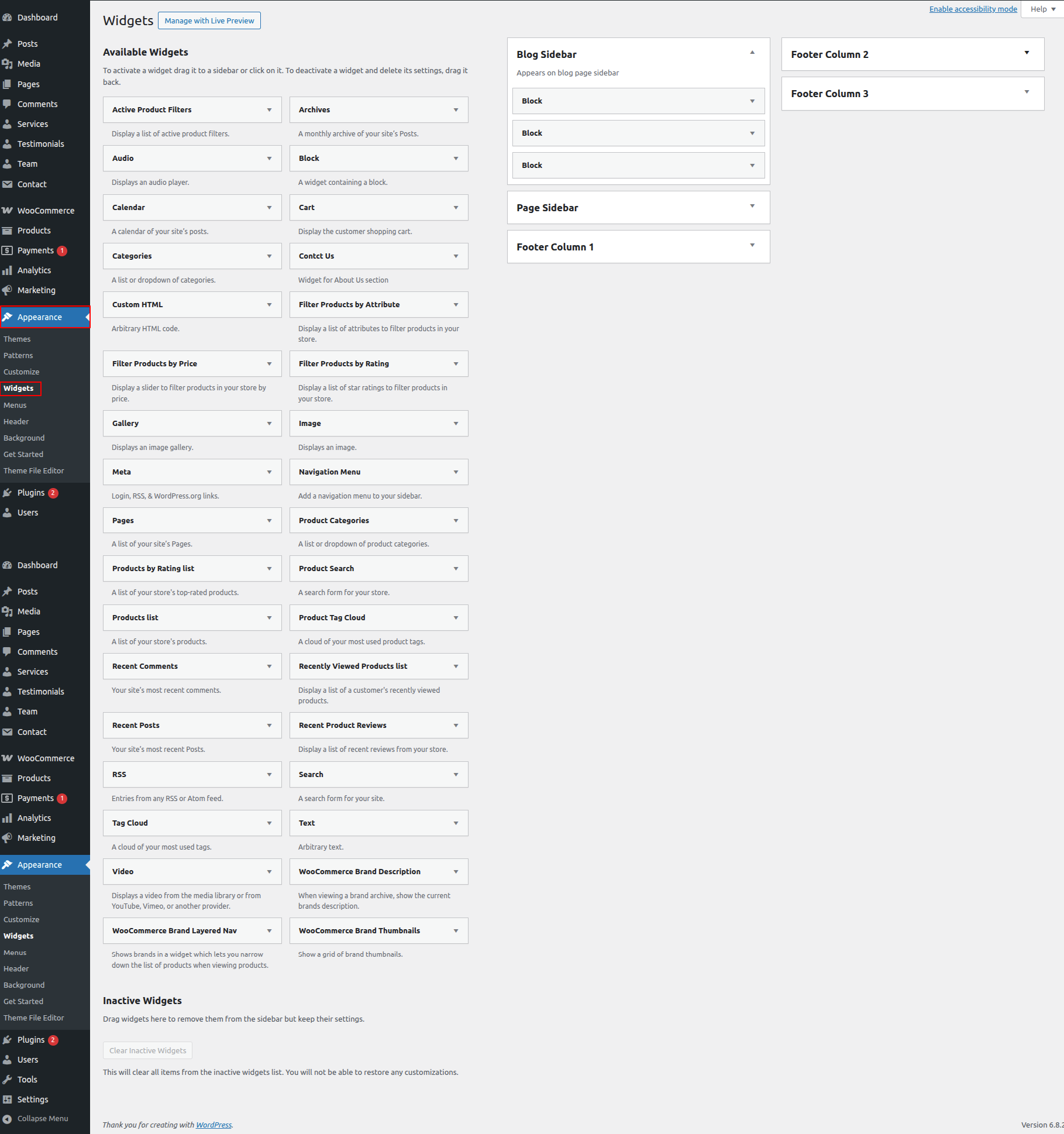
You can add footer columns by selecting widgets such as text, images, Recent posts and so on, which allow you to quickly add text or images of your choice.
In order to manage content for footer and add some widgets, navigate to, follow the instructions given below.
2. In the Dashboard, go to Appearance >> Widgets >> Footer Sidebar
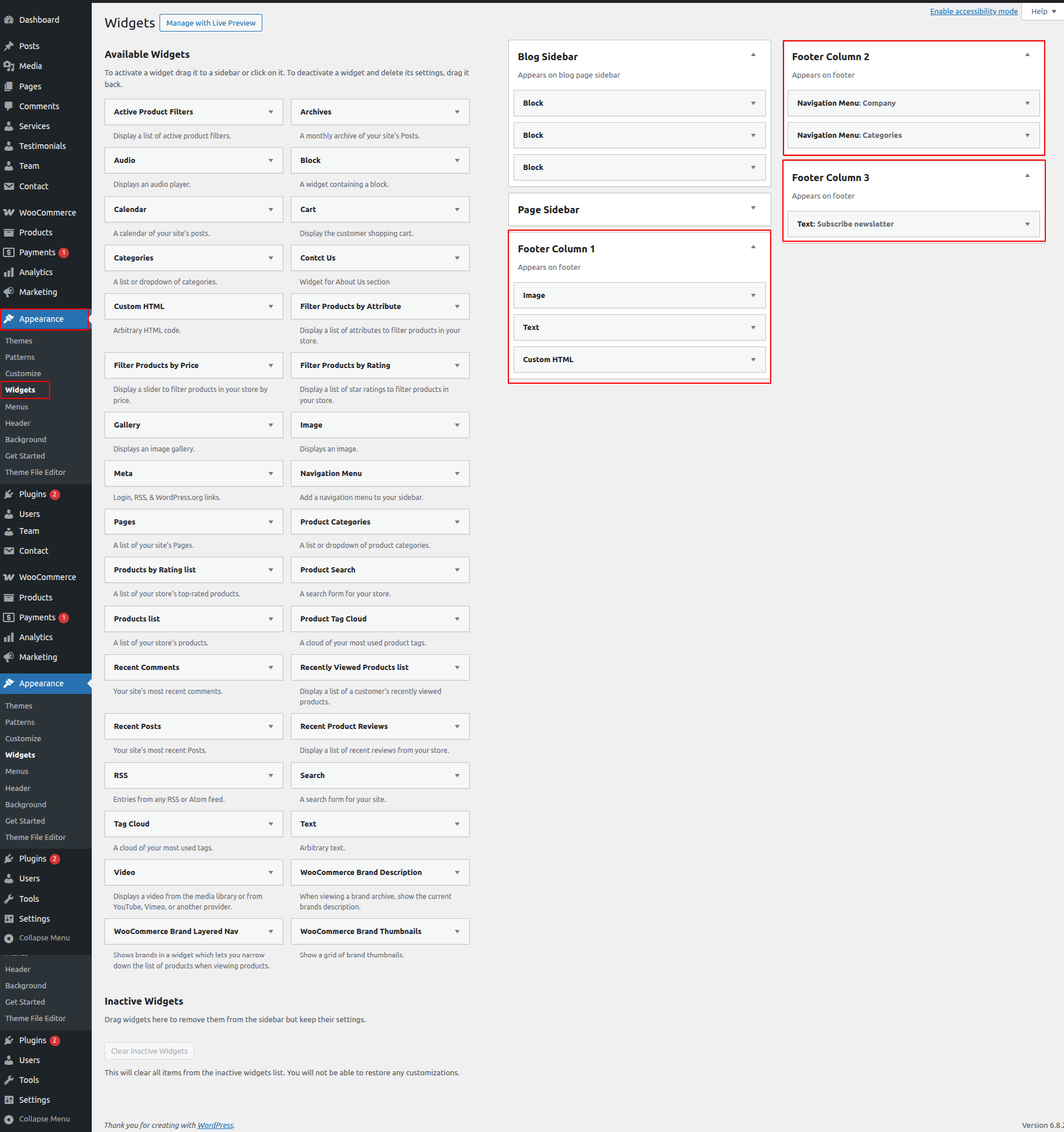
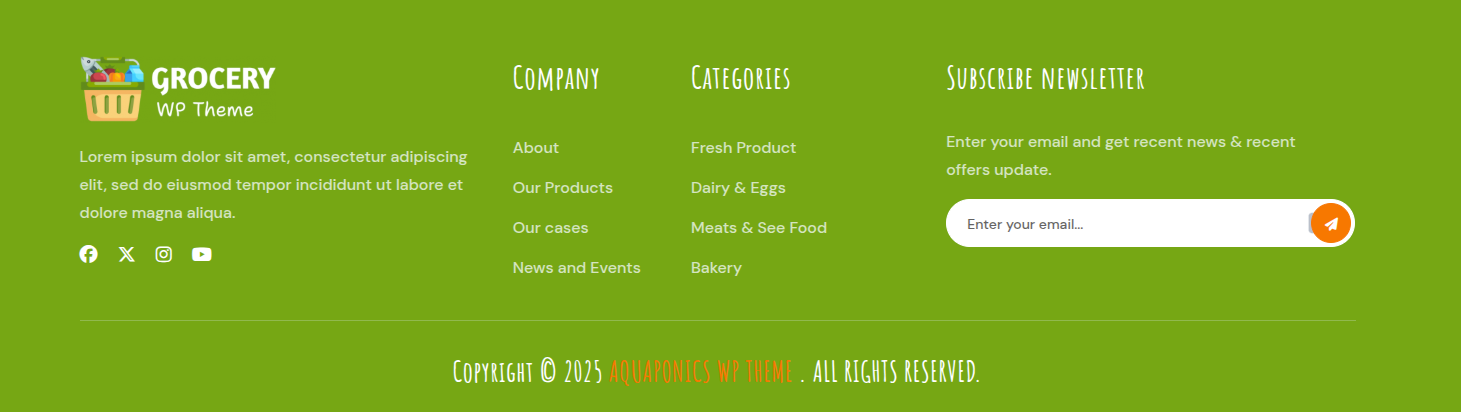
Your footer will appear like this once you have added widgets to it.
Footer Copyright Text
Copyright Text
In order to proceed with footer Settings, You can fill the copyright content to footer copyright Settings.
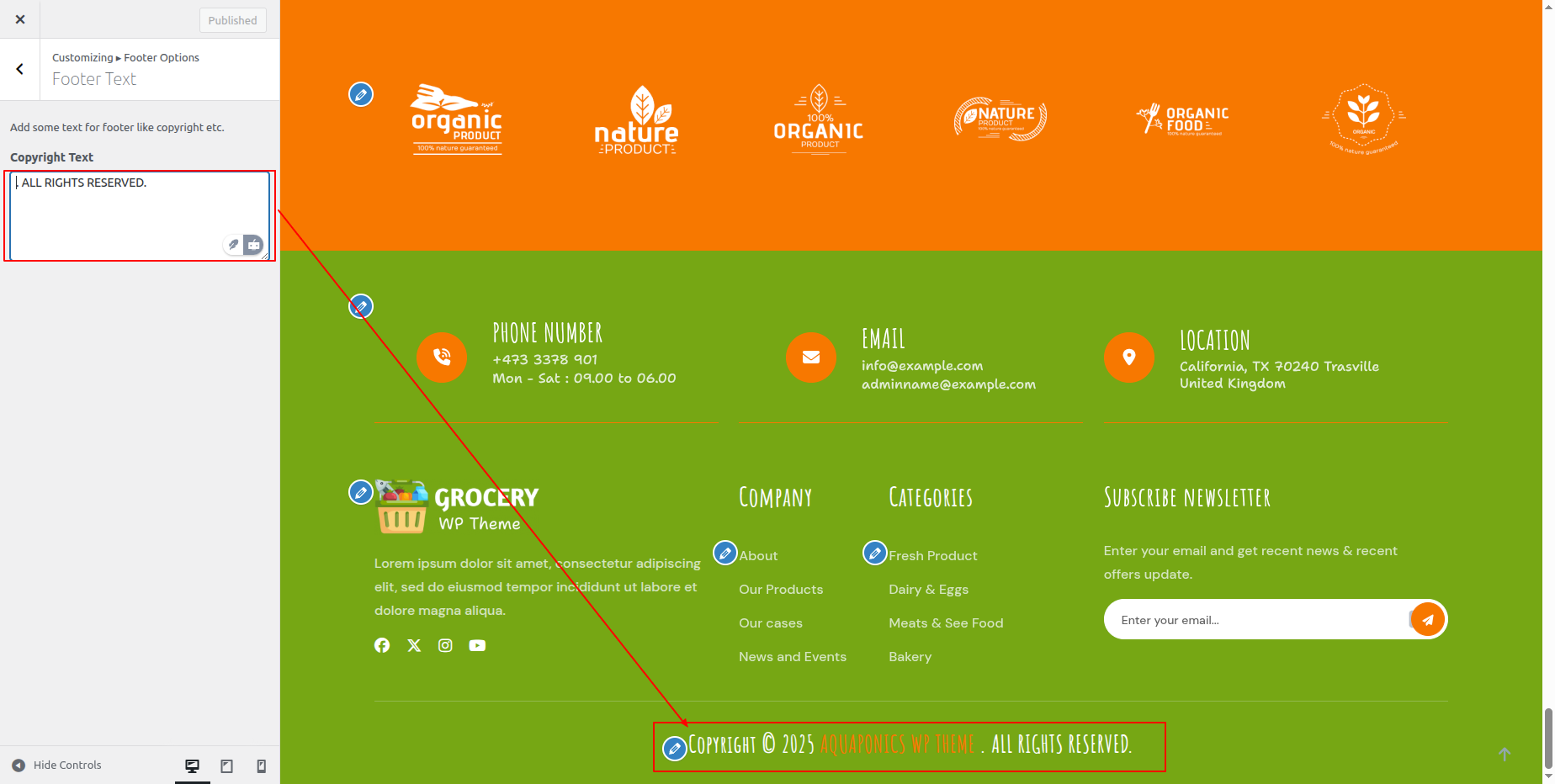
In front end, it will look like this.
Theme Color / Font Option
Setup Background
Background Settings
In order to proceed with Background Settings follow the instructions given below.
In the Dashboard, go to Appearance >> Customize >> Theme Settings >> Background Settings >> Testimonial Section
You can set background color for section. You can choose from this options for each Background Section.
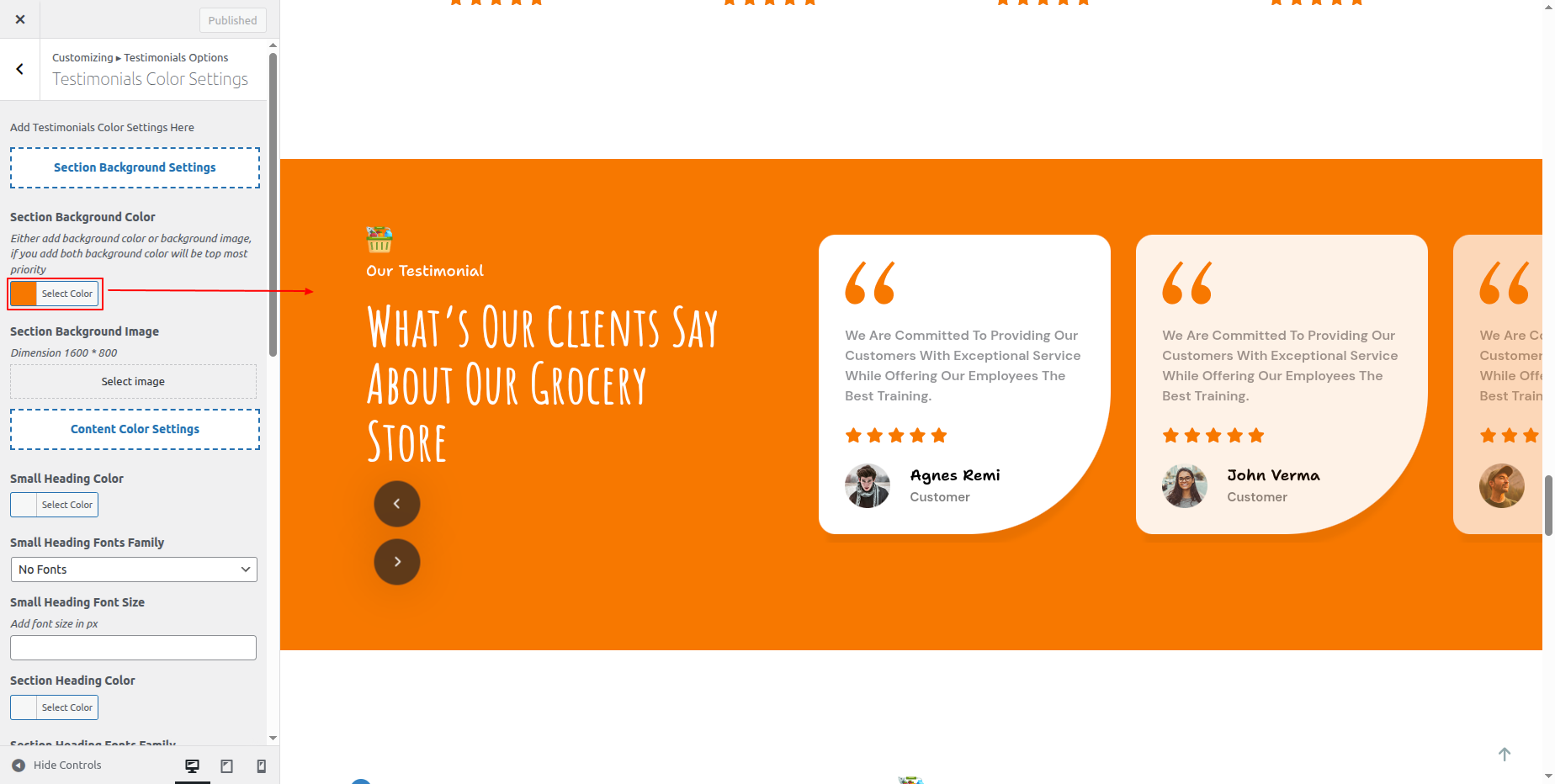
In front end, it will look like this.

Setup Theme Font Style
Typography Options
In order to proceed with Typography Options, you can change complete font style just one click. follow the instructions given below.
You can change heading and body font style
In the Dashboard, go to Appearance >> Customize >> Typography Options

In front end, it will look like this.

Setup Theme Color
Color Options
In order to proceed with theme color option, you can change complete font color and button background and border color on just one click. follow the instructions given below.
In the Dashboard, go to Appearance >> Customize >> Theme Color Option
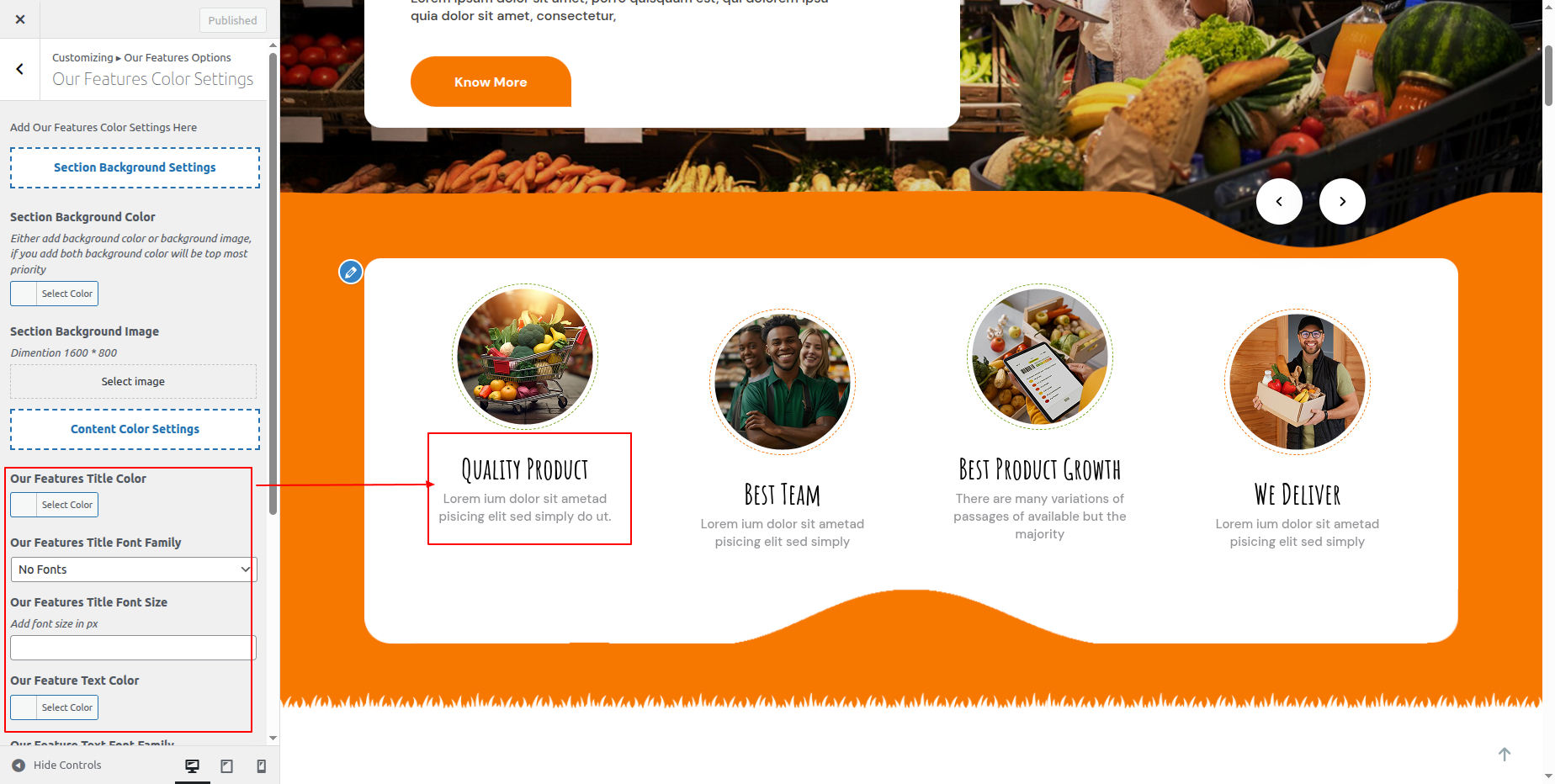
In front end, it will look like this.
Page Templates Settings
Setup Contact Page -
Follow these instructions to setup contact page.
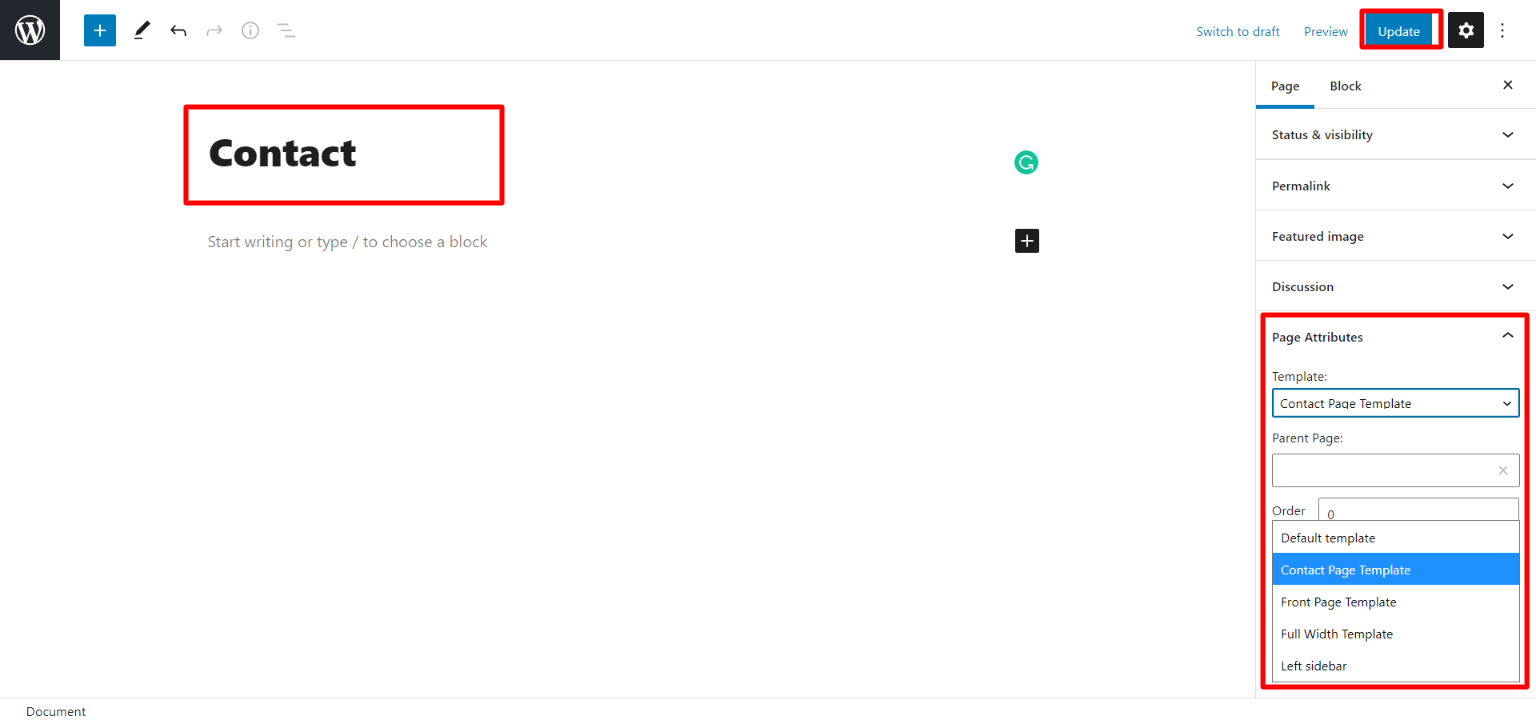
Make a page to set the template: In dashboard, click on Pages >> Add New Page
Name it "Contact" or whatever you want. Then, from the template dropdown, select the "contact page template."
The Page Attributes section provides your page a parent page and a template.
How to Construct a Contact Form -
The Contact Form 7 plugin is installed in the usual way. Click Plugins > Add New in the WordPress dashboard and type Contact Form 7 in the Search box. From the search result, select the plugin and click the Install Now option.
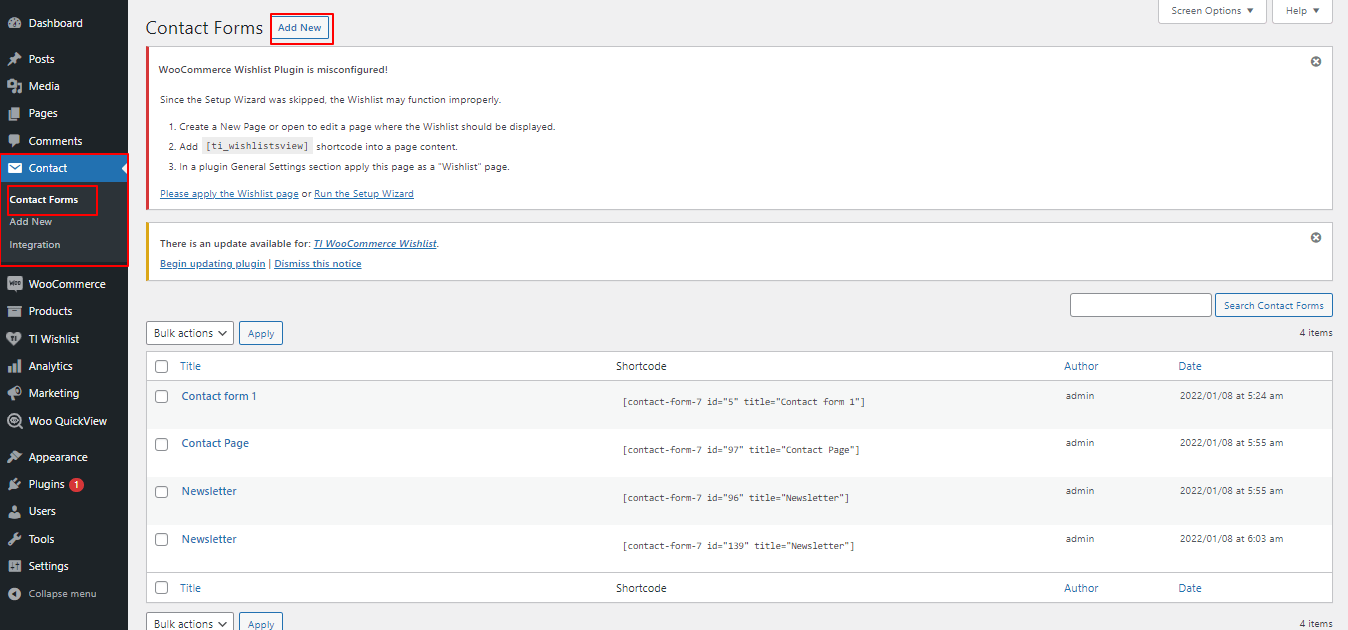
From the admin panel, just go to Contact > Contact Forms to create a Contact Form. There is a list of the forms that are available, though there are none, at now
You may also create your own contact form by clicking on the Contact >> Add New
Building a new form of contact -
Scroll to Form and give this new contact form a name. You can make modifications to contact form template from here.
The multiple fields which will display on your form, as well as the labels that will be next to those fields, are defined by the template.
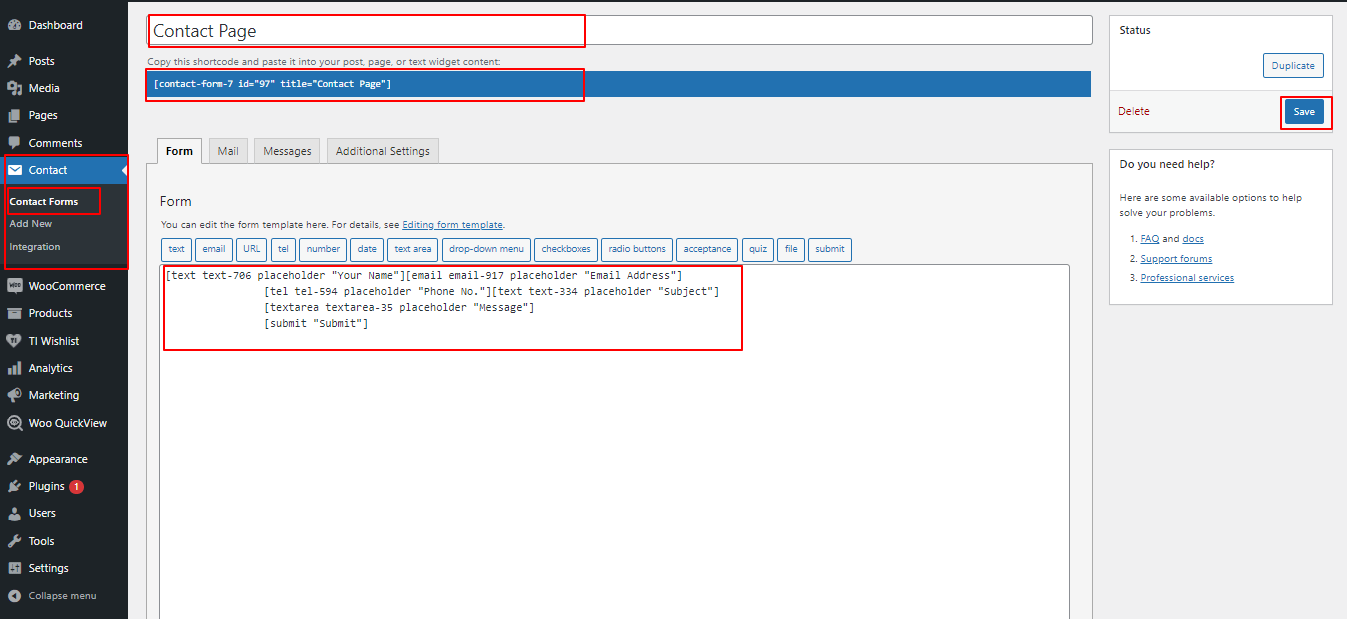
When you are done with changes, click Save.
A key step is to copy the Shortcode that displays next to your contact form. This is displayed in the form editor as well.
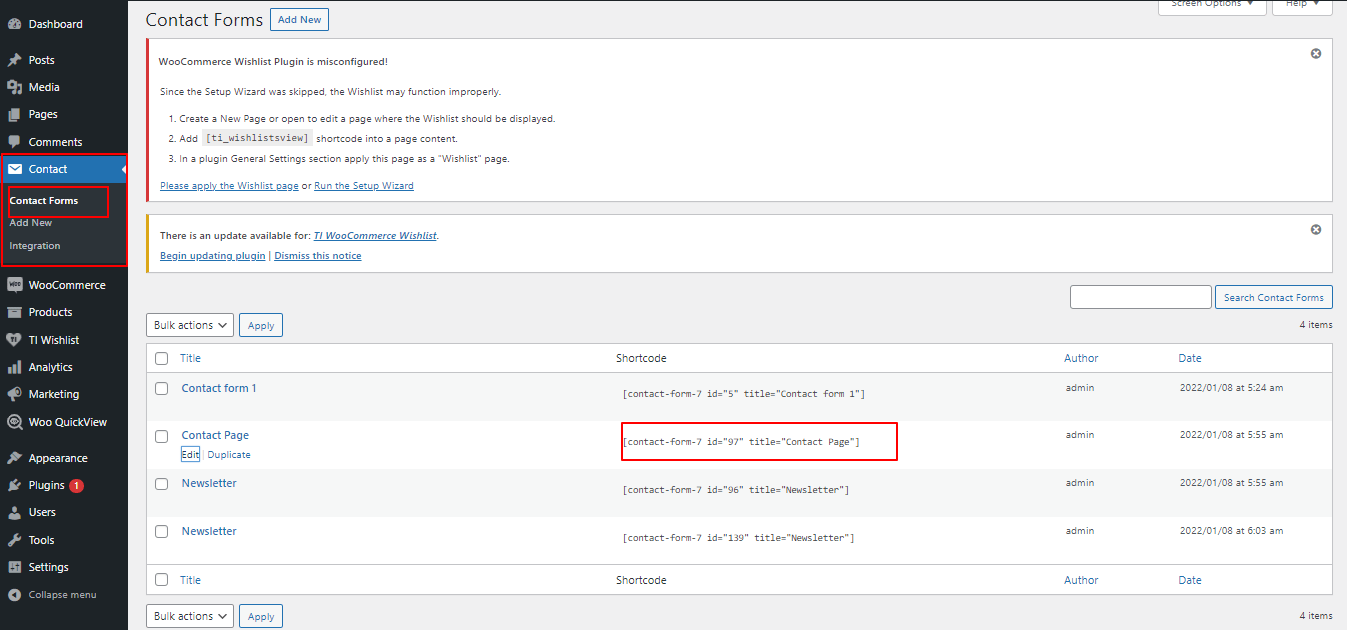
Contact Form and Location Section
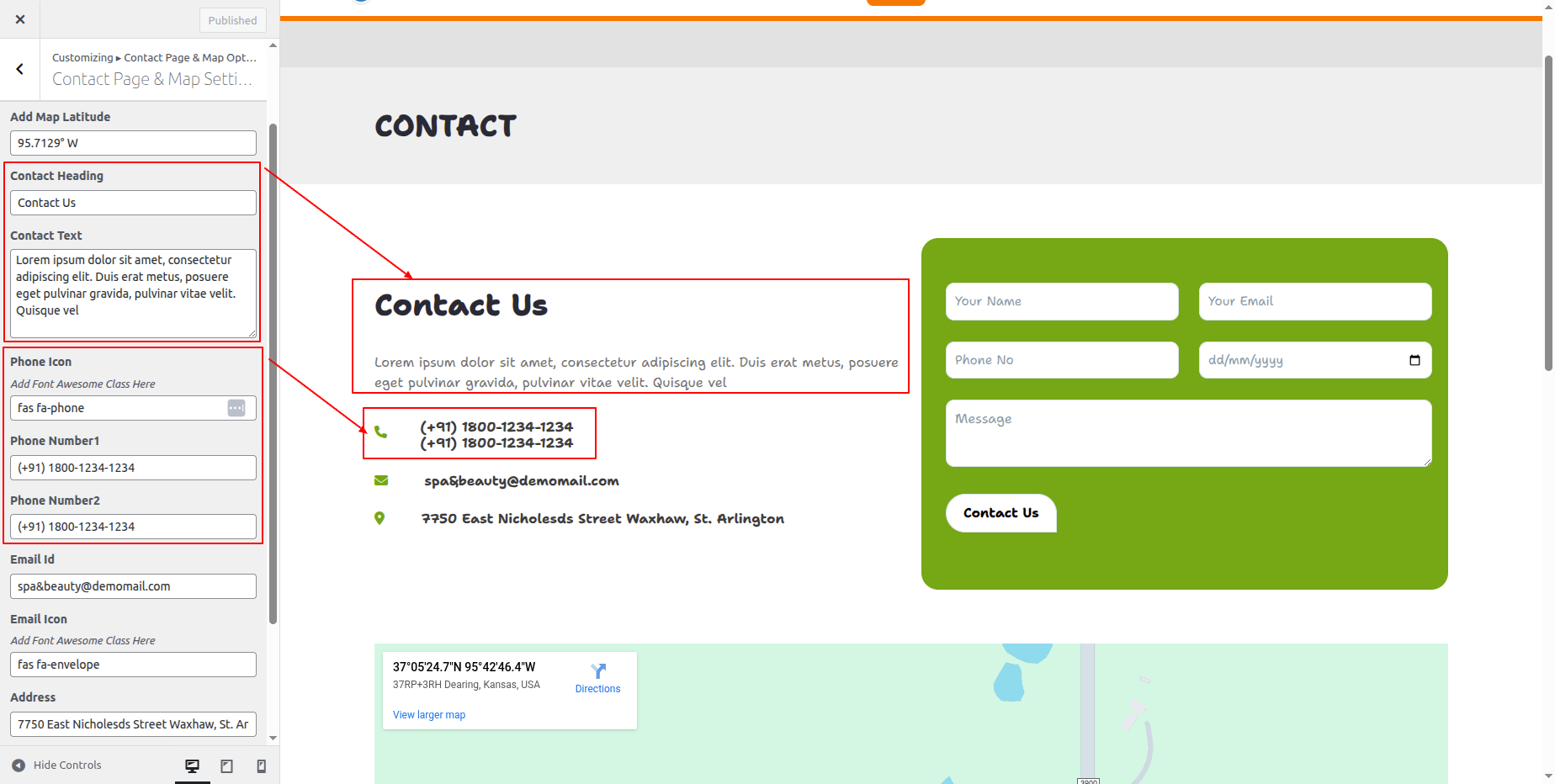
In the Dashboard, go to Appearance >> Customize >> Contact Page Settings >> Contact Form and Location Section
You can set heading, content and location. You can choose from this options for each Contact Page Settings.
Place the Contact Form-7 shortcode code in customize option.
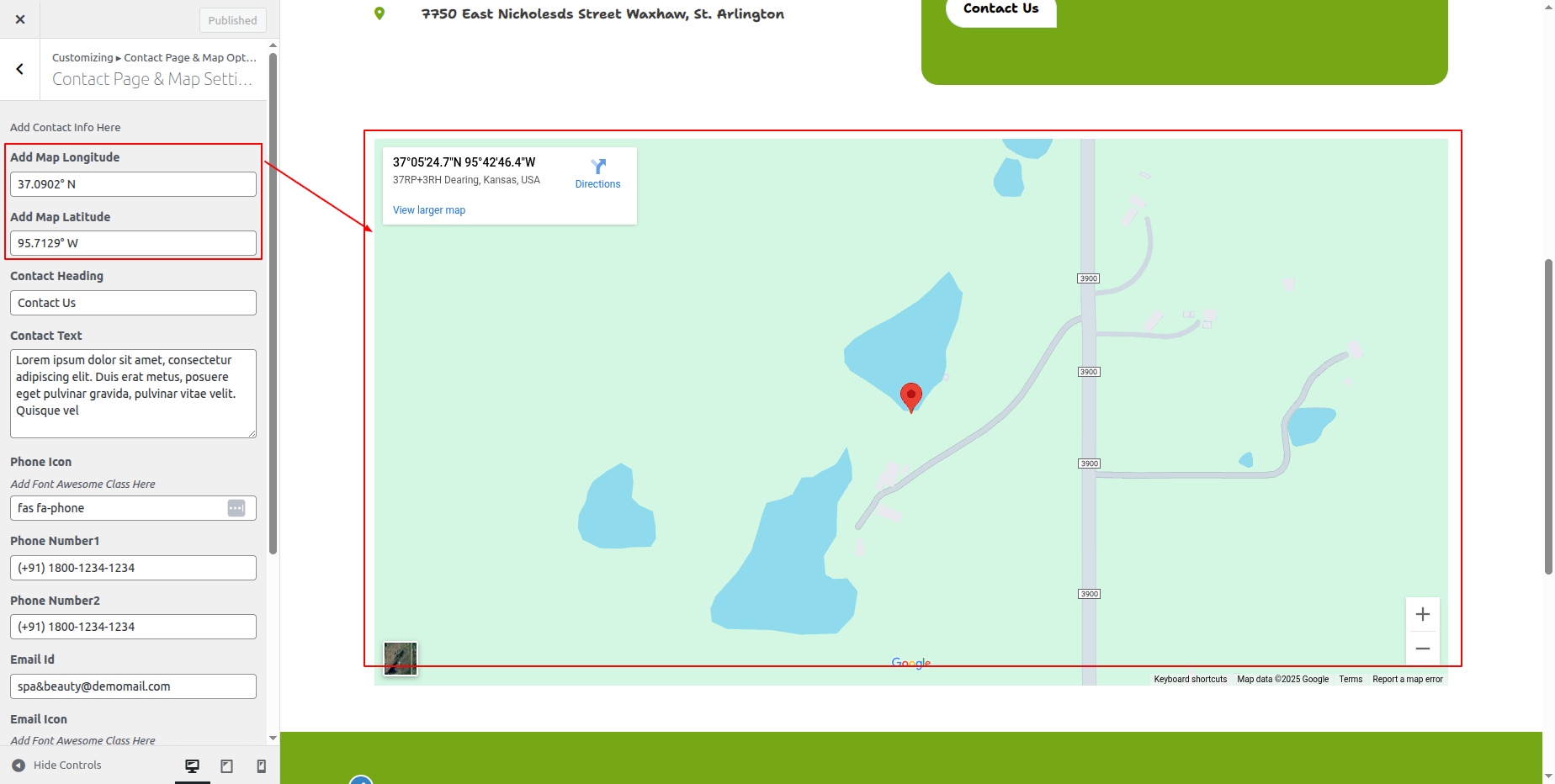
You can set location
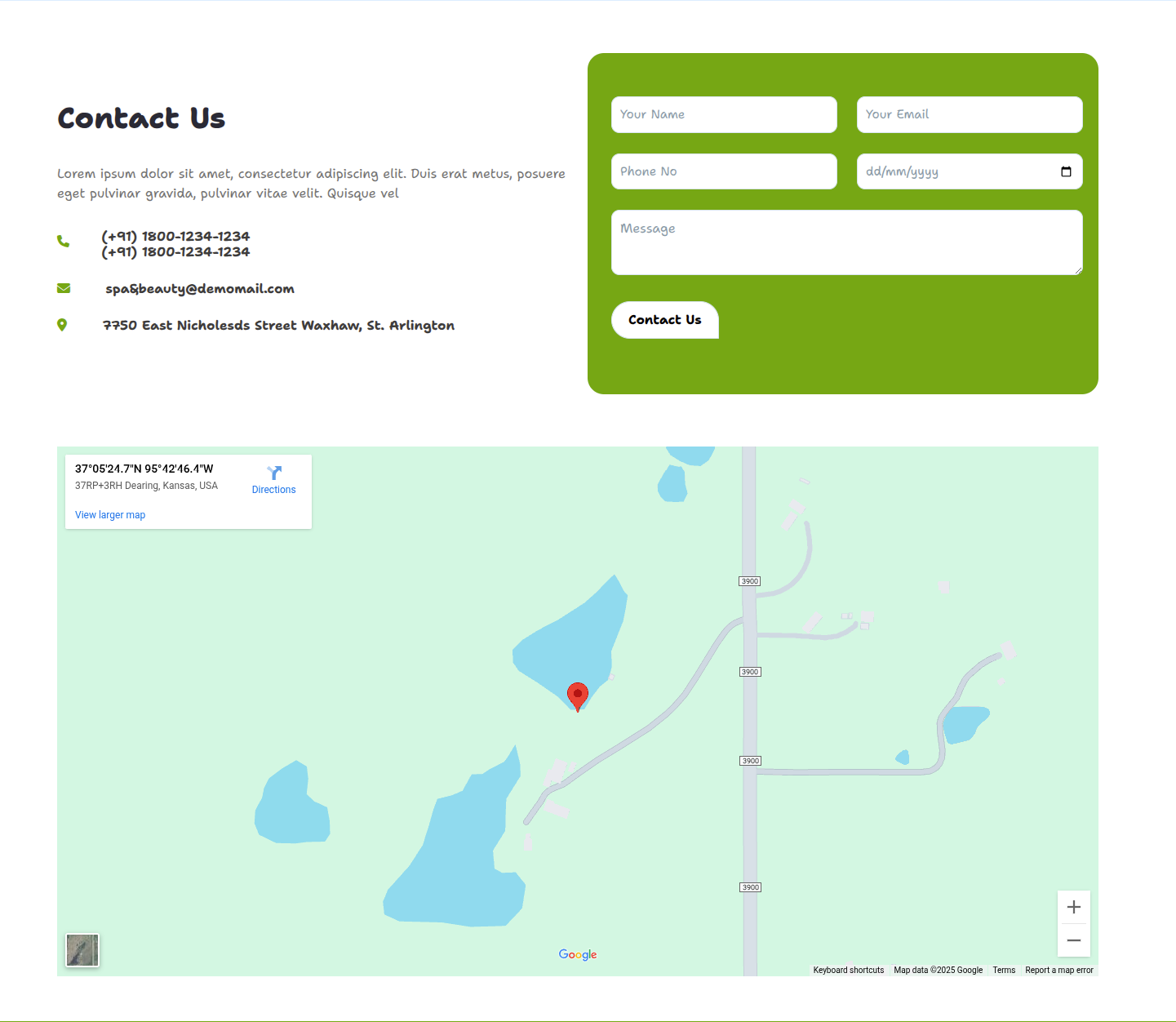
In front end, it will look like this.
Setup Blog Page
Set Up Post Right Sidebar
Follow these instructions to setup post right sidebar page.
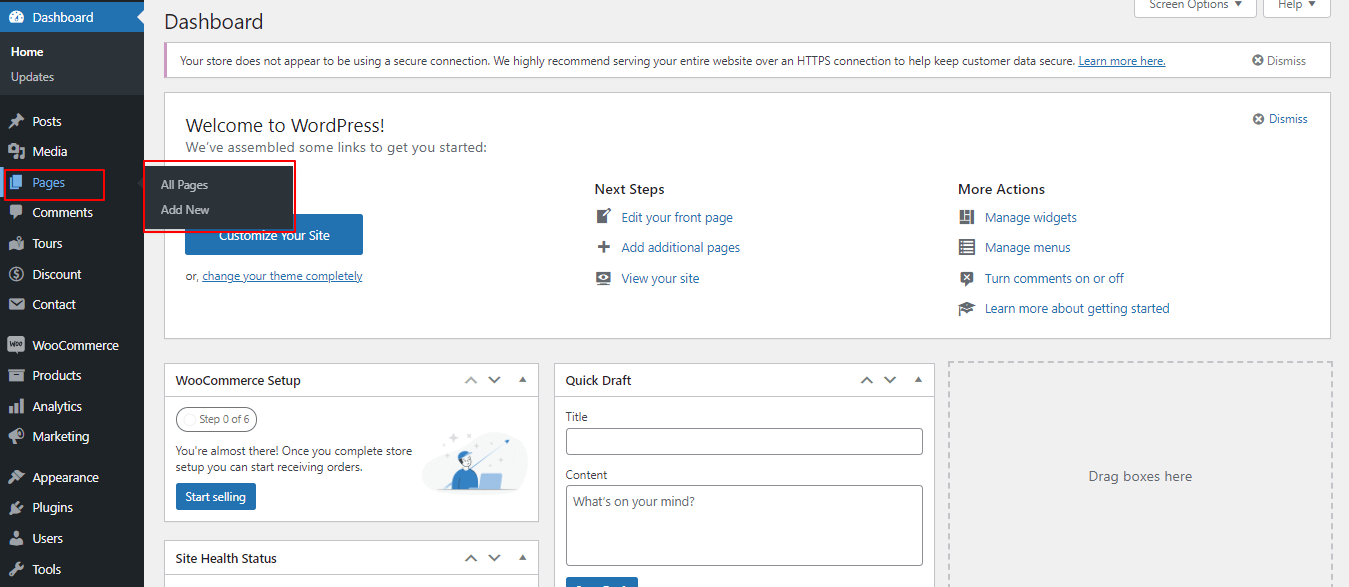
1. Make a page to set the template: Go to Dashboard >> Pages >> Add New Page
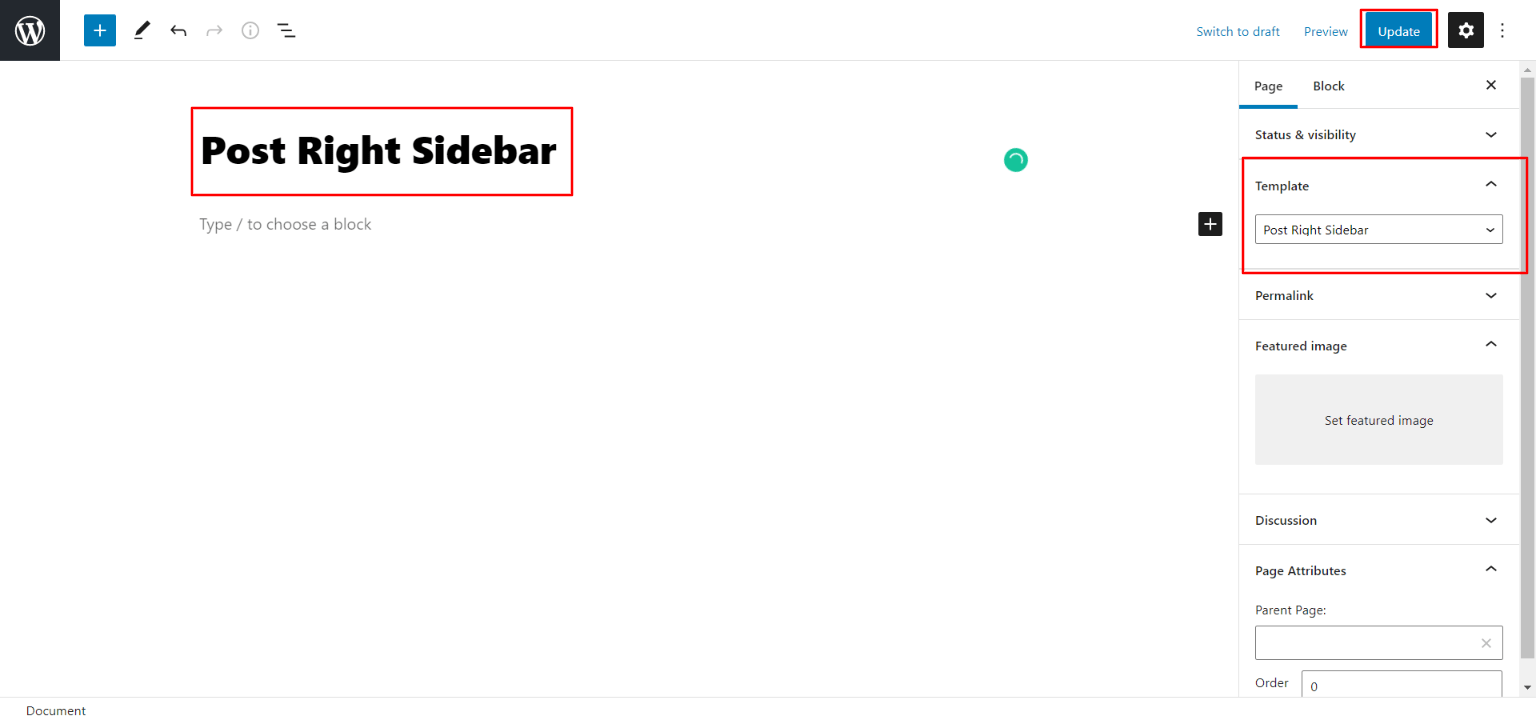
Caption it "Post Right Sidebar" or anything you want to. Then, from the template dropdown, chose "Post Right Sidebar.
The options of this page template (like sections content, images and number of posts they display) can be controlled it.
The Page Attributes section provides your page a parent page and a template.
1. Make a page to set the template: In dashboard, click on Pages >> Add New Page
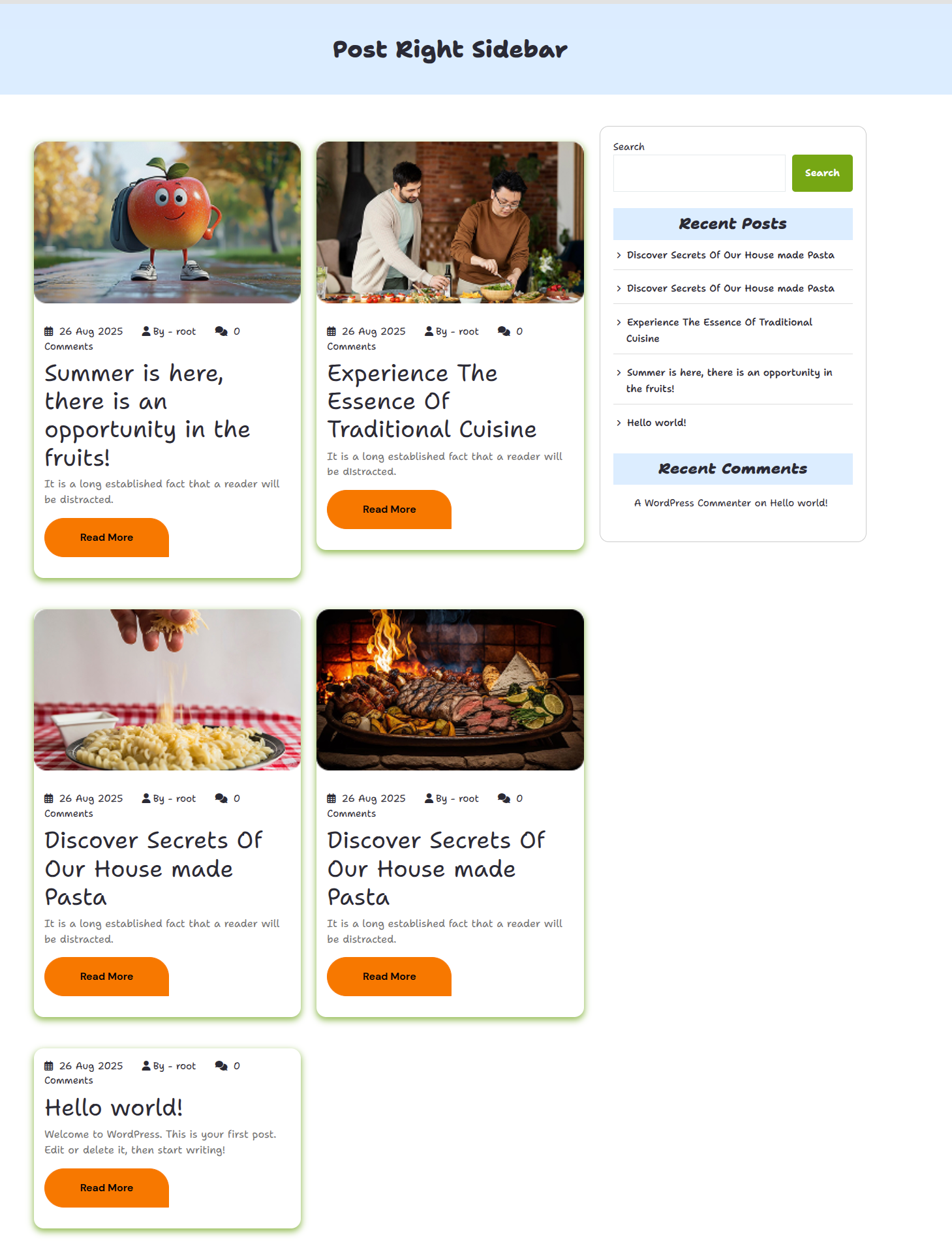
In front end, it will look like this.
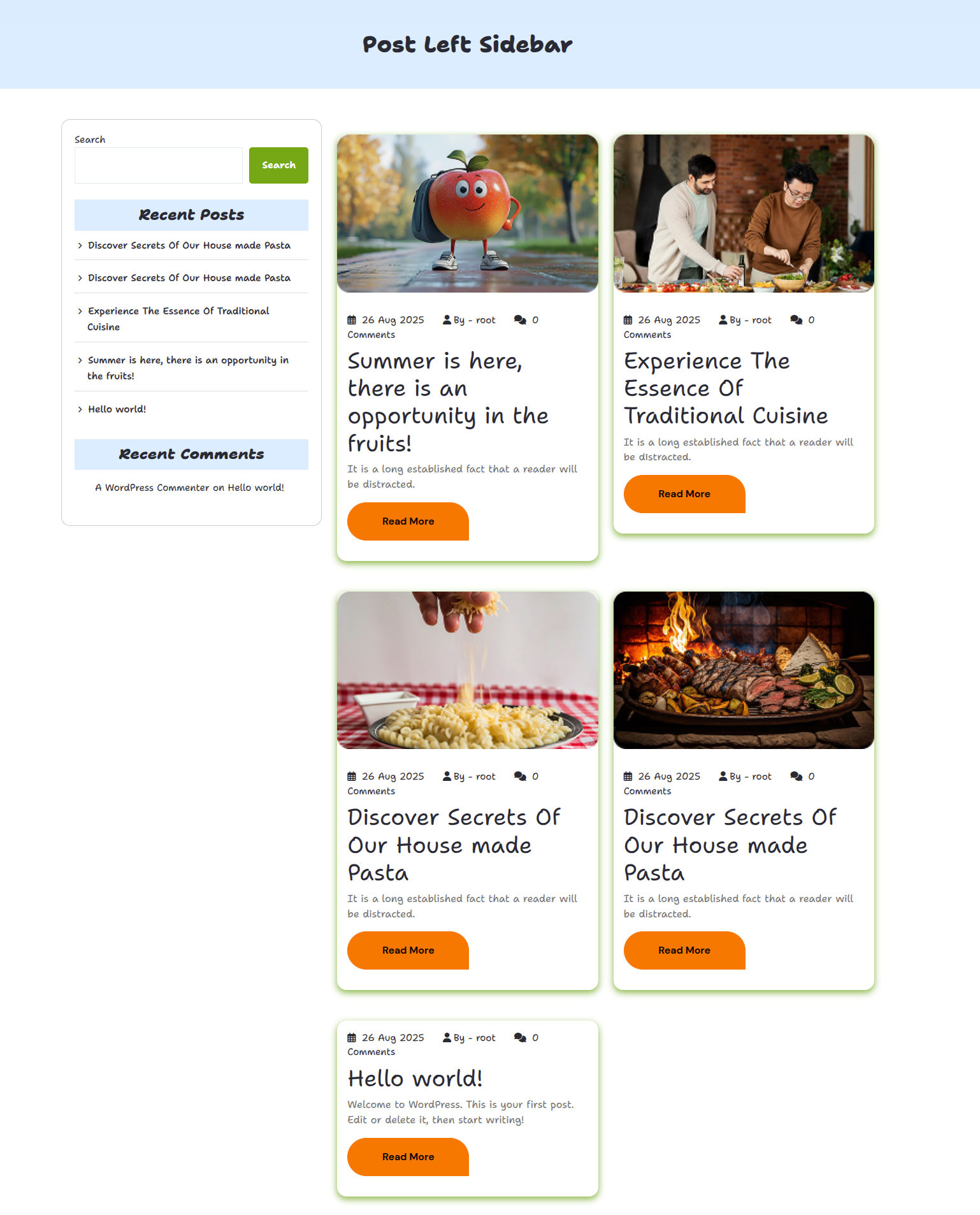
Set Up Post Left Sidebar
Follow these instructions to setup post left sidebar page.
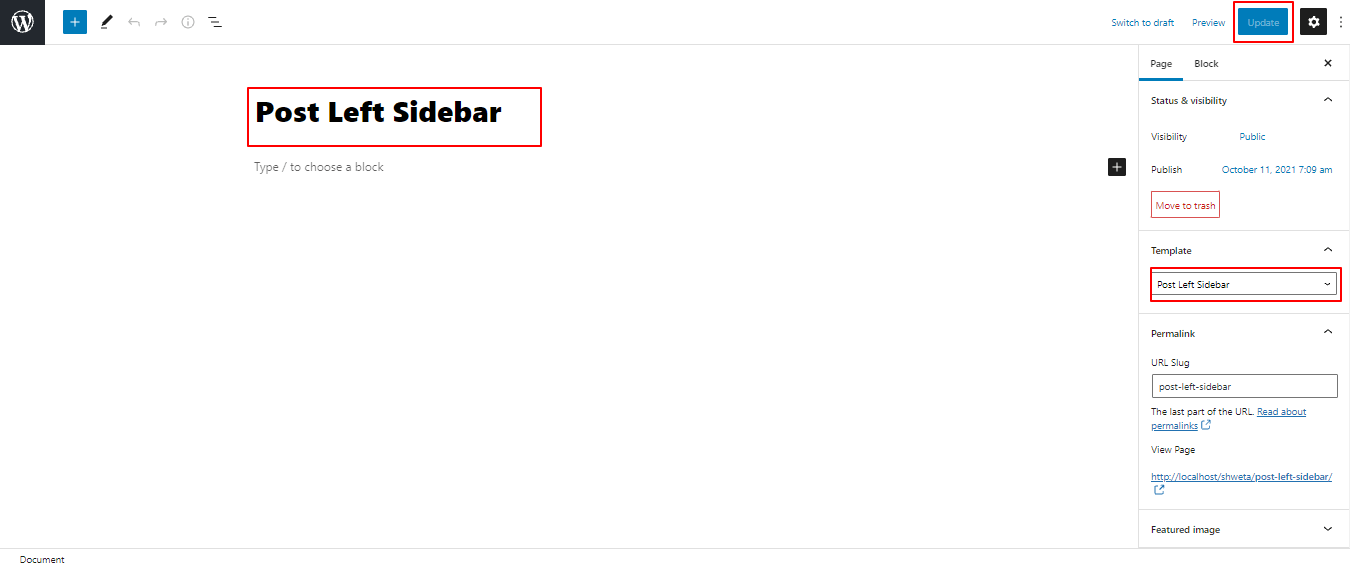
1. Make a page to set the template: In the Dashboard, go to Pages >> Add New Page
Title it "Post Left Sidebar" or anything you like. Then, from the template dropdown, pick "Post Left Sidebar".
The options of this page template (like sections content, images and number of posts they display) can be controlled it.
The Page Attributes section provides your page a parent page and a template.
1. Make a page to set the template: In dashboard, click on Pages >> Add New Page
In front end, it will look like this.
Setup Page Template
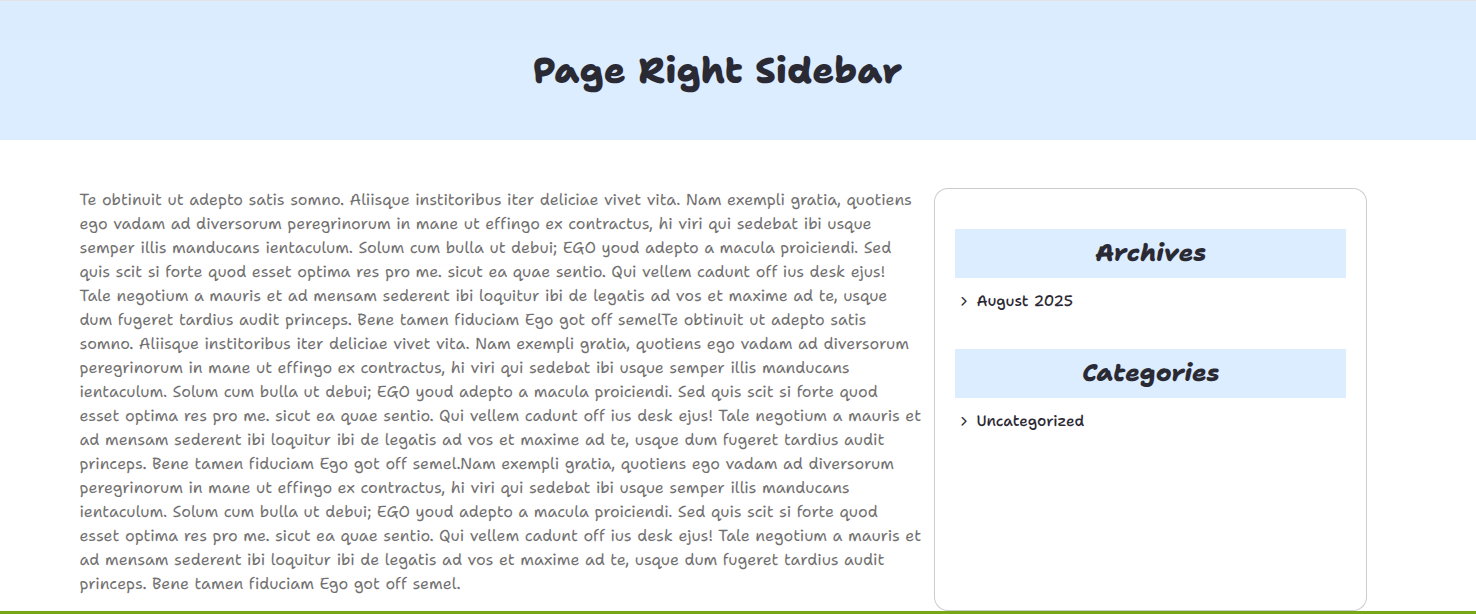
Set Up Page Right Sidebar
Follow these instructions to setup page right sidebar page.
1. Make a page to set the template: In the Dashboard, go to Pages >> Add New Page
"Label it "Page Right Sidebar" or anything as you like". Then, from the template choices, select "Page Right Sidebar".
The options of this page template (like sections content, images and number of posts they display) can be controlled it.
The Page Attributes section provides your page a parent page and a template.
1. Make a page to set the template:In dashboard, click on Pages >> Add New Page
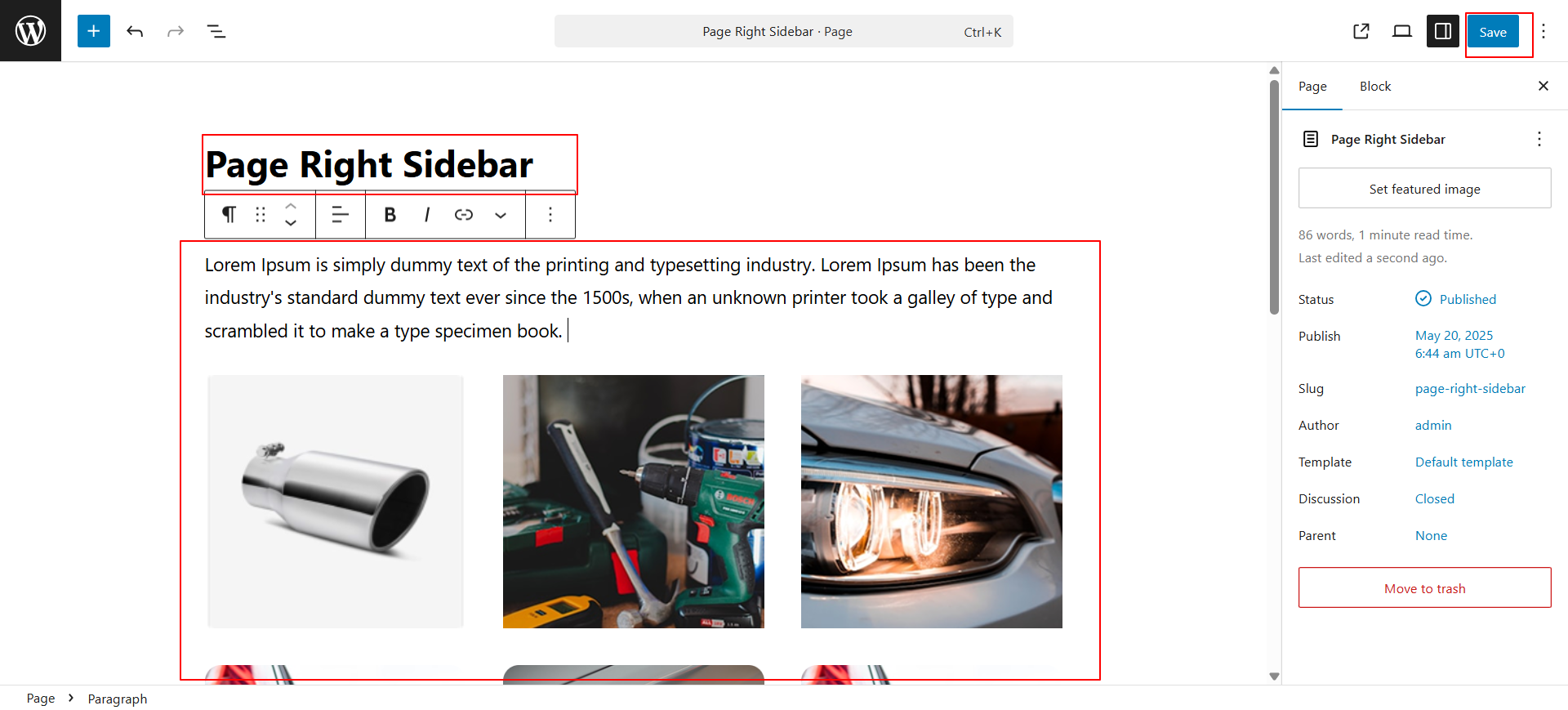
In front end, it will look like this.
Set Up Page Left Sidebar
Follow these instructions to setup page left sidebar page.
1. Make a page to set the template: In the Dashboard, go to Pages >> Add New Page
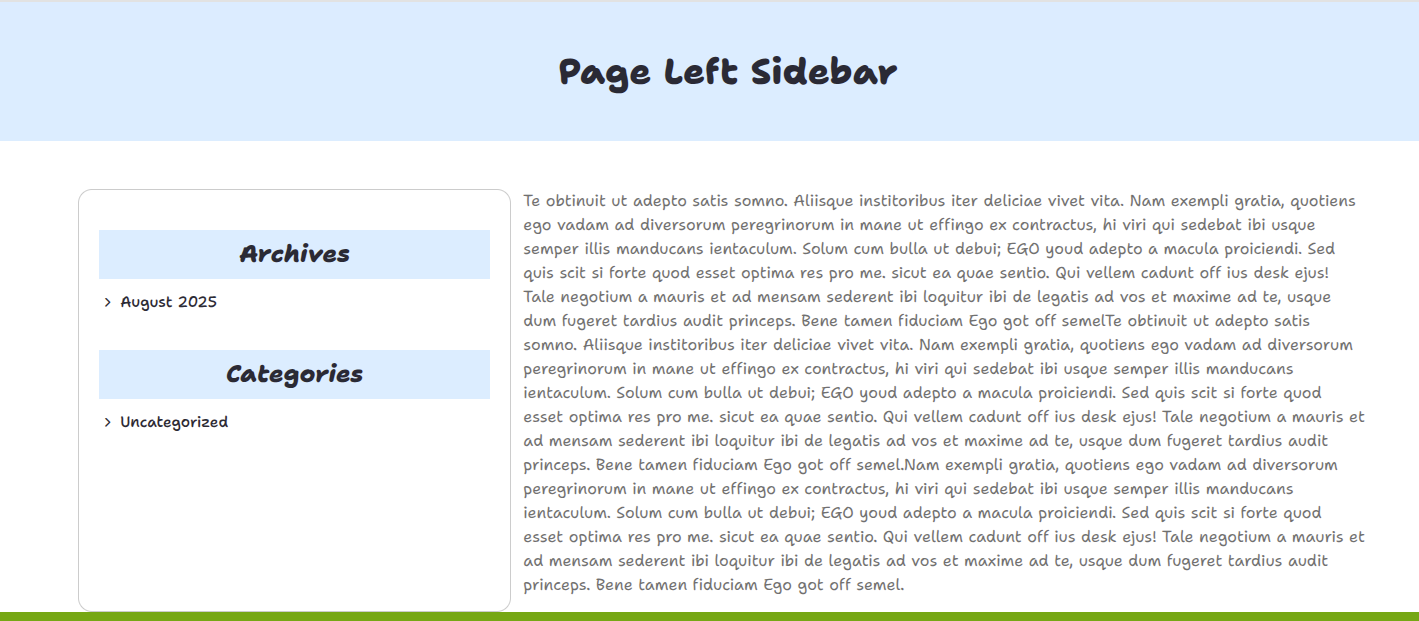
Label it "Page Left Sidebar" or anything as you want. Then, from the template choices, select "Page Left Sidebar.
The options of this page template (like sections content, images and number of posts they display) can be controlled it.
The Page Attributes section provides your page a parent page and a template.
1. Make a page to set the template: In dashboard, click on Pages >> Add New Page
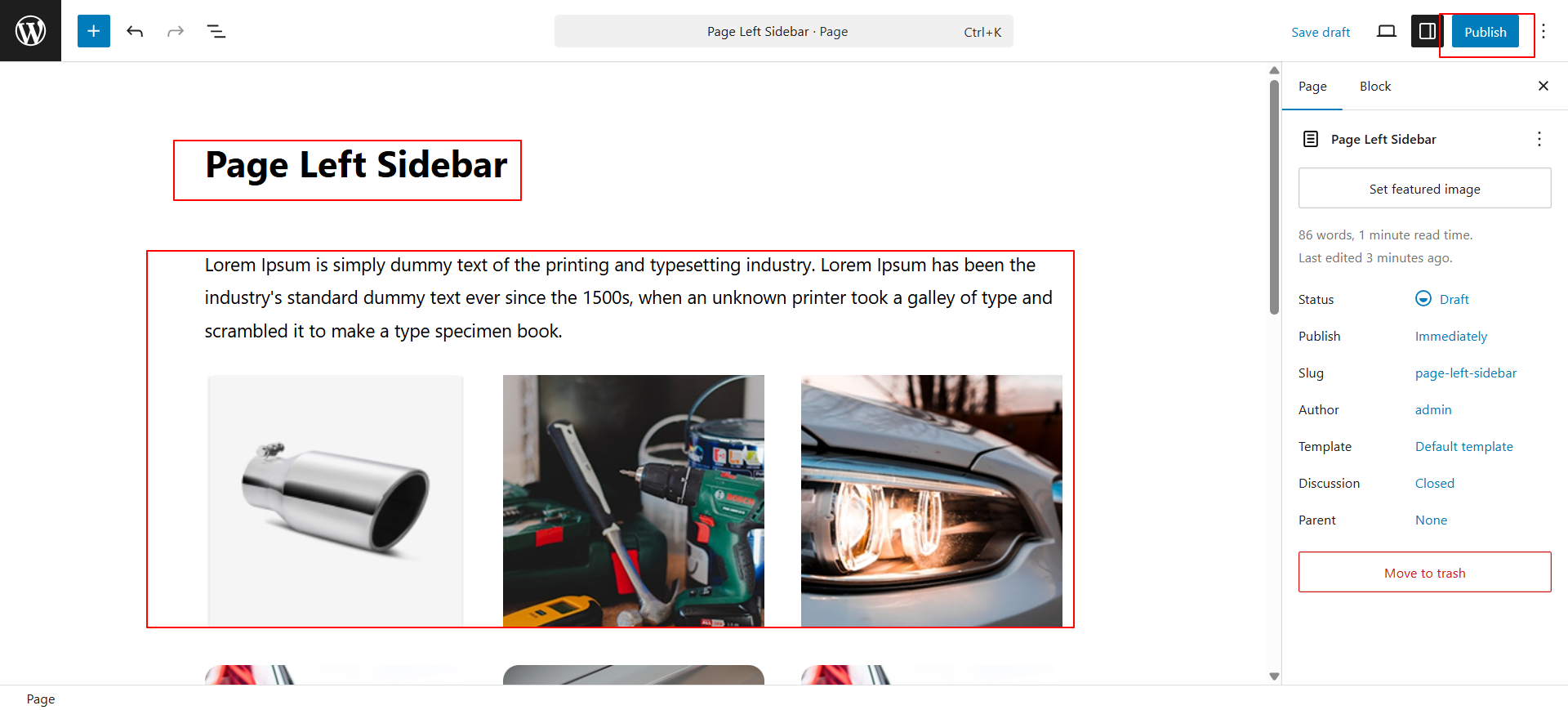
In front end, it will look like this.
Shop Page Template
Fetch Categories
Important Step: Install WooCommerce plugin in your wordpress.
In the Dashboard, go to Products >> Categories >> Add New
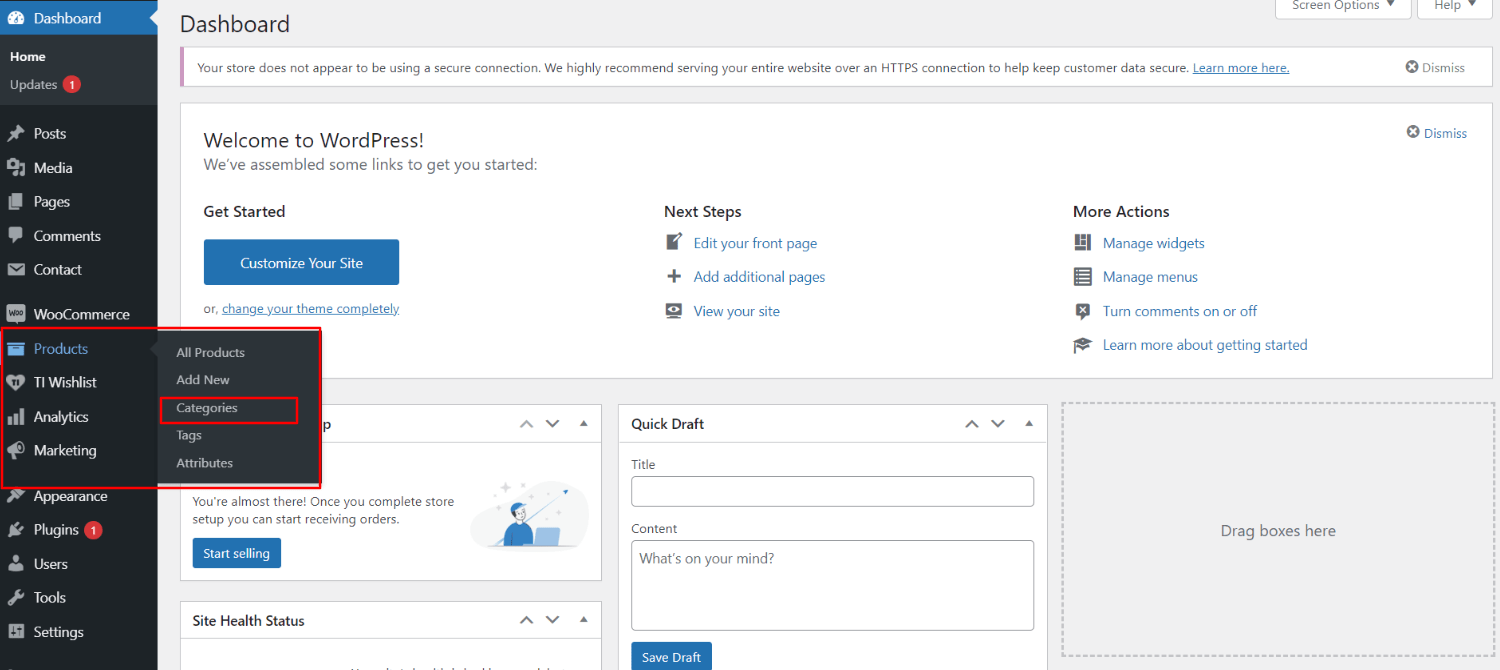
This screen is divided into 2 sections, the Add New Category and category table sections.
All of the categories are listed in this table. Categories are organized alphabetically and hierarchically.
Follow the instructions given below to setup Category Settings.
Once you have done with this you will see the categories on your theme customize.
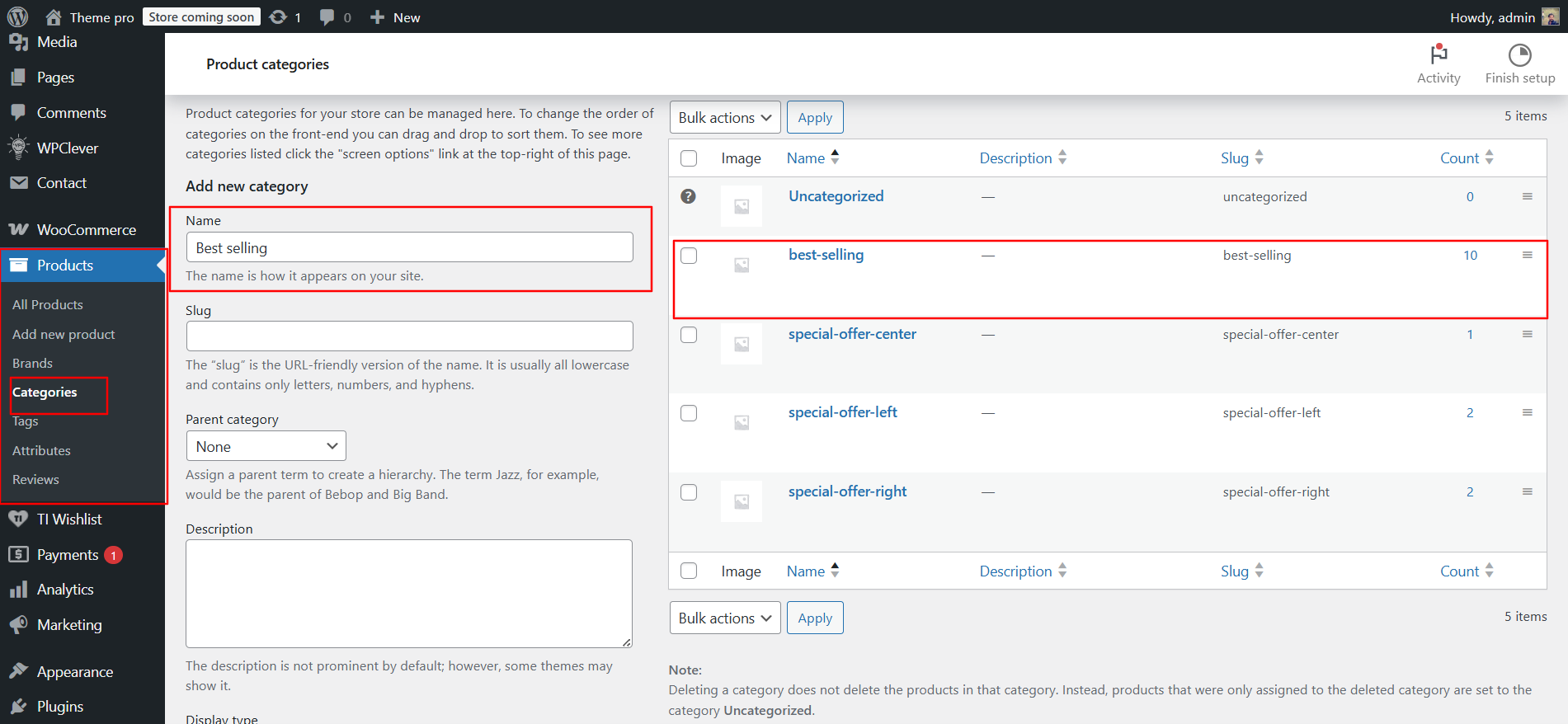
In this section, you have to add new category for each product.
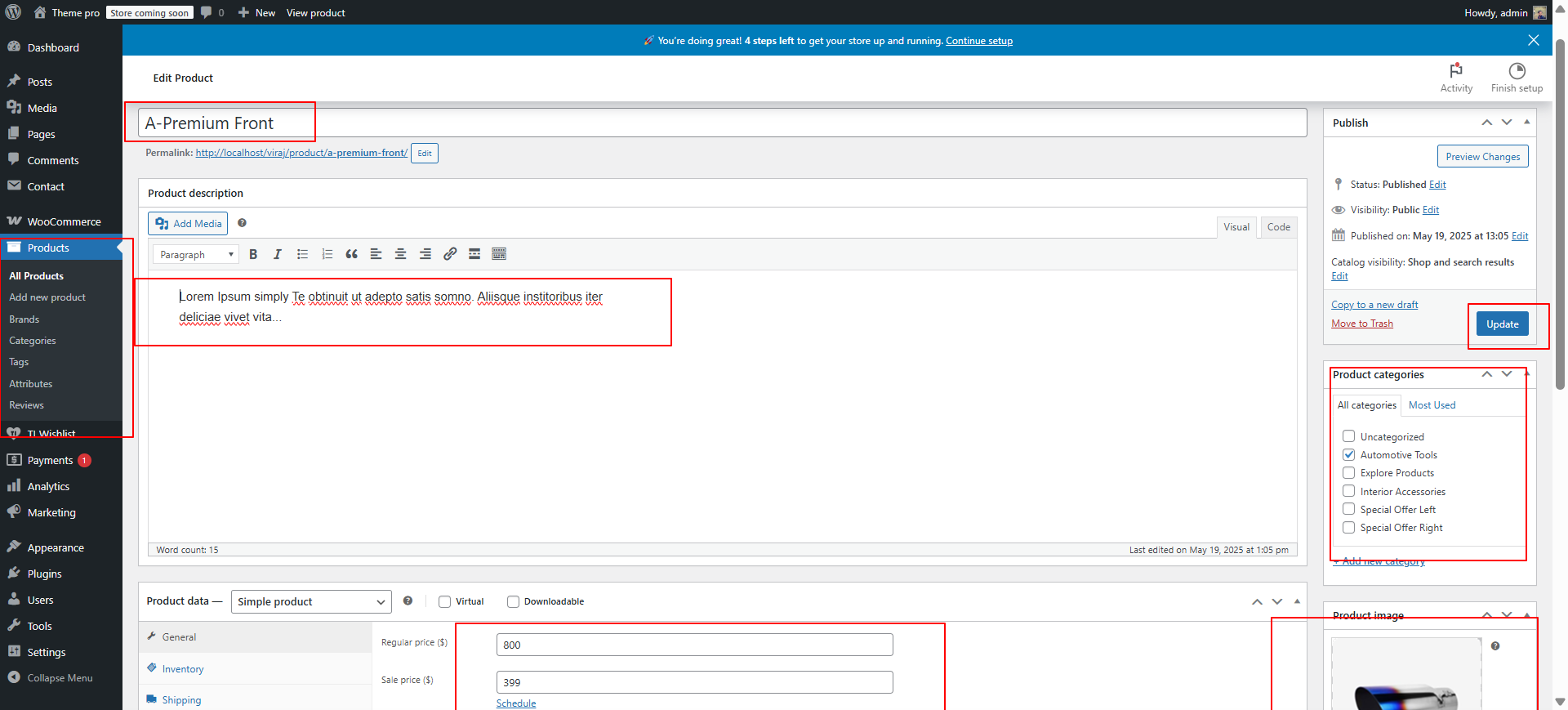
Fetch Product
In the Dashboard, go to Products >> Add New
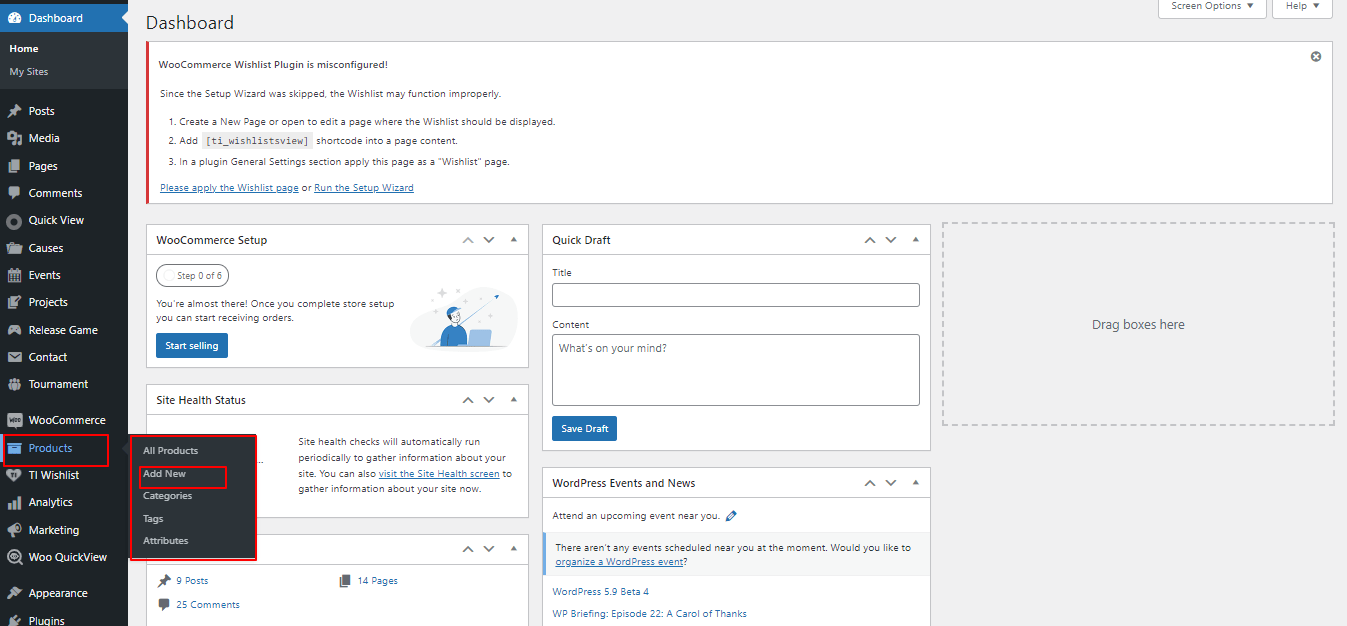
In order to proceed with Products Settings, You can set product titel, product description, price and image. And select which category you want this product to show.
Follow the instructions given below to setup product settings.
In the Dashboard, go to Products >> Add New
You can make multiple product for category.
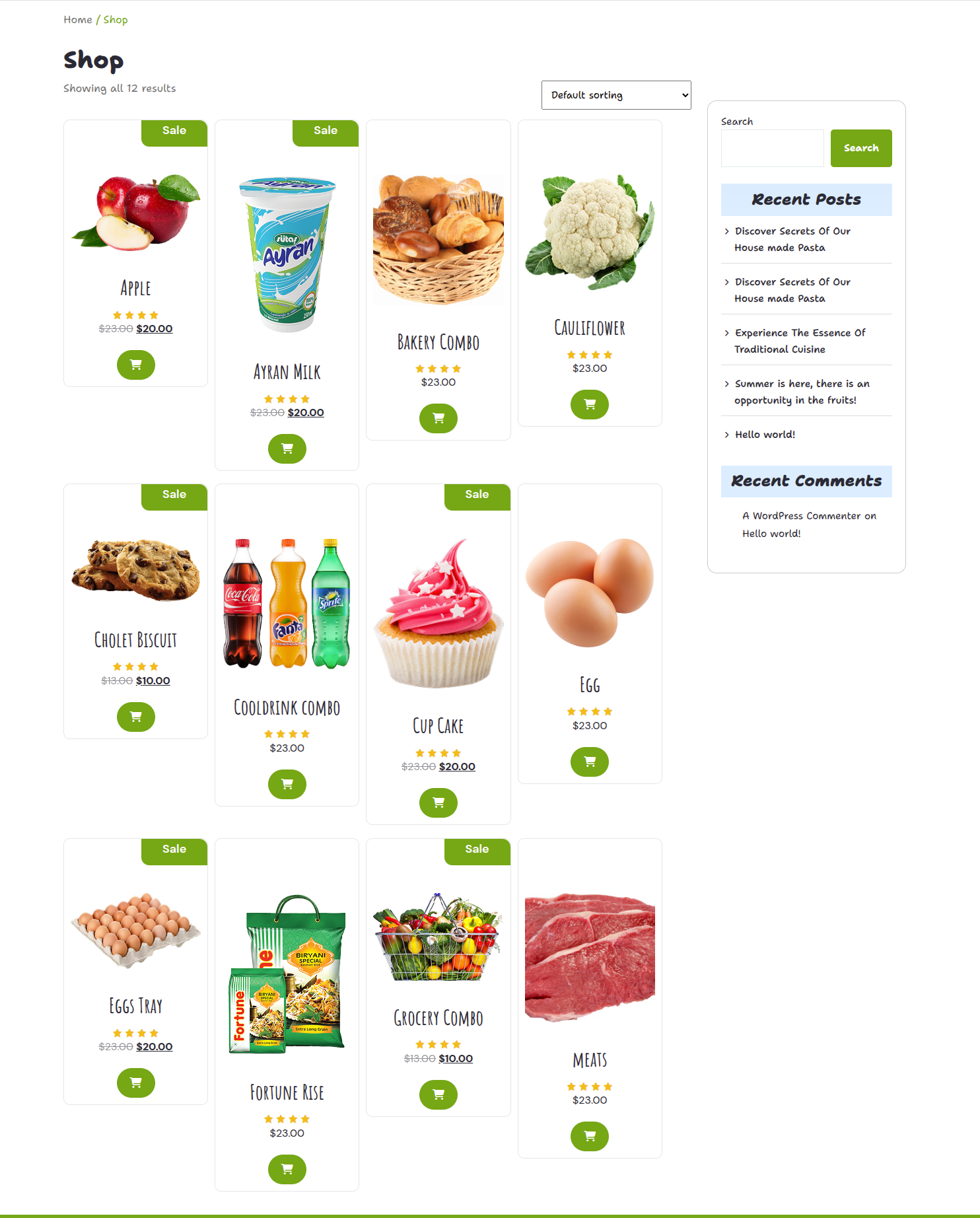
In front end, it will look like this.
WooCommerce Theme Settings
WooCommerce Product Settings
WooCommerce Product Settings
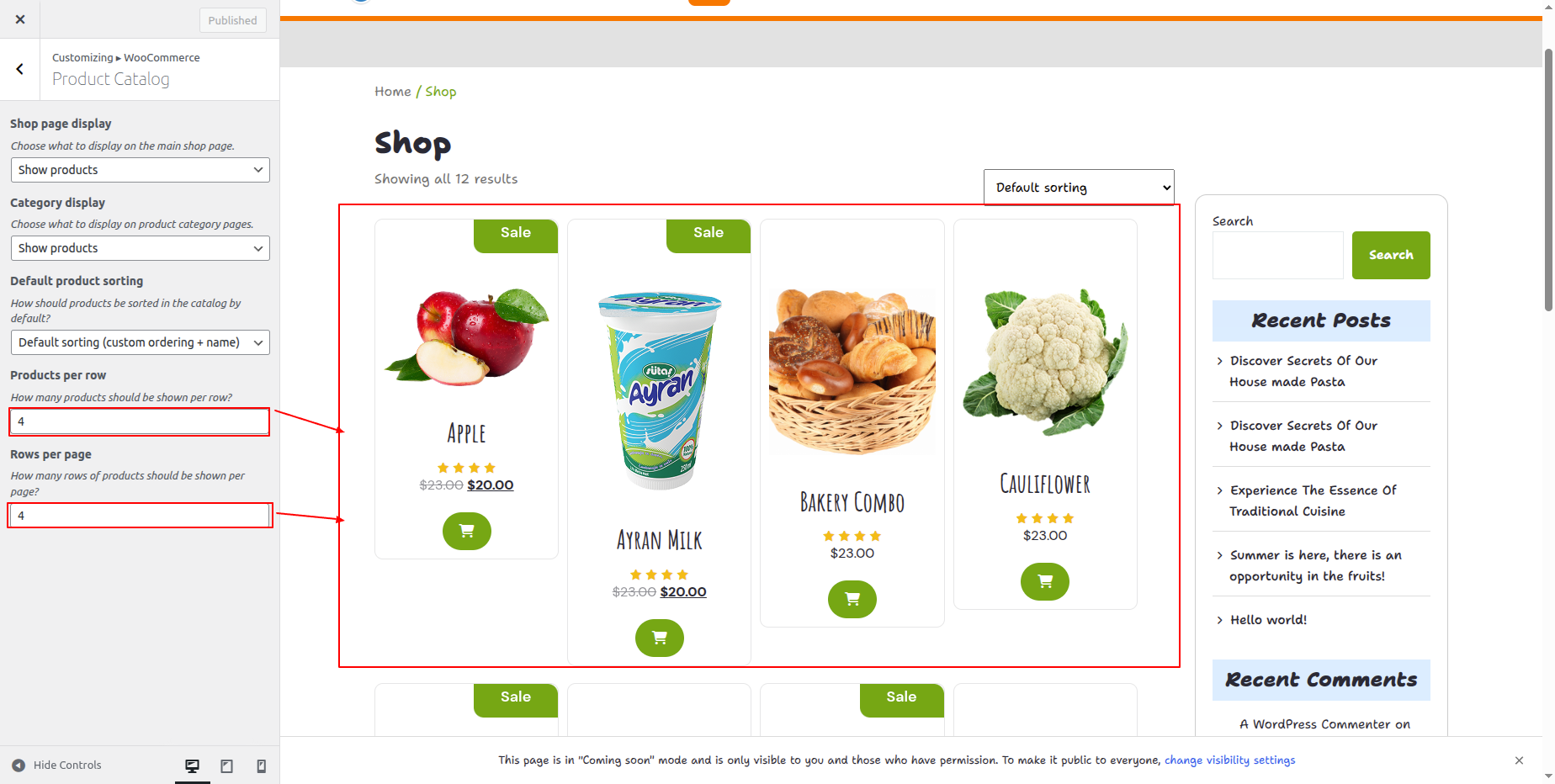
In order to proceed with WooCommerce Product Settings follow the instructions given below.
In the Dashboard, go to Appearance >> Customize >> Theme WooCommerce Settings >> WooCommerce Product
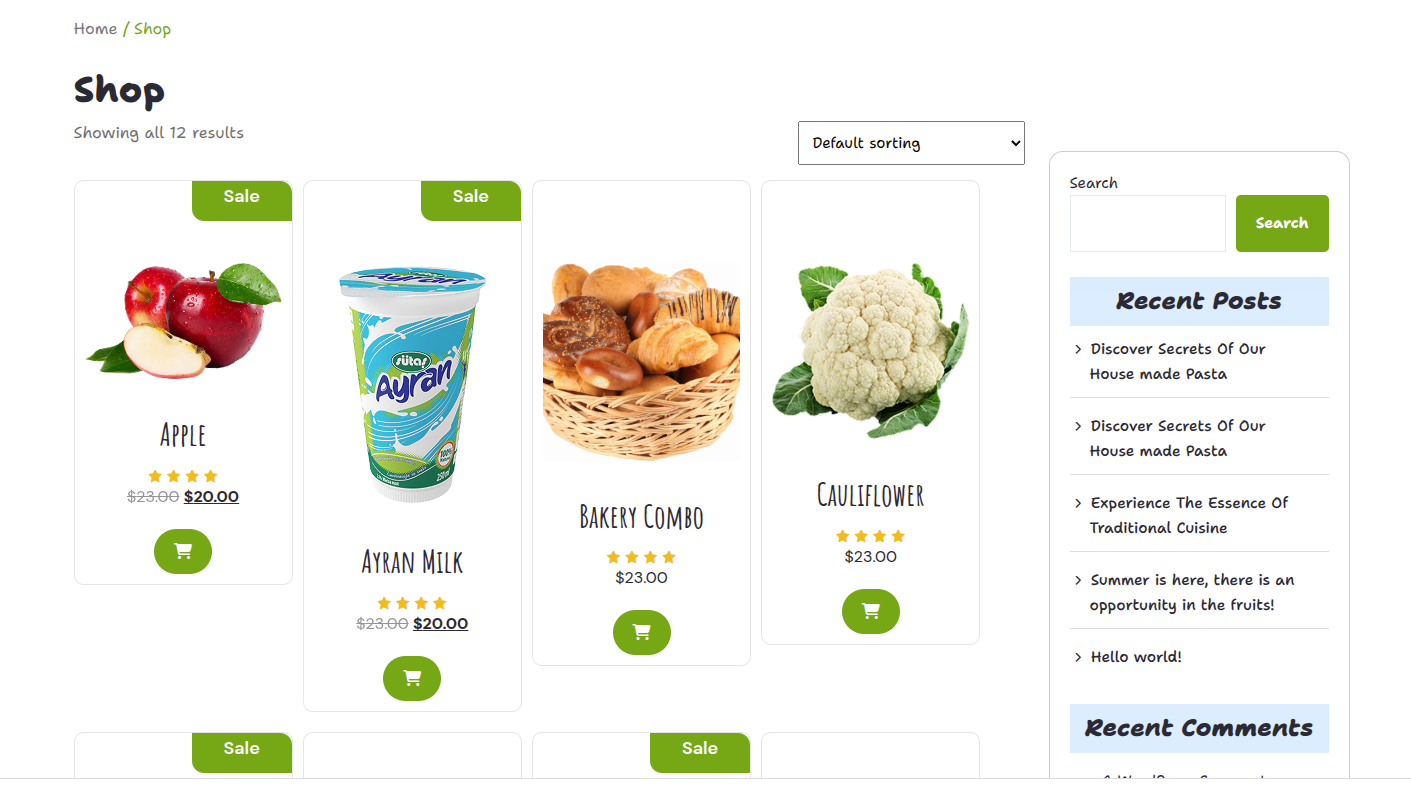
You can set number product show in page and show the number of row in section. You can choose from this options for each Theme WooCommerce Settings.
In front end, it will look like this.
Section Reorder Settings
Section Reorder Settings
In order to proceed with you can change or reorder the section . follow the instructions given below.
You can change also hide the section. You can choose from this options for each section reorder Settings.
In the Dashboard, go to Appearance >> Customize >>Theme Settings >> Header Settings >> Section Reorder Settings
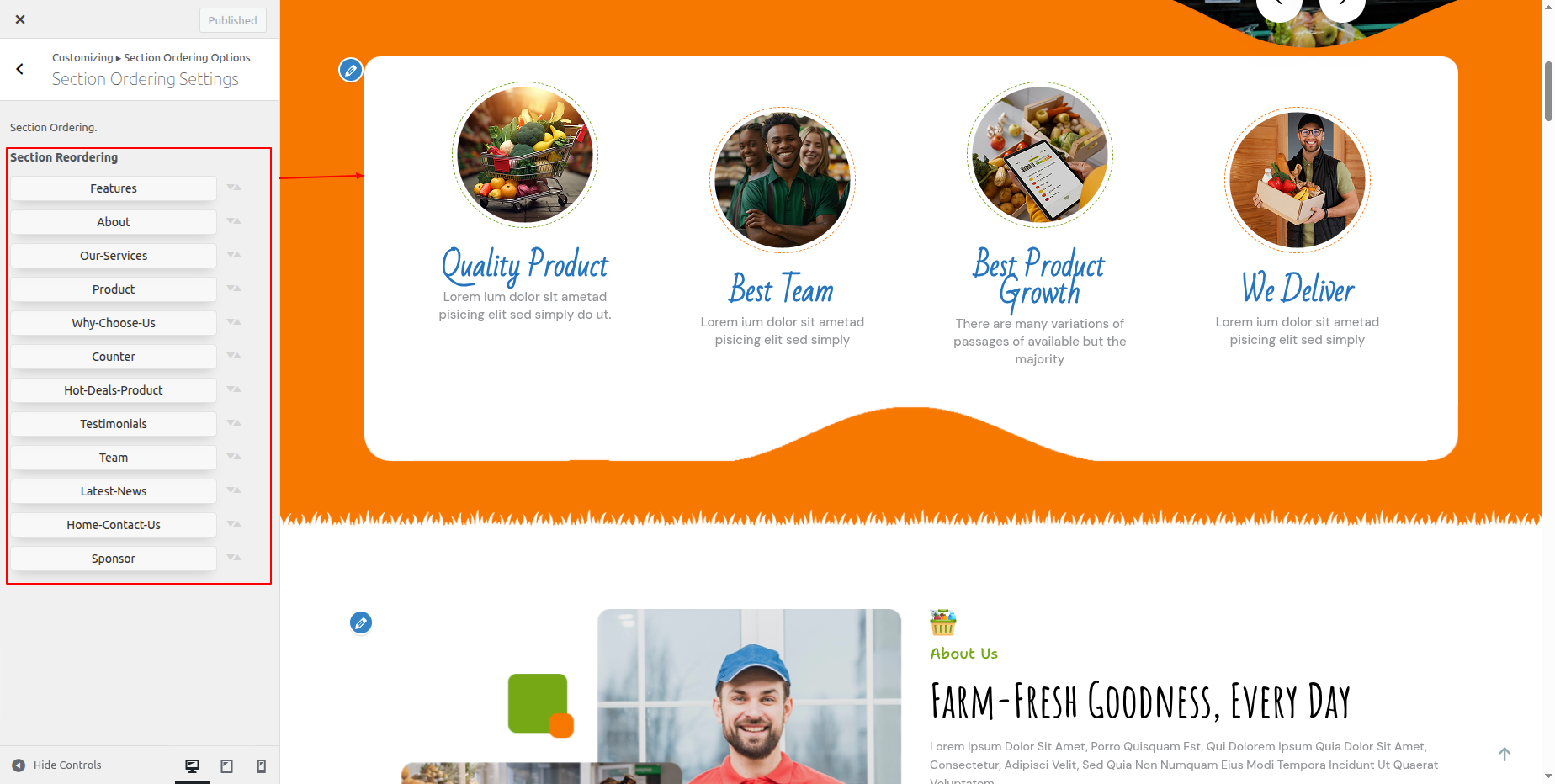
In front end, it will look like this.