Wedding Planning Services Free Documentation
Your awesome theme / template documentation
Introduction
- Theme Name : Wedding Planning Services
- Author : misbahwp
- Support Forum : https://wordpress.org/support/theme/wedding-planning-services/
- License : GNU General Public License v3 or later
- Discription :Wedding Planning Services is designed for creating professional websites for wedding planners,event organizers, coordinators, and related service providers. It includes layouts for showcasingservices, photo galleries, event portfolios, pricing packages, testimonials, and contact forms.The design focuses on clean layouts, readable typography, and organized content sections to present wedding events, vendors, and planning details clearly. This theme can be used by wedding planners, event management companies, decorators, photographers, venue planners, invitation designers, and bridal consultants who want to display their services and past events online. It supports responsive design, customizable sections, blog pages for wedding tips, and gallery layouts for event photos. Wedding Planning Services also includes homepage sections for featured services, client testimonials, image galleries, and contact information, making it suitable for service-based wedding businesses that need a simple and structured website to present their work and information online.
How to Establish the Theme
Setup Theme
Template installation is very simple process.
You can also install your theme using WP Admin
The first task is to log in to your WordPress admin area. Next, click on
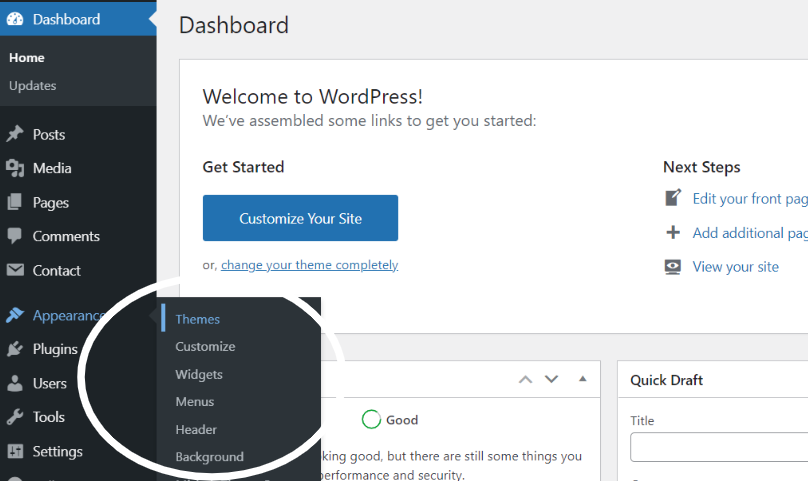
1. In dashboard click on Appearance >> Themes
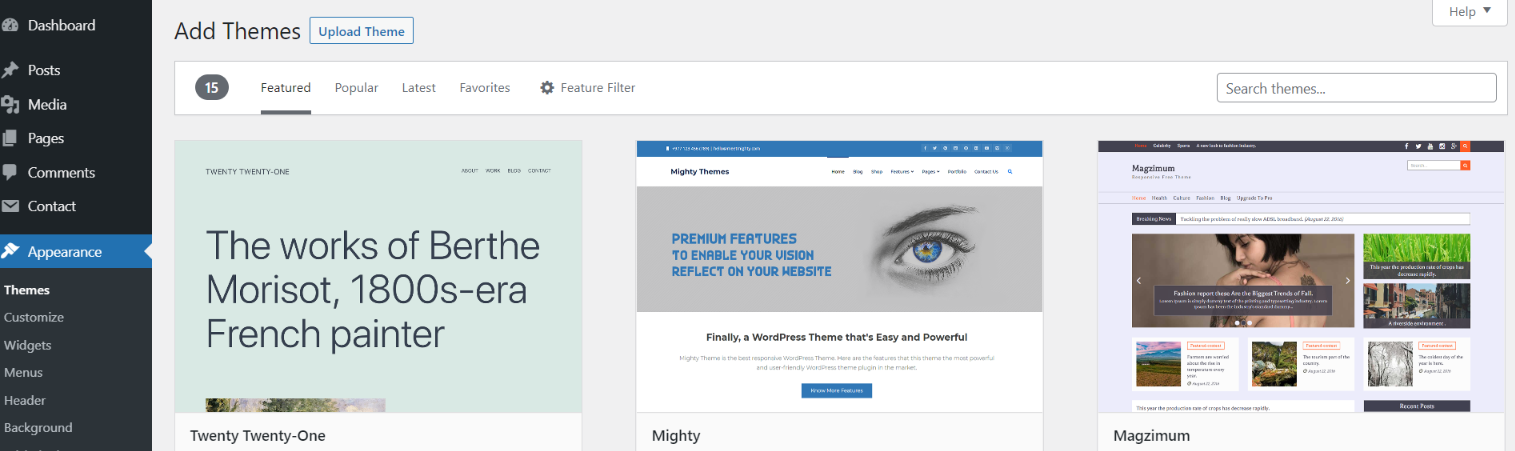
2. Click on the Add New button at the top of the themes page once page is loaded.
3. Click the button labelled as 'Upload Theme'.
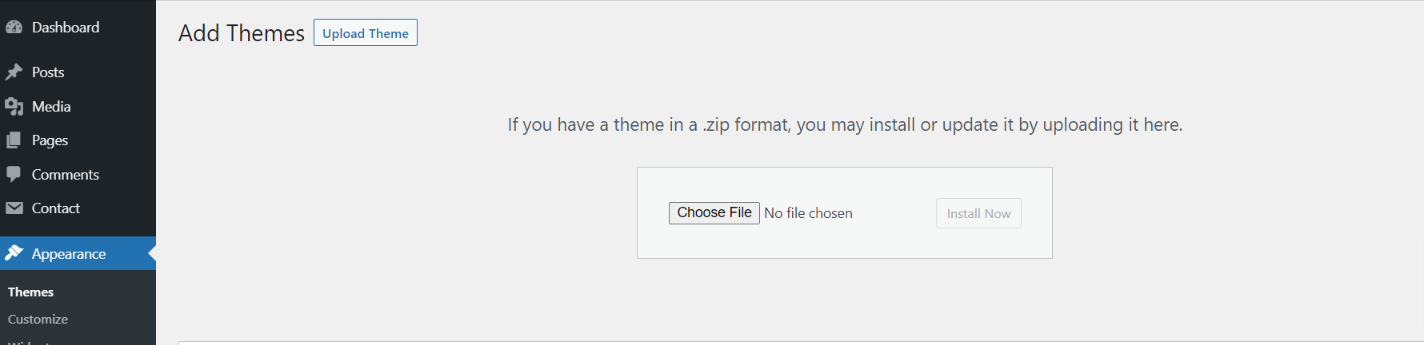
4. Click on Browse Button then select your wedding-planning-services.zip theme and click on install now button.
5. WordPress will now install your theme and display a success message, as well as a link to activate or to see the live preview. Congratulations on completing the installation of your theme.
Configure Menu
Configure Menu
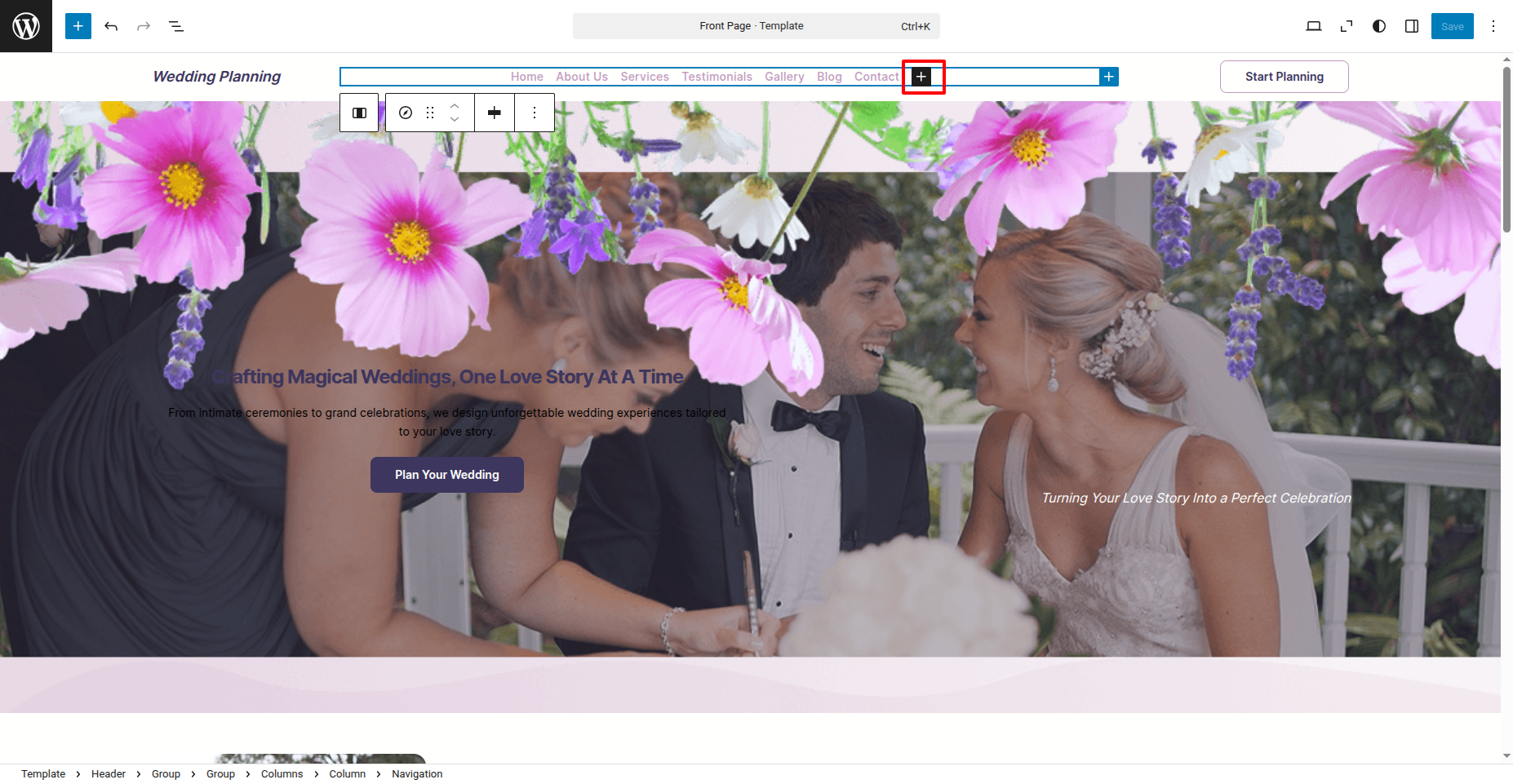
To construct a menu item with Editor, move on the steps provided.
Construct a menu.
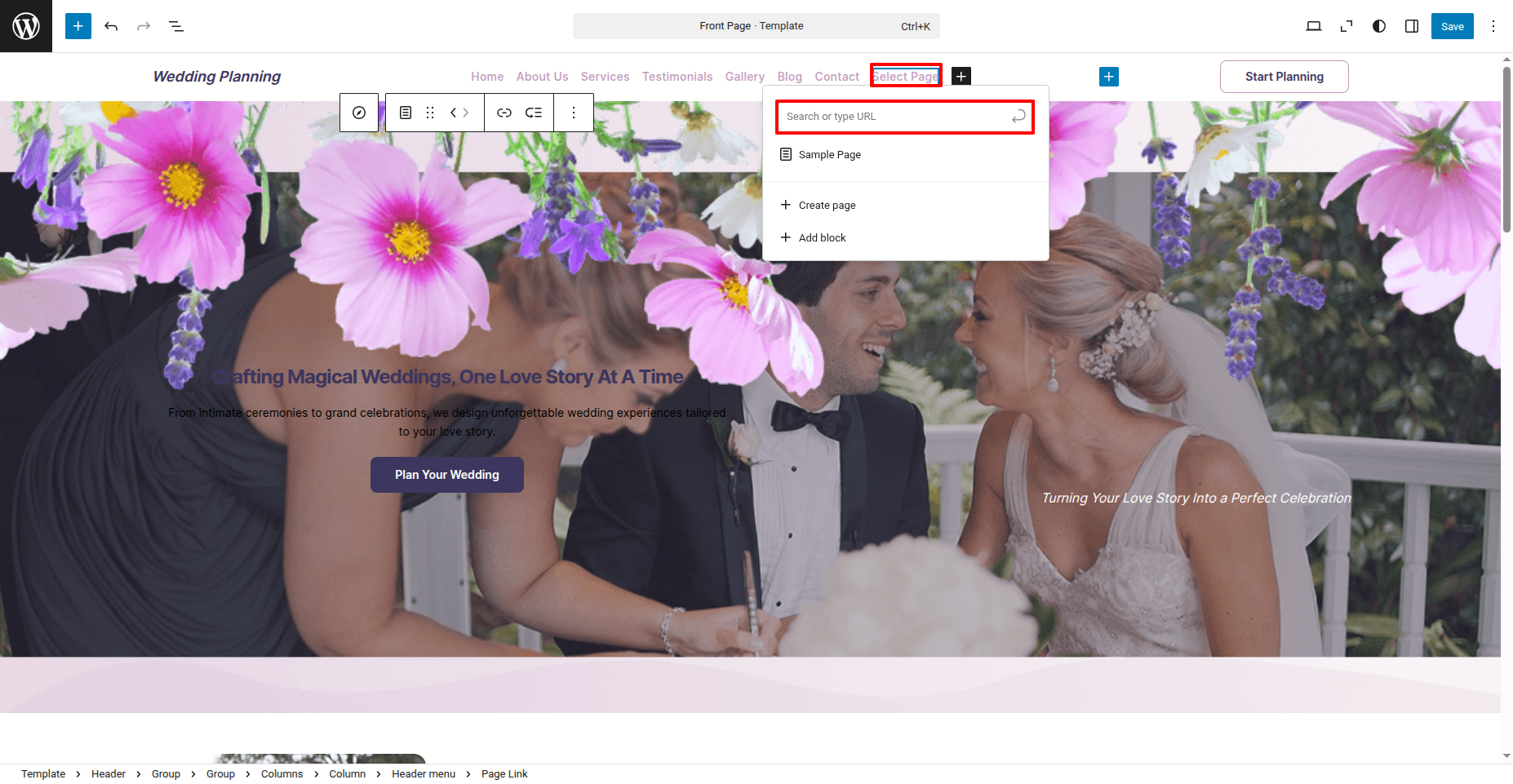
In the dashboard, go to Appearance >> Editor and touch on the plux icon.
You can search, provide a URL, or select a page from the list.
On the front end, the menu will appear as follows.

Wedding Planning Services Free Theme Setup
Configure Header
In order to proceed with Header follow the below steps.
In the dashboard, go to Appearance >> Editor
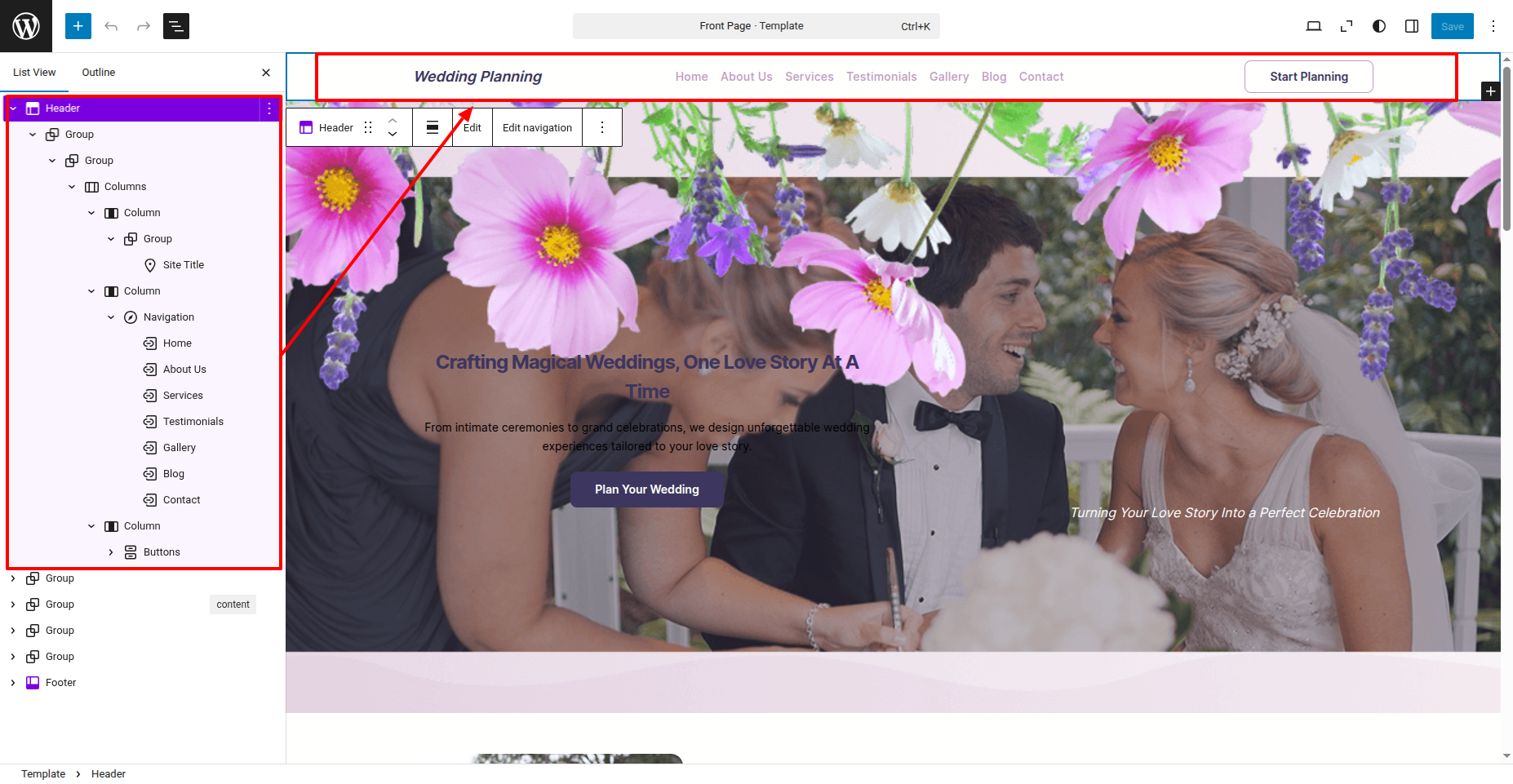
In front end, it will look like this.

Logo Setup
In order to proceed with Logo follow the below steps.
In the dashboard, go to Appearance >> Editor
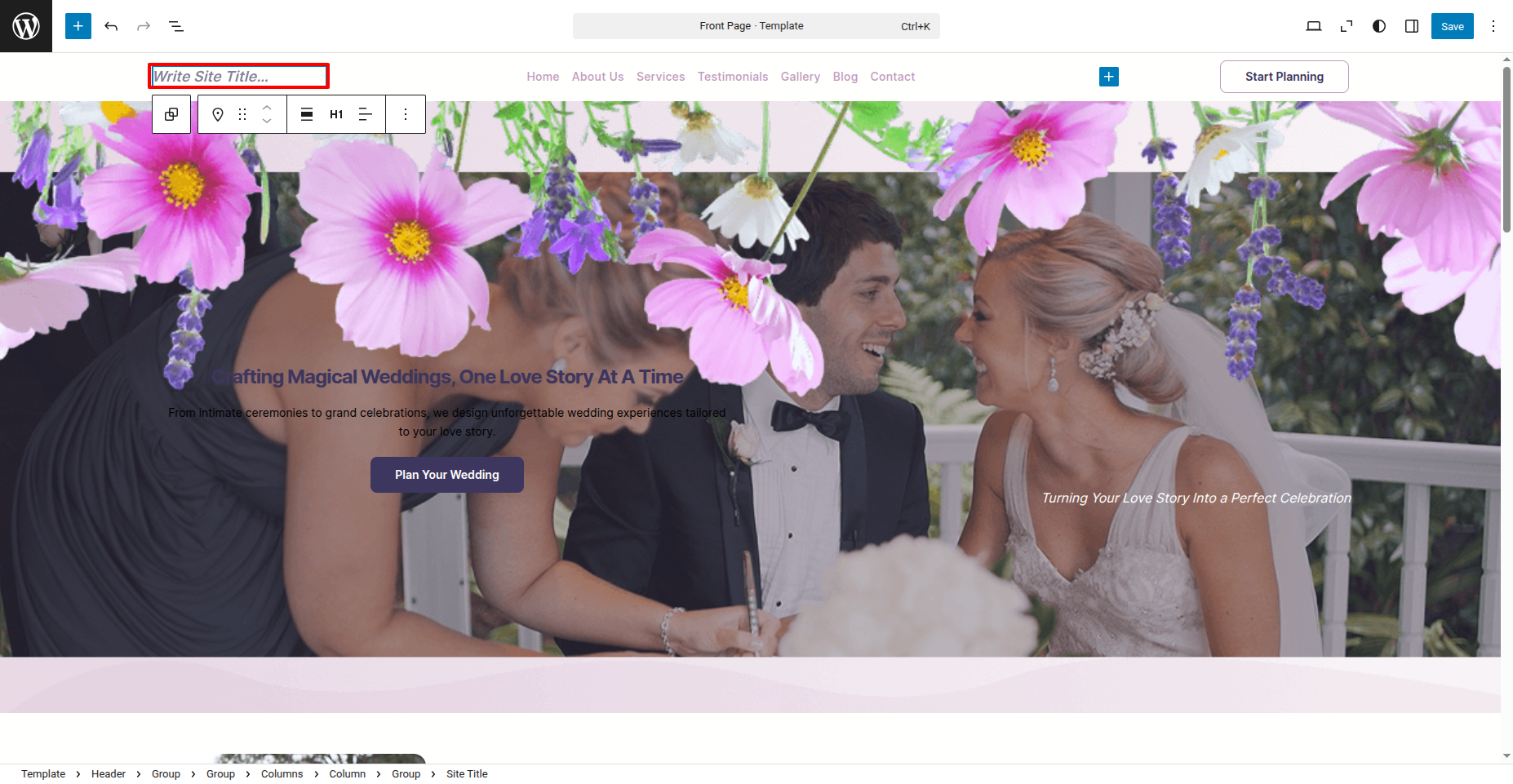
In front end, it will look like this.
Banner Section
In order to proceed with Banner follow the below steps.
In the dashboard, go to Appearance >> Editor
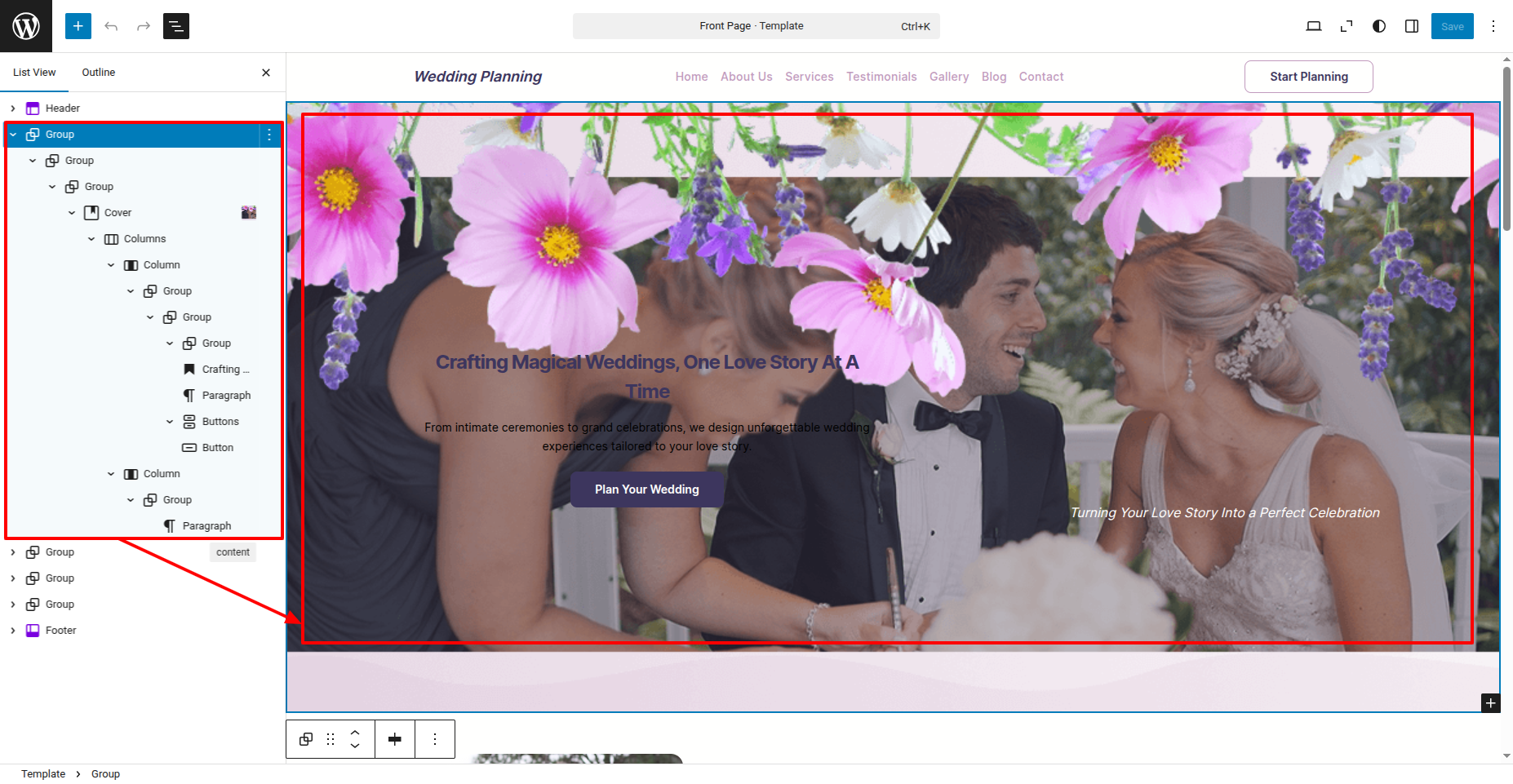
In front end, it will look like this.
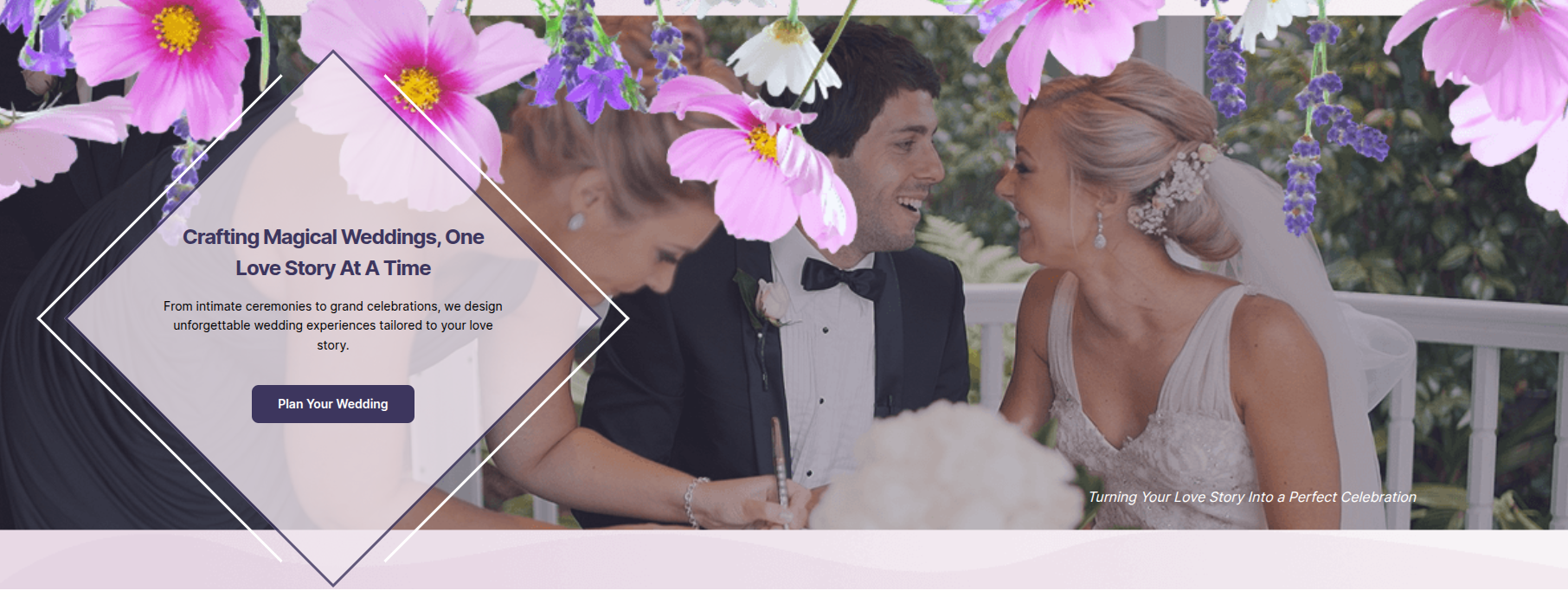
Featured Section
In order to proceed with Featured follow the below steps.
In the dashboard, go to Appearance >> Editor
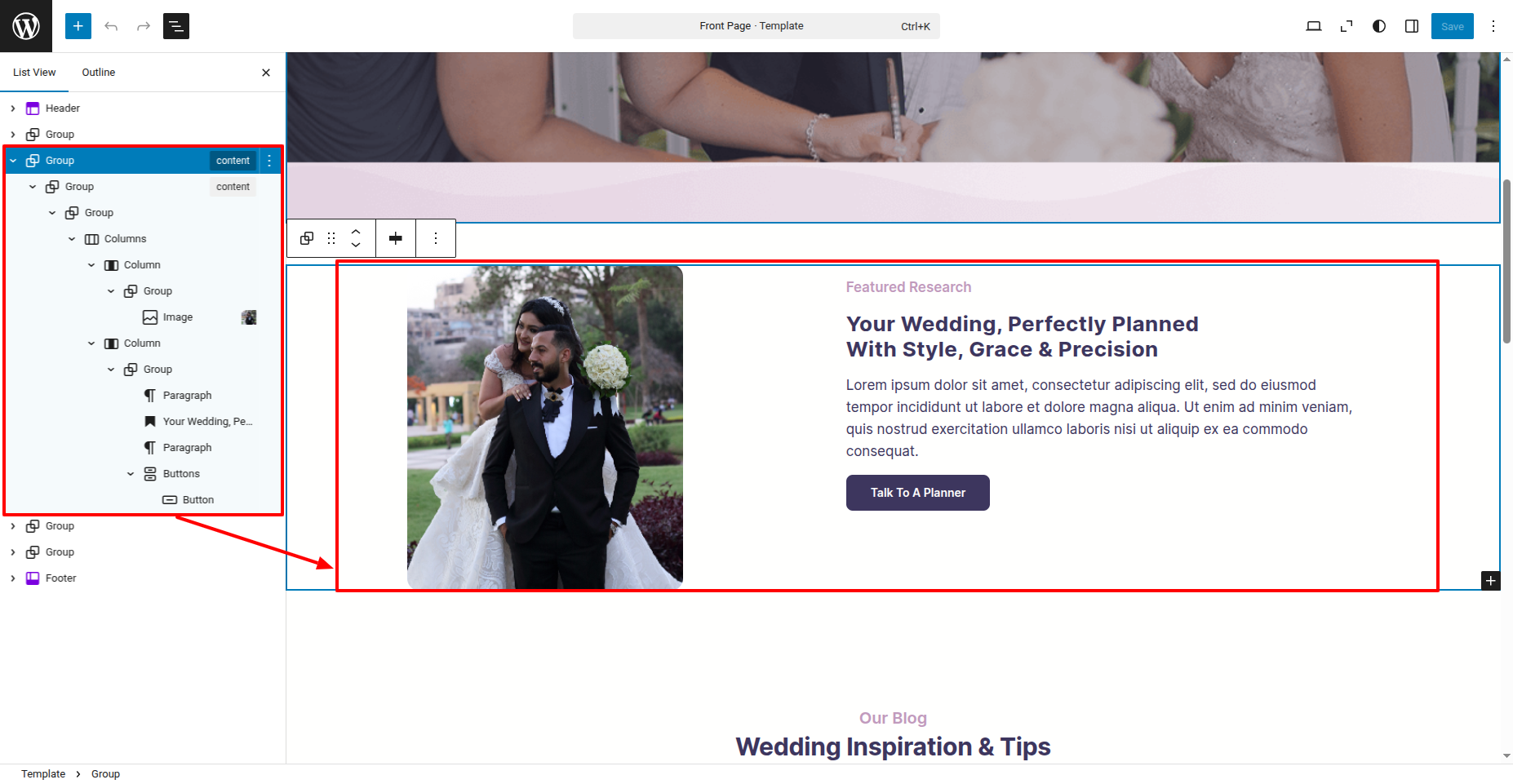
In front end, it will look like this.
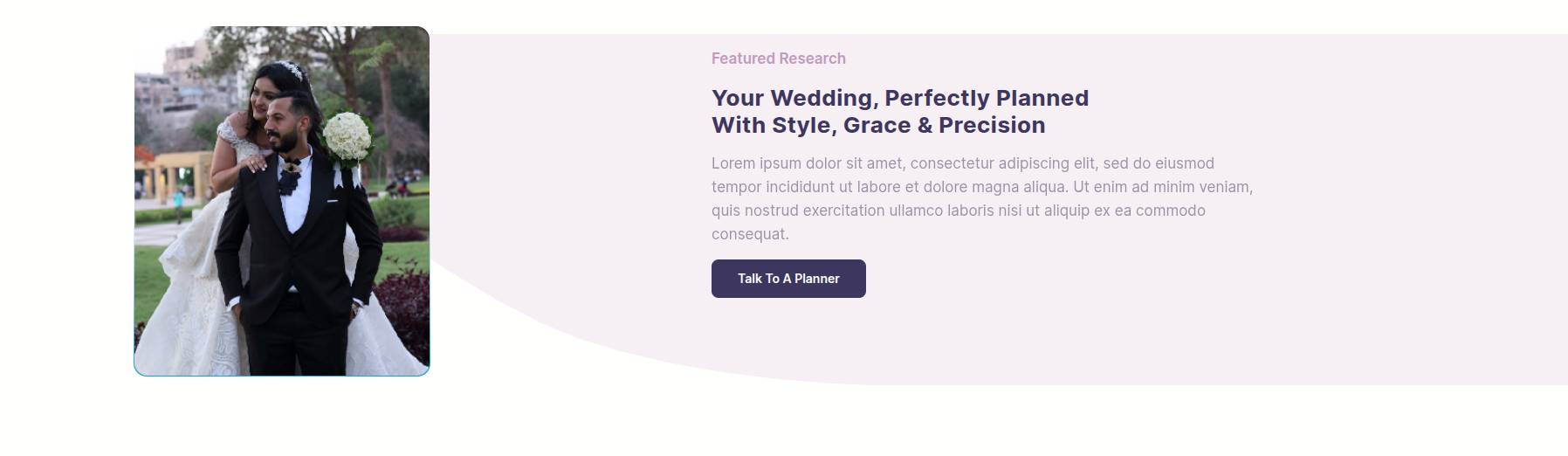
Latest News & Blog Section
In order to proceed with Latest News & Blog follow the below steps.
In the dashboard, go to Posts >> Add New Posts
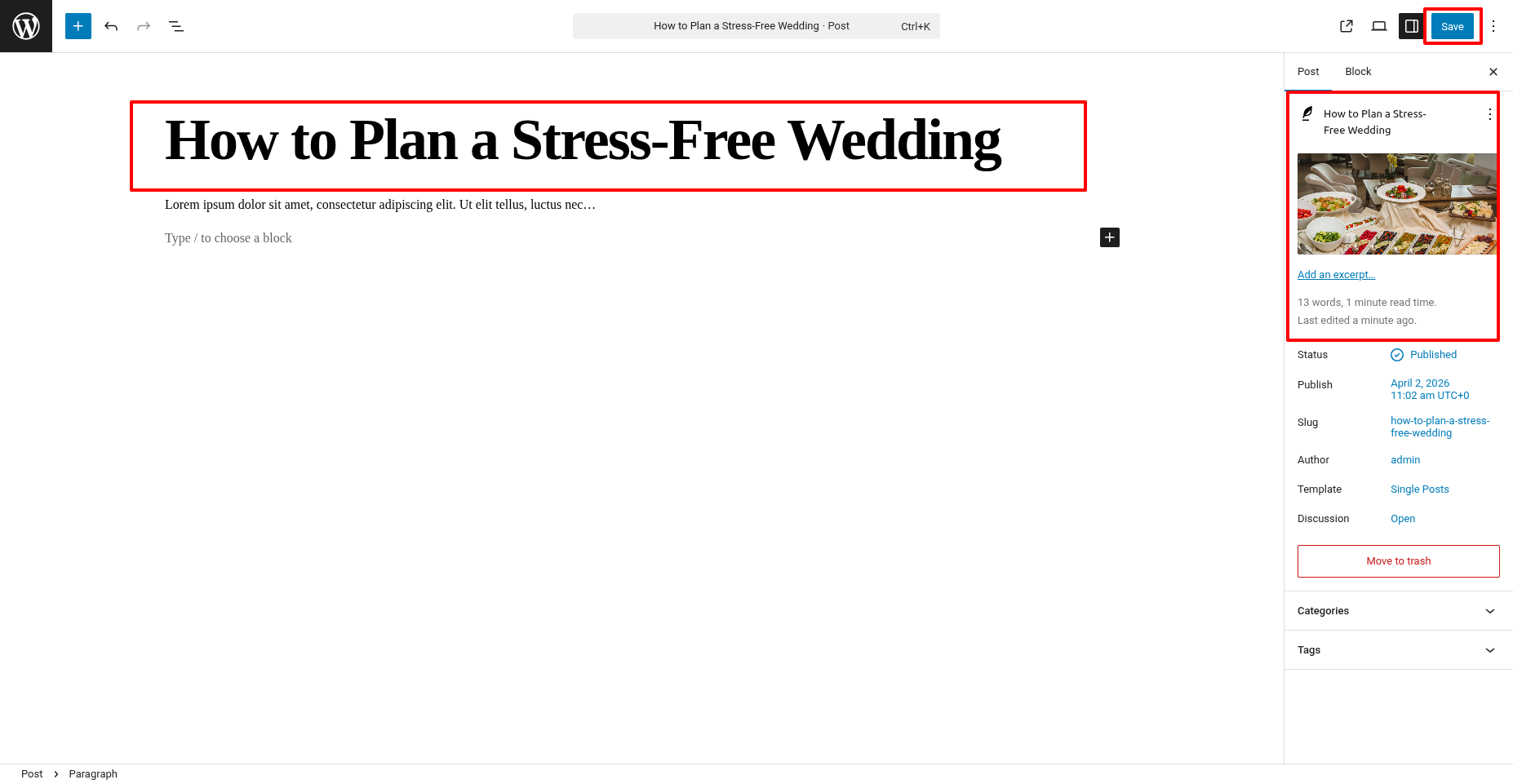
In the dashboard, go to Appearance >> Editor
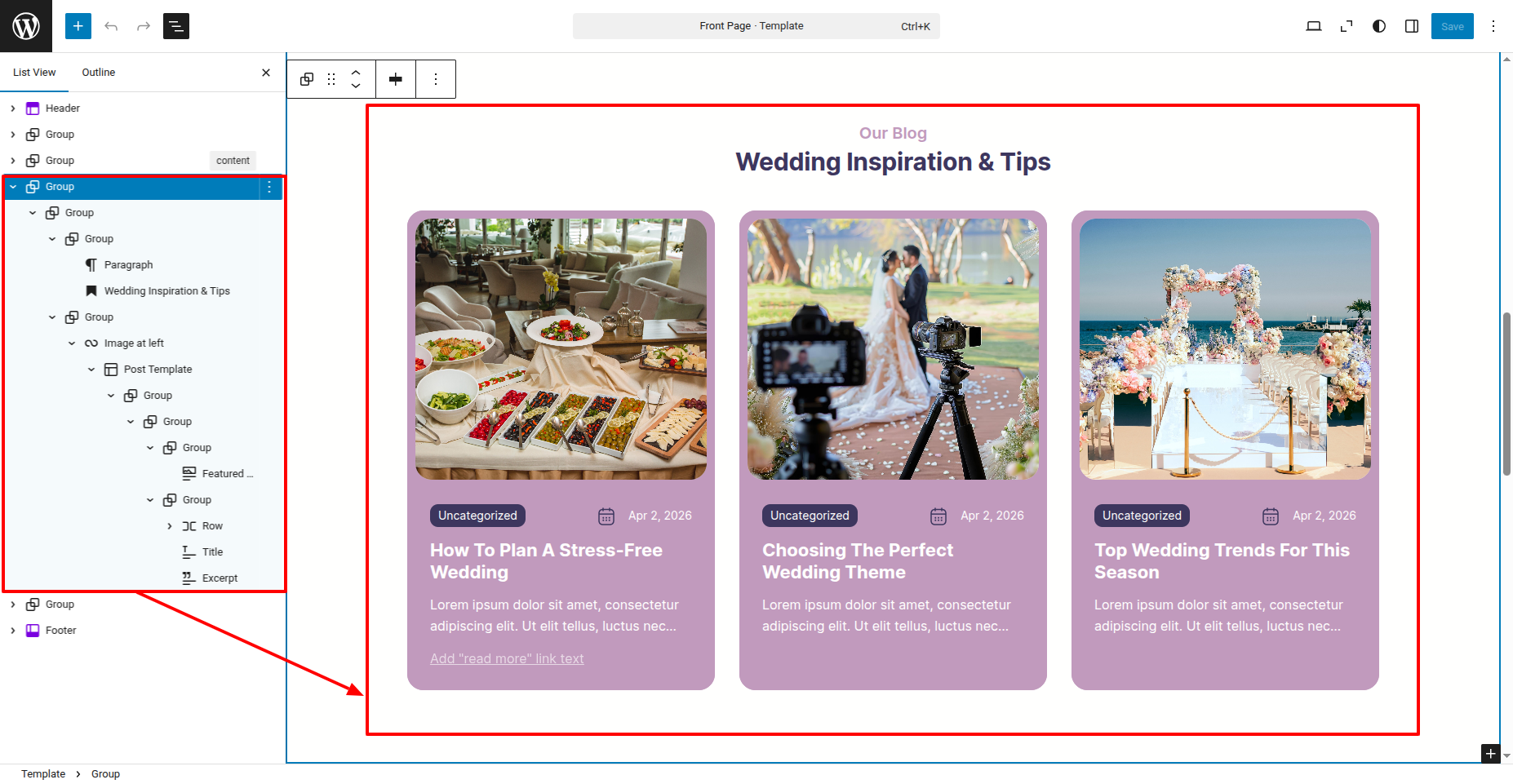
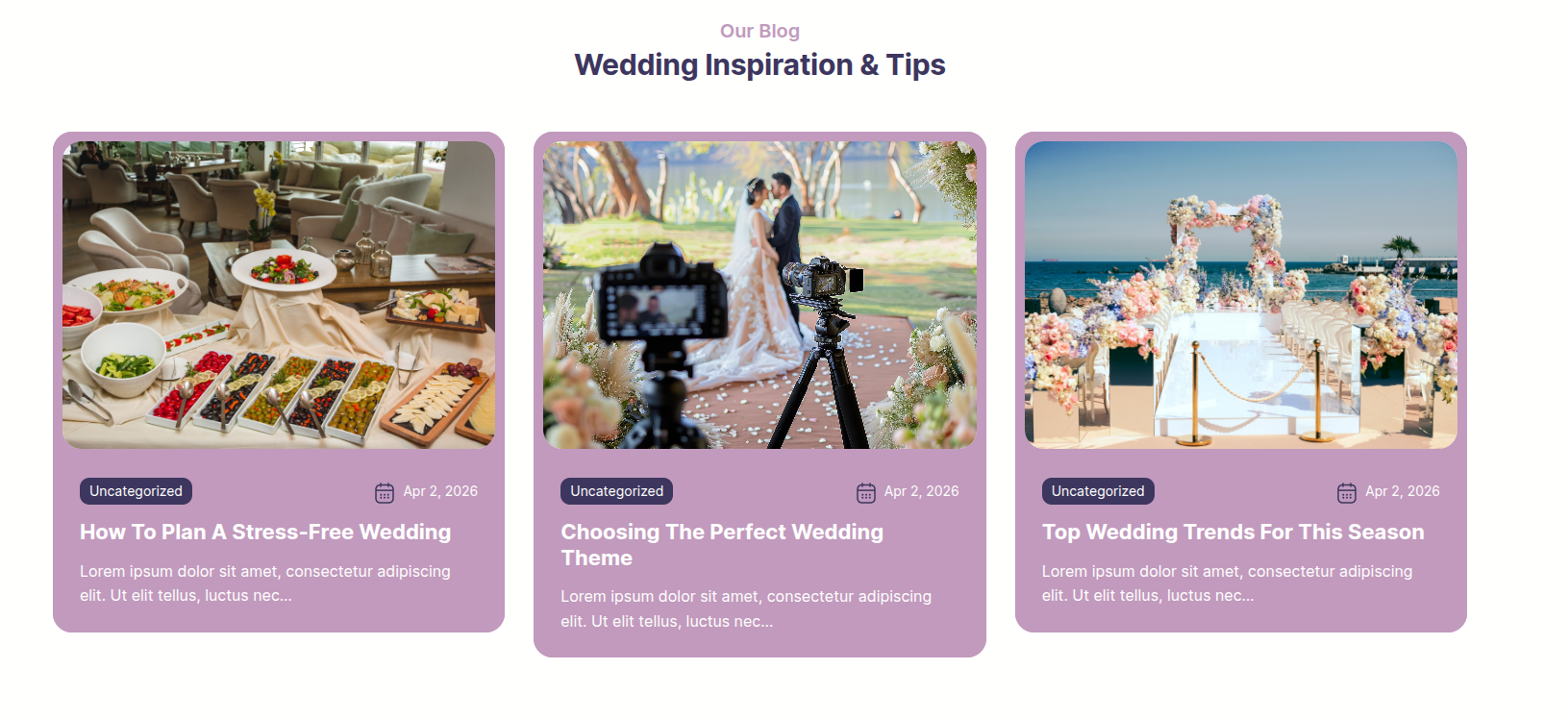
In front end, it will look like this.
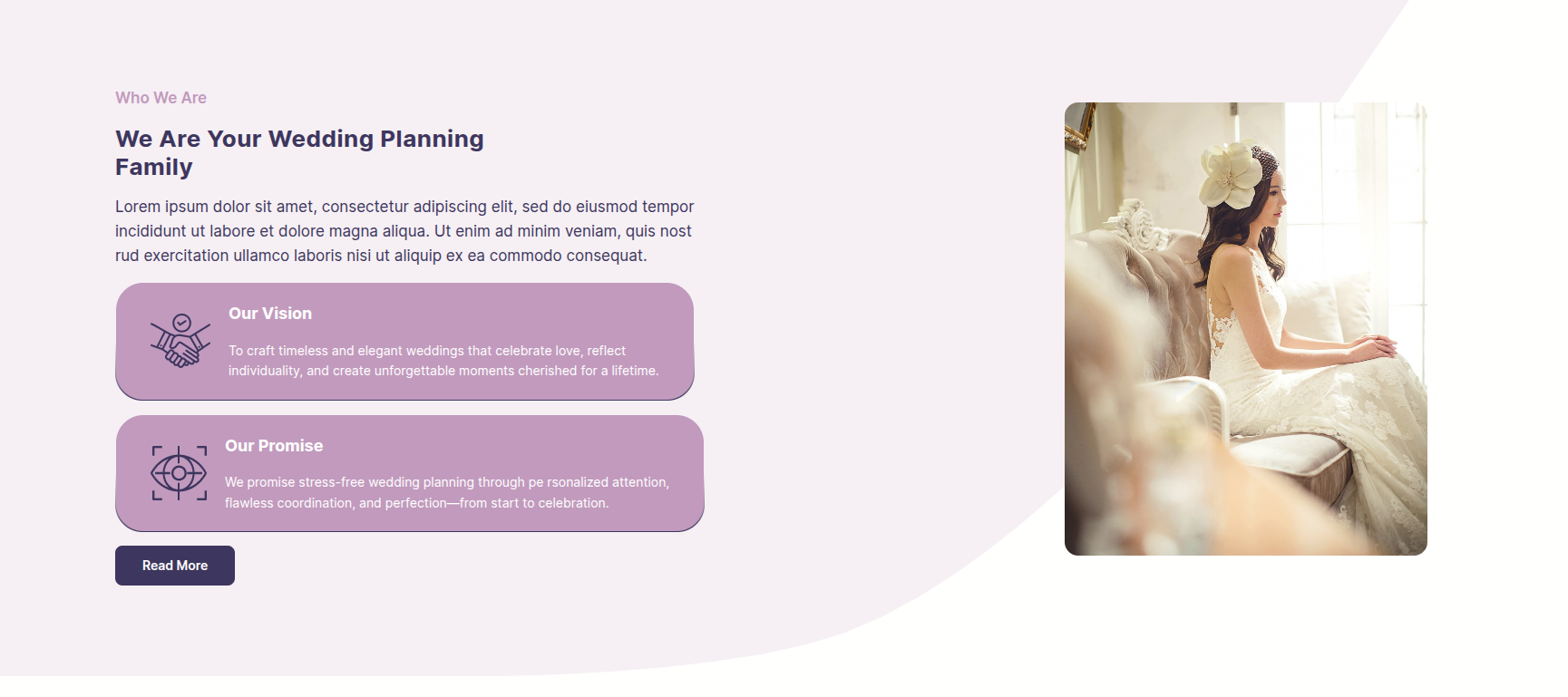
Who We Are Section
In order to proceed with Who We Are follow the below steps.
In the dashboard, go to Appearance >> Editor
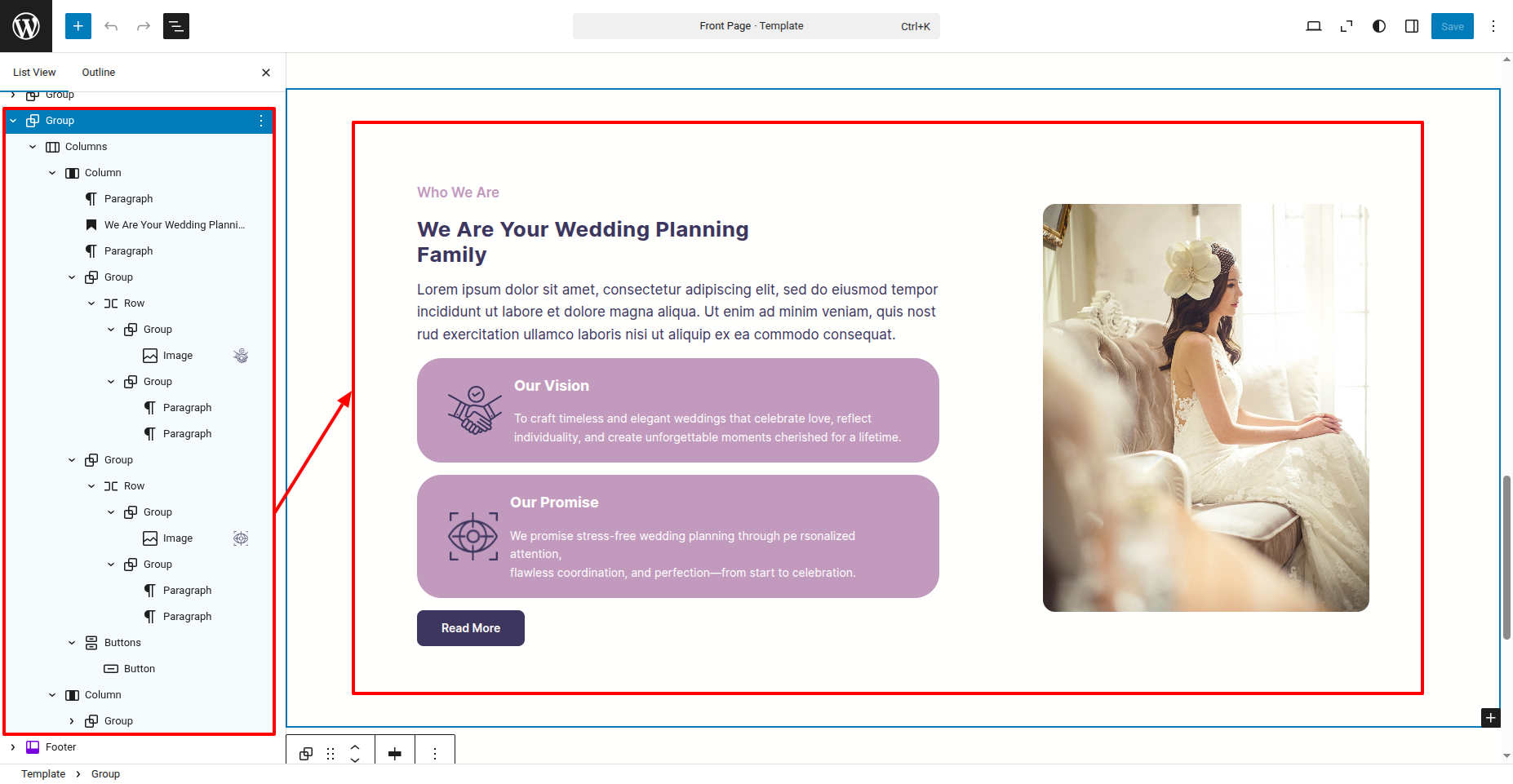
In front end, it will look like this.
Setup Footer Section
In order to proceed with Footer follow the below steps.
In the dashboard, go to Appearance >> Editor
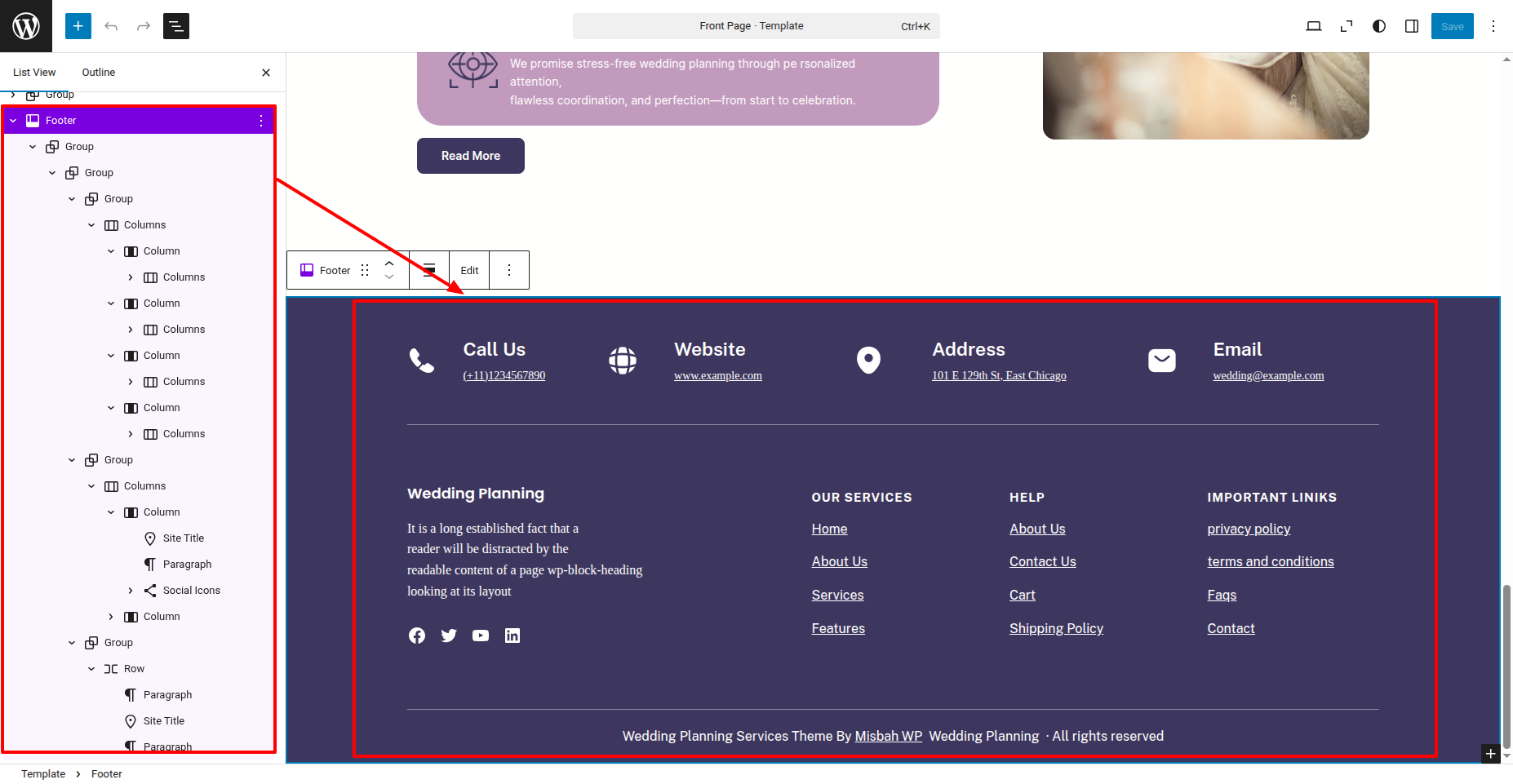
In front end, it will look like this.